
SVGOMG: shrink an icon without opening a terminal
Summary
Files exported from design software are often bloated: editor metadata, comments and redundant path points make up most of the weight. SVGOMG puts the optimiser in a web page, with a toggle for every option and a live size figure.
Recommend- Name
- SVGOMG
- Version
- 4.0.1
- Pricing
- Free
- Open source
- Open source
- Operating system
- Web
- Website
- https://svgomg.net/
- Updated
- 2026-10-07 18:36
Why an exported icon is heavier than it looks
A vector file is supposed to be the light option, and then you look at the size of an icon that draws two shapes. The reason is that the exporting program writes down everything it knows, not everything the picture needs: layer names, editor metadata, comments, coordinates carried to seven decimal places, groups that wrap a single path. None of that is visible on screen, and all of it travels with the file to every visitor of the page.
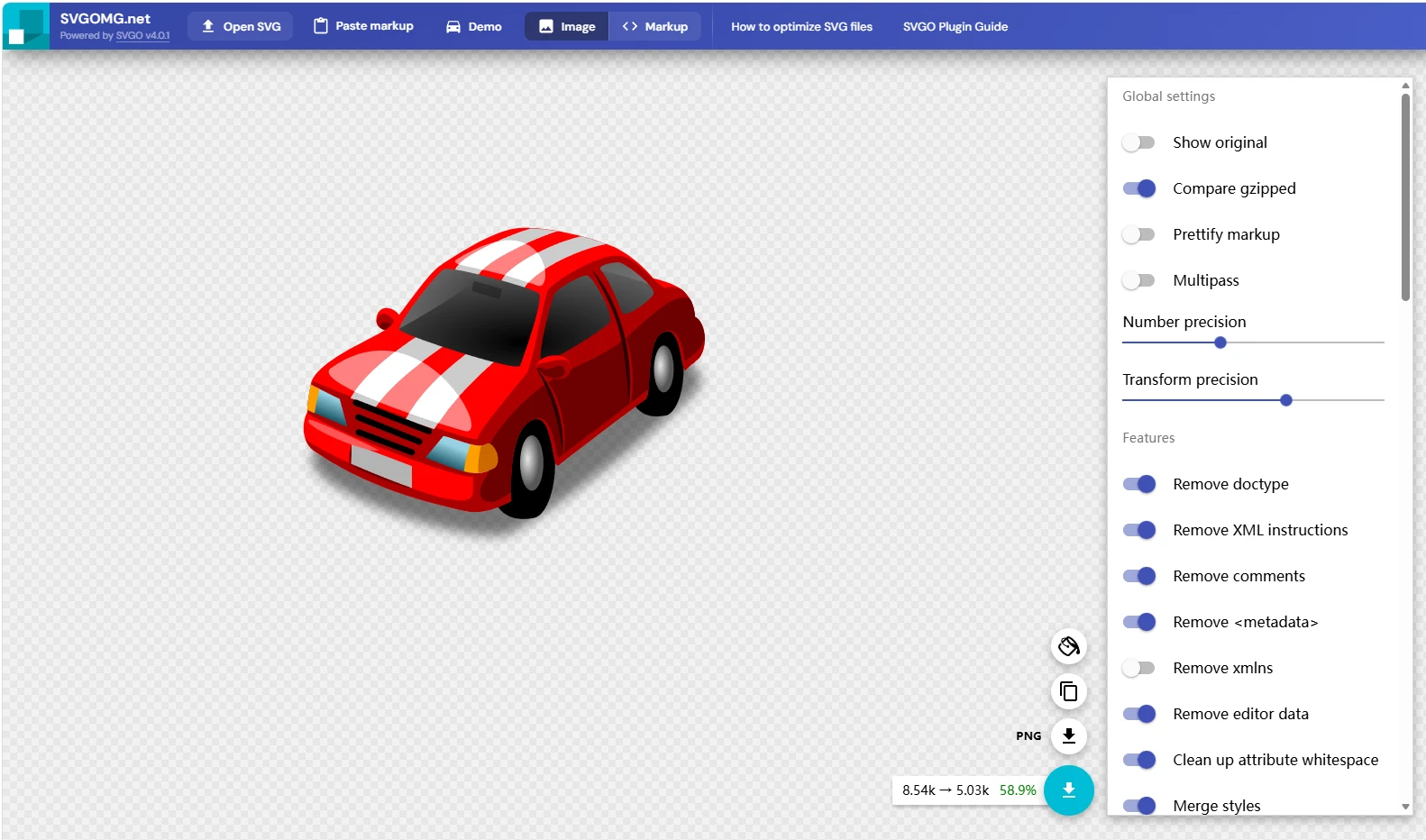
A command-line optimiser solves this properly and is the right answer for a build pipeline. It is also the wrong answer for the designer who needs to handle three icons on a Tuesday afternoon, because installing a runtime and remembering the flags costs more than the icons are worth. SVGOMG puts the same class of optimiser inside a web page: drag the file in, and the left side is a list of individual switches while the right side shows the result and the size change as you toggle them.
Everything happens in the browser, and that is the point
The most considerate property is the privacy boundary. All of the computation happens locally in the browser, and the file never leaves your computer. Client deliverables and unreleased design drafts can go in without a second thought, which is not true of most tools that offer to process a file for you. That single design decision is what makes it usable at work rather than only in a personal project.
The defaults are safe for the overwhelming majority of icons, and when a complicated gradient or filter effect breaks, the answer is to find the corresponding option and switch it off. The one-option-at-a-time design means there is always a way back from a bad result, which is the difference between experimenting and gambling. The size comparison is displayed as a number, so the improvement is not a feeling but a figure, and the output is one click to copy or download.
It is open source, free, and there is nothing to install: open the page and use it. For a category of tool that usually hides its logic behind a single button, showing every decision is unusual and worth praising.
The value is that optimisation stops being folklore and becomes a row of switches: every kilobyte saved has a visible cause, and every choice leaves room to undo it. Transparency is the best virtue a tool can have.
How to use it without breaking a picture
For icons and simple illustrations, leave everything on. These are the cases where the defaults were tuned, and the reduction is usually dramatic with no visual difference at all. For graphics with filters, masks or gradients, work through the options one at a time instead: switch off the ones that damage the appearance, and keep the rest. A picture that looks wrong after optimisation is almost always one specific plugin, not the process as a whole.
When the task becomes a batch, go back to the command-line version and wire it into the build. The web page is for the ad hoc case and for verifying what a setting actually does before you commit it to a pipeline. Running a finished project's icons through it once before delivery is a small habit with a measurable payoff, since every visitor downloads the result on every visit.
One caution that applies to the whole category: keep the original. The optimised file is a delivery artefact, not a master, and re-optimising an already optimised file is how a picture slowly loses the details nobody was looking at.