
Qianwei Jietu 1.0.4 keeps capture, recording and recognition on the machine
Summary
Qianwei Jietu 1.0.4 folds rectangle capture, scrolling capture, 4K 60 fps recording, annotation, pinned images, a colour picker and four kinds of recognition into one Windows client. The picture never leaves the machine, and the basic capture and recording run without an account.
Recommend- Name
- Qianwei Jietu
- Version
- 1.0.4
- Open source
- Proprietary
- Operating system
- Windows
- Website
- https://jt.qwrj.com/zh
- Updated
- 2026-10-23 21:31
Screenshots are a dozens-a-day habit, and most people still press the system shortcut and then open a paint program to add an arrow. Qianwei Jietu 1.0.4 gathers those scattered moves into one Windows client: rectangle, scrolling capture, recording, annotation, pinned images, colour picking, and text and table recognition on top. The picture never leaves the machine.
One Alt+Q starts the whole flow
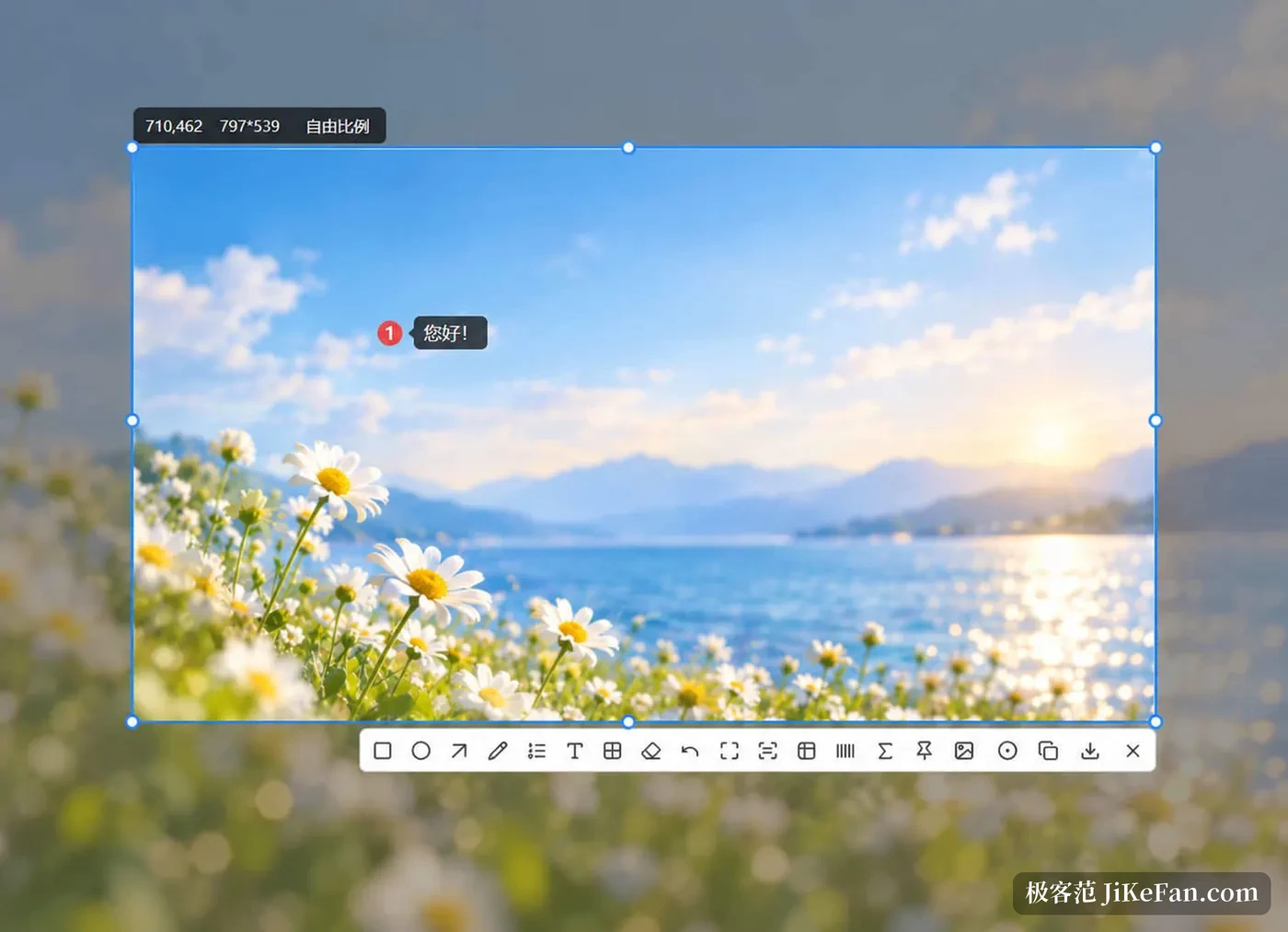
After setup the client lives in the tray. Pressing Alt + Q by default enters selection; drag a rectangle and release, and you land in the preview. Hovering over a window makes the frame snap to that window edge, so nobody has to line the selection up by hand any more.
The preview offers four exits: copy to the clipboard, save as a local image, enter annotation, or switch straight to recording. Escape drops the attempt. All four happen inside one session, which is the point; there is no hopping between programs to finish a single screenshot.
Scrolling capture and recording share one selection
The long capture needs no second window, because it reuses the same selection. Frame the scrollable area, then scroll down as prompted, and the frames are stitched into one tall image. Web articles, chat logs and log listings all behave, provided the scroll stays steady and the window is not switched halfway; then the seams line up.
Recording begins from the same toolbar: frame the area first, then start, and the output is exactly that rectangle rather than whatever happens to be visible. Before the first frame you choose a container such as WebM, MKV, GIF or WebP, a frame rate, and an audio source, with system sound and microphone ticked as needed. The ceiling is 4K at 60 frames, pausing and resuming is allowed mid-take, and the camera can sit in a corner as a secondary picture while you talk. When the take ends the file lands in the local recording folder, and the tray notice opens that location directly.
Annotation, pinning and colour picking
Annotation covers rectangles, ellipses, arrows, a brush, text and numbered steps, and the numbers can run in order so a walkthrough reads as a sequence. For phone numbers and account names, lay mosaic over the digits before sending the image anywhere.
Pinning fixes the current image on the screen above every other window, still editable afterwards. Adjusting your own settings against somebody else's interface, or filling a form from a table, is easier with the reference pinned than with two windows fighting for the front. Colour picking is quicker still: no capture needed, point at a pixel and read its value, then paste it into a design file or a stylesheet.
Recognition runs locally
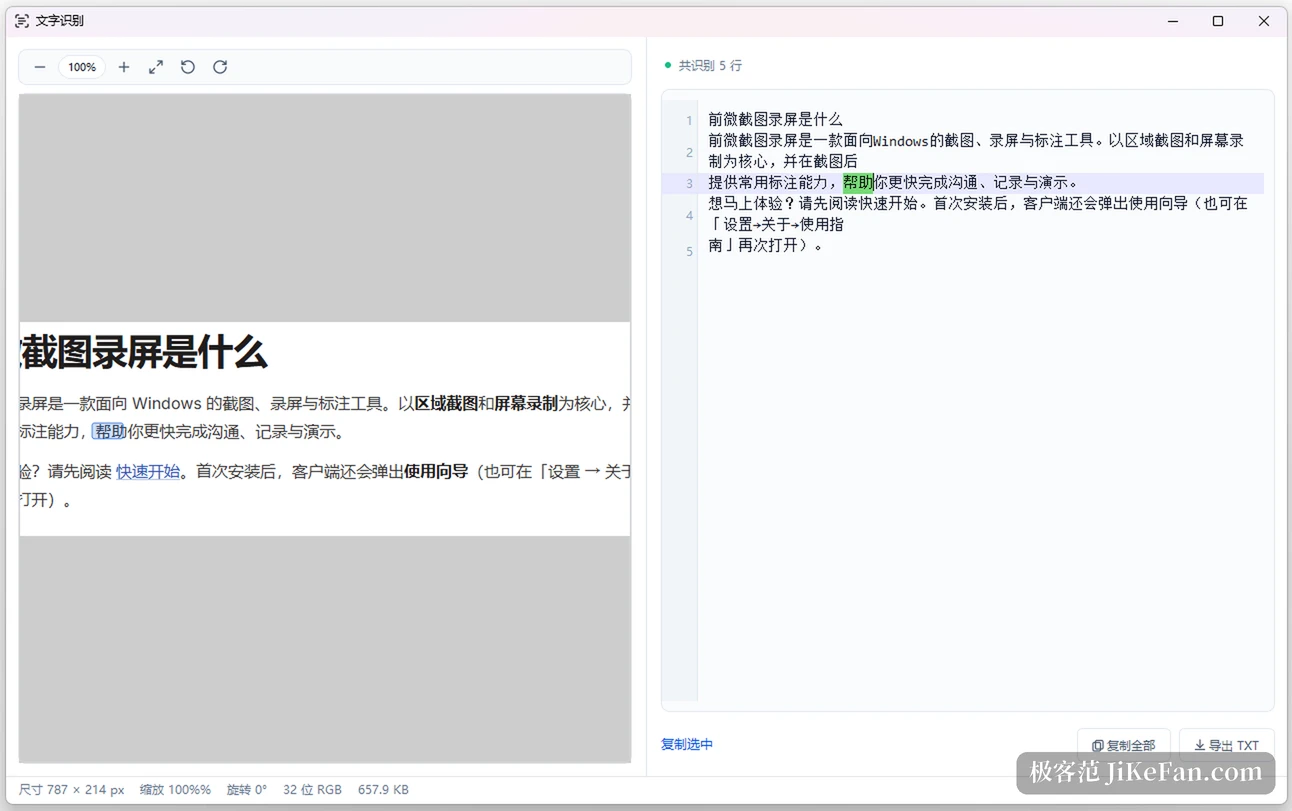
Recognition comes in four kinds. Text recognition reads line by line, so a single line can be copied or the whole page exported as TXT, and error messages stop being retyped by hand. Table recognition rebuilds rows, columns and cells, editable in place or opened and exported in Excel. Barcode recognition reads the encoded content for direct copying. Formula recognition turns the picture into LaTeX source, rendered live on the right so the result can be checked before it is copied.
That is the real difference from services that upload the image to a web page. Offline it still works, a sensitive screen is recognised on the spot, and the result waits in the clipboard. The official documentation states it plainly: capture, recording, colour picking and recognition all finish on the machine, and the network traffic during sign-in concerns the account only.
How far the free tier goes
Basic capture and recording are open for daily use, without an account, and the core flow carries no gate. Membership unlocks the advanced half: fuller annotation and export options, plus the recording settings above the defaults. The exact entitlements and price are shown on the payment page inside the client; this build throws no popup and injects nothing into the interface for want of payment. Distribution goes through the system store, and updates arrive from the same place.
On resources, the store page asks for Windows 10 build 19041 or newer, 4 GB of memory as a floor and 8 GB to be comfortable, a dual core at 2 GHz, a graphics card with DirectX 11, and about 378 MB of disk. That is not small for a capture tool, because the recognition models and the recording encoder ship inside the package; what they buy is recognition with no network at all.
Who it suits
Writing documentation, running support and training newcomers is the natural fit: capture once, draw two marks, pin it and work against it, with the whole run inside one client instead of three programs. Anyone who must record a walkthrough and refuses to learn an editing suite can use the recorder as it stands, and the corner picture gives the result a narrated feel.
Conversely, if you grab a screen once a week for a group chat, the built-in shortcut is enough and a second client earns nothing. Multi-monitor stitching, scripted batch work, or wiring capture into an automated pipeline are not on offer here.
The trade-off in Qianwei Jietu 1.0.4 is plain: capture, scrolling capture, recording, annotation, pinning, colour picking and four kinds of recognition in one client, paid for with 378 MB of disk and repaid by working offline with the picture staying on the machine. For anyone who captures all day and sends images outward, it earns a place in the tray.