Electerm: A Free SSH and SFTP Client With a Built-In Terminal
Summary
Electerm is a free, open-source SSH, SFTP and terminal client for Windows, macOS and Linux that keeps the shell and the remote file manager in one window.
Recommend- Name
- Electerm
- Version
- 5.5.25
- Pricing
- Free
- Open source
- Open source
- Website
- https://electerm.html5beta.com/
- Updated
- 2026-10-06 17:50
One window for the shell and the remote files
Electerm is a free, open-source client for Terminal, SSH and SFTP work, available for Linux, macOS and Windows. What makes it practical is that it refuses to split the job: the terminal emulator, the remote file manager over SFTP and the SSH connection live in the same window, so an edit and the command that follows it are never in two different programs.
Remote files can be opened by double-clicking them in the file pane, which means a configuration change on a server takes as long as it would on a local disk. For files you would rather not edit inside the client, the same pane can hand the file to the editor that the operating system already uses.
What it is built on
The application is put together from open components: electron for the shell, ssh2 for the protocol, node-pty and xterm for the terminal, antd for the interface and subx for the rest. That list explains why the same build runs on Linux, macOS and Windows: the parts that matter are shared rather than rewritten per platform.
What it can do
The client covers three roles that normally need three applications. It works as a terminal, as a file manager, and as an ssh/sftp client, and a session can move between those roles without being reopened.
A global hotkey, ctrl+2 by default, hides or shows the window wherever you are, which matters when a shell has to be reachable in the middle of another task. Several interface languages are included, so the menus can follow the person using them.
Small remote files open on double-click and are uploaded when saved, and small local files can be edited in the built-in editor without leaving the client. Authentication accepts a public key together with a password, and Zmodem transfers through rz and sz are supported for moving a file during a session without a separate SFTP round trip.
On macOS and Windows the window can be made transparent, and the terminal can carry a background image. Network traffic can be routed through a global proxy or a proxy set for a single session, which is what makes the tool usable on a network that only allows one way out.
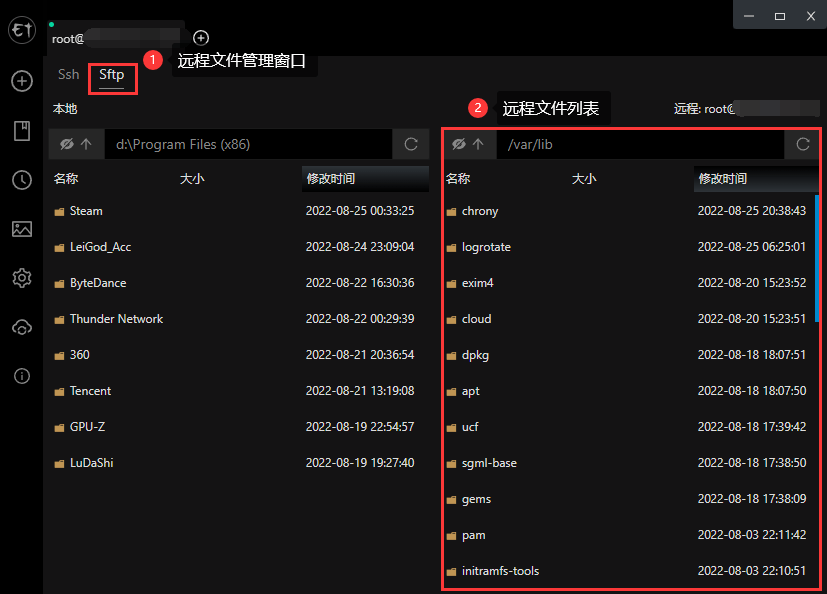
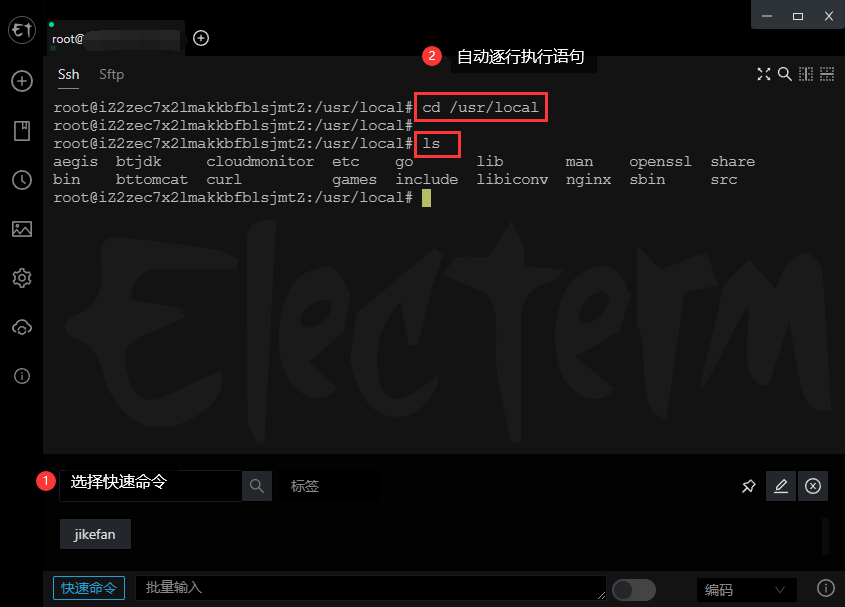
Quick commands are a list of statements kept in the client: you maintain them line by line, pick one, and Electerm runs the lines in order. Typing can also be sent to one terminal or to every open terminal at once, which removes the repetition of running the same command across several servers. Bookmarks, themes and quick commands can be synchronised to a secret gist on GitHub or Gitee, a command-line usage is documented in the project wiki.
Getting started
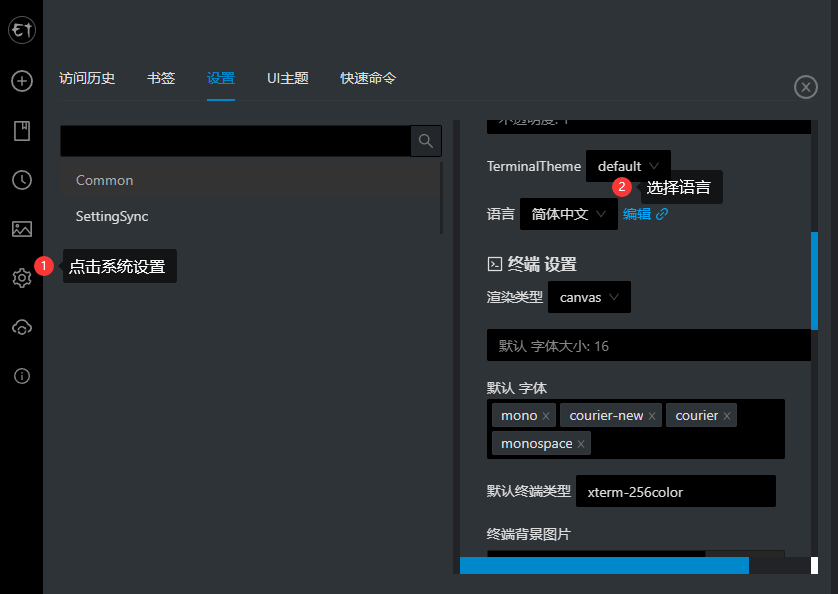
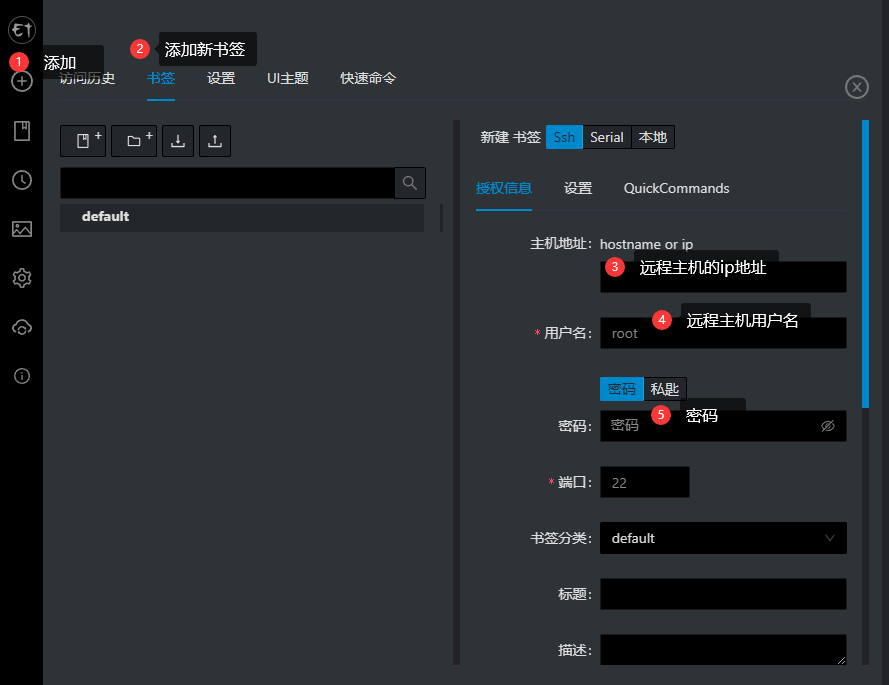
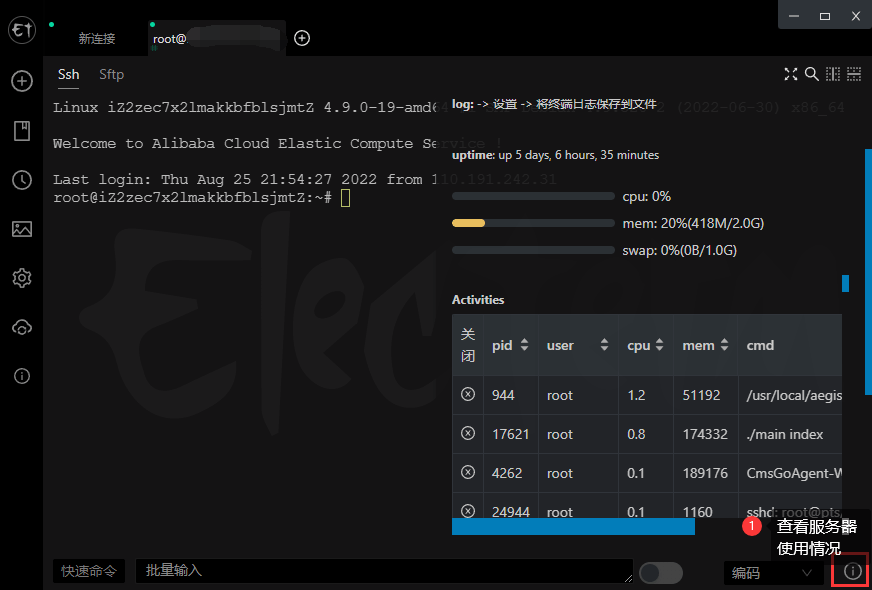
The interface can be switched to Simplified Chinese in the settings, which is the first thing worth doing if the machine is not set up for English. A new connection asks for the host address, the user name and the password, with port 22 as the default; the address, the user and the password are stored so the next connection needs one click instead of four fields.
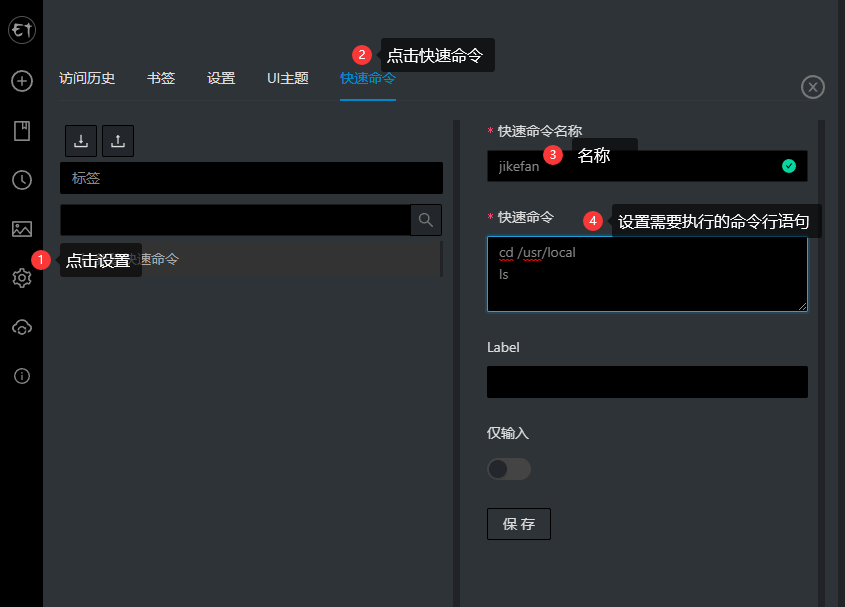
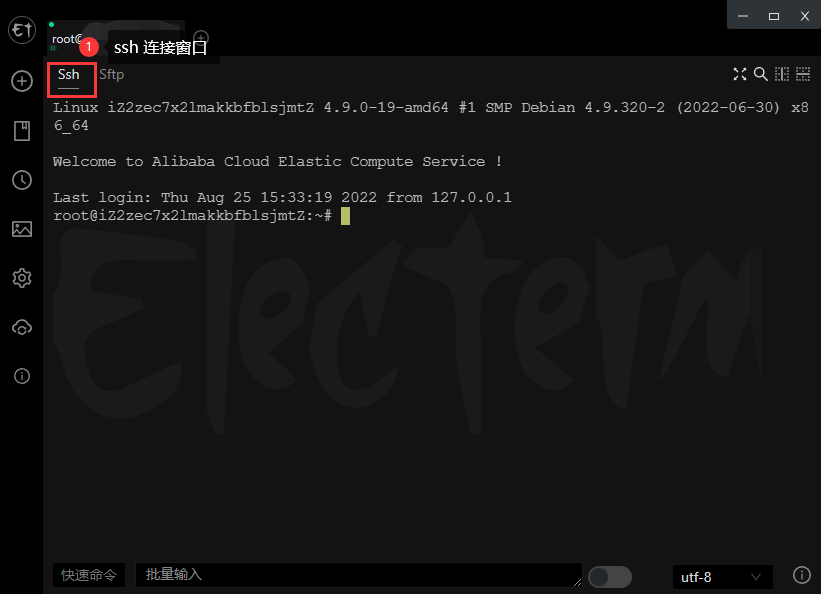
The terminal window and the remote file window sit side by side, and double-clicking a remote text file opens it for editing with the upload following the save. A terminal info panel at the bottom right shows how the server itself is doing, which saves a round of commands when a session starts to feel slow.
Moving the settings to another machine
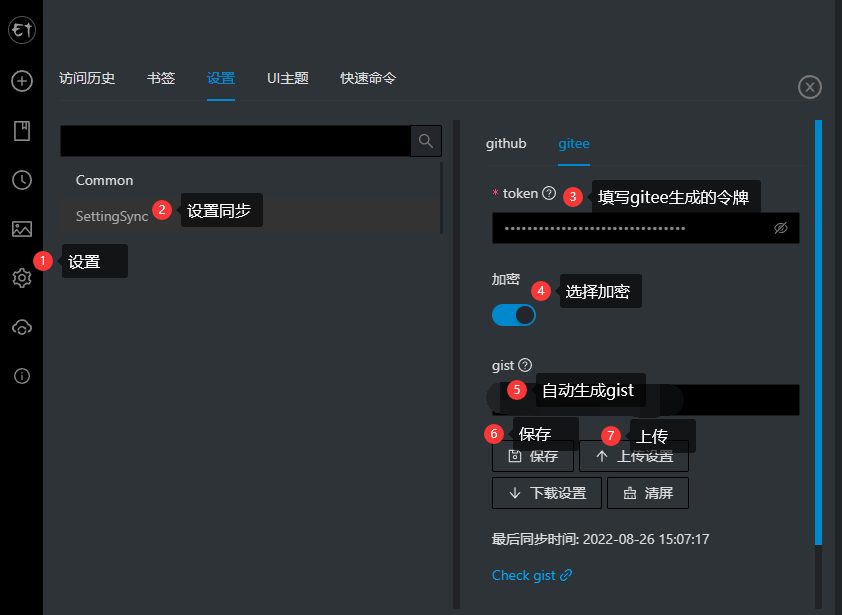
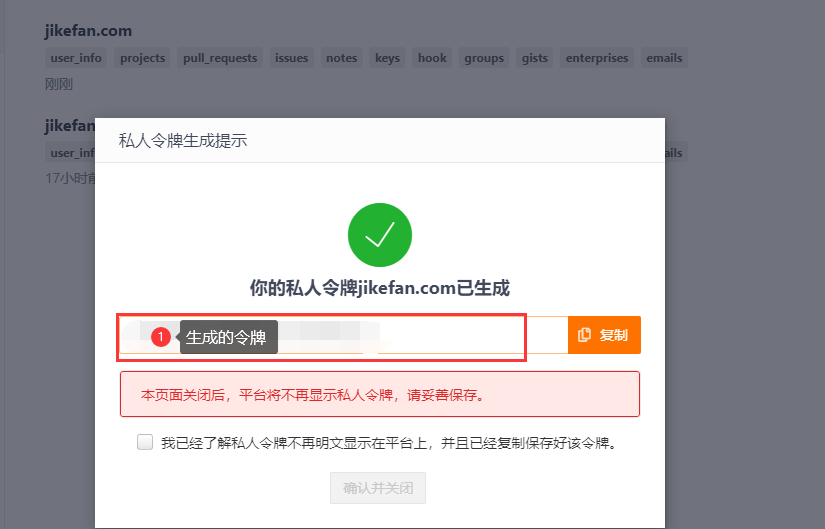
Connection settings and quick commands can be synchronised through GitHub or Gitee. With Gitee, a new token is generated in the account backend first; the token is displayed only once, so it has to be saved somewhere safe at that moment. Then the sync section is switched to Gitee, the token is pasted in, encryption is ticked, and the settings are saved and uploaded.
On a different machine the same token is entered together with the gist that the original machine generated, and after saving, downloading the settings restores the connection list and the quick commands. The project itself is open source and its repository is hosted on GitHub.
Who it suits
Anyone who administers Linux servers from a desktop gets the whole tool in one window: connect, look at the files, change one, run the command that applies it. Developers who keep a handful of machines and a handful of shortcuts end up with the quick command list and the synchronised settings doing most of the work. Because the client is free and open source, nothing about that setup depends on a licence.