
SpeedFan 4.52: free monitoring for hardware temperatures and fan speeds
Summary
A hardware monitoring tool for Windows that reads voltages, temperatures and fan speeds, shows S.M.A.R.T. data and drive temperature, and adjusts fan speeds along custom curves to cut noise. The current version is 4.52.
Recommend- Name
- SpeedFan
- Version
- 4.52
- Pricing
- Free
- Open source
- Proprietary
- Operating system
- Windows
- Updated
- 2026-10-16 22:15
Whether the fans in a case spin fast or slow tends to go unnoticed until noise or heat becomes a problem.
Seeing the temperatures and speeds inside the machine
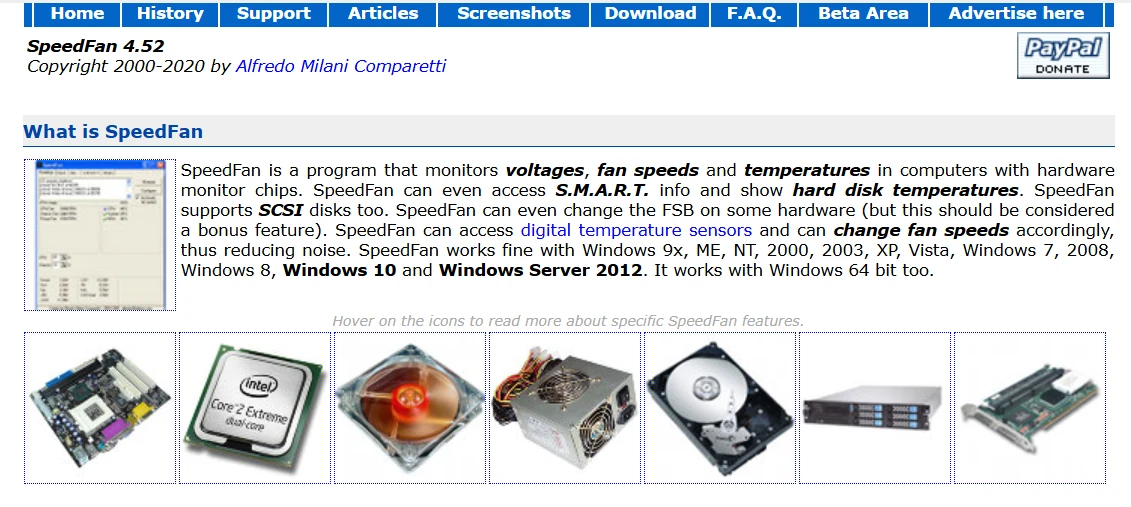
A desktop that has run for years collects dust on the heatsinks, and the fans keep working hard without moving the heat anywhere. Problems often surface only when the machine freezes. SpeedFan is a monitoring tool for Windows, described by its author as a program that reads voltages, fan speeds and temperatures through the monitoring chips on the board. It gathers readings scattered across the motherboard, the graphics card and the drives into one place, turning the state of the machine from invisible into visible.
The documentation says it can reach S.M.A.R.T. data and report drive temperature, and that SCSI drives are covered too. The health of a drive is hard to notice day to day, yet S.M.A.R.T. records some early signals. Reading those alongside temperature gives you warning before a disk fails outright.
Sensor coverage is spelled out in some detail. The pages say it reads temperature sensors on the motherboard and the graphics card, with readings from the chipset, the processor, the ambient air and the power delivery circuitry usually visible. Multi core processors often report each core separately, which gives a better basis for tracking down where the heat comes from.
Letting temperature drive the fans
Reading is only the first step. The more useful half is control. The documentation explains that it can access digital temperature sensors and adjust fan speed accordingly, which is how noise comes down. Run the fans slowly while things are cool and the machine stays quiet; let them speed up as temperatures climb and the cooling keeps pace. Adjusting on demand is a more balanced idea than running everything flat out.
The curves are yours to shape. The official screenshots page notes that fan speed can follow custom response curves, that different temperatures can map to different curves, and that one fan can be driven by several temperature readings at once. Anyone willing to spend an evening on it can fit the curve to how a particular case and cooler actually behave.
The configuration side also offers correction. The documentation mentions fixing wrong temperature readings, which helps when a vendor placed a sensor slightly away from the chip, since an offset can compensate. Oddities such as a reported speed that is twice the real figure can also be corrected by hand. Settings can enable software fan control and apply it at every boot or on resuming from standby.
Where the version stands, and who it suits
The official site marks the current version as 4.52, the history page ends at 4.52 as well, and the copyright line stops at 2020. This is an old tool that has been maintained for a long time; the software stays at that version while the site still offers the download and the documentation. Treating it as something unchanged but still serviceable is the fair reading.
Support reaches Windows 10 and Windows Server 2012, with 64 bit systems covered. On newer boards and processors the sensors may not all be recognised, and missing readings usually mean configuring things a different way. It suits people who want to understand their own machine and are willing to tune the fans by hand.
Item | Official information |
|---|---|
Current version | 4.52 |
Licence | Free to use |
Platform | Windows, including 64 bit builds |
What it reads | Voltages, fan speeds, temperatures and S.M.A.R.T. data |
Control | Fan speed driven by temperature, with custom response curves |
Setup | Corrects temperature and speed readings, applies at boot |
Turning invisible temperatures into readings you can see is the first step toward getting a few more years out of older hardware.
Practical notes. Compare sensor readings against actual fan behaviour first, and only edit curves once the readings are confirmed correct. Change fan settings one small step at a time, watching temperatures as you go. Look at the S.M.A.R.T. figures for the drives now and then, and back up early if something looks wrong. And if a newer platform gives no sensor readings, use the board maker own utility as a supplement.