
Core Temp review: a few hundred kilobytes that watch every degree
Summary
The lightest way to answer the question of why the fan is loud: per-core temperatures read straight from the processor, a tray readout, configurable alerts and logging, in an installer smaller than most icons.
Recommend- Name
- Core Temp
- Version
- 1.20.1
- Pricing
- Free
- Open source
- Proprietary
- Operating system
- Windows
- Website
- https://www.alcpu.com/CoreTemp/
- Updated
- 2026-10-08 16:43
A few hundred kilobytes for every degree
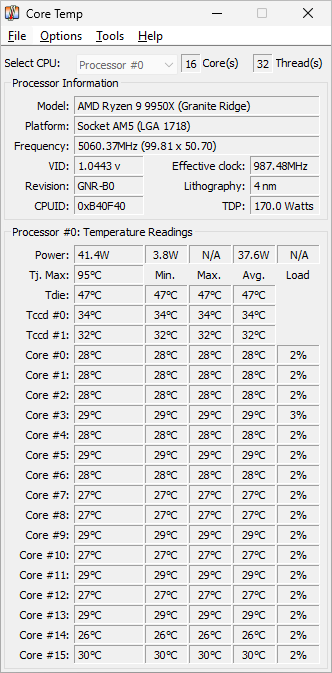
When the fan starts roaring in summer, or a game stutters after twenty minutes, the first question is always the same and almost nobody can answer it: how hot is the processor actually running? Core Temp exists to answer that with as little ceremony as possible. The installer is a few hundred kilobytes, opening it produces one window with a row of temperatures, and the whole application can be understood in under a minute.
The accuracy comes from where the reading originates. Modern processors expose a digital thermal sensor inside each core, and reading that directly is far more reliable than the coarse values a motherboard sensor reports from nearby. Each core gets its own number, which matters because a machine with one core at ninety degrees and the rest at sixty has a cooling problem that an average would hide.
Warnings, records, and a tray readout
Small does not mean bare. The alert threshold is configurable, with a secondary limit that can trigger a protective action such as sleeping the machine before damage is likely. Temperatures can be logged over long periods, which is how you discover that the situation got worse gradually rather than all at once, and how you compare a cooler before and after a cleaning without relying on memory.
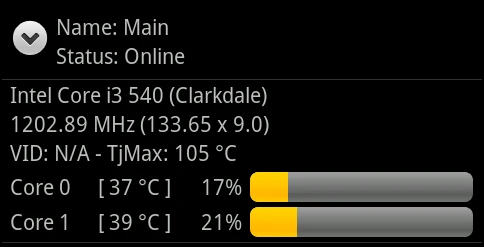
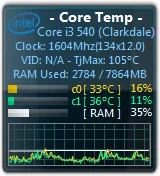
Plugins extend the display to the taskbar or to a desktop widget, which is the practical way to keep an eye on things without keeping a window open. The tray icon alone can show the current maximum, and for most people that is the entire daily interaction: a number in the corner that is either boring or a reason to investigate.
The portable build is worth knowing about. Unpacked, it runs from a folder or a USB stick without an installation, which makes it the right tool for checking a machine you are about to buy, or for diagnosing a computer belonging to a relative without leaving anything behind. Download it from the developer's own site, since utilities of this kind attract repackaged copies with additions nobody asked for.
What the numbers mean, and what they do not
A temperature by itself is neither good nor bad without a reference. Modern desktop processors are designed to run hot and to throttle rather than fail, so ninety degrees under a sustained full load is often normal behaviour rather than an emergency. What matters is the pattern: idle temperatures that climb over months, a difference of twenty degrees between cores, or throttling during tasks that used to run quietly.
It also cannot tell you why. A high reading could be dust, dried thermal paste, a fan that stopped, an airflow path blocked by a case panel, or an overclock that was optimistic. The tool gives you the measurement; the diagnosis still requires opening the case and looking, which is exactly the step people skip when they only have a graph.
The creed here is small tools doing large things: no feature creep, no bloat, one job taken to its limit, still the default answer in this category twenty years later.
How to use it properly. Run a full load once after building or buying a machine, note the peak, and treat that as the baseline for everything afterwards. Set the warning threshold inside the safe range for your processor rather than at the point where it already throttles, since early warning is the whole value. If the peak creeps up, clean the dust and reapply thermal paste before concluding the cooler is inadequate. And when a machine shuts down unexpectedly, check the log rather than guessing, because a recorded excursion to ninety-five degrees is a diagnosis while a suspicion is not.
One honest limitation: this measures the processor and nothing else. Graphics cards, drives and power supplies have their own heat problems and their own monitoring tools, and a machine can be perfectly cool at the CPU while another component is cooking. Treat the number as one instrument on a dashboard, not as the whole dashboard.