
FPS Monitor lays hardware readings over the game itself
Summary
A hardware status overlay for Windows that lays processor, graphics card, memory and disk load, together with temperature and voltage sensor values, over the game picture, and can log that load for a set stretch of time so the numbers can be studied afterwards.
Recommend- Name
- FPS Monitor
- Version
- 5520
- Pricing
- Paid
- Open source
- Proprietary
- Operating system
- Windows
- Website
- https://fpsmon.com/en/
- Updated
- 2026-10-13 10:58
Once a game is running there is a second layer of information beside the picture: what state this machine is actually in at that moment.
Bringing the readings inside the frame
FPS Monitor is a hardware status overlay for Windows, maintained by its developer independently and distributed through the official site. The official description is blunt: the program watches the hardware state of the computer and lays that information over the game as an overlay layer. The same page adds a sentence that pins the use case down, saying that checking hardware state requires neither a jump back to the desktop nor a second screen wired up beside the main one.
The items the tool can read are listed as processor, graphics card, memory and disk, which is roughly the part of a machine that decides how a game feels. That lines up with a situation most players recognise. Frames fall all at once, and the picture alone cannot say whether the processor, the graphics card or a slow disk read is behind it; put the numbers on the same screen and the question answers itself. One caveat follows immediately from what this is: the readings come from sensors, so the picture is only as complete as the board and the version allow.
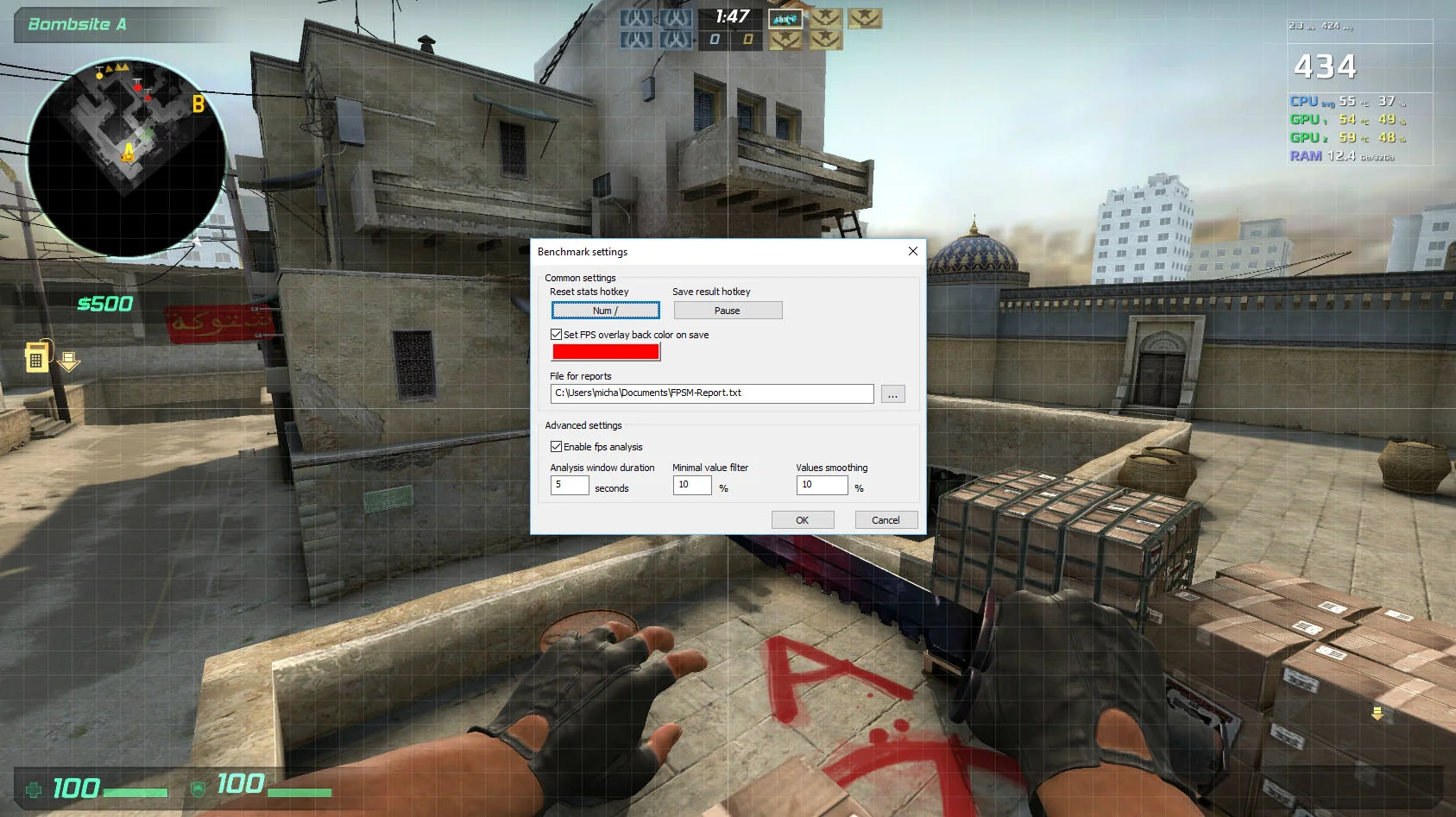
The look of the overlay is the user's call
The customisation on offer is wide. For every sensor value the font, the size, the style, the colour and the other rendering options can be combined freely, and any single sensor can be switched on or off on its own. The official summary of all this is that the result can be an overlay which does not get in the way of playing. If one corner is already crowded, a second overlay can be added and each given only the sensors that earn their place.
Two further abilities push the readings past a quick glance at frame rate. The tool can collect usage statistics over a set duration and write them to a file for later analysis, and it can set hardware alerts so that a notice appears inside the overlay when a reading approaches a critical state. For anyone running a long stress test, or simply unwilling to keep watching numbers scroll by, those two are worth more than the instantaneous figure.
Item | Official note |
|---|---|
Platform | Windows |
Readings | processor, graphics card, memory and disk load, plus temperature, voltage and fan speed sensors |
Presentation | an overlay inside the game, with no desktop switch or second screen |
Customisation | font, size, style and colour set per sensor value; sensors switched on and off individually |
Logging | usage statistics collected over a set duration and written to a file |
Alerts | a notice inside the overlay when a reading nears a critical state |
Licensing | free trial alongside a paid licence, priced by region |
Version and how to get it
According to the official pages the tool follows a try-first, buy-later arrangement: the site offers a free trial, some capabilities are trimmed while the trial lasts, and once a licence is in place those limits are gone. Price and number of licences are worked out on the order page for the current region, and the amount shown at checkout is the one that counts.
The version story deserves its own paragraph. In the developer announcement the most recent feature update carries the number 5520 and a date of June 2025, and that round was focused on adapting to a new batch of graphics cards and processors. It is worth noting that a second version record elsewhere on the official site sits at an earlier year and does not agree with the announcement; when checking which build is current, the developer announcement is the closer record.
One more point is worth knowing in advance. An overlay of this kind reads sensor data from the motherboard, and on hardware that is fairly new the question of whether every reading can be picked up tends to depend on whether the version has caught up with the matching support. When evaluating, list your own processor and graphics card model by model and confirm each reading is covered, which is steadier than reading a feature overview and hoping.
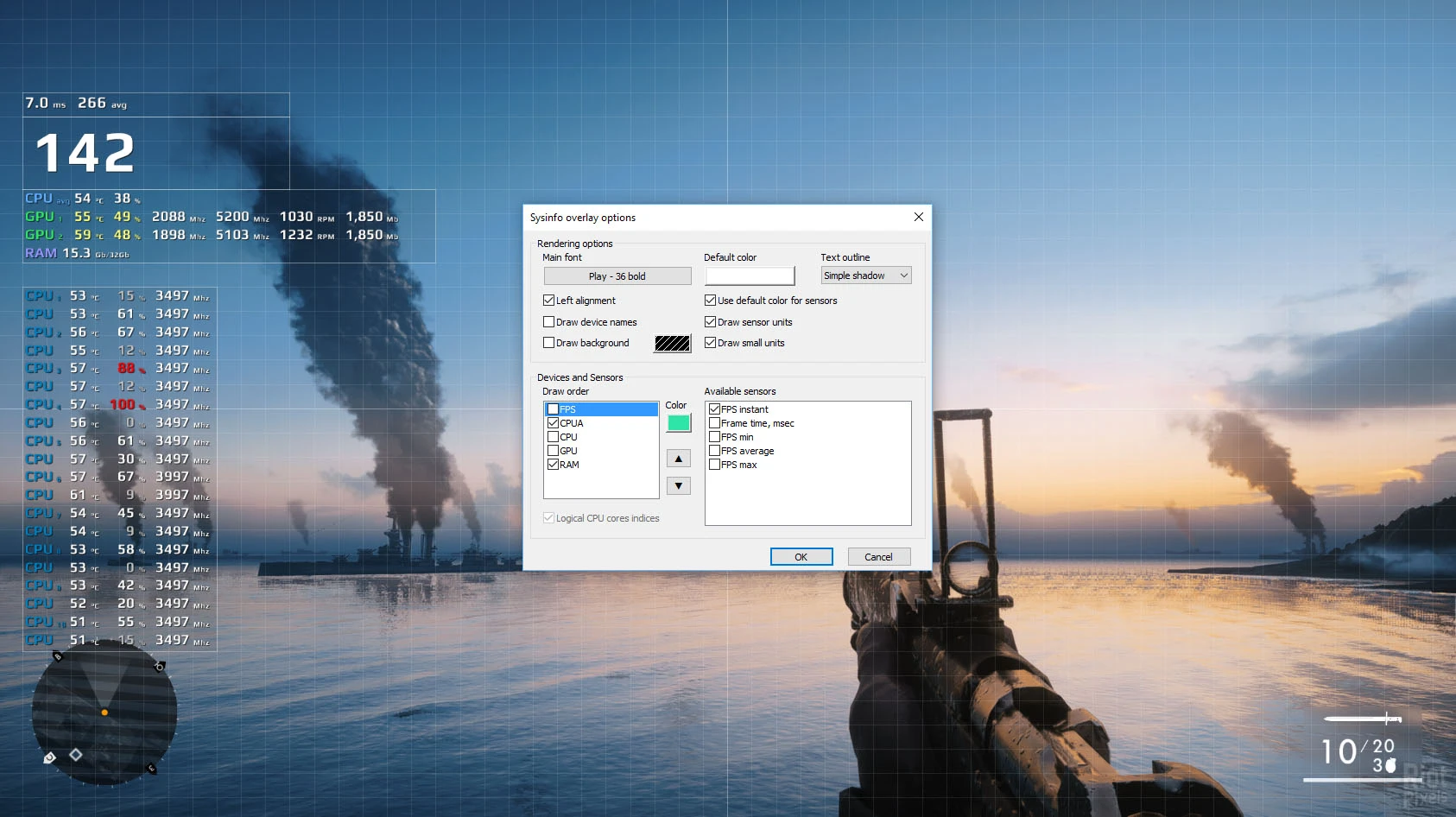
Knowing what state the machine is running in saves more time than guessing afterwards where the trouble came from.
A practical start: on the first run switch on only processor and graphics card load, two or three items, and check that the overlay hides nothing important; when a session needs reviewing, turn on the timed statistics and look at the file afterwards; and for long high-load work, set the critical alerts so the notice watches the numbers instead of you.