
Recordly Captures Screen Action Without the Usual Fuss
Summary
A recorder that keeps the setup short: pick a region, a window or the whole display, decide where the sound comes from, and start. Recordly adds annotations while the capture is still running and exports the result in whichever format the destination needs.
Recommend- Name
- Recordly Screen Recorder
- Version
- 1.4
- Pricing
- Free
- Open source
- Open source
- Operating system
- WindowsmacOSLinux
- Updated
- 2026-10-14 22:00
Recording has become part of ordinary work
Explaining something on a screen is now a normal part of a working day. A colleague asks how a setting is reached, a class needs a version of the lesson that can be watched again, or a bug has to be shown rather than described in a ticket. In all of those cases a screen recorder sits between the intent and the result, and the quality of that tool is mostly a question of how little friction it adds. Recordly takes the unglamorous position that the recording itself should be the hard part and nothing around it should be.
Three ways to frame the shot
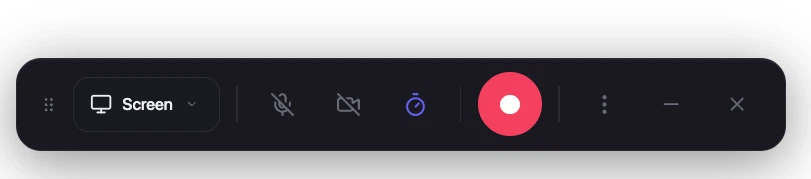
The first decision is what goes into the frame, and the tool offers the three choices that cover almost every situation: the whole display, a rectangle you draw yourself, or a single window. Full screen suits a walkthrough where the viewer needs to see where the cursor travels across the desktop. A drawn region keeps attention on one panel and drops everything irrelevant around it. Window capture is the quiet option for demonstrations where the surrounding desktop would only be a distraction.
Annotating while the capture is still running
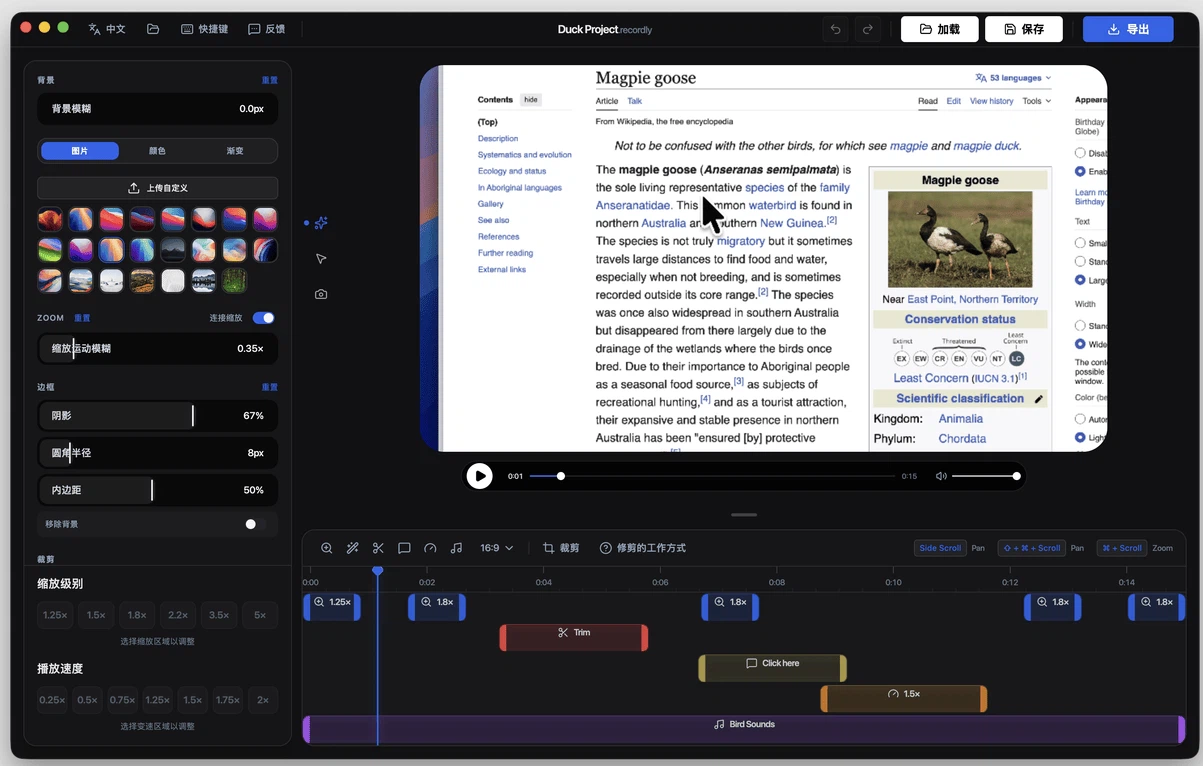
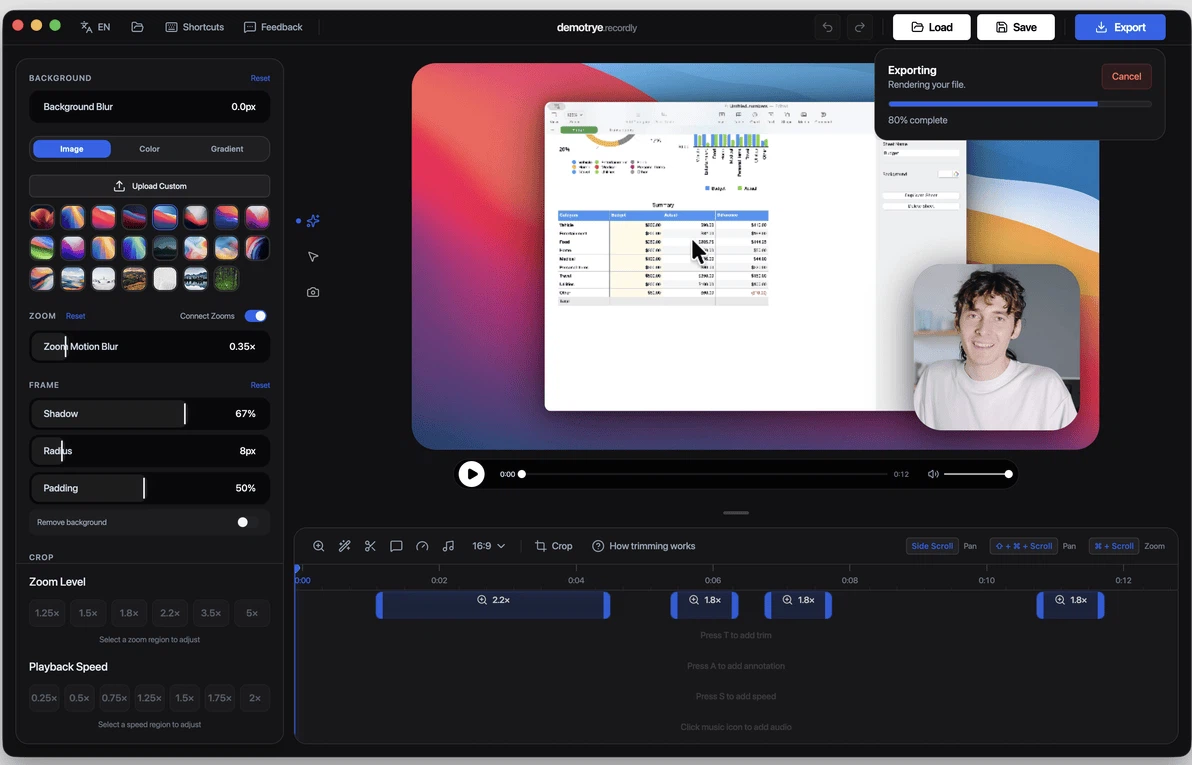
Most recorders force a sequence: record, then open an editor, then find the moment again frame by frame. Recordly lets annotations go in during the recording, so an arrow, a shape or a line of text lands exactly where the explanation needs it at the moment it is spoken. That sounds like a small convenience and behaves like a large one. The person recording is thinking about the subject, not about the timeline, and notes placed in the flow of that thinking are the notes that actually help a viewer.
Two sound sources at once
Audio is where screen recordings usually fall apart. A demo with narration but no system sound loses the feedback the viewer needs; a game clip with the sound but no commentary loses the explanation. Recordly records the system output and a microphone at the same time, which is the arrangement almost every real use asks for: you speak over what the machine is playing and both arrive in the same file.
Settings for the people who want them
Behind the short setup there is a proper set of parameters. Resolution, frame rate and audio source can all be adjusted. Leaving them alone is the right answer for most recordings, but having them available matters for the cases that are not most: a tutorial destined for a small screen, a capture where smooth motion counts more than sharpness, a session where only one of the two audio inputs should be used. The interface keeps those controls out of the way until they are wanted.
Where it gets used
Teaching is the obvious case. A recorded lesson survives past the hour it was given, and a student who missed a step can rewind to it instead of asking again. Games are the second: players capture a run, a lucky moment or a failure worth laughing at, and the clip carries the reaction better than a description would. Software demonstration is the third, and it is the one with commercial consequences, because a product shown working answers questions that a feature list cannot. Meeting notes are the fourth, and in a distributed team they are often the only reliable record of what was decided.
Getting the file out
Once the capture ends, the file has to travel. Recordly exports to several formats so the same recording can become something small enough to send in a message, something clean enough for a course platform, or something large enough to keep as an archive. That flexibility is less exciting than the recording features and more important in practice, because a perfect capture stuck in an awkward format helps nobody.
What users notice
The feedback that comes back is consistent in shape. People mention that the first recording took a couple of minutes to set up and the rest took none, which is the whole point of a tool like this. Those who record lessons regularly point at the time saved on the front end rather than on the editing end. Others single out the annotations, because being able to point at the right place while talking removed a whole pass of post-production. Nobody praises the interface for being beautiful, and nobody complains that it got in the way, which for a utility is the compliment that counts.
The cost of the alternative
It is worth naming what the alternative looks like, because it explains why a free tool is worth attention. Recording with whatever happens to be built into the system tends to work until it does not: the audio comes out on the wrong track, the region is slightly off, or the file is in a container the destination refuses. Each of those failures costs a re-record. A recorder that is free, open source and available on Windows, macOS and Linux removes the decision entirely, and the source sitting on a public code hosting platform means the behaviour can be checked rather than assumed.
Who should keep it
Anyone who explains things on a screen more than occasionally will get use out of Recordly. It is not aimed at productions that need multi-camera switching or colour work, and it does not claim to be. It is aimed at the much larger group whose requirement is a clean capture with sound, a note or two placed at the right moment, and a file that can be handed over without further negotiation.