
PicPick gathers capture, editing, colour picking and measuring in one box
Summary
A Windows program that puts screen capture, recording, image editing and colour measuring into one toolbox, updated to 7.6.1 in September 2026 with pause and picture-in-picture camera added to recording, and free for personal and non-commercial use.
Recommend- Name
- PicPick
- Version
- 7.6.1
- Pricing
- Free
- Open source
- Proprietary
- Operating system
- Windows
- Website
- https://picpick.app/en/
- Updated
- 2026-10-13 11:41
The awkward part of a screenshot is never the keystroke; it is everything that has to happen afterwards.
The stretch between capturing and saving
Most people's capture routine is really three jobs: get the picture, mark it up, hand it over. The tool that comes with the system usually makes only the first one smooth, so the other two need another program, exporting into an image editor, drawing the arrow, saving again, and then finding somewhere to upload it before sending. The switching back and forth often costs more than the editing itself.
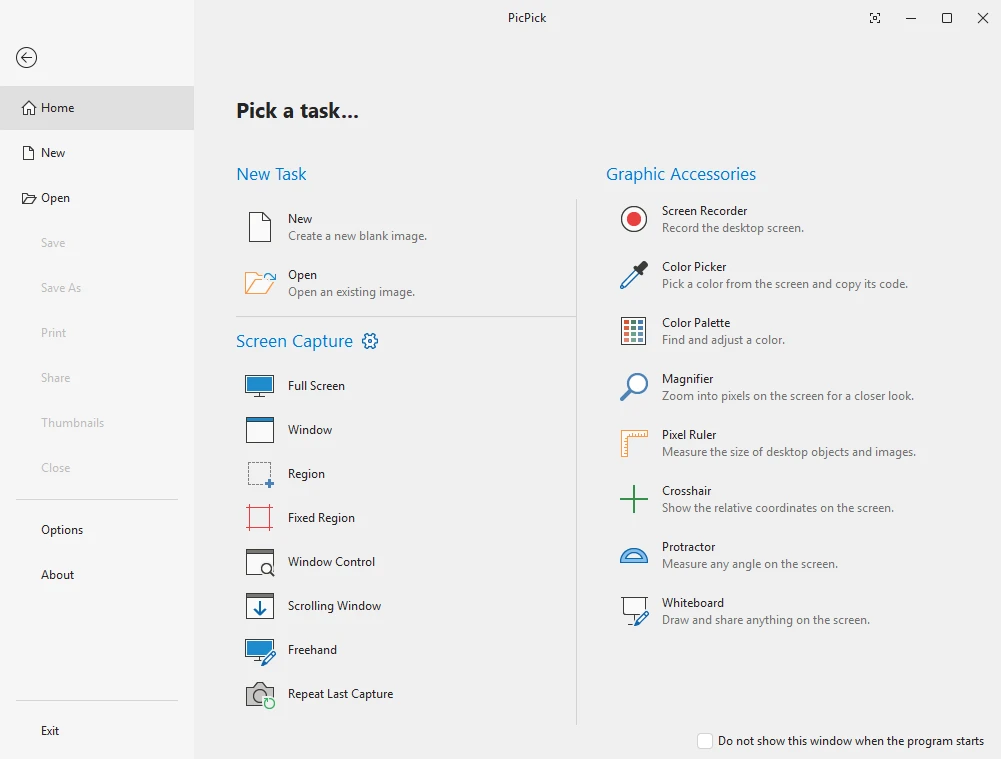
PicPick's approach is to pull that stretch into a single program. The official summary is a place where the screen tools you need sit together, and the position is clear: not the strongest single-purpose tool, but one where capture, editing and export need no window changes. Capture modes are well covered, with full screen, active window, scrolling window, region and fixed region among them, and a two-monitor setup is handled sensibly at the edges.
Annotation, measuring and the recording update in 7.6.1
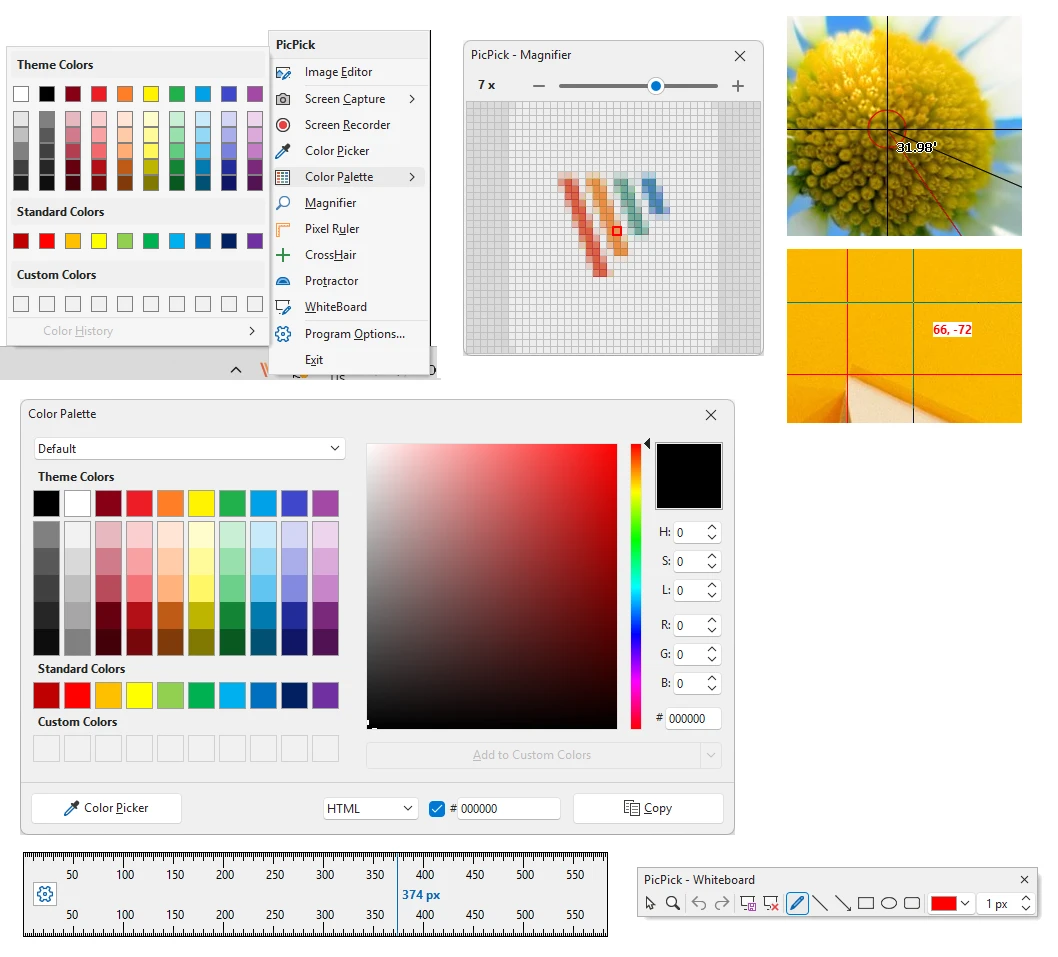
The built-in editor is organised in a ribbon style, with the everyday operations on the surface: annotation, arrows, shapes, text, pen and mosaic. Marking up straight after capture is smoother than exporting first. Beyond editing there is a measuring layer: a colour picker to copy a value out, a pixel ruler and a magnifier to judge spacing and alignment, and a whiteboard for sketching something beyond the screenshot. These normally require separate tools; here they share one interface with capture.
Export options are broad as well, going straight to the clipboard or a file, or following routes for printing and for generating a share link.
The 7.6.1 release, published on 16 September 2026, concentrates on recording. The new pause and resume buttons answer a practical problem: interruptions such as a phone call or stepping away happen, and being able to pause means the gap does not have to be cut out in an editor afterwards. Camera picture-in-picture came in the same round, with position, size and mirroring adjustable, so a talking-head inset can sit in a corner while the audience sees both face and screen, with the corner chosen so nothing important is covered. That version also improved support for newer image formats and fixed window control capture on apps that fill the whole desktop. The official changelog runs back through many earlier versions, which says the project has been maintained for the long haul.
The line between free and commercial
The licensing structure is stated plainly. The official pricing page separates personal from commercial use: personal use stays free, and once the work lands in a job, a client project or anything that generates income, a Pro licence is required. The test is the use itself rather than which machine it sits on, and that matters in a team, where it is easy to install everywhere and only later find the licence scope was wrong.
Pro licences are priced per user, with one licence covering two machines, and there are purchasing routes for team and enterprise sizes. For occasional use the free layer already covers what is needed; anyone who cannot get through the day without a capture tool can decide on buying according to the nature of that use.
Item | Official note |
|---|---|
Current version | 7.6.1, 16 September 2026 |
Platform | Windows |
Capture modes | full screen, active window, scrolling window, region, fixed region |
Extra tools | image editor, colour picker, pixel ruler, magnifier, whiteboard |
Licensing | free for personal use, Pro licence for commercial work |
Putting the steps around a screenshot into one window saves the few minutes that repeat several times a day.
A practical start: set hotkeys for the modes you use most, with scrolling window and region the easiest day to day; for a picture going to someone else, annotate and export directly rather than opening another editor; and on a work machine, check whether the way it will be used falls inside the range that needs a licence.