
PowerDirector: Where the Hours in Video Editing Actually Go
Summary
PowerDirector is a commercial editor built around a multi-track timeline, with automated help for the tedious parts: cutting on speech, tidying audio, and applying a look across a whole sequence. A look at what it takes over, what it leaves to you, and the hardware the output demands.
Recommend- Name
- PowerDirector
- Version
- 20260402
- Pricing
- Paid
- Open source
- Proprietary
- Operating system
- WindowsmacOS
- Website
- https://www.cyberlink.com/
- Updated
- 2026-10-05 22:00
The hours are not spent cutting
Ask someone who has edited a video where the time went and the answer is rarely the cutting. Cutting is quick and almost pleasurable — you watch, you decide, you trim, the sequence gets better in a way you can see. The hours go into everything around it: levelling a soundtrack recorded in three different rooms, finding the take where nobody coughed, matching the colour of a shot filmed at noon against one filmed under a cloud, and then repeating all of it for the vertical version somebody also asked for.
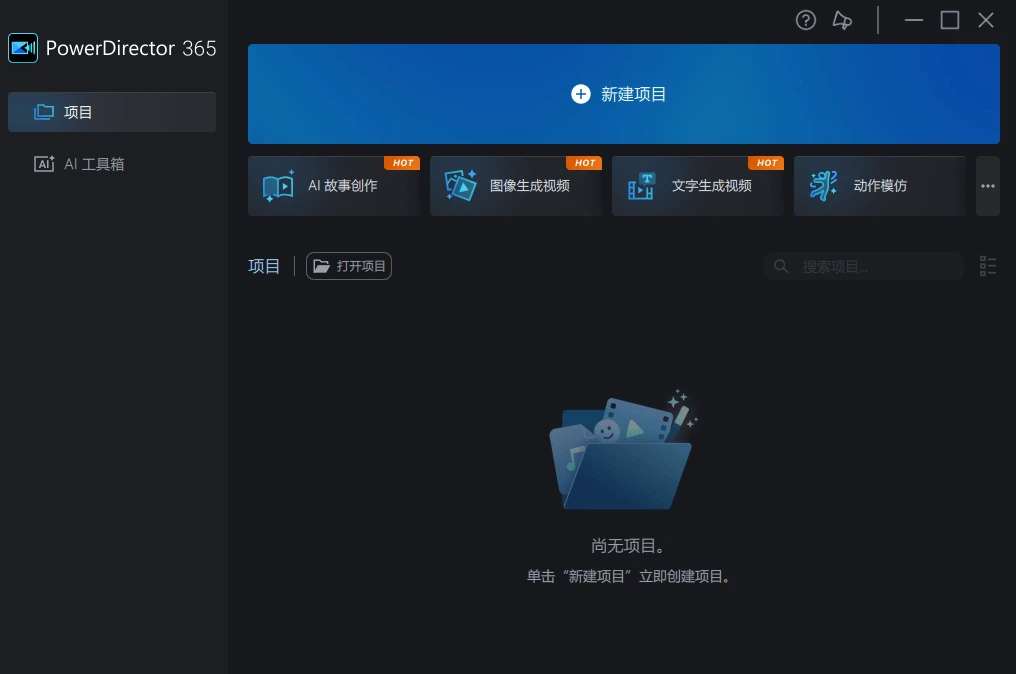
PowerDirector is built around that reality rather than around the cut itself. It is a commercial editor — there is a paid version and the feature set reflects it — whose centre is a multi-track timeline, and whose distinguishing idea is that the tedious surround should be handed to automation wherever automation can genuinely do it. Whether that trade is good depends on which parts of the work you consider yours.
The timeline, and the three operations that live on it
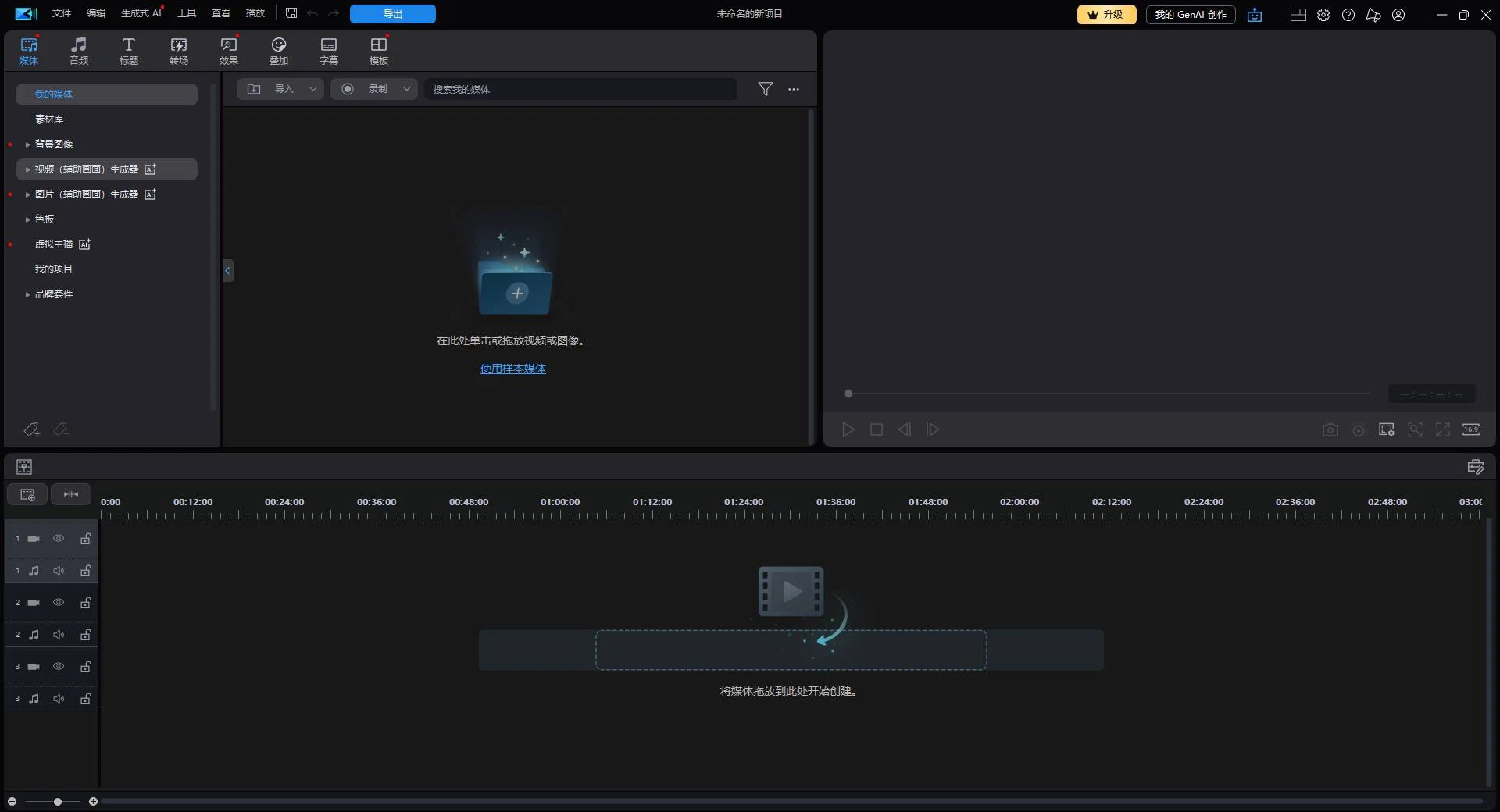
A multi-track timeline is not a luxury feature, it is the minimum for work that involves more than one stream of anything. Dialogue on one track, music on a second, room tone on a third, titles above them, and the whole thing assembled in a way that can be re-cut later without dismantling it. Everything else in the program is arranged around this view, which is the right decision: a timeline that can be read at a glance is worth more than a feature list.
Three operations on that timeline do most of the daily work. Trimming and joining is the obvious one. Transitions are the second and the most abused: a dissolve between two shots that are already continuous is a way of announcing that the edit exists, and the tool cannot stop you. Colour adjustment is the third, and the one that separates a project that looks finished from one that looks assembled — not because the colours are prettier, but because they are consistent from shot to shot.
What the automation actually takes over
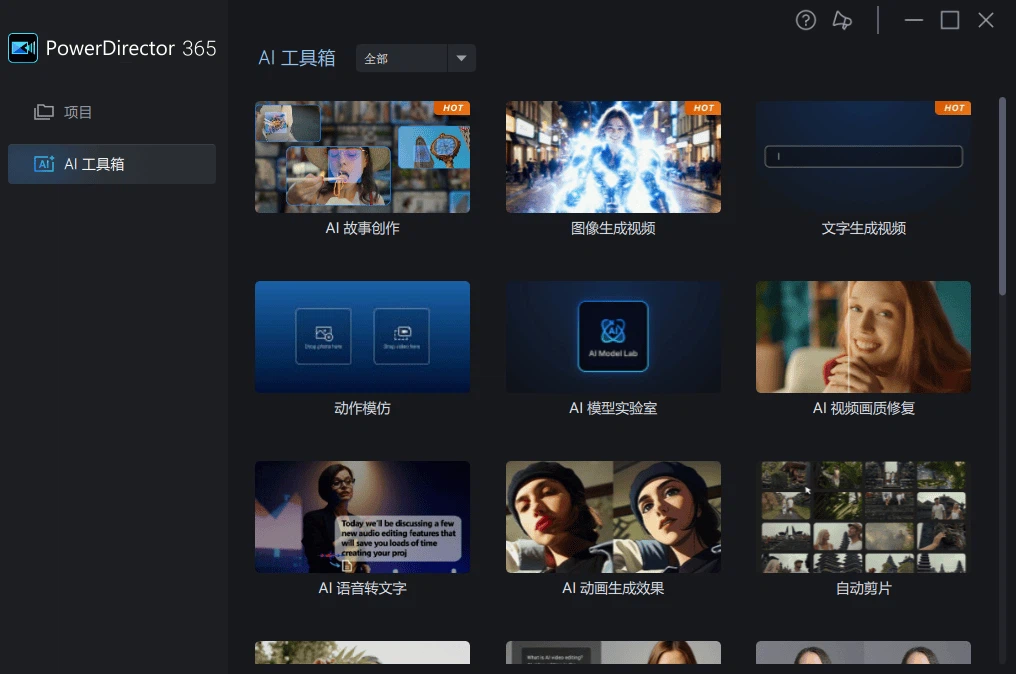
The automated features fall into two groups, and they are not equally reliable. The first group is mechanical: detecting where speech starts and stops, finding silent stretches, balancing loudness across clips recorded at different levels. These are measurable problems with measurable answers, the machine is better at them than a person is, and handing them over is a straightforward gain.
The second group is editorial: choosing which moments matter, deciding the rhythm, picking the take that is technically worse but emotionally right. Automation here produces something watchable and generic, and the risk is not that it fails but that it succeeds well enough that nobody goes back to fix it. The honest way to use these features is as a first pass that gets the assembly out of the way — then edit the result as if a colleague had cut it, which means changing things.
Resolution is a hardware question
Support for high-resolution output is a specification that reads well and behaves badly. Working with large frames means decoding them, holding them in memory, applying effects to them, and encoding them again, and each of those steps is where a modest machine starts to struggle. Proxy workflows exist precisely because of this, and the practical advice is unglamorous: decide the output resolution at the start, not at the end, because discovering halfway through that the machine cannot preview what you are building is the most expensive kind of surprise.
The same applies to the delivery formats. A project that will be watched on a phone and a project that will be projected in a room are not the same project, and rendering the second one to look acceptable on the first is wasted work.
The template library, both ways
A large library of ready-made titles, transitions and opening sequences is genuinely useful, and it is also the fastest way to make a video that looks like everybody else's. The honest framing is that templates solve the problem of not knowing what a sequence should look like, which is a real problem for a first project and a solved one by the fifth. Used early, they teach structure by imitation. Used late, they substitute for it.
What the library does do well is absorb deadline pressure. When a corporate video has to exist by Friday and the footage is adequate rather than good, a well-built opening and consistent lower thirds will carry more of the impression than any amount of extra cutting on the middle section.
Being commercial software
This is a paid product, and that shapes what it is good at. Commercial editors tend to invest in the things that make a purchase defensible: breadth of format support, a large effects and template catalogue, periodic updates, and a support channel. They also tend to accumulate features that exist to be listed. The practical consequence for a buyer is to evaluate it against the specific job in front of you rather than against a comparison table, because the comparison table is where a product like this always wins and the specific job is where you find out whether it fits.
Who it is for
Two audiences, doing different work with the same program. The first makes personal material — family recordings, travel, the videos a small business posts weekly — where the goal is a finished, presentable result without a semester of learning. The second makes commercial material: promotional films, product introductions, training modules, where the requirement is consistency and the ability to produce the tenth video faster than the first. Both are served by the same two things, a readable timeline and automation for the boring parts, and both are served badly by an editor that hides its structure.
Verdict
PowerDirector is a sensible choice for anyone whose video work is regular rather than occasional, and who would rather spend the saved hours on the decisions only a person can make. Its strengths are the timeline, the breadth of what it accepts, and automation applied to problems that automation can actually solve. Its weakness is the familiar one for software of this kind: enough features that the interface has to be learned rather than simply used, and templates tempting enough to flatten a project into something generic. The advice in the original description — watch the tutorials first, save the project often — is not filler. On a long edit, the second one is what stands between an afternoon of work and an afternoon of work repeated.