
OBS Studio 32.2.2: One Program for Streaming and for Recording
Summary
OBS Studio is a free, open-source program that captures and mixes video and audio live, streams or records it, and organises everything into scenes that can be switched, previewed and driven by hotkeys.
Recommend- Name
- OBS Studio
- Version
- 32.2.2
- Pricing
- Free
- Open source
- Open source
- Website
- https://obsproject.com/
- Updated
- 2026-10-06 13:42
Two outputs, one set of sources
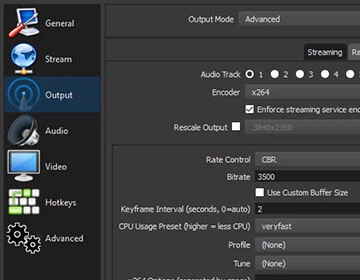
OBS Studio does two things with the same material: it sends it out as a live stream, and it writes it to a file. The version described here is 32.2.2, and the program is free and open source. Keeping both outputs in one place is the reason the program is used for recording as often as for broadcasting — the same scene that goes out live can be saved locally at the same time, and neither has to be set up twice.
Underneath is a mixer. Video and audio are captured in real time, combined, and only then handed to an output. That ordering matters: what is recorded and what is streamed are renderings of the same composition, not two independent captures of a screen.
Scenes and sources
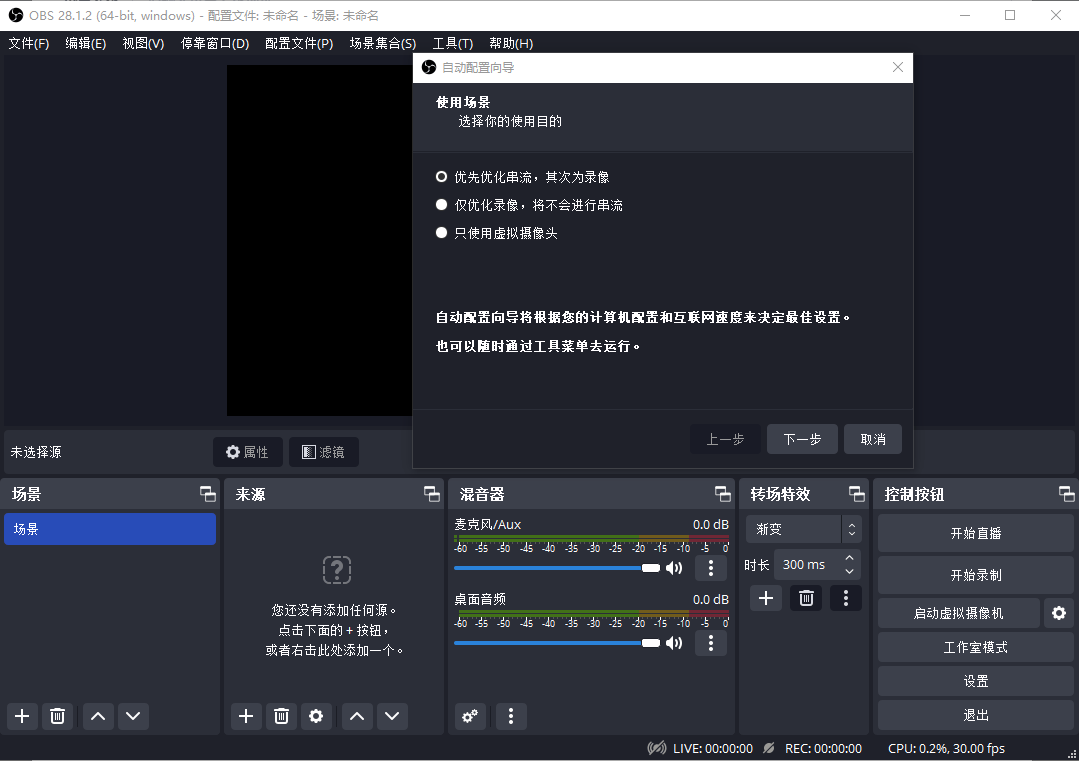
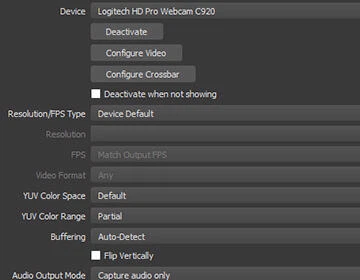
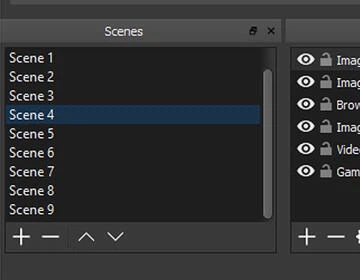
Everything is organised into scenes. A scene is a collection of sources — a display, a window, a camera, an image, a browser page, a capture card — arranged and layered on a canvas. Switching scenes switches the whole arrangement at once, which is the difference between a broadcast that changes shape and one where items appear and vanish one at a time.
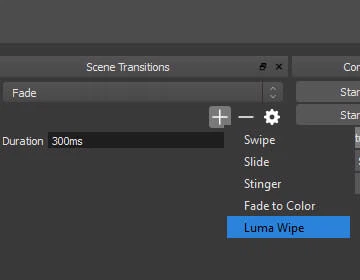
The number of scenes is not limited, and transitions between them can be chosen and customised, so the change can be a cut, a fade, or something with more personality. A source can be added, duplicated and adjusted without starting over, which is how a working layout usually evolves: copy the one that nearly works, then move two things.
Audio, treated as its own problem
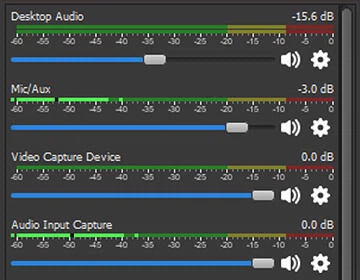
The audio mixer gives every source its own level, and each source can carry filters of its own: a noise gate that closes the channel when nobody is speaking, noise suppression for a fan or a keyboard, and gain to bring a quiet microphone up to the others. VST plugins are accepted as well, which means the processing available is not limited to what ships in the box.
For anyone who has recorded a session and found afterwards that one input was three times louder than everything else, this is the feature that decides whether the recording is usable. Fixing it while listening is a different activity from fixing it in an editor afterwards.
Filters on the picture
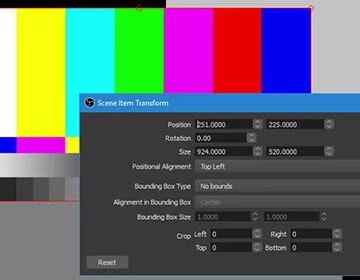
Video sources accept their own filters too: an image mask to cut a shape, colour correction to make a camera match another camera, and chroma keying to remove a background. The last one is the well-known case and the least interesting: what matters is that the filter sits on one source rather than on the whole output, so a scene can contain a keyed camera and an untouched screen capture at the same time.
A layout that can be rearranged
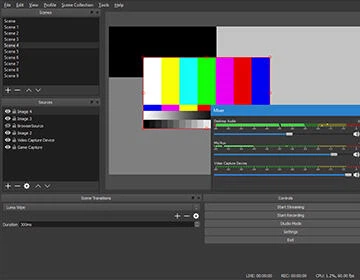
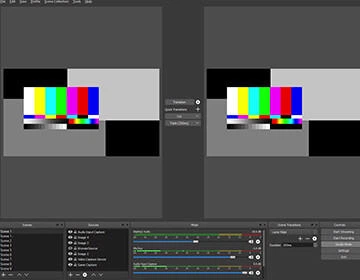
The interface is modular: the panels are docks that can be moved, resized, and even popped out into windows of their own. On one screen the default layout is fine; on two screens it is worth pushing the preview and the mixer apart. The point of a dock is that the program does not have an opinion about how the desk is arranged.
Recording, in four steps
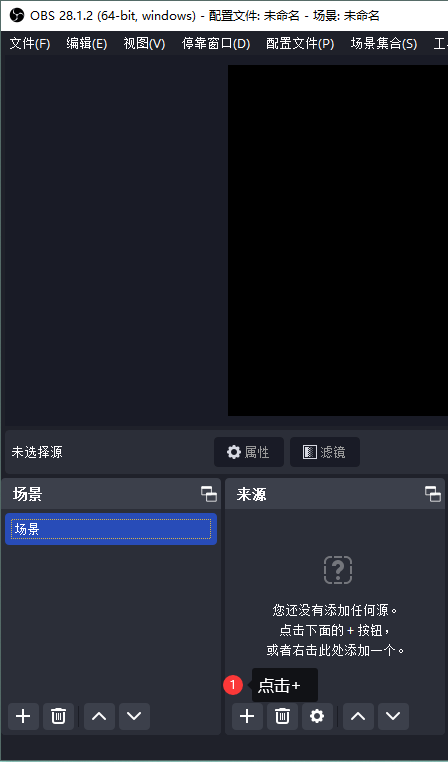
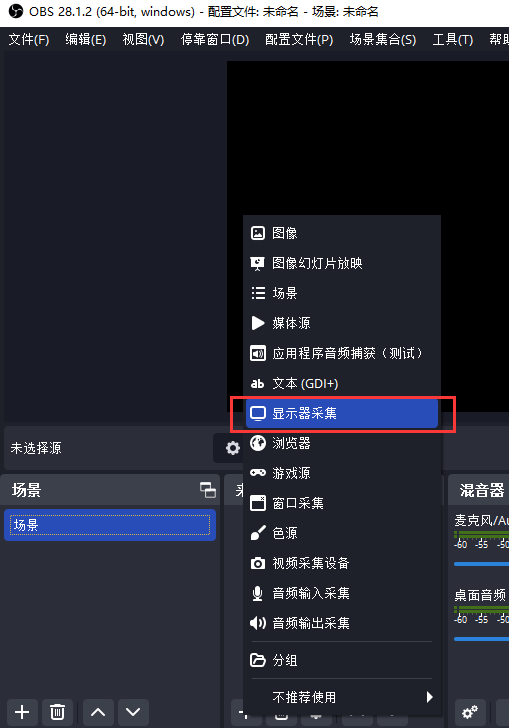
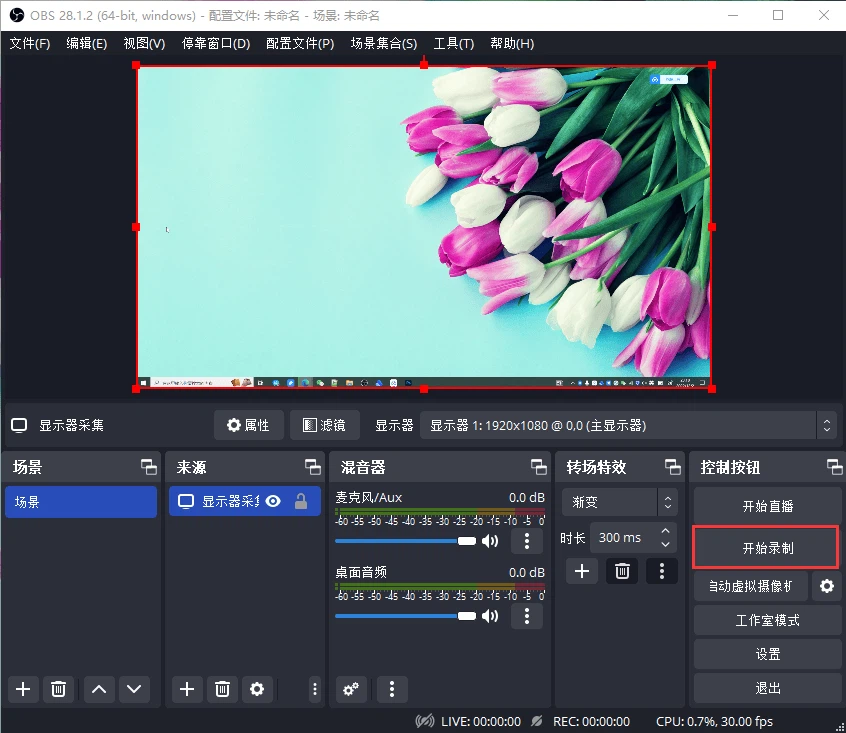
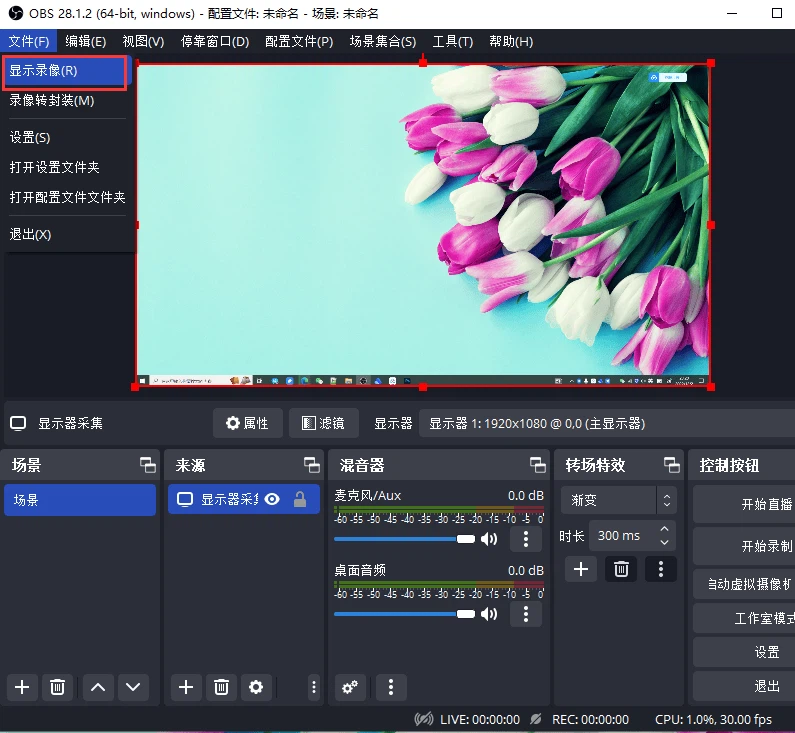
The recording workflow is short enough to describe: a source is added with the plus button, display capture is chosen from the list, recording is started from the controls, and when it is finished the file menu offers to show the recording that was just made. That last item is a small thing that saves a search through folders every single time.
Hotkeys, multiview, studio mode
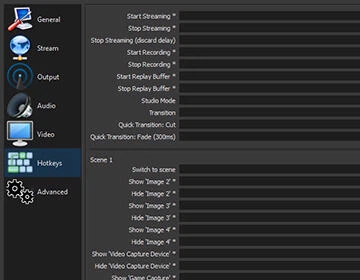
Almost every action can be bound to a key: switching scenes, starting and stopping the stream or the recording, muting a source, push-to-talk. For a live production that is not a convenience but the only way to operate — the alternative is aiming a pointer at a small button while something is happening.
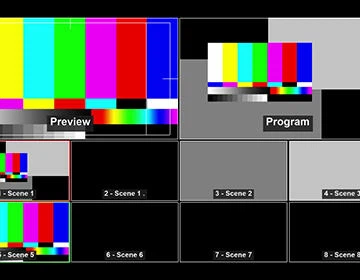
Multiview gives an overview of eight scenes at once, with a single or double click to cue or to transition into one of them. Studio mode goes further and separates what is live from what is being prepared: the next scene can be arranged and checked before the audience sees it, which turns a live stream into something that can be rehearsed.
Where it sits
OBS Studio is used for game streams, and equally for lectures, support calls, demonstrations and internal meetings, because the problem is the same in all of them: several inputs, one output, and no second chance. Its configuration has a learning curve, and the first session is usually spent discovering which of the defaults is wrong for this particular microphone. What it gives back is a setup that can be saved, switched and reused — which is why the same scene collection tends to survive for years.