
NVIDIA FrameView: frames and power from one run, with efficiency figures that read at a glance
Summary
A free measurement tool that puts frame rate, frame time, power draw and efficiency into one program: a configurable overlay shows the numbers while the run is going, and a log keeps them for frame by frame analysis afterwards. It works on most cards regardless of brand.
Recommend- Name
- NVIDIA FrameView
- Version
- 2
- Pricing
- Free
- Open source
- Proprietary
- Operating system
- Windows
- Updated
- 2026-10-06 01:51
Frames and power, measured together
Watching a frame counter while a game runs is easy. Knowing at the same time whether frame times stutter, how much power the graphics card actually pulls, and how much performance each watt buys is where ordinary monitoring software runs out of answers. NVIDIA FrameView is a free measurement tool that gathers frame rate, frame time, power draw and efficiency into a single program: a configurable overlay shows the key numbers over the game, and the details go into a log file for frame by frame analysis afterwards. Where a usual tool shows only the frame count, this one insists on looking at performance and power together, which is why it turns up whenever efficiency is the question. The current release is the second version.
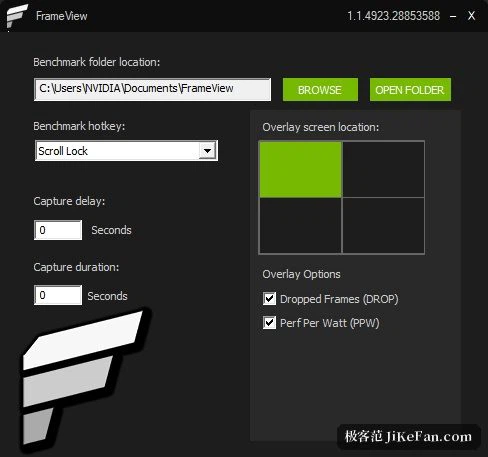
Any card, any graphics interface
The useful part is how general it is. It does not serve only its own maker: most cards from other vendors can be measured with it as well. On the interface side, DirectX 9, 10, 11 and 12, OpenGL, Vulkan and applications built for the general Windows application form are all covered, which takes in the bulk of games and graphics programs. Power figures are read through the graphics card interface in real time, so no external meter is needed: cards from the maker itself expose chip and whole-board power, while cards from other vendors report chip power. The cost of capturing is said to stay under 1 percent of frame rate, so a benchmark run is not disturbed by the measuring. An exclusion list lets processes that should not be watched be kept out, so background software does not leak into the statistics.
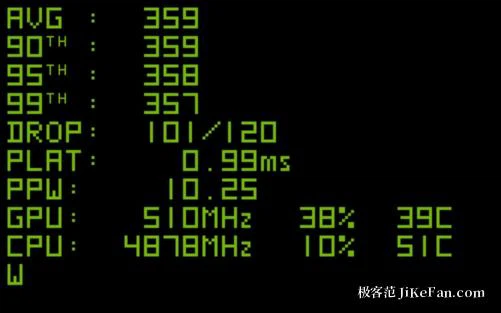
What the overlay shows, what the log keeps
The overlay can carry more than ten figures at once. Beyond the average frame rate there is the low percentile figure that says more about stutter, the frame time curve, graphics processor utilisation, video memory in use, temperature, and both render latency and system latency. Size, position and which items appear can all be adjusted, and thresholds can be set for frame rate and temperature so a breach is highlighted instead of hunted for by eye.
Combined with the power reading, the tool works out figures such as frames per watt and the performance to power ratio, which makes a comparison between quality settings, between cards or between driver versions read plainly. Everything can be exported as a log in comma separated form, and an analysis template for a spreadsheet turns the import into charts, so several runs can be laid side by side. Recent releases have added processor figures and a current render latency field, and have corrected readings that could drift at high frame rates, with vertical sync on, or with frame generation active, so trust in the numbers keeps rising.
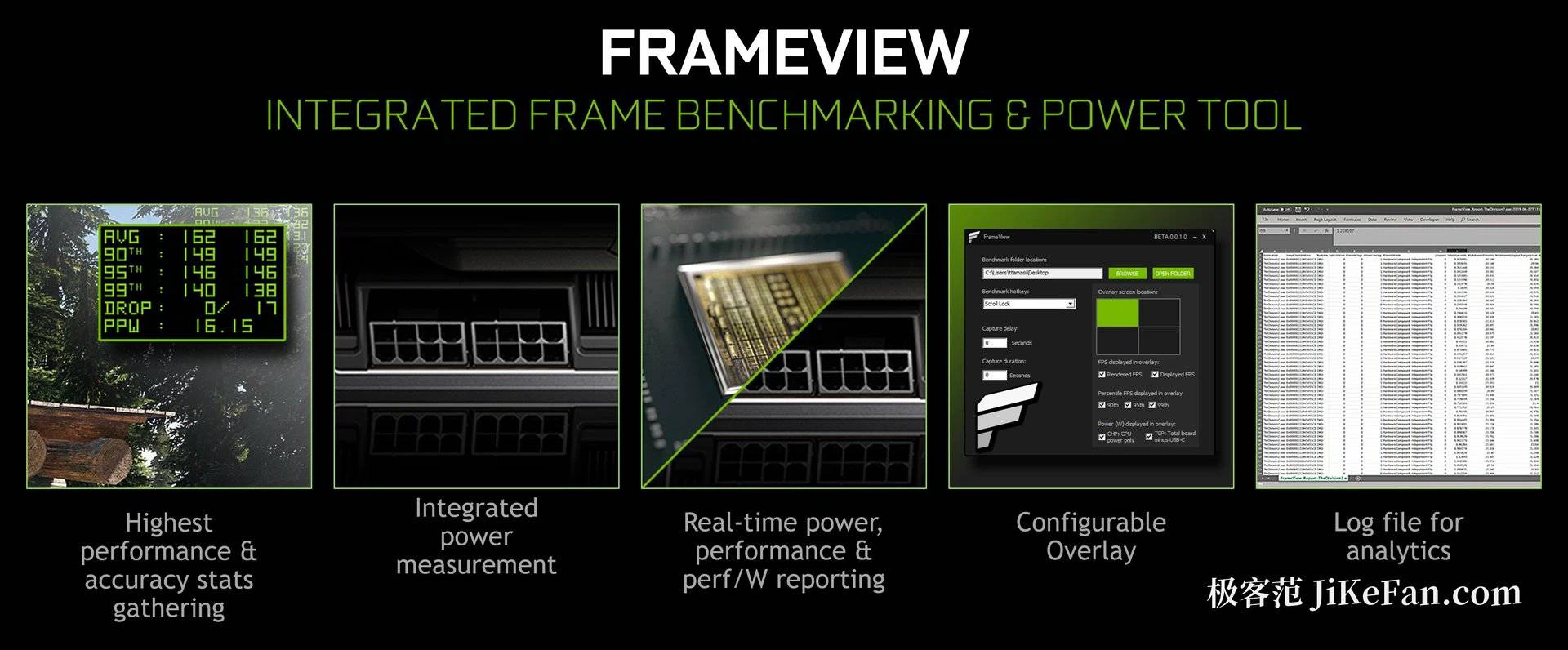
Who it suits
Reviewing hardware, checking an overclock and measuring a freshly built machine are the classic cases: run the same machine once more after a driver change or a quality adjustment, put the logs side by side, and the difference can be pointed at. The capture logic follows the industry standard approach, so frame time and latency come out far finer than an average frame rate alone, which is why professional reviewers lean on it. Beyond games it can also time graphics applications and virtual reality programs, which makes a bottleneck in the rendering chain visible. It is distributed free and runs on Windows, and it fits players, reviewers and developers who want numbers they can defend.

When the overlay will not appear
If the overlay refuses to attach to a game, three moves usually settle it: switch the game to a borderless window, close other overlay tools, and start the measurement with administrator rights. None of that is a defect of the tool so much as a consequence of how capture works inside a full-screen window, and knowing the three steps saves a round of guessing.