
LiteMonitor: a hardware dashboard that lives in the Windows taskbar
Summary
An open-source hardware monitoring panel under two megabytes that sits in the taskbar or floats on the desktop, showing processor, graphics, memory, disk and network load with three-level threshold colours. Portable, MIT licence, no advertising.
Recommend- Name
- LiteMonitor
- Version
- 1.3
- Pricing
- Free
- Open source
- Open source
- Operating system
- Windows
- Website
- https://litemonitor.cn
- Updated
- 2026-10-26 22:00
Mid-game, and the only way to see the temperature is to switch windows
Anyone who has tried to keep an eye on a machine while using it knows the annoyance. The task manager opens in a separate window, so checking it means switching away from whatever is running. The large hardware suites answer the question but arrive with dozens of pages of settings, a permanent background service and an interface designed for diagnostics rather than glancing. What is missing is something that answers one question in half a second without taking the screen.
LiteMonitor is an open-source panel under two megabytes that does exactly that. It can be embedded into the taskbar or left floating over the desktop, and it displays processor, graphics, memory, disk and network load along with temperatures. Playing a game, rendering video or compiling code, one glance is enough. It runs from the Windows 8 generation through Windows 11, ships as a portable build with no installation, and is released under the MIT licence with no advertising of any kind.
The taskbar, turned into a row of instruments
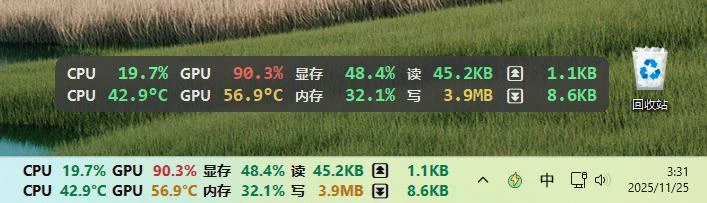
The defining feature is the taskbar mode: a strip of live readings is embedded along the taskbar itself, carrying processor load and temperature, graphics load and video memory, memory usage and network throughput in both directions. The strip works in landscape and portrait, and colour, typeface, corner radius and opacity are all adjustable. Because it sits on the bar that is already there, it consumes no desktop space at all – which is the entire argument for putting it there rather than in a window.
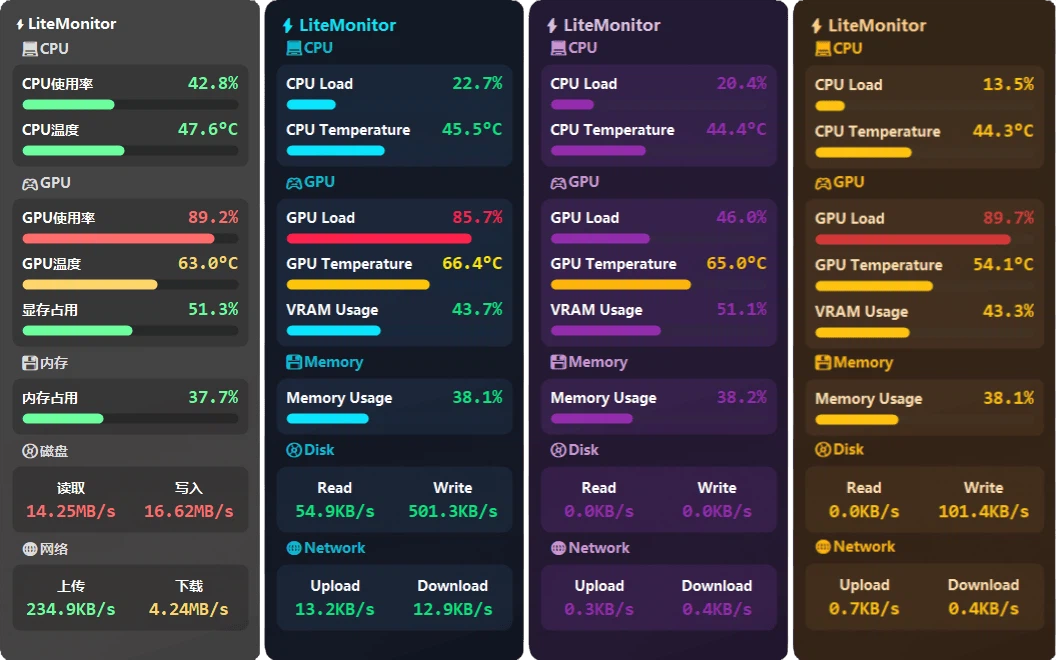
Several themes ship with it, from a dark game-oriented palette to a flat dark style and a neon treatment, and themes in JSON format can be imported and shared with other users. The newest release adds a theme editor that adjusts the visual parameters inside the program with a live preview, so a scheme can be built by looking at it rather than by editing a file and restarting.
Three-level alerts and room for plugins
Thresholds can be set for any reading, in three stages: normal, warning and critical. Assign a colour to each and the corresponding figure changes shade as it crosses a line, which is how an overheating processor or a memory leak gets noticed before it becomes an incident rather than after. A memory cleaning function frees what the system can spare in one action, useful when something has been left running too long.
The plugin system extends the panel with weather and public address lookup, and further plugins can be written against the package source the project publishes. Window behaviour is configurable too: the panel can hide at a screen edge and can be made click-through, so it sits on top of other applications showing numbers without intercepting a single click. That combination is what makes it usable permanently rather than only when diagnosing something.
Why the panel belongs on the bar
The taskbar has one property no window can offer: it is visible all the time, in every application, without being asked. A monitoring panel placed there is not something you open; it is something already present when the eye drifts toward the clock. That changes the nature of the information. A figure you have to go and fetch gets fetched twice a day, usually during a problem. A figure sitting in the corner of the eye is absorbed continuously, and a rise in processor temperature or a fall in available memory registers as a trend rather than as an incident.
Embedding also solves the space problem. A floating panel, however small, has to be positioned, and whatever it covers is lost. Inside the bar it competes with nothing. Portrait orientation is supported for anyone who rotates a monitor, and opacity can be reduced until the strip is barely a suggestion – the right setting for someone who wants the data available without having it emphasised.
Who it suits, and where it stops
The people who gain most are those running something demanding who want to know how the machine is coping: a game at high settings, a video export, a long compilation, a virtual machine left going overnight. Seeing load and temperature without leaving the application is the whole value, and thresholds add the part that matters when attention is elsewhere – the figure changes colour and you look up.
What it does not attempt is history. There is no graph of the past hour, no record of peaks, no way to gather figures from several machines into one view; for that work the large diagnostic suites remain the right choice. This one answers in the present tense, quickly and at no cost, and leaves the archive to software built for it.
Hardware monitoring has never lacked options, and the big suites are not going anywhere. What has been missing is a light, good-looking, unobtrusive answer to one question. Under two megabytes, with taskbar embedding, a theme editor, threshold colours and plugins, every feature here lands on that question and nothing else. Open source, portable, no advertising – worth trying for the price of nothing but a download.