
StartAllBack: the Start menu and taskbar you already knew, put back on Windows 11
Summary
A shell enhancement for Windows 11 that restores the classic Start menu layouts, stops taskbar buttons from being forced together, and brings the full right click menu back. One-time licence, a hundred-day trial period.
Recommend- Name
- StartAllBack
- Version
- 20260624
- Pricing
- Paid
- Open source
- Proprietary
- Operating system
- Windows 11Windows
- Website
- https://start-all-back.com
- Updated
- 2026-10-06 20:45
After the upgrade, the Start menu no longer makes sense
Windows 11 rebuilt the two pieces of the desktop that people touch most often. Icons moved to the middle of the taskbar, the live tiles that used to show a calendar and a weather forecast disappeared, buttons for open windows were forced into a single grouped entry, and the right click menu was cut down to a short list with an extra item at the bottom that opens the rest. The stated aim was simplicity, and on a fresh machine it does look tidy. In daily use, though, anyone who keeps six windows open at once pays for that tidiness on every single switch, because the extra click is repeated hundreds of times a day.
StartAllBack exists to undo exactly that. Its purpose is narrow and clearly stated: put the desktop interaction back to a shape you already have in your fingers, without touching system stability underneath. The classic Start menu with its tree of folders, the tile layout, the habit of seeing every window separately on the taskbar – each of these is available again rather than merely imitated.
Three layouts to pick from on the first run
The program offers three interface styles and asks you to choose one the first time it runs. The first imitates the tree that opens out from a single column, with pinned programs on the left and entry points to common folders on the right – the arrangement anyone who moved up from an older Windows release will recognise immediately. The second brings back the tile layout, so frequently used applications can be pinned as squares that carry live information, which keeps one foot in the modern camp. The third leaves the Windows 11 menu looking as it does today but opens up far more of it to customisation.
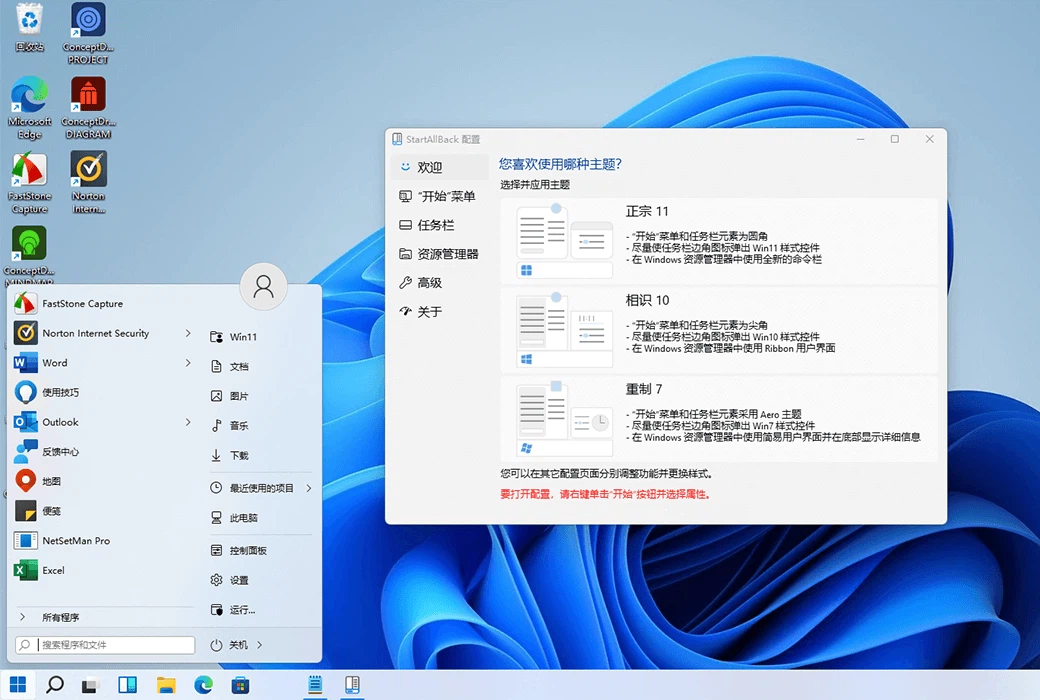
Style is only the beginning. The icon on the menu button, how many keyboard shortcuts are listed beside entries, the order in which recent items appear – all of it is adjustable. More importantly, the interaction logic comes back with the look. Folders in the menu expand the way they used to, the search box sits where it used to sit, and it answers at the speed it used to. That difference is hard to describe and impossible to miss once you are working again.
The taskbar, released from the grouping
The single most complained about change is the forced grouping of taskbar buttons. Open five folder windows and the taskbar shows one icon; you have to hover to see the list, then pick from it, then click again. The path to a window roughly doubles in length, and it doubles for every window you open.
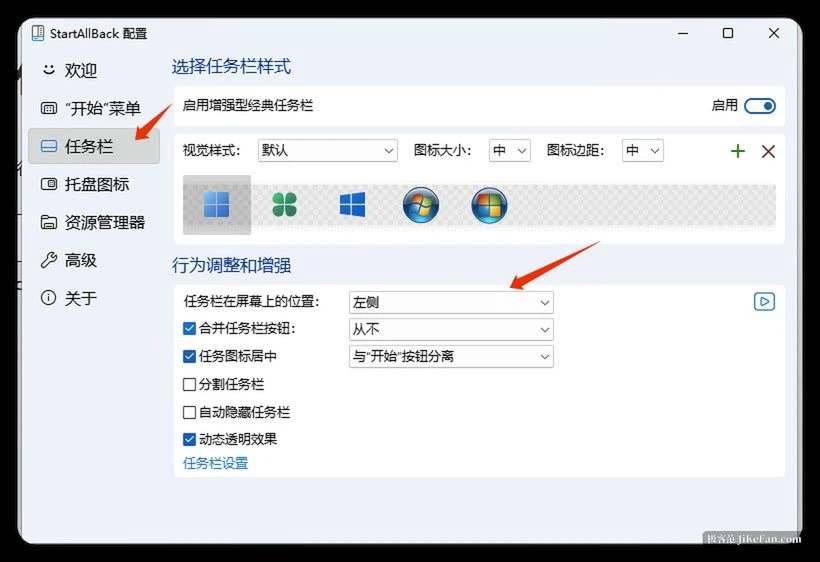
This tool hands the options back. Buttons can be kept separate so every window has its own entry that can be found at a glance and opened with one click. Labels can be shown beside the icons, so a folder title is readable without hovering. Icon size and spacing are adjustable, which lets a small icon set fit more windows into the same width, or a large one suit a touch screen. The taskbar itself can be moved to the top of the screen or to either side, a capability the current Windows release removed outright. Transparency can be layered on, from a light see-through effect to the blurred material the system uses elsewhere. Even dragging a file onto a taskbar program works again, an operation the newer shell simply refused.
Beyond the menu and the taskbar
File Explorer gets its ribbon toolbar and command bar back, along with a stronger translucent effect, the detail pane at the bottom that had been taken away, and dark mode coverage that reaches further into the system dialogs. The right click menu no longer hides behind an extra item: the full classic layout returns in one step, drawn with rounded corners and the acrylic material that matches the rest of the desktop.
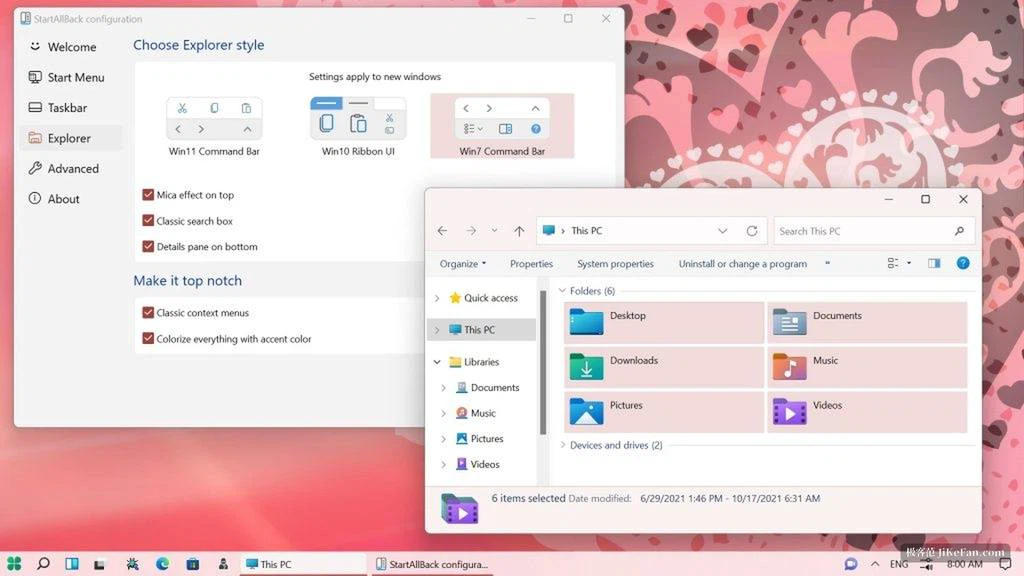
There is also work on consistency. Older applications built on the classic Win32 framework often render with a title bar and font smoothing that look out of place next to modern windows; the tool aligns those, so a desktop full of mixed-era programs stops looking like a patchwork.
Light, well maintained, and reasonably priced
On resources the approach is unusual in a good way. No additional process runs in the background and no separate memory budget is added, because the program replaces the parts of the native shell it modifies rather than layering on top of them. The practical result is that the desktop does not get slower.
Stability comes from long familiarity with this particular corner of the operating system: the same developer has been shipping Start menu replacements across several Windows generations, and the code has been adjusted for each major system update as it arrived. The interface is translated into Chinese out of the box, so no separate language pack is needed.
On price, a single payment of thirty-five yuan buys a permanent licence, with no subscription attached. Before committing there is a trial period of a hundred days, which is long enough to run it through a full update cycle and decide honestly.
The modern direction Windows 11 took is not the problem. Cutting away habits that people had spent years building is. This tool leaves the kernel alone and makes no security compromise; it simply hands back the way you already worked – which is why the hundred-day trial is worth taking for anyone who finds the new desktop awkward.