
Xshell: session management, quick commands and triggers for people who live in terminals
Summary
An SSH client for Windows built around session folders, reusable authentication profiles, a quick command panel and triggers that react to text in the terminal. Free for home and school use, a licence for commercial work.
Recommend- Name
- Xshell
- Version
- 20260720
- Open source
- Proprietary
- Operating system
- Windows
- Website
- https://www.xshell.com
- Updated
- 2026-10-26 22:00
Fifty servers, and every address kept in your head
For anyone who administers machines, the SSH client is not a utility but the main workspace. Yet a surprising number of people still work with an old-fashioned terminal that asks for the address, the port, the user name and the path to the key on every connection, and remembers nothing between sessions. That is fine for two servers. At fifty it becomes a daily tax, and a dangerous one, because the moment you mistype a host you are on the wrong machine with the right credentials.
Xshell is the current reference point for this category on Windows, developed by a team in Korea and used by operations groups in more than ninety countries. The licensing is worth stating early: home and school use is free permanently, and since 2022 the tab limit has been removed, so the free edition opens as many sessions as you like. Commercial use requires a purchased licence.
Session management, which is the real core
All remote connections are stored in folders, and each session carries its own address, port, user name, key and proxy hop. That alone removes most of the typing. What makes it usable at scale is the colour coding: servers belonging to different environments can be given different icons and colours, so production is red, staging is amber and development is blue. After a week the colour is what you notice before the host name, which is exactly the protection you want against running a production command on the wrong box.
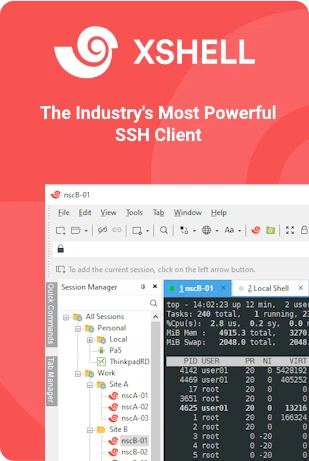
The second half is authentication profiles. A user name together with a key or a password can be packaged as a profile and applied to a whole group of sessions. When a key is rotated, the profile is edited once and every session using it follows; the alternative is opening forty sessions by hand and editing each one, which is the sort of work that produces mistakes.
Quick commands and triggers
The quick command feature turns frequently used commands into a panel of buttons. Checking disk usage, restarting a service, tailing a log – each becomes one click instead of a line typed from memory. A compose pane sits alongside it, letting several lines be drafted and reviewed before anything is sent to the terminal, which matters when a multi-line command is not easily undone.
Triggers are the more interesting mechanism. A rule watches the terminal output for a particular string and performs an action when it appears: highlight the line in red when a permission error shows up, raise a desktop notification when a backup reports completion. For the kind of operations work that involves watching a log scroll for an hour, this means not having to stare at the screen continuously – the terminal tells you when something needs attention instead of expecting you to notice.
Tabs, split panes and file transfer
Tabs can be detached and reattached: pull one out into its own window, or merge the tabs of two windows into one. A single window can be split horizontally or vertically, so several machines can be watched at the same time without overlapping windows. With synchronised input enabled, whatever is typed in the active pane is broadcast to the other open sessions, which turns a repetitive change across ten servers into one command.
File transfer is built in rather than bolted on. The SFTP browser supports drag and drop in both directions, ZMODEM transfers work inside an existing session, and SCP is available from the command line for scripted work. Where a graphical view of the remote file system is needed, a companion transfer tool can be opened directly on the current session rather than re-authenticating.
This is not a spare replacement for a minimal terminal but an industrial tool, and the difference shows in the parts that only matter in daily use: grouped sessions, reusable authentication, a panel of prepared commands, triggers and session logging. Each of those would justify the tool on its own. Home and school users pay nothing, and both veterans and newcomers get the same workspace; for anyone logging into several servers a day, it is the fastest path available.