
LightBulb: precise colour temperature control for a screen you stare at all day
Summary
An open-source tool that sets screen colour temperature from the local sunrise and sunset, with exact Kelvin values for day and night, a transition you can time yourself, per-application exemptions and global hotkeys. Fully offline.
Recommend- Name
- LightBulb
- Version
- 2.7.1
- Pricing
- Free
- Open source
- Open source
- Operating system
- Windows
- Updated
- 2026-10-26 22:00
The built-in night mode offers one slider and no numbers
Windows does have a night mode, and it does reduce blue light. What it does not have is any precision. There is a single warmth slider with no indication of what value it represents, no calculation from the actual sunrise and sunset where you live, and no way to exempt an application from the effect. For most people that is enough, which is why the feature exists in the state it does. For anyone who notices colour, it is not.
LightBulb fills those gaps. It is an open-source tool built by a developer known for several well-regarded libraries, released free with no advertising. The principle is the same as other colour temperature utilities: the local position is used to calculate sunrise and sunset, the screen stays at a neutral daylight temperature during the day – around 6500 K – and shifts toward warm as the evening arrives, with a default of 3900 K that can be taken down to 2700 K. The shift is applied through gamma correction rather than a colour overlay, so the result is a genuine reduction in blue output rather than a tint laid over the picture.
Why numbers matter more than a slider
The central difference is control that can be described. With a slider, there is no way to know whether the setting corresponds to four thousand Kelvin or five thousand; with a value, there is. Day and night each get an exact figure, and the interface draws the temperature curve across the whole twenty-four hours, so the current position in the day is visible rather than inferred.
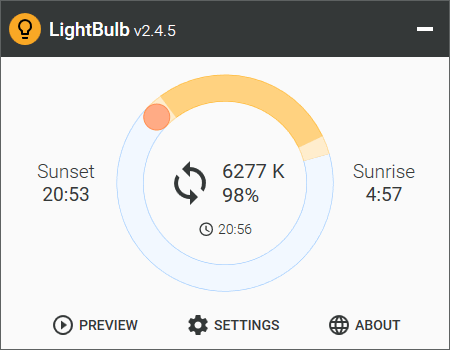
The transition duration is adjustable too, from a few seconds to more than an hour. That detail is more important than it appears: a change over an hour is almost impossible to notice while it happens, and that invisibility is the point. A shift that announces itself makes you aware of the screen rather than the work.
The whitelist that designers and players asked for
Application exemption is the feature that makes the tool usable in a working day. Retouching and video grading software needs accurate colour, and any global warmth shift breaks that judgement. Applications can be added to a whitelist so the effect pauses the moment they gain focus and resumes when they close. Full-screen games and video players are recognised and paused automatically, without any configuration.
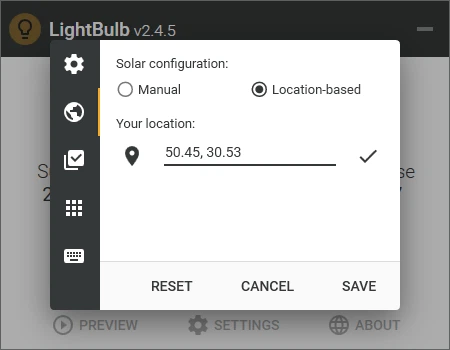
A set of global hotkeys covers the adjustments people actually make: disable temporarily for fifteen minutes, raise or lower the temperature, raise or lower brightness, or jump straight to the sunrise setting. None of them require opening the window. The tray icon menu offers the same switches in one click for anyone who prefers a mouse.
Light enough to forget it is running
Resident memory is ten to twenty megabytes and processor use is close to nothing. When the window is minimised to the tray, the interface process unloads entirely, which is the sort of detail that separates a utility from a permanently tolerated background load.
It runs entirely offline: no network connection is required and no user data is collected. Multiple monitors can be adjusted independently or together, the installer is very small, and a portable build is available for anyone who would rather not install anything at all.
Two screens, and a copy that installs nothing
Multiple monitors can be handled in two ways, and the choice matters more than it sounds. Treated as one surface, every screen warms together, which is what you want on a desk where the same pair of eyes moves between them. Treated separately, one screen can be left neutral, which is useful when the second display is a reference panel or when a laptop screen and a large external monitor behave very differently with colour. Switching between the two modes is a setting rather than a project.
A portable build exists for the situations where installing is not an option: a managed work machine with restricted permissions, a computer borrowed for an afternoon, a system that is reinstalled often enough that carrying the tool is simpler than setting it up again. It runs from a folder, and nothing is left behind when it is closed.
What offline actually means
The program never contacts a network. That removes an entire category of concerns at once: no account, no sign-in, no request to look up a location online, no telemetry reporting back. Sunrise and sunset are computed locally from the position, so the feature that sounds as though it needs the internet does not. For anyone who objects to a small utility asking for permissions it does not need, this is the short answer – there is nothing to grant.
It also means the tool keeps working on a train, on a plane, and on a network that is firewalled into uselessness. An eye-comfort utility that stopped functioning when the connection dropped would be a poor utility; this one simply never had the dependency.
This is not a tool that makes your eyes light up – it does the opposite, and that is the compliment. Ten megabytes, no network, exact colour temperatures, per-application exemptions and smooth transitions make it a better long-term companion than the built-in night mode. Open source, install once, configure once, then forget it exists: that is what the best eye-comfort tool should feel like.