
GSmartControl Review: Reading a Disk's Own Health Report
Summary
Every disk carries its own health report and hides it in raw numbers. GSmartControl lists the attributes in plain language, highlights the dangerous ones, runs short and long self tests, and keeps the reports for comparison.
Recommend- Name
- GSmartControl
- Version
- 2.0.2
- Pricing
- Free
- Open source
- Open source
- Operating system
- WindowsmacOSLinux
- Updated
- 2026-10-08 11:49
The disk has been talking all along
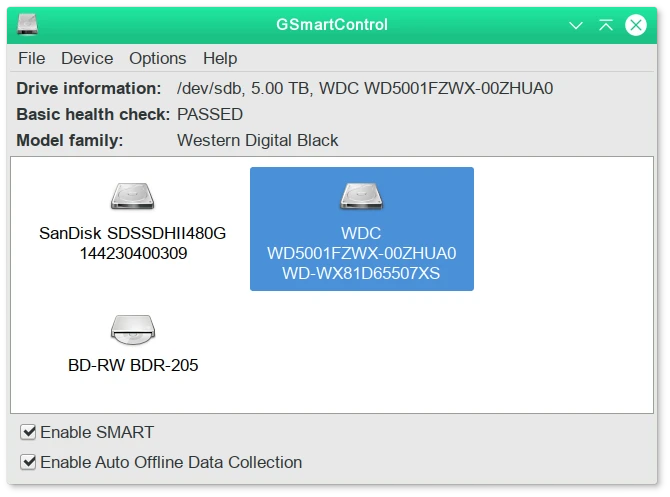
Every modern drive carries a monitoring system that counts things: hours powered on, times the heads were parked, sectors that needed rewriting, sectors waiting to fail. The raw table is written for engineers, which is why most people never look at it. GSmartControl opens the software on a bootable or installed system, lists every disk it can see with model, capacity and power on hours in one row, and then translates the attribute table into something readable, with the dangerous ones highlighted.
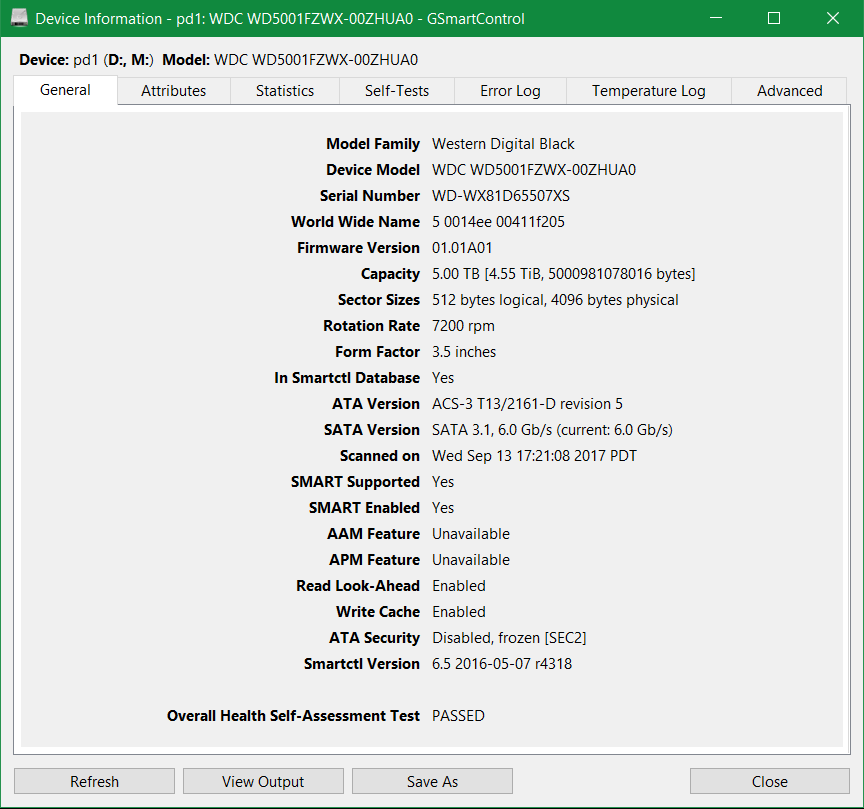
The colours do the teaching. A remapped sector count that has started climbing means the spare area is being consumed, and a pending sector count above zero means data in that sector is already at risk. Neither number is a death sentence, and both are reasons to copy the disk today rather than next month. Reading that signal before the drive stops answering is the entire point of the exercise.
Testing a used disk before you trust it
The classic use case is a second hand drive bought without paperwork. Plug it in, look at the attribute table, then start a short self test which finishes in a couple of minutes and a long one which runs for hours and sweeps the whole surface. The result comes from the drive itself, which is as close to an honest witness as storage offers. If the long test reports errors, the disk goes back to the seller, and the report is the argument.
Exporting the report is the habit that turns a one off check into monitoring. Keep a copy every month, compare the key counters, and the slow degradation becomes visible as a trend instead of arriving as a surprise. A drive whose reallocated count doubles in three months is telling you something a snapshot would have missed.
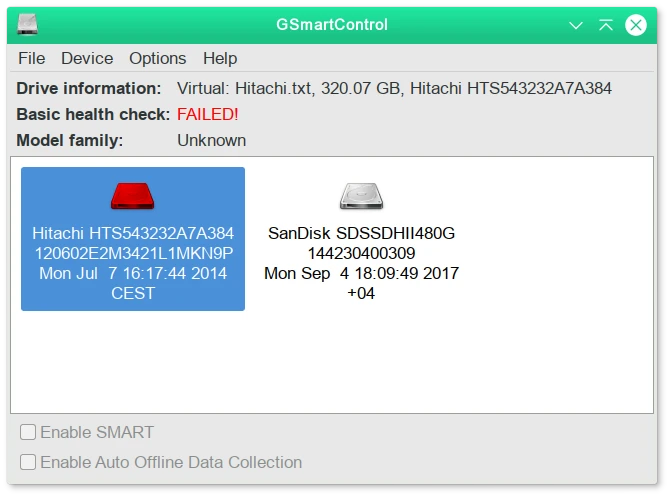
The value here is democratised expertise: no command line to memorise, no acronyms to decode, and yet the distress signal of a dying disk comes through clearly. Data has no price tag, and the check should happen early.
One warning about where it comes from
The project is open source, cross platform and free, which is exactly why lookalike sites exist. Download from the official page or the code repository, and treat any search result offering an installer with a similar name and an unfamiliar domain as hostile. A diagnostic tool runs with low level access to the storage stack, so the provenance of the binary matters more than it does for a media player.
One practical note on permissions: raw device access usually requires elevated rights, and on some platforms the tool will only show limited information until it gets them. That is the operating system protecting the disk, not a defect.
A routine worth keeping
Run a full self test when a disk is new, and keep the report as the baseline. Export monthly and compare. When a yellow warning appears, back up immediately; when a red one appears, back up and stop using the disk for anything important. Do not reverse that order, and do not wait for the operating system to complain, because by then the failure is usually already in progress.
Two counters deserve names: reallocated sectors and pending sectors. Watch those two and you will catch most failures early. Everything else in the table is context, useful when something looks wrong and noise when nothing does.