
Claude on the desktop: three tabs, three jobs, and only the left one is free
Summary
Chatting, writing code and handing over a whole piece of work now sit in one window. The first two are common; the third is the difference. It takes a folder, asks a few questions about scope and format, shows a plan, then works inside an isolated machine and saves the result back where it found it.
Recommend- Name
- Claude
- Version
- 1.46388.4
- Open source
- Proprietary
- Operating system
- WindowsmacOSLinuxiOSAndroidWeb
- Website
- https://claude.ai/
- Updated
- 2026-10-27 22:00
This assistant spent a long time in the shape of a thing you ask and it answers. The desktop application of 2026 visibly changed its mind: it no longer waits to be led one question at a time, it expects a whole piece of work to be handed over.
One application, three tabs
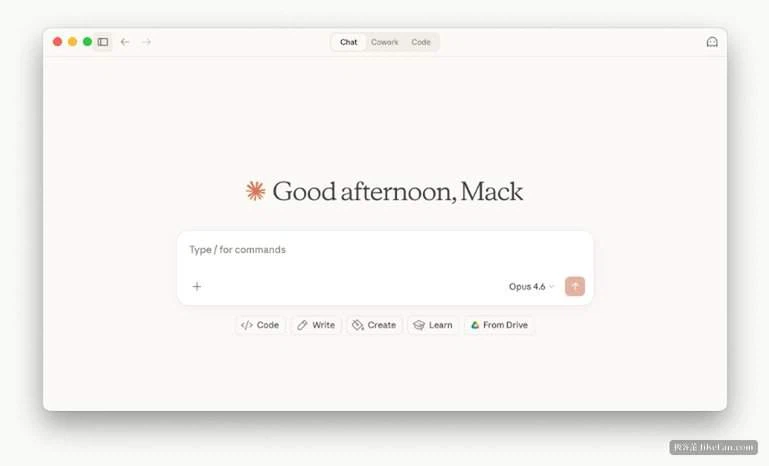
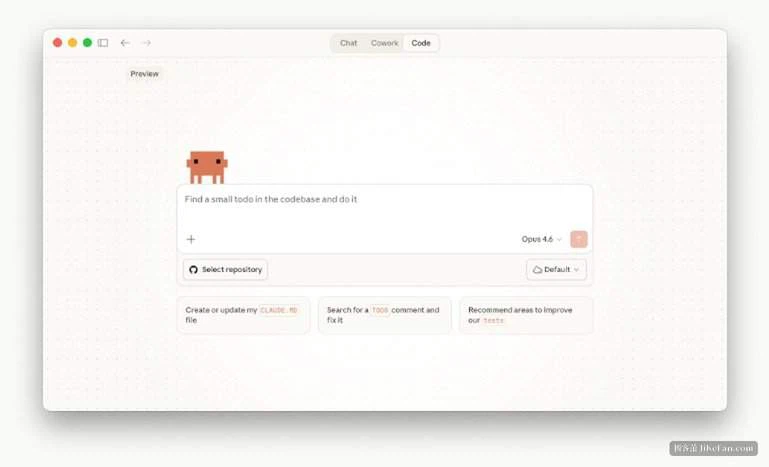
Along the top sit three tabs: a chat, a coworking space and a code view. The documentation is blunt about what they are. The first is ordinary conversation, no different from the web page everyone knows. The second is an autonomous background agent doing its work inside a sandboxed virtual machine with an environment of its own. The third is a coding assistant that reads and writes local files directly.
Behind the tabs there are not three separate systems. The tutorial says as much: the second and third run on the same engine, and underneath both is the same coding agent — running on your machine, able to work independently, able to spawn subordinate agents, able to carry a long task to the end. The difference is only who they are for. One is for people who write code; the other is for people who do not write a line but still have to get the work finished.
The path that never touches a terminal
The awkward situation being addressed is easy to describe. The capability has existed for a while, but the entrance sat in a terminal — typing commands, configuring an environment, reading a screen of scrolling logs. That sequence keeps a great many non-technical people outside the door.
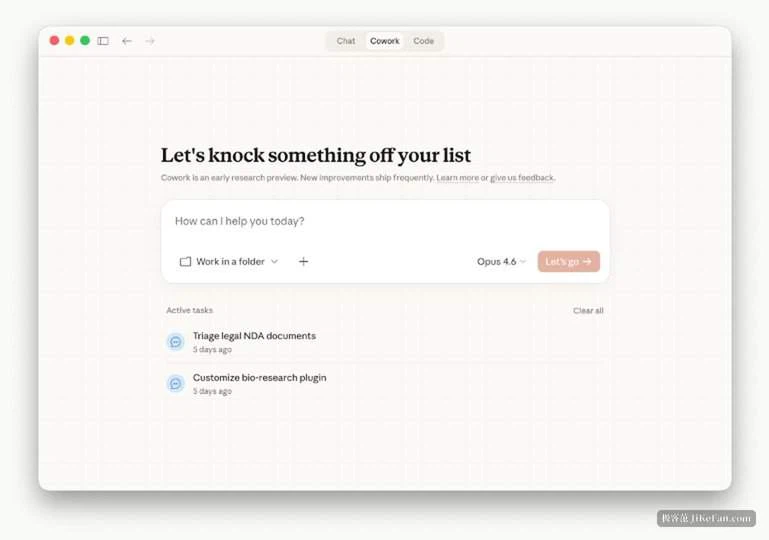
Here the entrance is a graphical one. Give it a folder and it reads what is in it, decides what is relevant, and saves finished results back into the same place. Before starting it asks a few questions to pin down scope, format and constraints, then puts a plan in the sidebar for you to look over. While it runs you can see which sources it cited, how the files take shape one by one, and how far through the plan it has got.
The work it can take on is concrete: synthesis across sources, turning material scattered around into a presentation, renaming a batch of files according to their contents and producing a summary report, and repetitive jobs triggered by a schedule or an event. It runs in an isolated machine, its file access stops at the folders you authorised, and its own configuration and session data, along with places where keys and similar credentials live, stay out of reach.
How far the free plan actually goes
This is the part worth being precise about. The support page for the download is explicit: the desktop and mobile applications are open to every plan — the free one, the individual paid ones, the team and enterprise tiers — with only some features reserved for paid plans.
Translated onto the three tabs: the chat is available on every plan including the free one; the code view and the coworking space require one of the paid tiers. So a free account can install the application and talk to it without trouble, but opening the code tab brings a prompt to upgrade.
On price, the entry paid tier is twenty dollars a month, or seventeen a month when paid annually in one payment of two hundred. The higher tier starts at a hundred dollars a month and gives five or twenty times the usage, a higher output ceiling and priority access at peak hours. A separate pair of tiers covers organisations.
Work can be dispatched from a phone
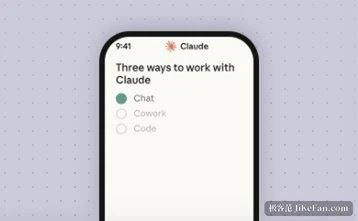
Once a phone and the desktop application are paired, you can throw a task out from the phone, let the desktop start working on it, and be notified when it is done. The official phrasing is starting something here and finishing it elsewhere; conversations, projects, memory and preferences stay in step across devices.
One precondition belongs in front: the desktop application has to stay running and the machine must not sleep, or the task is interrupted. That is the unavoidable cost of keeping the computation local, and it is better accepted before starting than discovered in the middle.

Assumptions that are easy to miss
Three smaller pieces are worth knowing. A global shortcut on macOS, a double tap of a modifier key, brings the assistant up over any application for a question and then out of the way. Desktop extensions install as packages that connect local tools and files in a single step, replacing hand-written configuration. And computer use, which lets it look at the screen, open applications and press buttons, is a research preview limited to the two paid individual tiers.
On platforms: the desktop needs macOS 11 or later, or Windows 10 or later with installers for both x64 and ARM64, and both are full versions. The Linux build is in beta, with Ubuntu and Debian supported. Mobile clients exist for iOS and Android. One thing should be stated plainly: there is no local inference here. Every interaction goes to the official cloud service and is bound by the plan's limits. A solution that works with the network disconnected is not what this was designed for.
Moving the agent out of the terminal and into a window is the most substantial change in this release. A free account gets the chat running, but making it actually do the work has a paid threshold in front of it — and for someone who writes no code yet has a pile of repetitive labour to clear, what that money buys is the ability to hand the work over.