
Caesium Image Compressor: Shrink a Folder of Photos Without Watching Them Degrade
Summary
Caesium Image Compressor is a free, open-source tool that makes images as small as possible while keeping them visually intact, with a quality and a target-size mode, batch processing, and preserved metadata.
Recommend- Name
- Caesium Image Compressor
- Version
- 2.8.5
- Pricing
- Free
- Open source
- Open source
- Website
- https://saerasoft.com/
- Updated
- 2026-10-06 13:28
The word lossless is doing two different jobs
Caesium Image Compressor is a free, open-source program whose stated aim is to make an image as small as possible while keeping the best quality, so that it can be shared or stored more easily. That sentence contains a tension worth unpacking before anything else, because the program is generally used for the kind of compression that does lose data, and the promise it makes is not mathematical: it is visual. If nobody can see the difference at the size the picture will actually be viewed at, the file has been shrunk for free.
Two different things are sold under the same word. Mathematical losslessness means the decoded pixels are identical to the original, which is what an archive format offers and what a photograph almost never needs. Perceptual losslessness means the difference exists but falls below the threshold where a viewer notices, which is where most photographs spend their entire useful life. A program built around the second idea can remove eighty per cent of a file and still be honest about it.
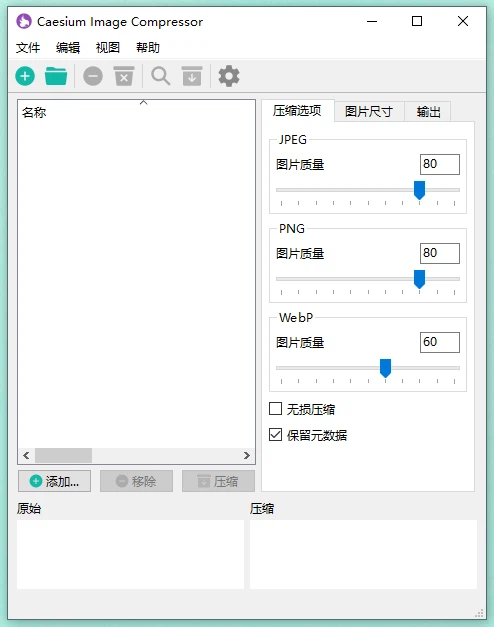
What a quality slider actually controls
The number on a compression quality setting is widely misread as a percentage of original quality. It is closer to a measure of how coarsely the image is allowed to be described. A photograph is transformed into a frequency description, and the setting decides how much precision is kept for each part of that description. Low frequencies, which carry the overall shapes and the light, are kept almost exactly; high frequencies, which carry fine texture and hard edges, are rounded off first, because that is where the bits are.
This explains the pattern everyone notices without being told: a portrait on a smooth background survives aggressive settings beautifully, while a photograph of foliage, gravel or confetti falls apart at the same setting, because it is almost entirely high frequency. It also explains why a second pass over an already compressed file is a bad idea. The fine detail has already been thrown away; compressing again only damages what is left.
Two ways to ask for a result
The program offers more than one way to state the goal, and the choice matters more than the slider position. Asking for a quality level is asking for a consistent visual standard across a set of images: every file gets the same treatment, and the resulting sizes vary with how much detail each picture contains. Asking for a target file size is asking for a consistent number: every file lands under the limit, and the visual cost varies instead, which is exactly what you want when a form or a platform refuses anything above a fixed weight.
Both are legitimate, and they answer different questions. The mistake is to reach for a fixed quality number when the requirement was a size, and then discover that one photograph in fifty is twice as heavy as the rest because it happened to contain a field of grass.
Formats are not interchangeable, and the list is the point
The formats supported cover the ones people actually have: JPEG, PNG, BMP and GIF among them. Each carries a different assumption about what the picture is. JPEG is built for continuous tones and tolerates loss because human vision is forgiving about colour detail; PNG is built for exactness and sharp edges, which is why it compresses screenshots and line art superbly and photographs poorly; BMP is essentially raw and exists to be converted; GIF is limited to a small palette and survives mainly because it moves.
A compression tool that only understood one of these would fail on the second folder a person tries. The practical rule that follows from the list is simple: pick the format for the content first, then compress within it. Compressing a photograph as PNG produces a large file; converting a screenshot to JPEG produces a small file with visible fringing around every letter.
Batch is not a convenience, it is the whole argument
Compressing one image is a thirty-second job in any number of places. Compressing two hundred is where a dedicated tool separates itself, and not because of speed. The real advantage is that a batch produces a consistent result: the same settings, in the same order, without the drift that comes from a person adjusting a slider differently on the fortieth file. Adding a folder, seeing the list, and letting it run also makes the operation reviewable, which single-file compression never is.
The interface being plain matters here too. A batch tool is used while doing something else, so what it needs is a clear list of what is queued, an obvious indication of progress and an obvious place where the output went. Anything more elaborate is decoration on a progress bar.
Metadata travels with the picture, for better and worse
Keeping the original metadata and EXIF information through compression is a feature that sounds like housekeeping and is actually about meaning. The capture settings tell you which lens, which aperture, which moment; the orientation flag is what makes a phone photograph appear upright in every viewer; the copyright field is the only ownership statement a file carries with it. A compressor that strips all of this silently returns a smaller file that is no longer quite the same document.
The same property has a second edge. Photographs taken on a phone can carry a location, a device serial number and a timestamp, and a file prepared for public sharing may be better off without them. Knowing that the information is preserved by default is what makes it possible to decide, per folder, whether that is what you want.
Where it fits
This is a narrowing tool, not an editing tool. It does not crop, straighten, retouch or convert a whole folder into a gallery; it takes images that are heavier than they need to be and returns images that are not, in bulk, with the metadata intact and the visual result close enough to the original that the difference has to be searched for. For a website, a shared album, a documentation folder or an upload form with a size limit, that is the entire job description, and free and open source means it can be the answer for years.