
UniConverter 18: an AI Media Agent That Chooses the Encoding Settings for You
Summary
UniConverter 18 is a paid media converter for Windows and macOS that adds an AI Media Agent: describe the format, device or size you need, and it plans and runs the whole batch.
Recommend- Name
- UniConverter
- Version
- 18
- Pricing
- Paid
- Open source
- Proprietary
- Operating system
- WindowsmacOS
- Updated
- 2026-11-03 20:16
UniConverter 18 is a paid media converter for Windows and macOS. The release is less about adding formats than about removing the part where someone sits in front of a settings dialog: an AI Media Agent takes a described delivery target, reads every file in the job, plans conversion or compression settings for each one, runs the batch and then checks the output against the goal. Compression, image repair and background automation get similar treatment.
Material piles up, and so does the repetition
Anyone who publishes video knows the folder: camera footage, phone clips, screen recordings and files from other people, all in different formats, ranging from a few dozen megabytes to several gigabytes. Something has to be transcoded before it goes to a platform, shrunk before it goes into an email, and handed to an editor with the audio tracks and subtitles intact. Any single job is easy. The difficulty is that it returns every day, and every batch means choosing a format, a resolution and a bitrate again.
Say what the result should be and let the agent configure it
The AI Media Agent takes the other route: instead of setting parameters file by file, you describe the delivery target in plain language, such as which format is needed, which device or platform it is for, and how large the file may be. The agent reads each local file, plans conversion or compression settings per file, runs the whole batch, and checks afterwards whether the output met the stated goal. The vendor still labels the feature as Beta.
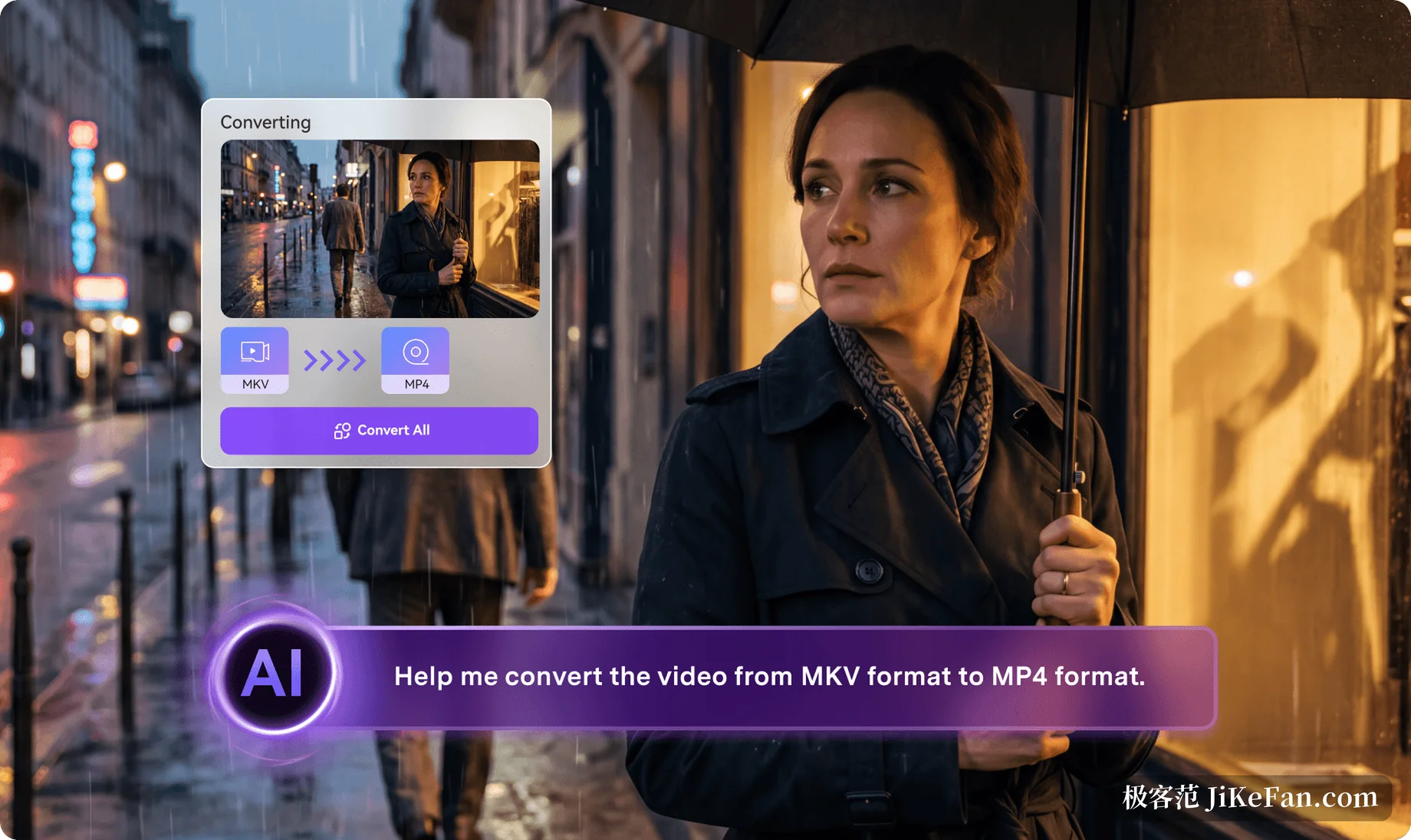
The difference is where the interaction sits. It used to be that you configure the tool; now you describe the result. That lowers the barrier for batch work from knowing codec parameters to being able to state a requirement.
Compression with three ways to state the goal
Compression splits its controls three ways: a target file size, a compression ratio, or a quality level. Pick the one that matches the delivery: hit an upload limit by giving a size, or keep the picture by working from a quality level. The vendor says size estimation has improved so the result lands closer to the expectation, and that supported output formats keep subtitles and several audio tracks.
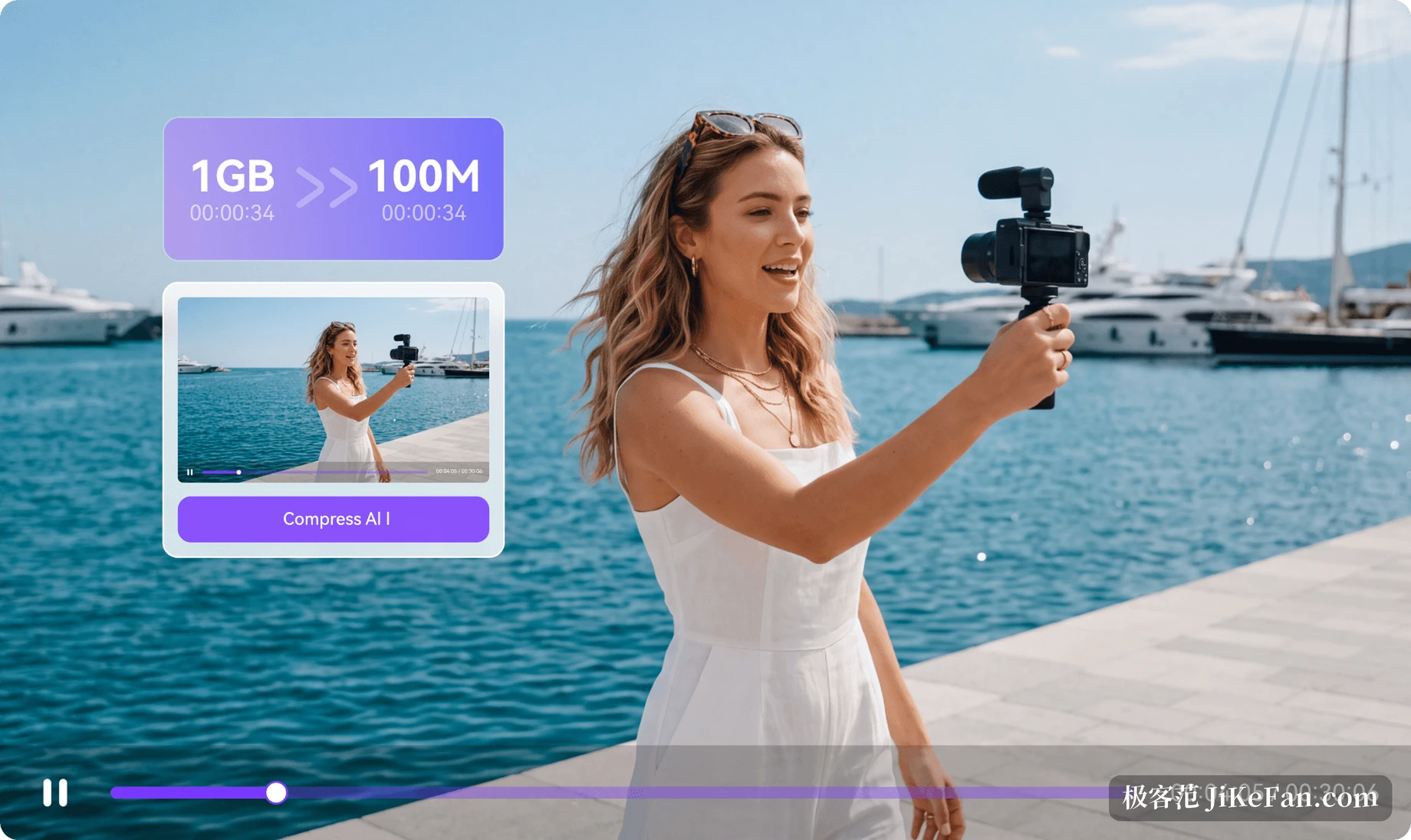
Audio passthrough sits alongside it: compatible tracks are carried over without being re-encoded, so the sound is not processed twice. The formats listed for that path are AC3, E-AC3, TrueHD, DTS and FLAC.
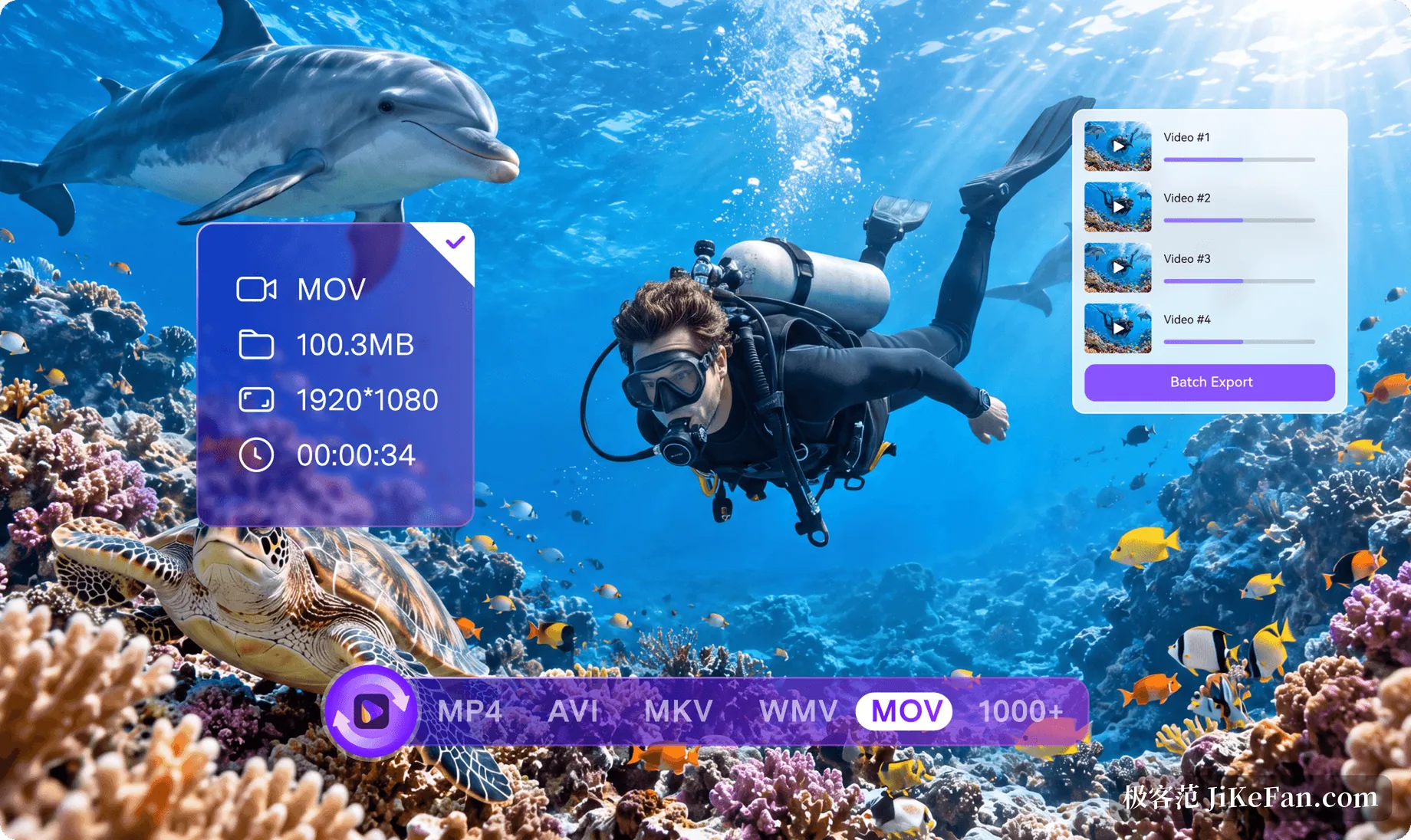
Conversion itself was not left out. The vendor says 4K and 8K HDR conversion is faster, that metadata, chapters, audio tracks and subtitle tracks survive into compatible outputs, and that professional workflows such as ProRes keep their channel. The format list is quoted at more than a thousand video, audio and image formats, which for anyone with mixed sources means installing fewer tools.
Image repair starts with a diagnosis
Auto Fix on the image side does something slightly different: it diagnoses before it acts. It decides whether a picture is soft, noisy, too low in resolution or troubled in the portrait, then matches the repair to that finding, so nobody has to try several models in turn. Video enhancement gains face enhancement, generative detail recovery and frame interpolation, and the vendor puts generative video enhancement and upscaling at roughly 15 percent faster.

Batches should not take the machine hostage
Watch Folder is built for high-frequency work: point it at a few folders, set the rules once, and new files dropped in are converted without a manual trigger. CPU usage can be capped, so the foreground stays usable during a long job. On Windows machines with an NVIDIA card the GPU pipeline was reworked; in conversion tests without added editing the vendor reports up to about 90 percent less time, though the real figure depends on hardware, source files and settings.
Who it suits, and where it stops
UniConverter is sold as a subscription or a perpetual licence, with AI credits that the AI features consume per use, and the vendor offers a trial. It runs on Windows and macOS only, with no Linux build. Conversion, compression, enhancement, screen recording and light editing live in one client, which suits people whose material arrives in mixed formats and who deliver against the same rules repeatedly; for a single file every few months, the capability on offer is far more than the job needs.
The point of version 18 is less work, not more features: the agent replaces a parameter dialog with one sentence, Watch Folder replaces a manual trigger with a dropped file, and compression replaces trial and error with a stated size. For someone processing a batch of material every day, what is saved is not a click but a stretch of attention.