
SumatraPDF 3.7 preview checks signatures and layers
Version 3.7
Summary
SumatraPDF 3.7 preview adds signature validation and layer switches to a Windows reader of about 10 MB that opens large files instantly.
Recommend- Name
- SumatraPDF
- Version
- 3.7
- Pricing
- Free
- Open source
- Open source
- Operating system
- Windows
- Updated
- 2026-11-14 23:00
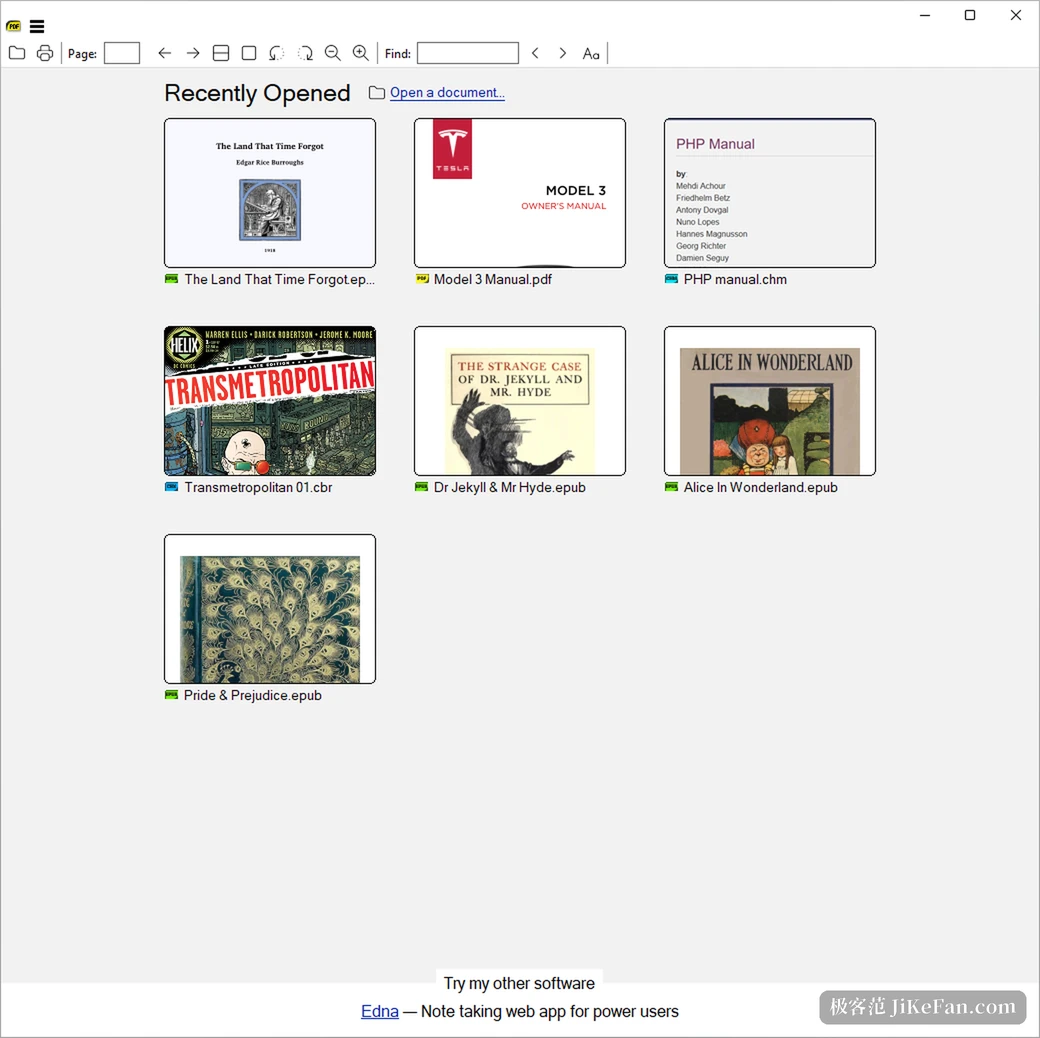
A three-hundred-page tender document that spins after a double click, a scanned comic that takes two seconds per page: that is what many Windows users remember about PDF readers in general. SumatraPDF goes the other way. The installer is a little over 10 MB, a double click lands on page one, and the interface carries no spare panels. The latest build of its 3.7 preview arrived in late August, and what it adds is not typographic polish but two more practical things: whether a signed PDF can be told apart from a tampered one, and whether drawings with layers can be shown selectively. The reader supports Windows 7 through 11, with builds for 32-bit, 64-bit and ARM64, its source is open, and it costs nothing.
The positioning is spelled out on the first line of the site: free, fast, small. Three words, no fourth.
Whether a signature is genuine now has somewhere to look
A signed contract used to show a picture of a signature and little else; who signed it and whether it had changed rested on the other party's word. The 3.7 preview makes it checkable. Open a signed document and a status bar appears above the page stating whether the signature is valid; the properties window then lists each signature with its own state, including qualified electronic signatures from the European trusted list. Validation uses the moment a trusted timestamp can prove, and revocation is checked in three places at once, the document itself, the Windows cache and an online source, so a single report of revocation shows up. The bar can be switched off in settings for anyone who finds it intrusive. The whole capability currently applies to Windows only.
Drawings and manuals can finally be switched by layer
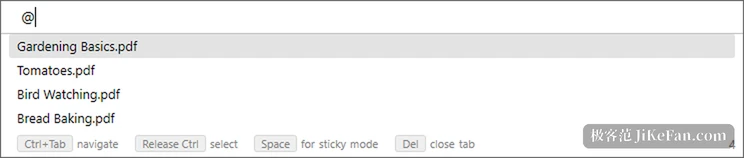
Engineering drawings, maps and layout proofs often carry optional content groups, stacking annotation, base art and text into one file. Previously it was all or nothing. Version 3.7 adds a layer view in the sidebar: one click or a press of the space bar hides a layer, and groups, radio-button layers and locked layers behave as the file defines them. Printing outputs only the layers currently shown rather than the whole original, and each document remembers its own switch state for next time. Control plus K brings the view up directly, without hunting through the sidebar first.
No menus to memorise, just two letters
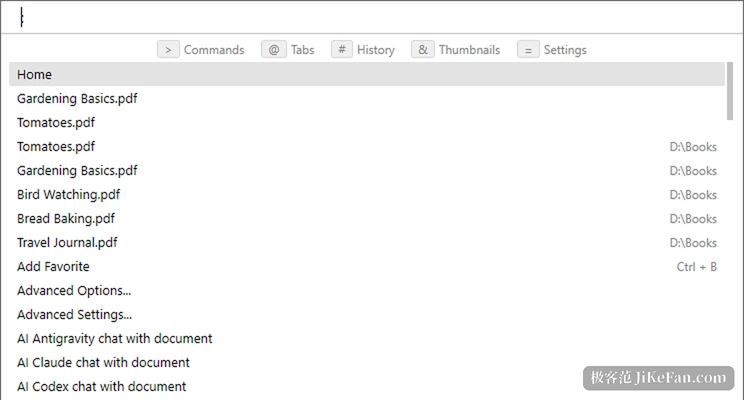
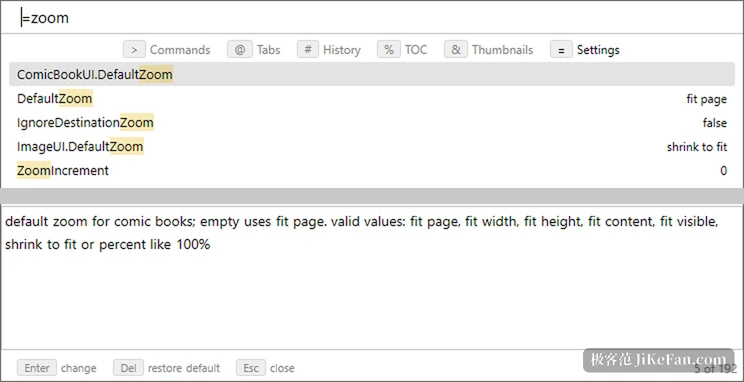
The command palette is the easiest entrance in the program: open it with Control plus K, type a few letters and the matching command surfaces, with merge, split, convert to image, extract text, encrypt and repair all on the list. Version 3.7 also adds a keyboard cheat sheet on the question mark key, listing the shortcuts currently in force, including any you rebound, draggable, dismissed with Escape. Compact settings written as pairs of numbers in the properties panel are now editable directly and take effect on open documents without a restart.
It does more than read, without pretending to typeset
Annotation, form filling, signing, reading aloud and asking a document questions are all present, tucked into the palette and the context menu rather than piled onto a toolbar. Reading aloud uses the system voice, so a long document can be heard while pages turn; asking questions needs a model configured first, and suits working through dozens of pages before a close read. What is genuinely missing is layout editing: changing text, adjusting paragraphs and reflowing pages are out of scope, because the product is a reader. That refusal is also why the installer stays around 10 MB and why an old laptop with 4 GB of memory still opens files instantly.
A single executable you can carry
The portable build is one executable file: drop it on a USB stick, double click, and no registry entries are written, so another machine needs no setup. Since 3.7 there is also a command-line tool, so the same program with different arguments can batch convert, merge, split, extract text and search contents from a script. Installing or not changes only file associations and the context menu, never the features. One caution on versions: the site currently marks 3.6.1 as stable while 3.7 sits in the pre-release channel, so preview builds are for the curious and everyday work is calmer on the stable one.
If your day consists of opening PDFs, paging through them, finding a paragraph and closing them again, the value of SumatraPDF is not the length of a feature table but the seconds saved after each double click. SumatraPDF turned those seconds into the normal case, and 3.7 takes over the other question: whether this file was changed at all.