
Sidebar Diagnostics 3.7.6: a hardware dashboard that lives on the edge of the desktop
Summary
An open-source sidebar for Windows that keeps processor, memory, graphics, network and disk readings on screen permanently, with history charts, threshold alerts, hotkeys and scaling that follows each monitor.
Recommend- Name
- Sidebar Diagnostics
- Version
- 3.7.6
- Pricing
- Free
- Open source
- Open source
- Operating system
- Windows
- Updated
- 2026-10-05 23:33
Most hardware monitors want to be a window you open. Sidebar Diagnostics wants to be a strip you forget. It parks a narrow sidebar against one edge of the desktop and keeps the numbers there permanently: CPU load and temperature, memory in use, GPU clocks for the core and its memory, traffic in both directions on the network, read and write rates on every logical disk. There is no window to arrange and no tab to hunt for, which is most of the reason it survives the first week.
The project is open source under the GPL, started by an individual developer and now carried by maintainers from the community. The current version is 3.7.6, released in 2026-07, and it runs on Windows 10 and Windows 11.
What it actually measures
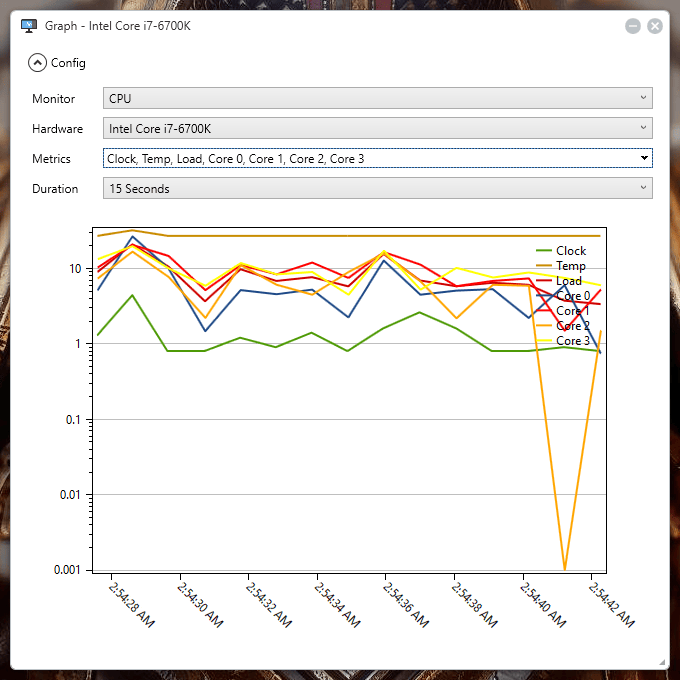
The coverage is wider than the first glance suggests. The processor appears with its model, frequency, temperature and load. Memory shows how much is in use. The graphics card contributes core and memory frequencies together with its temperature. Each logical disk reports its read and write rate and the space left, and the network section shows traffic up and down. Any of those values can be drawn as a history curve, which is the difference between knowing the machine is busy now and knowing what it has been doing for the last hour.
Thresholds, hotkeys, and more than one screen
Any value can carry a threshold. When a temperature or a load crosses it, the alert arrives instead of being discovered afterwards. A global shortcut binds to showing and hiding the whole strip, so it can be out of sight until it is wanted. On a desk with several displays the sidebar can be assigned to a particular screen and follows the DPI scaling that screen uses, which is the detail that usually breaks a tool of this kind when a high-density laptop panel sits next to an older external monitor.

Ready on arrival, without a skin to assemble
Desktop customisation suites can display hardware readings too, but only after plugins and a skin have been gathered and tuned. The premise here is the opposite: install it and the sidebar docks itself with a readable set of panels, and what remains is choosing which modules appear and in what order. A clock sits at the top, and the strip works around the system notification area instead of colliding with it, which is a small thing that decides whether a permanent element on screen is tolerated or closed after a week.
Where the sensor data comes from
Readings are supplied by an open-source sensor library with reasonable coverage of what mainstream motherboards, NVMe solid-state drives and discrete graphics cards expose, temperature, fan speed and voltage among them. Reading those sensors requires administrator rights, and the first launch asks for them.
What can be changed
Almost everything in the strip is configurable. Individual devices and sensors can be hidden, which is how a virtual network adapter is kept from cluttering the list. Panel order and width can be adjusted, the light and dark themes swapped, and the whole configuration takes effect immediately without a restart. On a multi-monitor desk the sidebar can be restricted to the secondary screen, leaving the main one entirely to work.
Who it suits
Anyone who wants the temperature, load and network state of the machine visible at all times without a large monitoring application occupying the taskbar. What makes it work is the form: it is free, the readings come from a library that is itself open, and it is legible the moment it is placed. For a Windows desktop that has to stay usable rather than turn into a dashboard, that is the right trade.
The strip is a small idea executed without fuss, and that is exactly why it fits a working desktop. Nothing in it demands attention: the numbers sit at the edge in the same place every day, and the moment something looks wrong, the threshold already knows. Tools that try to do more tend to end up closed. This one is easy to leave alone, which for a monitor is the highest compliment available.