
Shutter Encoder review: the free transcoder editors actually keep installed
Summary
Written by a working French editor, it puts presets for beginners and full encoder parameters for professionals in the same window: convert, compress, extract audio and burn subtitles without opening a second tool.
Recommend- Name
- Shutter Encoder
- Version
- 20.3
- Pricing
- Free
- Open source
- Proprietary
- Operating system
- WindowsmacOSLinux
- Website
- https://www.shutterencoder.com/
- Updated
- 2026-10-08 12:40
A transcoder written by someone who edits for a living
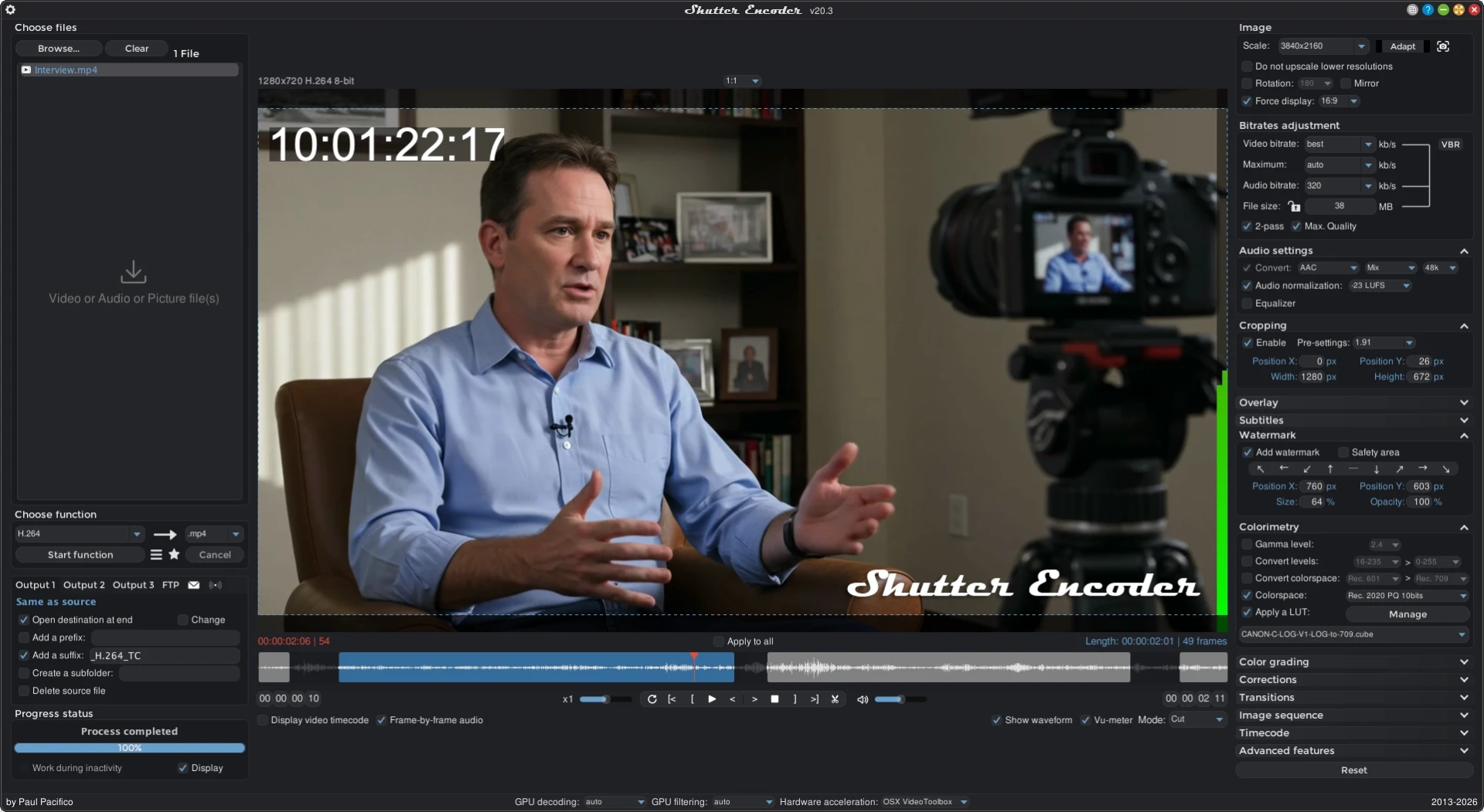
The first step of a video job is often not cutting but converting. Footage arrives from phones, cameras, screen recorders and clients, in containers and codecs that the editing software either refuses or handles badly. Shutter Encoder exists to close that gap, and its author is a French editor who works on real productions, which explains the choices: the window holds one column of functions and a handful of options, nothing decorative, and the layout follows the order in which work actually happens.
Two kinds of user are served by the same screen. A beginner picks a preset, drops files in, presses start and gets a file that plays. Someone who knows what an intra frame is scrolls down and finds bitrate, GOP length, colour space, chroma subsampling and hardware acceleration exposed as plain fields. The presets are not a wall hiding the engine; they are shortcuts sitting on top of it.
More than a converter
The function list is longer than expected. Beyond format conversion and compression, it rewrites containers without re-encoding, extracts or replaces audio tracks, generates proxy files for editing on weaker machines, burns or extracts subtitles, converts images and audio, applies colour conversions between standards, and handles disc authoring and stream downloading. None of these are headline features, and all of them are the small tasks that otherwise cost a download and a half hour of figuring out.
For professional work the important property is not the number of formats but the reliability of the ones that matter. Broadcast and camera formats, intermediate codecs used by editing software, and the awkward combinations clients send are handled consistently, which is why the tool has a solid reputation in editing communities rather than only in freeware roundups.
Batch handling is where the time savings accumulate. Files queue up, each with its own settings if needed, and the whole list runs unattended. Converting a day of footage overnight is a normal use, and the queue survives a slow external drive because progress is tracked per item rather than per session.
Where it asks something of you
It is not a consumer app, and a few things show that. There is no guided wizard, no automatic recommendation of the best format for a phone, and no preview of what a setting will do to your footage before you commit. The interface is functional rather than friendly, and the documentation assumes you know why you would pick one codec over another. For a first-time user converting a holiday video, the number of options is closer to intimidating than inviting.
The price of that is zero, on Windows, macOS and Linux, with no account and no watermark. Updates arrive frequently, partly because the underlying ecosystem of encoders keeps moving and platform sites change how they serve media, which is also why the download page is worth checking against the author site rather than a mirror.
The best tools tend to come from people who do the work. Behind every function here is a real bottleneck somebody hit on a deadline and decided to solve once, properly.
Practical advice. Start with presets to get a working file, then go deeper only for the problem in front of you. Use the queue for anything repetitive, and schedule long jobs for the evening. Keep the original camera files until the delivery has been approved, since transcoding is a re-encode and the source is the only thing you cannot regenerate. And check the audio settings before a long batch, because a silent export discovered the next morning is the classic way to lose a day.
One more habit worth adopting: keep a note of which preset worked for which client. Video work repeats, and a short list of known-good settings saves more time over a year than any feature in the application.