
Sejda PDF: the desktop build keeps documents on the machine, 500 MB per file
Summary
Sejda splits its PDF tools into a browser route, where files are processed on the server and deleted afterwards, and a desktop route that works entirely on the machine; the paid tier allows 500 MB per file and up to 21 minutes per task.
Recommend- Name
- Sejda
- Version
- 7.9.11
- Pricing
- Paid
- Open source
- Proprietary
- Operating system
- WindowsmacOSLinuxWeb
- Website
- https://www.sejda.com/
- Updated
- 2026-10-11 11:13
The worry when handling a PDF is rarely the editing itself. It is not being sure whether this particular document should be uploaded to somebody else's server at all.
One toolset, two places to run it
Sejda takes two routes with the same set of tools. The first lives in a browser: nothing to install, the file goes up from a web page, an official server handles it, and the process description states that files stay secure and are permanently deleted once processing ends. The second is installed on a computer: the desktop build keeps the document on the machine for every operation, and the official FAQ confirms plainly that files are not uploaded when the desktop version is used.
Those two routes cover very different situations. Merging a few pages or turning one document into images is easiest on the web. Contracts, identity papers or internal reports that should not travel are better handled locally. Both forms share one toolset, only the place of execution differs.
What it actually does
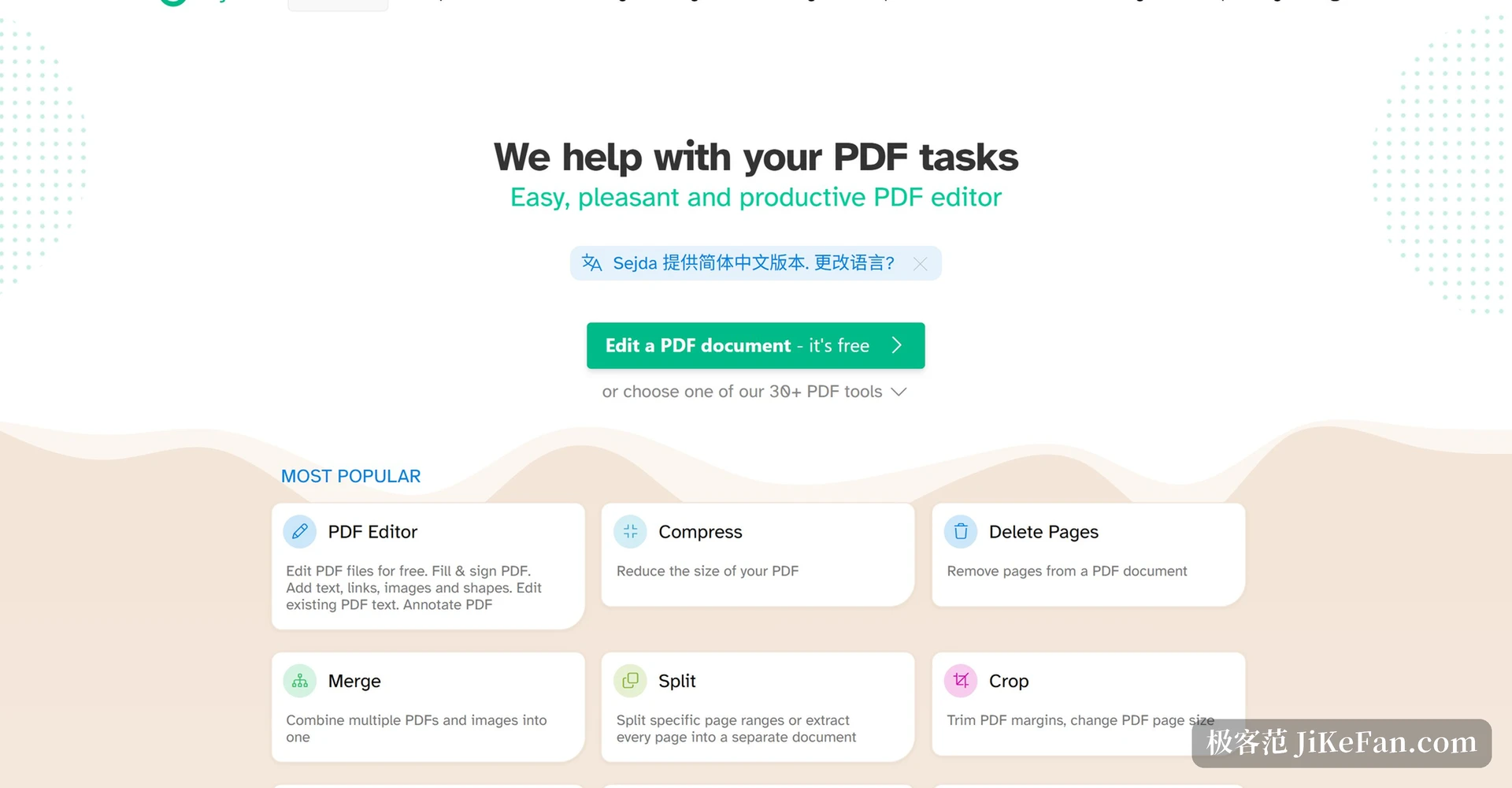
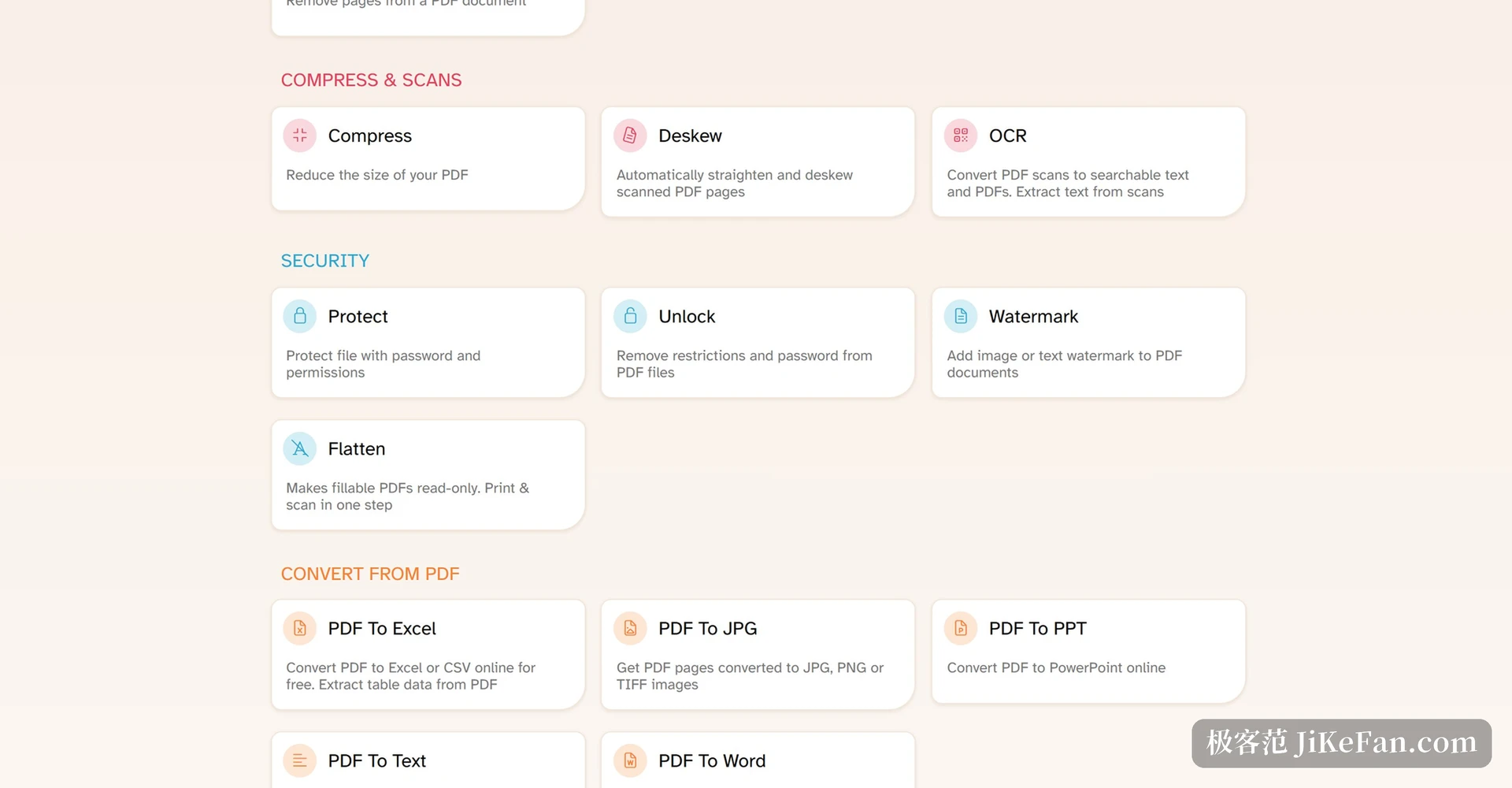
The catalogue is broad. Among organising operations, merging joins several PDFs and images into one document, while splitting works by page range, by chapter through bookmarks, by target file size, or even automatically where the body text changes; at page level there is also deleting, reordering, rotating, cropping, resizing and imposing several pages onto one sheet. Editing covers adding, removing and changing text in place with font and style control, inserting images and shapes, adding links and comments, and building, filling and signing forms.
Conversion runs in both directions: PDF to DOC, Excel or CSV, PowerPoint, and out to JPG, PNG or TIFF images, while Word documents can produce PDF. Scanned material goes through OCR, turning picture pages into searchable text. Beyond that sit encryption and removing restrictions, watermarks, page numbers, Bates numbering, metadata editing, greyscale conversion, repairing damaged documents and straightening skewed scans.
Capability | Free tier | Paid tier |
|---|---|---|
Registration | Not required | Account needed |
Documents and pages | Limited | Unlimited |
OCR | Limited | Up to 100 pages |
File size cap | Smaller | 500 MB |
Time per task | Shorter | Up to 21 minutes |
Batch processing | Not supported | Supported |
Where free ends and paid begins
The dividing line is not the range of tools but volume and batch capability. The free tier needs no registration, yet page counts and frequency are limited. Paying lifts the page limit and the hourly operation cap, adds processing several files at once, raises OCR to a hundred pages, extends the time available per task to twenty one minutes and allows single files up to five hundred megabytes. A one off weekly pass is also offered, dropping back to free after seven days, which suits someone clearing a backlog of documents in a short stretch.
Two things are worth checking in practice. First, web and desktop licences are not interchangeable, so a plan covering only the web does not come with a desktop key, and the choice has to be made before buying. Second, the limit of scanned material: the official text states clearly that damaged or scanned PDFs cannot have their existing text edited or be converted directly, because such files are pictures of text without editable data. New text, images and comments can still be added, or the pages can go through OCR first and be worked on afterwards.
Handing the choice of where processing happens back to the user gets closer to what the PDF situation actually needs than piling on features.
How to use it well: send sensitive documents through the desktop build for local processing; use the free tier for one off simple operations instead of subscribing early; and when a scan turns up, run OCR before entering the editing step, which goes far more smoothly than editing text directly.