
FinderRight 1.12.4: Real Cut, New Files and a Terminal Shortcut for the macOS Finder
Summary
FinderRight is a free, open-source Finder extension for macOS that adds a real cut, new files from templates or the clipboard, and open-in-terminal to the context menu, and version 1.12.4 fixes an exit deadlock.
Recommend- Name
- FinderRight
- Version
- 1.12.4
- Pricing
- Free
- Open source
- Open source
- Operating system
- macOS
- Updated
- 2026-11-05 21:20
The Finder context menu has been missing three things for years: a real cut, a command to create a file, and a way to open a terminal in the current folder. FinderRight is a small macOS tool that adds exactly those.
It is a Finder extension written in Swift, released under MIT with the source public. Every file operation happens locally and nothing goes over the network. The current build is 1.12.4, published on 2026-11-04; besides removing an exit deadlock left by the previous release, it makes the clipboard-to-file feature introduced in the 1.12 line more reliable.
Cut means the file stays until you paste
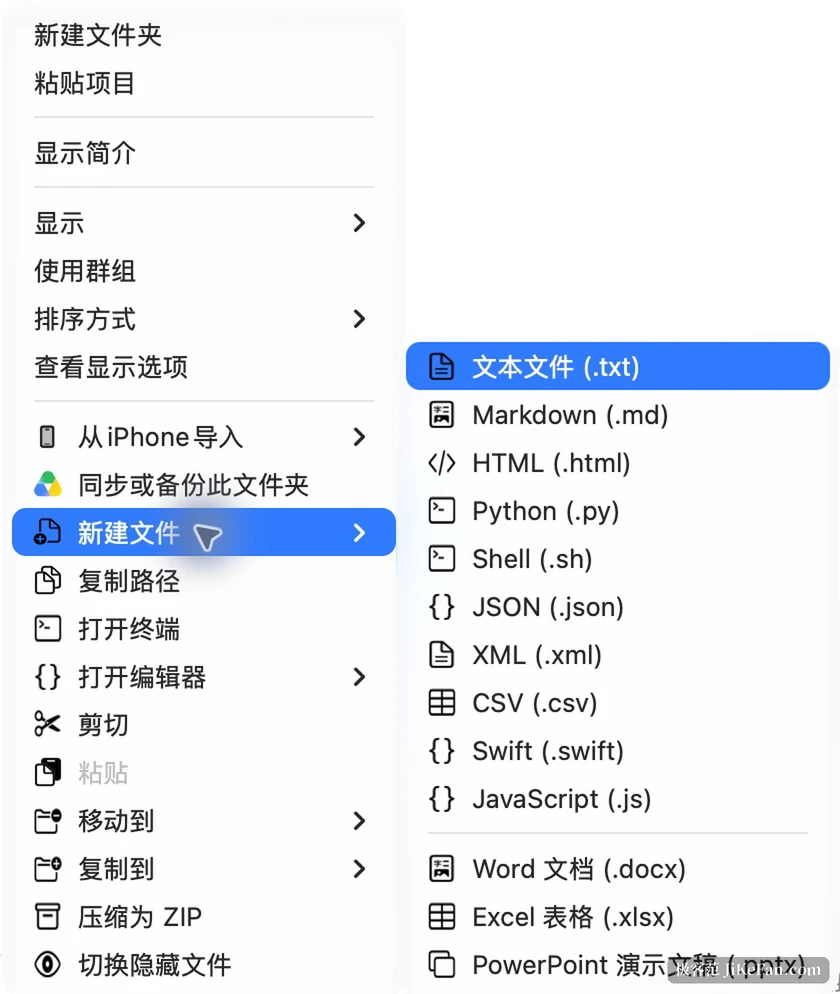
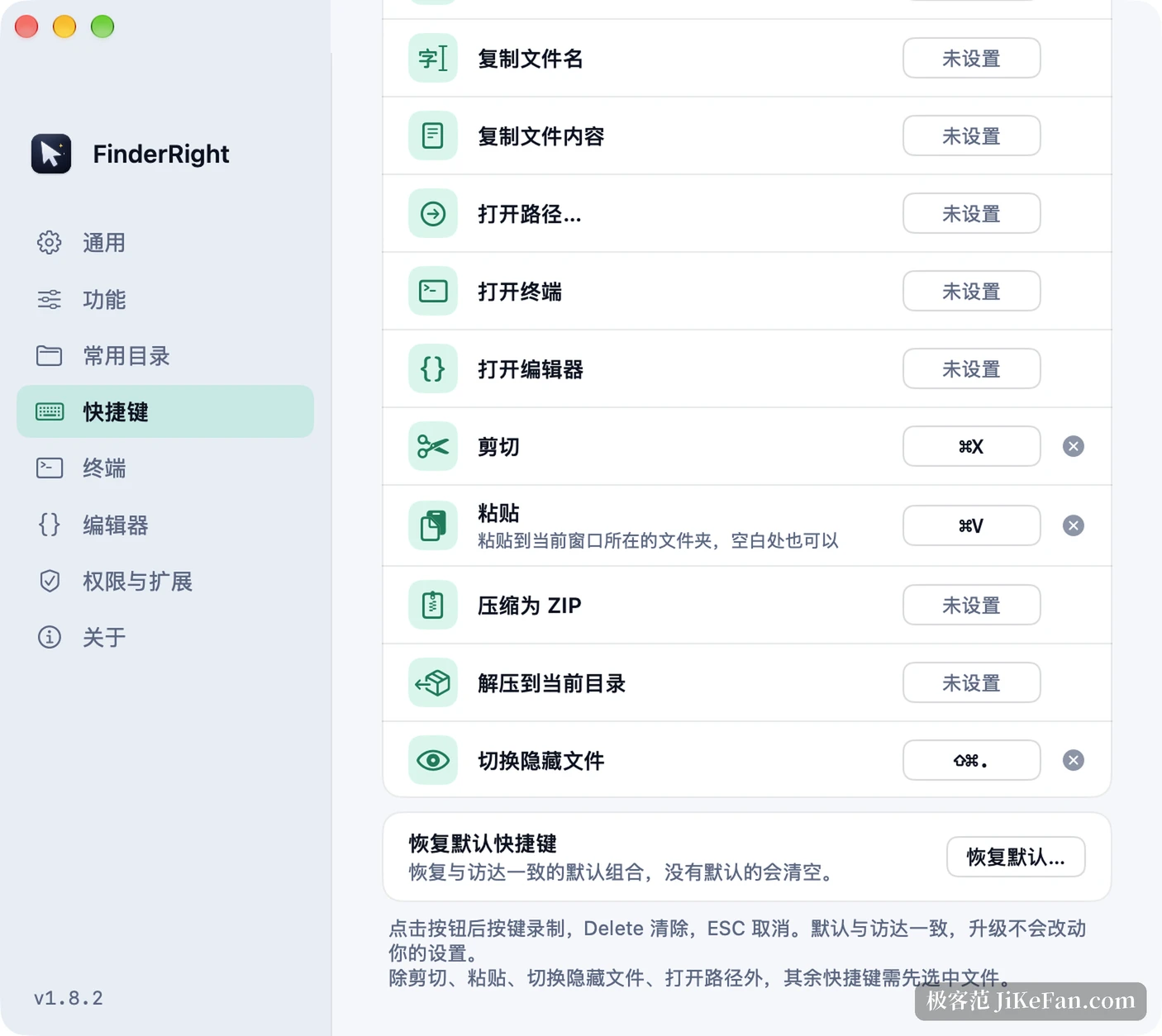
The Finder copies and does not cut. FinderRight supplies the missing half: select a file, press Command+X, and the icon gains a scissors badge to show it has entered a queue waiting to be moved. The file leaves its place only when you press Command+V. Changing your mind mid-way is a matter of removing that entry from the queue, and not one byte of the original is touched.
The queue is visible in the settings, where entries can be inspected and removed one at a time, so it is not a black box. That matters when clearing a folder of assets in bulk: a file selected by mistake does not become an irreversible move.
New files from templates, blanks or the clipboard
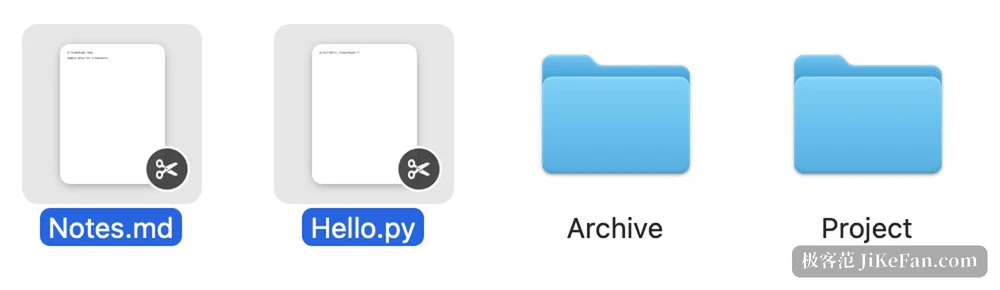
The Finder can create a folder and nothing else, so making a txt file means opening an editor and saving one. FinderRight puts file creation into the menu: text, Markdown, HTML, Python, Shell, JSON, XML, CSV, Swift and JavaScript are one click away, blank Word, Excel and PowerPoint documents work too, and your own templates can be added to freeze the header you always type.
The 1.12 line pushed this further, because clipboard content can become a file directly. Copy a passage, right-click in the target folder, and save it as txt, Markdown or JSON; copy a screenshot or an image and save it as PNG, JPEG or HEIC, with transparent areas laid onto white for JPEG while the original stays untouched. The name is filled in and can be changed, and the format remembers the last one that worked.
Terminal and editor open where you are
Anyone who writes code feels this step most: navigating to a folder in the Finder and then typing the path again in a terminal. FinderRight adds Open Terminal and Open Editor to the menu, with Terminal, iTerm2, Ghostty and Warp supported for shells, and VS Code, Cursor, Zed, Xcode and the JetBrains family for editors, all chosen in the settings.
Copy Path sits alongside, offering a tilde-shortened path, an escaped terminal path, a file URL or just the name. Copying file contents, copying SHA-256 and MD5 checksums and creating symbolic links are off by default and can be switched on when needed.
What the 1.12 releases changed, and the deadlock
Version 1.12.2 added clipboard-based file creation. Version 1.12.3 added a compact mode, where the settings window folds into a small floating panel showing only the extension status and the login item, draggable, with the choice remembered; it also fixed a Finder window opening for no reason after creating a file on the desktop.
But 1.12.2 and 1.12.3 called the wrong routine on a clean exit, so updating the app or switching language could hang in the shutdown path. Version 1.12.4 removes that deadlock and also fixes in-app updates that stayed for a long time on installing and restarting. Anyone still on either of those two builds should quit once by hand after upgrading.
Small but complete, with limits to know first
The app is 5.1 MB, bilingual in Chinese and English, built as a Finder extension plus a menu bar app with no heavy background service. Compression and extraction are off by default, because Chinese filename encoding inside ZIP archives and name collisions behave differently across archive formats, so they are opt-in.
Two limits come first. It requires macOS 13 or later and supports Apple Silicon only, so Intel machines are out of scope. And it depends on the Finder extension mechanism, so the menu simply does not appear when permissions are incomplete; some cloud sync folders are restricted by the system File Provider, and there the commands often hide inside the Services submenu.
Beyond the extension there are a few thoughtful touches: folders and ZIP archives preview with the space bar without unpacking, hidden files toggle without restarting the Finder, Command+Z undoes the last move or creation, and a history records every action and every failure by date.
The Finder's weakness was never capability but access. FinderRight does not rebuild a file manager; it puts cut, create, open terminal and copy path back where the context menu should have kept them. MIT licensed, operations staying local, 5.1 MB, and after enabling it the menu feels as if it had always been there.