
Dashou: One Alt+Space Box for Search, Clipboard, Automation and AI on Windows and macOS
Summary
Dashou puts app search, more than twenty built-in tools, visual workflows and an AI prompt into one Alt+Space input box, keeps the data on your machine and works without an account.
Recommend- Name
- Dashou
- Version
- 1
- Open source
- Proprietary
- Operating system
- WindowsmacOS
- Website
- https://www.da-shou.cn/
- Updated
- 2026-11-05 21:20
Dashou is a launcher for Windows and macOS that answers to Alt+Space and does more than launch. Application search, clipboard history, notes, to-dos, small utilities, repeatable workflows and a prompt for an AI model all live behind the same input box, so a task does not have to be abandoned halfway in order to open another window.
Most people spread this work across several programs. A launcher finds applications, a clipboard tool keeps history, an automation program handles repetition, and the AI sits in a separate client. Nothing is missing until a search turns into a batch job, or a workflow needs one step that only a model can do. Dashou is built to remove that switching. The hotkey is Alt+Space by default on both platforms and can be changed.
Press the key first, decide afterwards
The bar searches installed applications, saved workflows, web shortcuts, snippets, notes, to-dos, clipboard entries, script commands and AI commands. Pinyin and initials both work, an empty query sorts by recent use so the usual entries float up, and everything can be finished from the keyboard: Enter opens or switches to an application, pastes an entry, opens a page or runs a workflow.
Ctrl+K, or Cmd+K on macOS, opens an action panel that lists what else the current entry can do. The window itself is configurable: colours, fonts, system blur, and an image or video background. Five themes ship with it, and the bar and the action panel can take separate backgrounds. Data stays on the machine, nothing needs a plugin, and no account is required to start.
More than twenty built-in tools
Dashou does not leave the basics to a plugin market. The clipboard is the one most people meet first: copied text, images and files are listed by time, Enter pastes the entry back into whichever application was in front, chosen applications can be ignored, and items a password manager has marked as sensitive are skipped.
Snippets hold frequent replies, addresses and templates with placeholders for the date or the cursor position. Notes are Markdown, organised in folders and saved automatically. To-dos are grouped, shown as a list or a board, and finished items sink to the bottom. Below those sit a calculator and unit converter, colour picker and screen sampler, a calculation history, a JSON editor, translation, emoji and symbol search, and a tool that finds a stuck program by application or process name and ends or restarts it. Any one of them is easy to install alone; the point is that all of them answer to the same search box.
Workflows without a second program
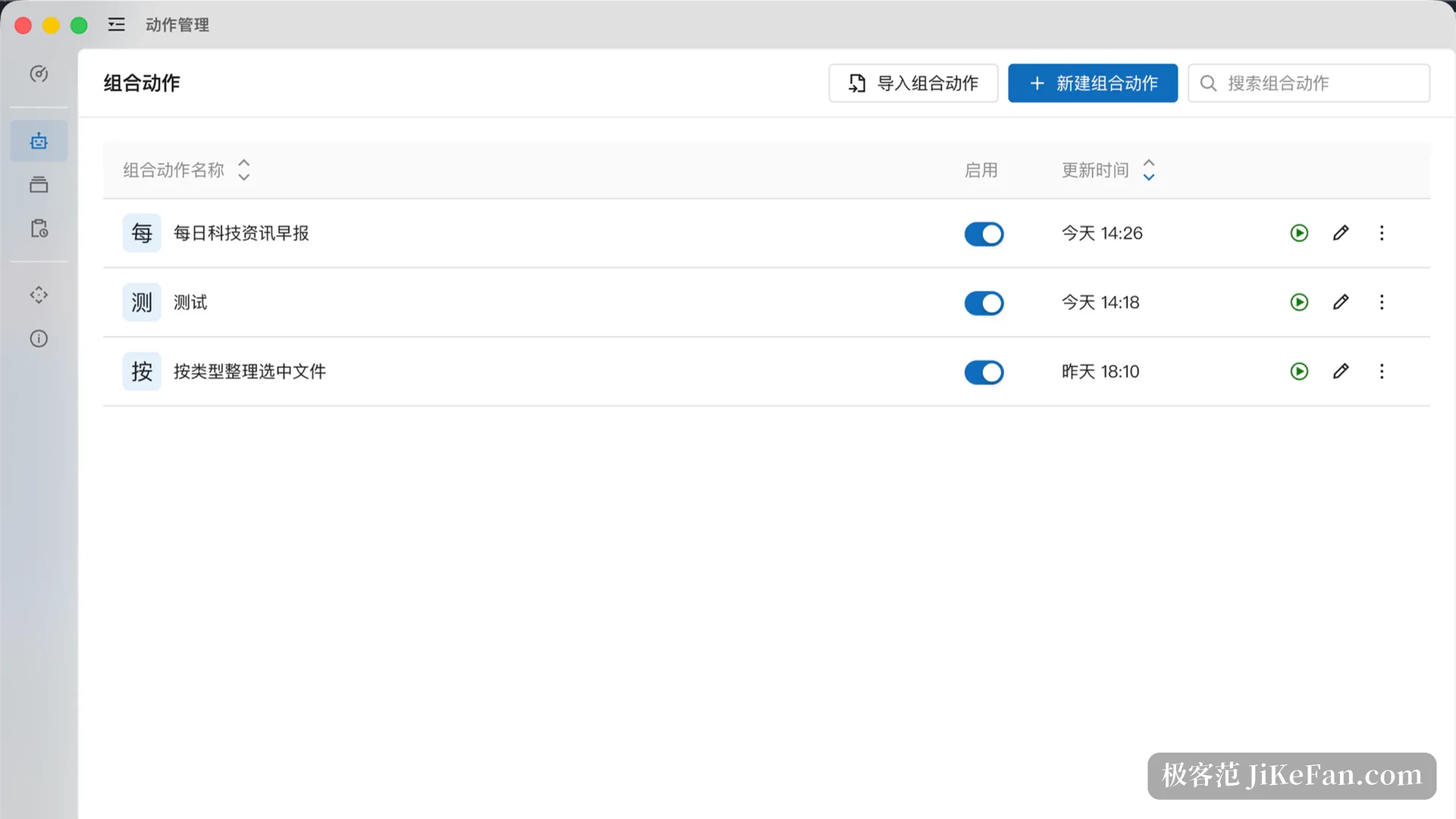
A sequence of steps becomes a saved workflow. The editor has three columns: a node library on the left, the flow in the middle, a global variables panel on the right. A flow is a linear list of steps with nested control blocks, and conditions, loops, iteration over items, error handling, parallel execution and sub-workflows are all available. Values between nodes travel as JSON and as binary cursors, and parameters accept expressions. Free-form wiring was left out on purpose, because a diagram with many branches is harder to read than a list.
A saved workflow can be started three ways: by searching for it, from the action panel, or on a schedule. Every run is recorded, and a failure points at the step that broke. That record is what makes a workflow safe to edit later instead of something you configure once and then leave alone.
The AI sits in the same box
Any query can be handed to an AI model, and the answer can be continued as a conversation or moved into a workbench. Frequently used prompts are saved as commands and run against selected text, which turns translation, polishing and rewriting into a single keystroke instead of retyping a prompt. The workbench is the part that saves real time: when a workflow has to be built or changed, describing it in plain language lets the model produce the flow for you to adjust. Models run on your own provider account, and once configured no extra client is involved.
What the free tier allows
The free tier needs no login and states its limits openly: ten workflows, three sub-steps inside a single action, three scheduled tasks, twenty snippets and a clipboard history of thirty days. For finding applications, pasting clipboard entries and keeping a few to-dos that is enough. Anyone who wants it as the main automation tool can lift the limits with a membership, which also covers custom themes and importing or exporting theme packs. The first release cannot take payment yet, so activation codes are the only route.
Built by one person, with the limits stated
Dashou was written by a single author, and the release notes name the gaps: no cloud sync, so moving to another machine means exporting a workflow pack; no automatic updates, so the About page has to be checked by hand; no plugin ecosystem yet, since extension comes from built-in tools and workflows; no code signature on the Windows installer, so the first run meets a system warning; and the first macOS build covers Apple Silicon only. None of these is fatal, but together they define what it is today: a personal tool that gathers frequent actions into one entrance, not a collaboration platform for a team.
The value is not in beating other tools on feature count. It is in putting find, repeat and ask into one place, which is worth a few saved window switches for anyone who spends the day moving between four or five of them.