
Kalmuri 5.0.4: the rounded corners of a Windows window capture can be cleaned
Summary
A capture tool rarely fails at capturing; it fails in the steps after. Kalmuri shipped 5.0.4 and 5.0.5 in November, adding corner cleanup for window captures, a magnifier for selection and colour picking, quality options for MP4 recording, and three themes.
Recommend- Name
- Kalmuri
- Version
- 5.0.4
- Pricing
- Free
- Open source
- Proprietary
- Operating system
- WindowsmacOS
- Website
- https://kilho.net/
- Updated
- 2026-11-05 23:00
The gap between capture tools rarely shows up in whether they can capture. It shows up in the few steps after: whether the corners need fixing, how a colour gets picked, where the file went. That is the stretch Kalmuri worked on in this round.
Three releases in November, all on the small chores around a capture
Kalmuri has been one of the busier free utilities this month. Version 5.0.4 arrived on 11/2, 5.0.5 followed on 11/5, and before that 5.0.3 landed on 10/24. Across the three there is no interface rebuild; what got done were concrete problems that surfaced in use, the rounded corners of a window capture, the precision of a selection, the save path, the quality tiers for recording.
The basics first. This is a screenshot and screen recording tool for Windows and macOS, built around finishing with one press of PrintScreen: it sits in the tray, the main window never has to open, you decide beforehand what to capture and which format to save, and from then on each press produces the result directly, with file names incrementing on their own instead of being typed every time. The author lists it as free software, usable by companies, households, government offices and schools, and free to redistribute.
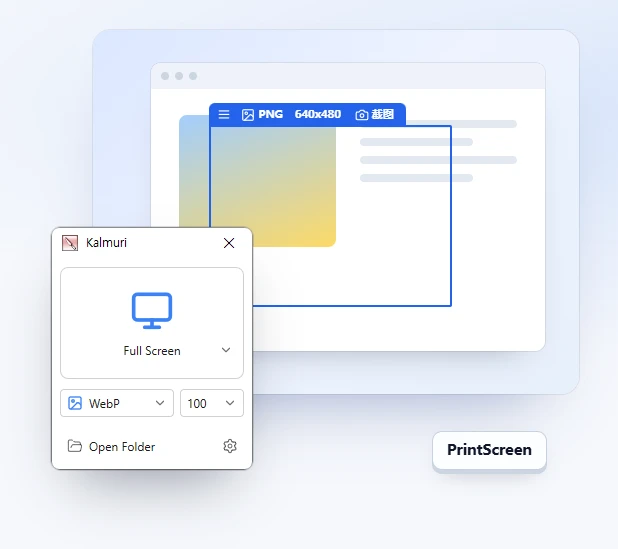
The corner question finally got a switch
The item in 5.0.4 most likely to be noticed is the new option to clean the rounded corners off a window capture. On a system that draws windows with rounded corners, capturing a window brings the background colour along in all four corners, and pasting that into a document or a slide means trimming it by hand. The old answer was to fix it after the fact; now the corners can be squared before saving, so the image is usable as it comes out.
The same version adds two details that both save a trip. One is a fixed save folder, together with opening the file location straight after the capture, so nobody has to go digging through the downloads folder. The other is support for another Chromium based browser in web page capture, plus a switch to preferring the default browser rather than being limited to the two engines previously supported.
It also fixes a small flaw with a large presence: when capturing or recording through DXGI, the mouse cursor appeared twice in the frame. That kind of thing does not break a feature, but it forces one rework per image, the classic case of a problem that stays annoying until it is fixed.
A magnifier for selection, and colour picking along with it
Another addition is a magnifier option, used in two places: while dragging a capture region, and while picking a colour. Aligning a selection to the pixel has always been hard on the eyes; the magnifier enlarges the pixels around the cursor so it is obvious where the border lands, and the same applies to picking, where you can see which cell of colour you are taking instead of checking the value afterwards.
Keyboard nudging existed long before: arrow keys move 1 pixel, holding Ctrl while resizing steps 10 pixels, holding Shift resizes by 1 pixel. Only with the magnifier does that become genuinely usable. Colour picking supports HEX, RGB, Web and TColor, copied out directly.
The capture modes are generous. Full screen takes the whole display at once; region gives a fixed frame that remembers the last position and size, which suits capturing the same area every day; drag freezes and dims the screen the instant the hotkey is pressed, so a menu or a notification that flashes past still gets caught; active window takes only the current one; and window control goes further, taking a single button, input field or panel inside a window, which saves a lot of trouble when writing documentation or filing an issue. Beyond the usual image formats, output can be MP4, a TXT from text recognition, or nothing but the clipboard.
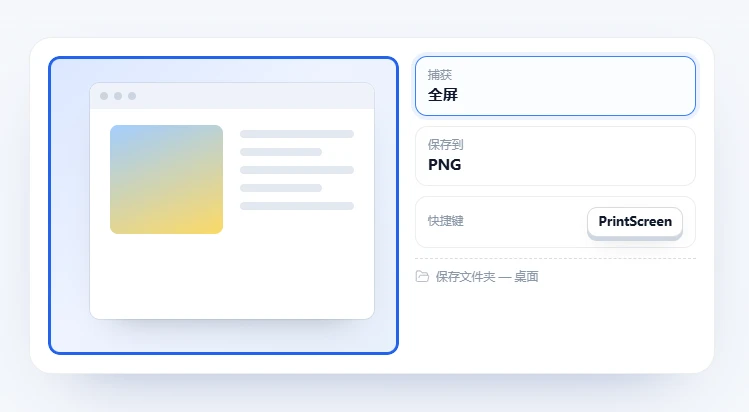
Recording on the same hotkey, now with a quality choice
Set the save format to MP4 and the same hotkey becomes a recorder: one press starts, another stops and saves, and the region border turns red while recording. Full screen or a chosen area both work, sound playing on the computer can be captured at the same time through hardware encoding when a graphics card is present, and Kalmuri own window stays out of the video. For animation there is GIF or WebP, up to 60 seconds, at 10, 15 or 20 frames per second.
Version 5.0.5 fills exactly the gap in that area: it adds video and audio quality options for MP4 recording and moves the default video quality to the standard tier. Before, there was a single default, so files came out either too large or not sharp enough; now the tier follows the purpose, and for recording a tutorial versus recording a bug reproduction the balance between size and clarity was never the same anyway.
Mouse actions can be marked during recording too: in ripple mode the left button draws one blue circle and the right button two orange ones, while highlight mode shows a yellow circle while the button is held. Long unattended sessions can be capped, stopping automatically at 30 minutes, 1 hour, 2 hours or 4 hours, so nobody has to sit and watch.
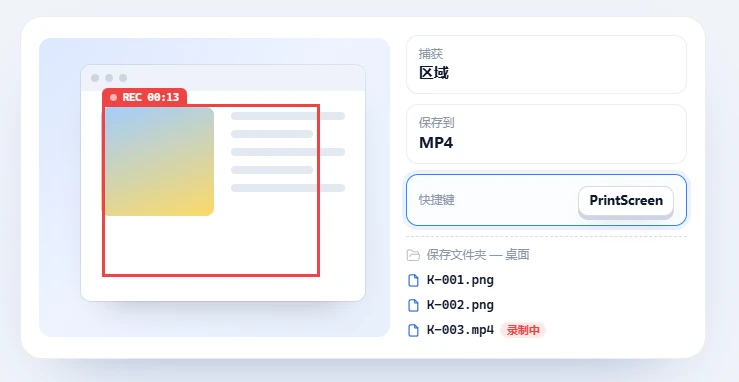
Free, but no automatic updates
The update policy is worth a note. Automatic updates are explicitly not supported, on the grounds of improving security and avoiding false positives from antivirus software, and a new build is released by hand only after internal verification. That choice runs against the current fashion: the good side is that the program never changes its behaviour behind your back, the bad side is having to remember to check the version yourself. This time 5.0.5 followed 5.0.4 within three days, so anyone who does not look tends to stay on the old build.
Two more changes in 5.0.3 are easy to overlook: a fix for capture hotkeys failing while certain games run in the foreground, and three themes, system, light and dark. The first is essential for players, the second says the tool also cares whether long sessions are hard on the eyes.
Who will find these builds useful
Anyone who writes documentation or tutorials gets corner cleanup, a fixed save folder and the magnifier together, which removes a large amount of rework after the capture. Anyone filing a problem for a developer gets window control plus drag freeze, enough to capture one button or an error message that only appears for a moment. Anyone with simple recording needs flips between MP4 and animation on the same hotkey, lighter than installing a dedicated recorder. And for the occasional screenshot, the whole learning cost is picking a format once.
None of these releases added a new category of feature. The effort went into removing a few superfluous steps between pressing the hotkey and having an image that can be used.