
FanCtrl 1.7.9: draw the temperature curve your fans follow
Summary
A free, open-source fan controller for Windows. It finds the temperature sensors and PWM headers by itself, then lets you draw the relationship between heat and speed, keep several profiles for different scenes and pin the readings to the desktop. Graphics card fans and all-in-one liquid coolers are covered too.
Recommend- Name
- FanCtrl
- Version
- 1.7.9
- Pricing
- Free
- Open source
- Open source
- Operating system
- Windows
- Updated
- 2026-10-04 20:31
A machine whose fans never settle down needs a master switch
The default fan policy on many motherboards is a cautious one. Idle speed is not brought down, a small rise in temperature sends everything to full tilt, and balancing noise against cooling turns into a compromise nobody is happy with. FanCtrl is a free, open-source controller that hands the scheduling back to you, so the relationship between heat and speed becomes a curve you draw rather than a table the vendor chose. It had reached version 1.7.9 by September 2026, and the code is published under an open licence in the official repository.
Look first, then take over
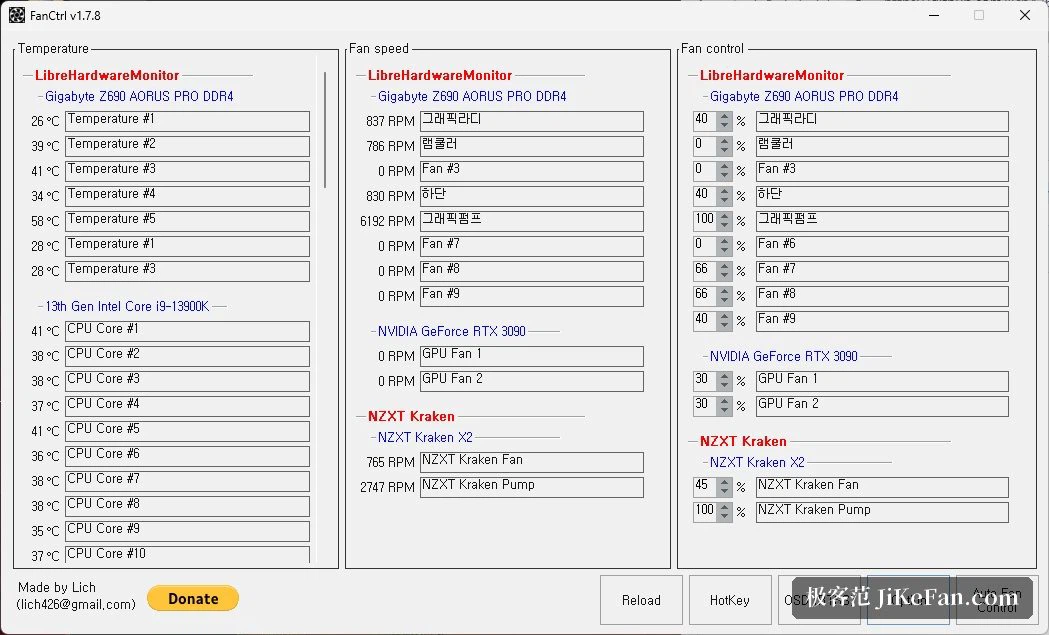
On the first start the program uses a mature hardware monitoring library to sweep the machine for temperature sensors and fan headers. Processor, graphics card and motherboard readings, along with the present speed of every fan, arrive as a list. Four-pin PWM fans can be adjusted directly; three-pin fans can only be watched, though knowing what they are doing is worth something on its own. Graphics card fans and a fair number of all-in-one liquid coolers fall inside the supported range as well, and memory temperature sensors can be read out too.
Drawing a curve of your own
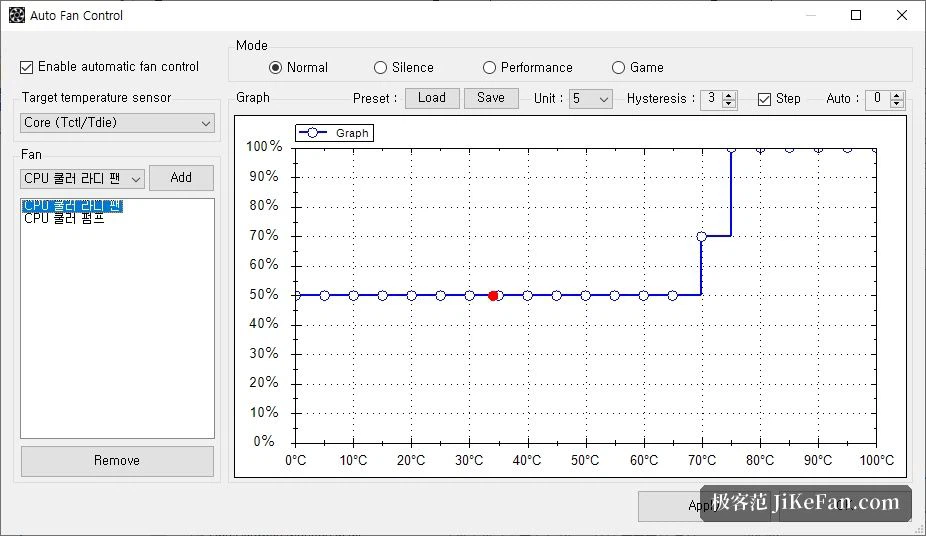
The core feature is automatic fan control. Tick the box to enable it, choose a temperature source such as a processor core or a graphics core, then attach a fan to the curve. In the editor the horizontal axis is temperature and the vertical axis is a percentage of full speed. A quiet machine that only gets loud under load is a flat low section with a steep climb at the hot end; aggressive cooling is the same curve lifted as a whole. Nothing has to be tested by trial and error, because the chart reflects the present state as you drag.
Profiles that follow the situation
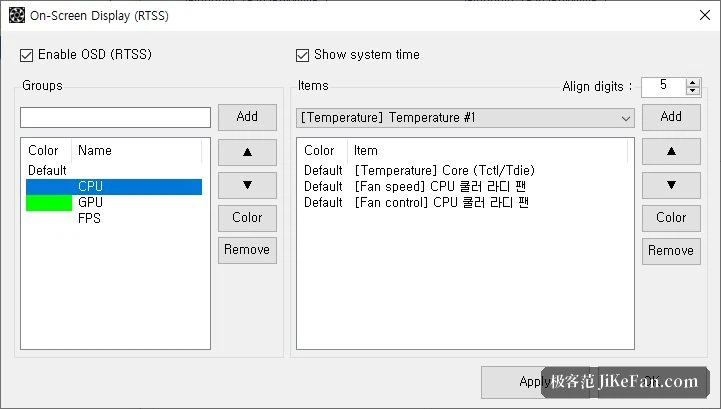
Different moments make different demands on noise and cooling, so the current curve can be saved as a profile and recalled at will: the quiet one for writing in the evening, the performance one before a game starts, a few seconds either way. An on-screen display can be switched on to pin temperatures and speeds directly onto the desktop, which keeps the hardware visible during a game, and both the temperature unit and the percentage scale can be set to taste. In a case with several fans, each position can be bound to a different temperature source: the front panel following the graphics card, the top following the processor, each minding its own business instead of moving as one block, which cools more efficiently than a single blanket rule.
Light, transparent, and easy to trust
The whole program is light. It unpacks and runs, takes very little of the machine while it sits there, and the configuration can travel alongside it on a USB stick, so the same set of curves is available on whichever machine you plug it into. Being open source means the scheduling logic is fully visible and the community can read the code at any time, and compatibility problems get fixed as versions go by. It supports both the 32-bit and 64-bit editions of Windows 10 and Windows 11, and older configurations run it just as well.
A few things to know before starting
Before touching anything, work out which kind of header each fan uses, because only four-pin PWM supports fine adjustment. When drawing a curve, do not push the low end below the speed at which the fan actually starts, or it may stall or start and stop in a loop. After a change, run a load test and confirm the temperatures hold before going back to daily use. The monitoring data is also worth keeping as a health baseline after a build: a fan that suddenly reports an odd speed is usually dust or dried thermal paste asking for attention, and catching it early is cheaper than catching it late.
Who it is for
Anyone bothered by fan noise and wanting the machine to sit somewhere sensible between silence and cooling will usually be satisfied after one session with it. More adventurous users can build elaborate schemes in which several sensors steer different fans. The tool is free and open source, and the details are in the official repository.