
DriverIdentifier: Finding the Drivers You Cannot Name
Summary
DriverIdentifier is a small Windows tool that scans hardware identifiers, matches them against vendor drivers and returns a list with download links. It also carries a scan out of a machine that has no network, so the download can happen somewhere else.
Recommend- Name
- DriverIdentifier
- Version
- 6.1
- Pricing
- Free
- Open source
- Proprietary
- Operating system
- Windows
- Updated
- 2026-10-05 01:44
What is actually missing
Reinstalling Windows, or moving to a new machine, has a familiar shape. The installation itself is rarely the difficult part. The difficult part is the list in Device Manager afterwards: entries with warning marks, devices the system cannot name, rows that only report an address and a bus. The real question is not how to install a driver. It is which driver, and where the copy of it is supposed to come from. DriverIdentifier is a Windows tool built around that question. It scans the hardware inside the machine, reads the hardware identifiers, matches them against driver versions, and returns a list of results with download links attached.
The order matters. Most people start from the device name, search it, and land on a page offering a package of unclear origin. Reading the identifier first inverts that: the identifier is what the hardware says about itself, and it does not change with marketing names or regional model numbers. Once it is in hand, matching becomes a lookup instead of a guess.
Three steps
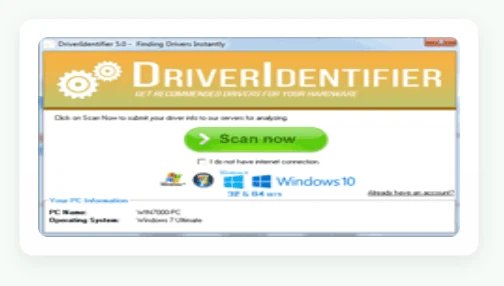
The flow is described in three steps: install, scan, download. The scan looks for drivers that are missing or older than the ones the hardware is expected to run with, and the matching is done on hardware identifiers. The stated intent is to point at drivers published by the hardware vendor rather than repackaged bundles from unknown sources, which is the part of this kind of tool that matters most. Nothing in the interface asks for a decision before the results exist, and the results are grouped by device, so the work becomes a matter of going down the list item by item. The program itself is small, the installer only a few megabytes, which is worth noting in a category where installers often arrive carrying more than the driver.
The offline case
There is one scenario where a tool of this kind earns its place: the machine cannot get online at all. A fresh install with a network adapter that has no driver yet is the standard example. Copy the program to a USB stick, run the scan on the disconnected machine, and let it produce a list of the hardware and the drivers it needs. Carry that list to a machine with a connection, download what it names, and take the files back. For a system that has just been set up and has no working network stack, this removes a loop that otherwise involves a second computer, a lot of searching and persistent guesswork about which package belongs to which chip.
Compatibility and two cautions
The vendor states support for Windows versions from older releases through recent ones, covering both 32-bit and 64-bit systems, on machines from the major brands as well as assembled desktops. Two things are worth keeping in mind. The first is the source of the program: take the installer from the official channel, not from a download portal that bundles it with something else. The second is the source of the driver: the vendor's own release is the reference, and before installing, check that the version and the bit width of the system agree. For graphics, chipset and other drivers that sit close to the hardware, verifying the version on the vendor site first is the safer habit.
Where the approach stops
A tool of this kind identifies and points; it does not decide. Which of two offered versions suits a particular machine, whether an older driver is being kept on purpose because a newer one broke something, whether a device that reports an identifier at all is the device that is actually failing - none of those are answered by a scan. A wrong driver can leave a system in worse shape than a missing one, which is why the list is the beginning of the work rather than the end of it. What the scan removes is the search time, and in the whole exercise that is usually the largest single cost.
When the unknown devices in Device Manager have no names, one scan is faster than an afternoon of searching: read the identifiers and the question becomes specific. The conditions are simple - the program from the official channel, the driver from the hardware vendor.