
ZoomIt 12.3: captions now take dictation, and the demo work is all covered
Summary
ZoomIt is a free presentation tool from Microsoft that zooms, annotates, captures, reads text off the screen and records, all from hotkeys; version 12.3 adds dictation to recording captions, and it runs on both Windows and macOS.
Recommend- Name
- ZoomIt
- Version
- 12.3
- Pricing
- Free
- Open source
- Open source
- Operating system
- WindowsmacOS
- Updated
- 2026-11-01 11:27
A presentation tool that lives in the system tray and runs on hotkeys alone: one press to zoom, one press to circle something, one press to record.
The small embarrassment of a live demo
The projector is connected, the deck is on the architecture diagram, and someone at the back raises a hand. Sorry, I cannot read that. You enlarge the window and the layout collapses. You change the resolution and the text turns soft. Or the meeting is online, the chat drifts past with the text is too small, and you spend a while hunting the keyboard for the system magnifier.
What these moments lack is not a bigger screen but a small tool built for talking at a screen. That is what ZoomIt does. It comes from Microsoft Sysinternals, its author is Mark Russinovich, it is small, it sits in the tray, it is invisible until a hotkey calls it, and then it takes over the picture.
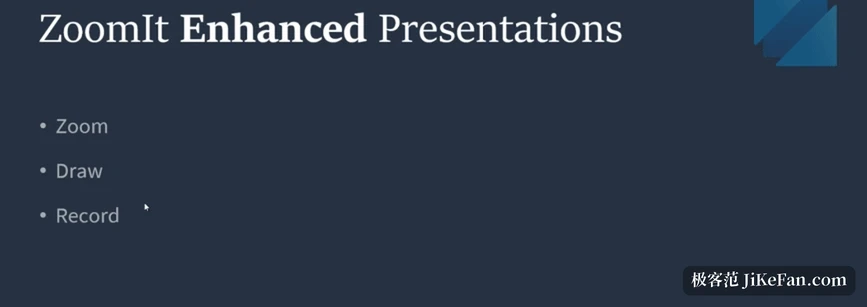
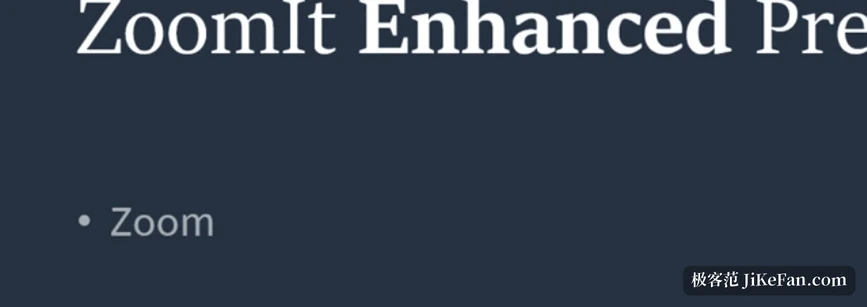
Two kinds of zoom for two kinds of pace
Static zoom is Ctrl+1. The screen freezes and enlarges around the pointer, the wheel moves between 1.25 and 4 times, and the arrow keys or the mouse drag the picture around. For a static configuration screen, a few lines of code, a spreadsheet, this pins the audience to the spot you are talking about.
Live zoom is Ctrl+4. The picture is enlarged and you can keep clicking and typing inside it, which suits walking through a whole operation: the pointer goes here, the button pressed is that one, and the audience follows all of it. The difference between the two modes is worth spelling out: the first is watch this, the second is watch me do it.
Treating the screen as a drawing board
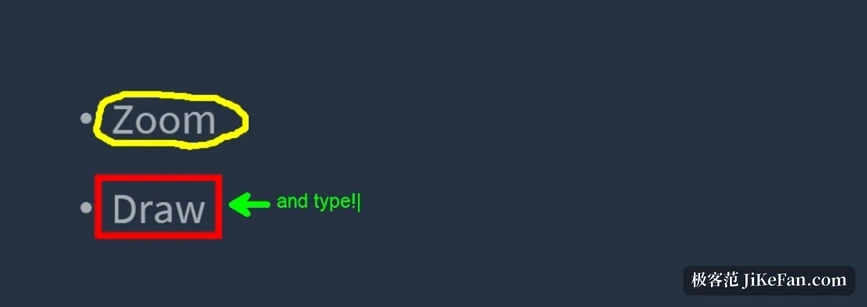
Ctrl+2 goes into annotation without any zoom. Press R, G, B, Y, O or P for red, green, blue, yellow, orange and pink, and hold Shift with the same letter to switch to a translucent highlighter in that colour. Hold Shift to draw a straight line, Ctrl for a rectangle, Tab for an ellipse, Ctrl+Shift for an arrow. Ctrl+Z undoes the last stroke, E clears everything, and the space bar brings the cursor back to the middle of the picture.
Two uses get overlooked. Press X for the blur pen and a few strokes over an email address, a client name or internal numbers will smudge them out, so a demo does not turn into a scramble to close windows. W gives a whiteboard and K a blackboard, which turns the screen into a canvas for a quick sketch. To write, press T and type directly, with Ctrl and the wheel setting the size.
What 12.3 changed: captions that listen
Microsoft released ZoomIt 12.3 on October 15, and the change is one line: captions on a screen clip now accept dictation. It sounds minor, but for anyone recording an explainer it is practical. Before, captions meant typing them out afterwards, or running speech recognition in another tool and coming back to align the result; now speech becomes captions inside the recording chain, and one step disappears.
The change is not isolated. Walk back a few versions and ZoomIt has been filling in the recording side all along. Version 12.0 added a webcam picture-in-picture overlay, so a talking head can sit in the corner. Version 12.1 added image backgrounds, background blur behind the presenter and noise suppression on the microphone. Version 12.2 added DemoMirror, which mirrors the whole screen, a region or a single window onto a second monitor. With 12.3 supplying captions, the run from recording to finished clip is more or less complete.
It records, too
Ctrl+5 starts and stops a full-screen recording, Ctrl+Shift+5 records a region you drag out first, and Ctrl+Alt+5 records only the window under the pointer. Output can be MP4 or a smaller GIF, with MP4 as the default. System audio and the microphone can be captured together, the webcam overlay can be switched on when a face is wanted, and the built-in trim editor removes the spare footage afterwards.
The shortcut set as a whole: Ctrl+1 for static zoom with annotation on the frozen frame, Ctrl+4 for live zoom while you keep working, Ctrl+2 to annotate without zooming, Ctrl+5 for full-screen, region or window recording, Ctrl+3 for the full-screen countdown, Ctrl+7 for DemoType, and Ctrl+8 for a scrolling panorama capture.
A few things tucked into the corners
Screenshots and text recognition share one set of shortcuts. Ctrl+C copies what is on screen to the clipboard and Ctrl+S saves it as a PNG, and adding Shift crops first before copying or saving. Ctrl+Alt+6 is the more interesting one: drag a box over part of the screen and the text inside is recognised straight into the clipboard, so pasting gives editable text. When someone sends a screenshot and asks you to retype the error message in it, this beats typing by hand.
Ctrl+3 is a full-screen countdown, set to 10 minutes by default and adjusted with Ctrl and the wheel. It keeps counting while you switch to another window and carry on working, and a click on the tray icon brings the timer back to the front. For pacing a meeting or putting a limit on a breakout discussion, the number on screen is visible to everyone in the room.
DemoType is the one I like best. Press Ctrl+7 and it reads a text file prepared in advance, then types it into the current window character by character at a set speed. When demonstrating a command or a script, typing it live is slow and error-prone, and pasting the whole block loses the sense of lines being entered one at a time. This fills the gap in between, and the speed is adjustable.
Beyond Windows at last
For a long time ZoomIt was a Windows-only utility. In July this year Microsoft released a macOS version, carrying zoom, annotation, screenshots, recording and the break timer across, and adding clip editing, panorama capture and an interruptible timer on top. The standalone Windows build and the Mac version are both available through official channels, and the source sits in Microsoft's repository on GitHub under the MIT licence.
What makes a presentation tool good is not how many features it has, but that calling it never takes you away from what you are explaining. ZoomIt strings zoom, annotation, screenshots, recording and timing onto a few hotkeys without breaking the rhythm of a talk. With 12.3 adding dictated captions, the path from explaining to publishing no longer has an obvious gap.