
Files 4.3 is all about speed: quicker start, a download 60 percent smaller
Version 4.3
Summary
An open source file manager for Windows that pulls moving files between folders, tabs, dual panes and colour tags into one window, shows change status and commit history inside repositories, and makes performance the whole story of 4.3.
Recommend- Name
- Files
- Version
- 4.3
- Open source
- Open source
- Operating system
- Windows
- Website
- https://files.community
- Updated
- 2026-11-01 15:51
A download that shrank by sixty percent and a start that arrives sooner is what 4.3 delivers on paper. What keeps people is the smaller stuff: one window holding two folders, four colours tying scattered files together, and those commit columns still sitting in a repository.
Getting from folder A to folder B has always been clumsy
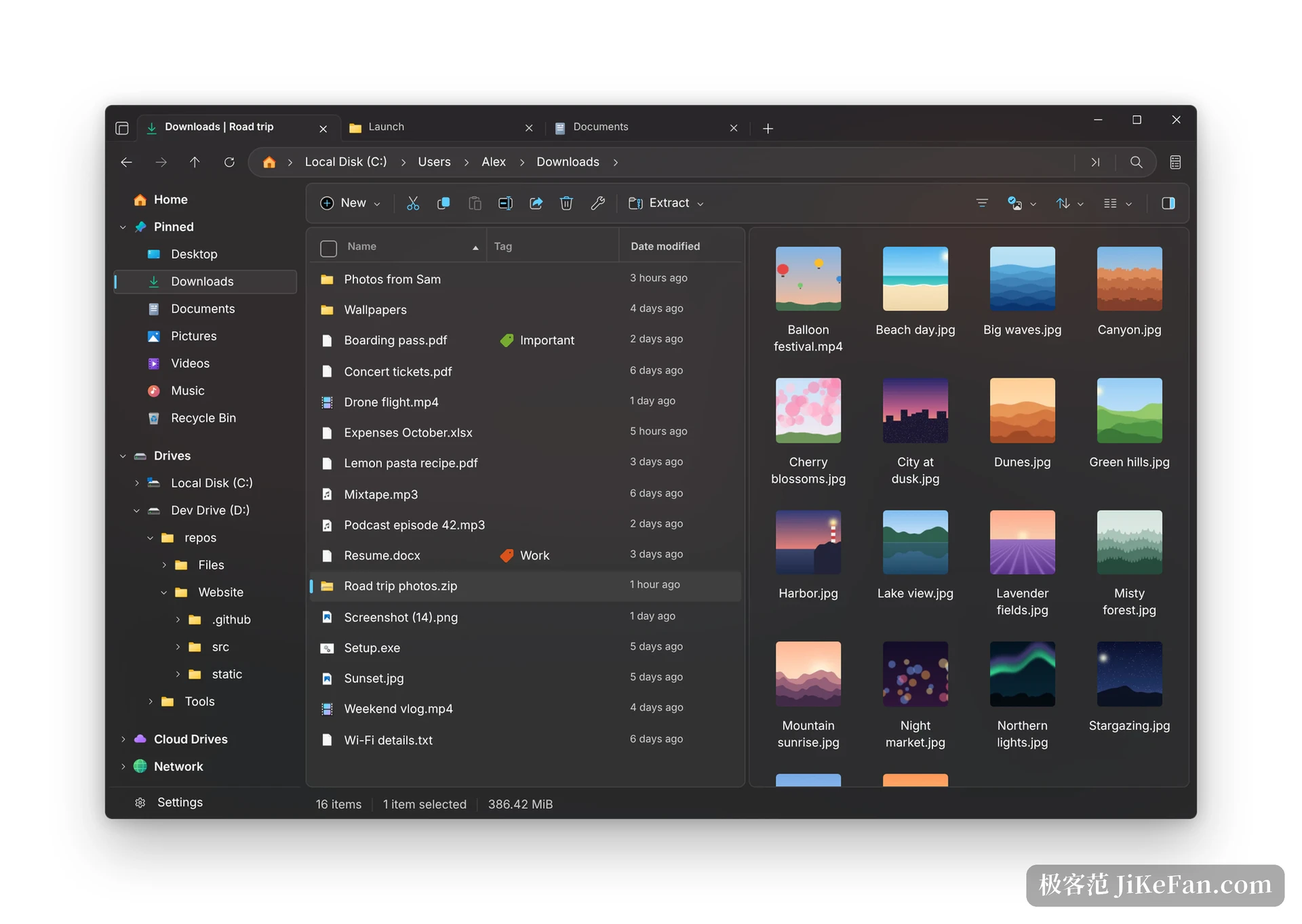
Sorting photographs, filing contracts, emptying the downloads folder, all of it ends in the same motion: pick something out of the source, put it in the target. The file manager built into Windows gives you one pane, so everyone learned to open two windows, offset them, drag across and switch back. With enough files the windows stack up, and so do the drops into the wrong folder.
Files is an interface rearranged around that motion. It takes tabs, dual panes, column view and a command palette, things that used to live in separate tools, and puts them in one window that follows the look of Windows 11. It is open source and free, and it is happy to sit alongside the built-in file manager for as long as you like rather than demanding a choice.
Version 4.3 is almost entirely about performance
The official note on 4.3 is plain: this release is all about performance. It starts faster, comes back from the background faster, switches between folders with less lag, shows thumbnails and icons sooner, returns search results more quickly and holds less memory while running. None of that has a name or a screenshot, but for anyone with a dozen windows open all day, the difference in feel beats one more button.
The most tangible item is the download itself: the desktop runtime is now inside the package instead of being fetched separately, and the download size falls by more than sixty percent because of it. Smaller things were fixed along the way too. Dragging a file onto a sidebar entry or a tab now outlines the destination in an accent colour, so where it will land is obvious. The sidebar and the breadcrumb switched to natural sorting, which puts the folder numbered 2 ahead of the one numbered 10. Icons and thumbnails in grid view are rendered according to the screen scale, so they stop blurring when a high density display is enlarged. And the app checks for updates while it runs, so a new version no longer waits for a restart to be noticed.
Split the panes first, then talk about efficiency
The dual pane is the most direct change in the interface. One window holds a folder on the left and another on the right, you pick the source on one side and the target on the other, and a drag finishes the move. Each side changes path and view independently, so a list on the left and thumbnails on the right is allowed. Emptying a camera card means the original files on the left, folders sorted by year on the right, and one drag in between.
Beyond the panes there are tabs, and the logic follows a browser: open, close, drag to reorder, and Ctrl+Shift+T brings back a tab closed by mistake. The sidebar gathers local disks, pinned folders and network locations in one column, cloud drives hang in the same list, and their sync state shows on the icon.
Tags answer the files that live in different folders
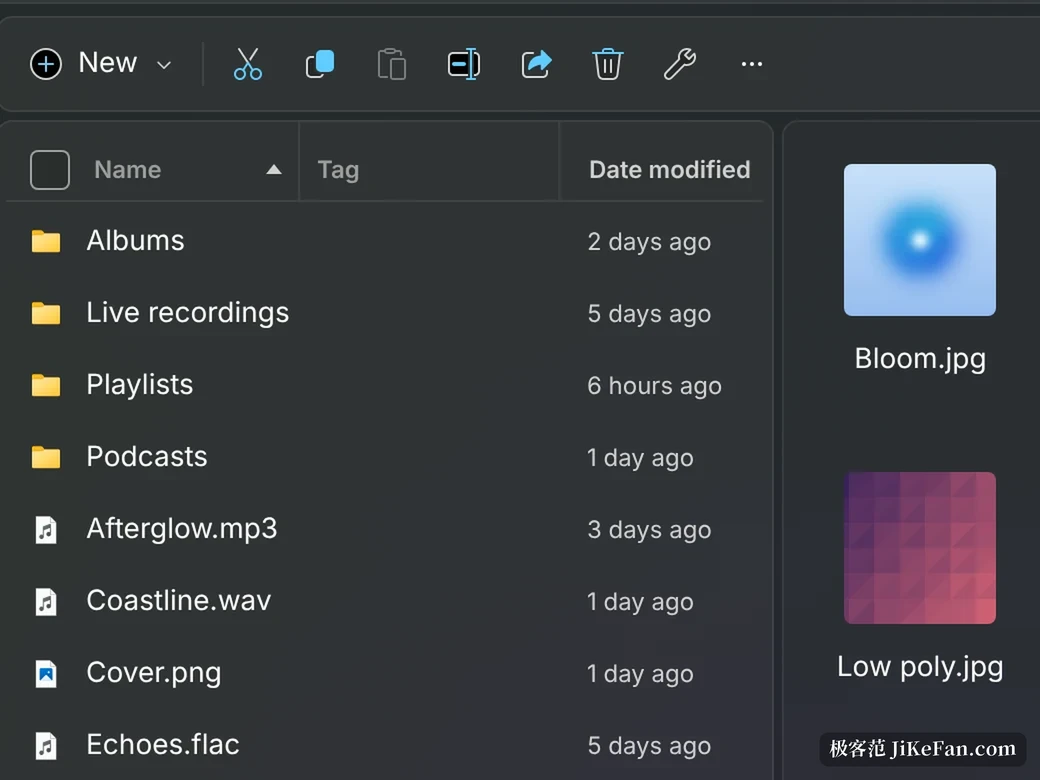
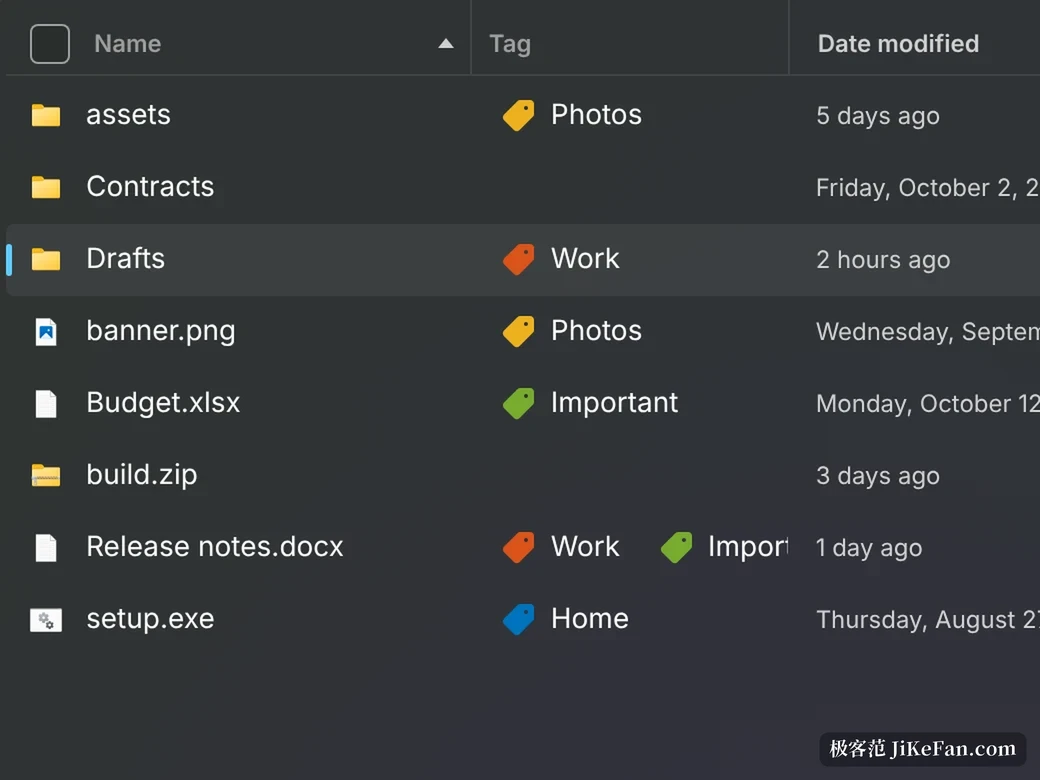
Anyone working by project knows the shape of it: the contract sits in one folder, the attachments in another, the quote was saved into downloads without thinking. Rebuilding the folder tree to fix that is too much work, so Files lets you put a coloured tag on a file or a folder, with red, yellow, green and blue each owning a category.
The point of a tag is that the original file does not move. Once tagged, the path has not changed by a single byte, and other programs still find it exactly where it was. Click a tag in the sidebar and files of that kind, scattered across a dozen folders, gather into one view, and with search and filters on top, a project that had been pulled apart comes back together. Selecting a batch and tagging all of it at once works too.
A few columns kept for people who write code
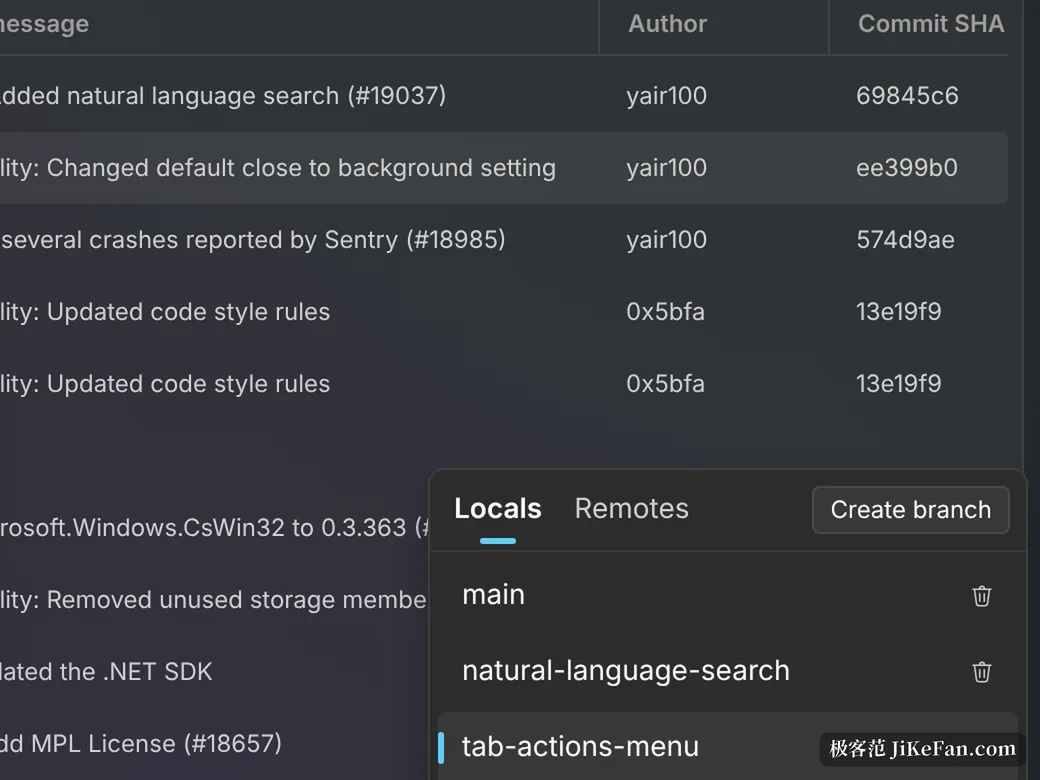
Inside a repository the file list shows change status directly, along with the author and hash of the most recent commit, and the status bar switches branches, pulls and pushes. For anyone who writes code and also keeps ordinary documents, seeing the project and the material in one window saves a lot of switching between two programs.
4.3 adds detail in this direction as well: long operations report progress instead of leaving you waiting blind, a failure now gives the real error rather than a bare timeout, repositories cloned over SSH work, and a folder is recognised as a repository faster when it opens.
What it costs
Packaged as MSIX, opening an enormous directory of tens of thousands of files can be slightly slower than the file manager built into Windows, and more so on older machines. Some third-party context menu extensions do not appear inside Files at all, so that kind of job still means a trip back to the built-in tool. Neither is a fatal flaw, but both are worth knowing before switching.
The steadier approach is coexistence. Install it as a second file manager for a version or two and hand it one real task for a few days, such as clearing the downloads folder every evening, watching how start-up, the context menu, search and large copies behave. Then decide whether to point the default file associations at it. Setting that wrongly is reversible, and the system component is always still there.
The practical facts: the licence is MIT, the code is public on GitHub with more than forty-six thousand stars, and the sideload build from the website and the copy in the Microsoft Store are the same program, with the Store listing sold as a paid purchase that supports the project. It runs on Windows 10 version 2004 or newer and on Windows 11, in both x64 and ARM64 form.
Files does not set out to rebuild a file system. It takes the moving, the filing and the checking of changes that repeat dozens of times a day and gathers them into one window. Version 4.3 pushed the size and the start-up time down a step, while tabs, dual panes, colour tags and those commit columns stayed exactly where they were. Anyone who wants a smoother file manager can take this road without paying.