
Coodesker puts desktop icons in boxes and hangs any folder on the desktop
Summary
Coodesker is a Windows tool that gathers desktop icons into resizable translucent boxes, sorts new files by extension or keyword, and maps any folder on the disk onto the desktop so a project directory opens without the file manager.
Recommend- Name
- Coodesker
- Version
- 2.2.2.4
- Open source
- Proprietary
- Operating system
- Windows
- Website
- https://www.coodesker.com
- Updated
- 2026-11-01 11:25
The desktop is the one surface of a computer that nobody owns. A program gets installed, a screenshot is saved for a minute and forgotten, downloads pile up, and after a few months the icons cover the whole screen.
One box per kind of clutter
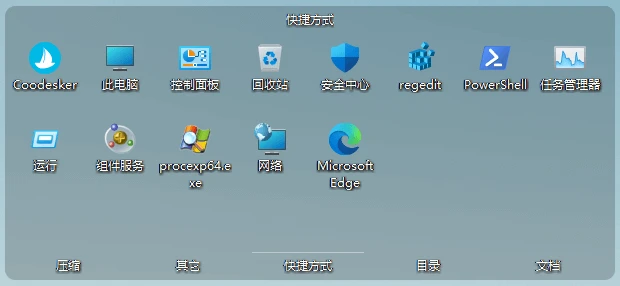
Coodesker is a Windows utility that does exactly one thing: it gathers desktop icons into a handful of translucent boxes that can be resized, sorts them by type, and hands the surface back to you. Nothing else is bundled in.
The box is the basic unit. A fresh install leaves a few default boxes on the desktop and splits shortcuts, folders and pictures between them. Each box can be dragged anywhere, resized from its edge and renamed with a double-click on its title bar. Drag one box onto another and the two merge into a single box with tabs, so documents, downloads and pictures share one patch of the desktop and you move between them along the top. The reverse works too: a right-click on a tab detaches that box and leaves it standing on its own.
Rules decide where new files land
Dragging things by hand only fixes what is already there. The icons that appear tomorrow are the real nuisance, and that is what the rules in the settings panel are for: a rule matches on file extension, on a keyword inside the name, or on a wildcard pattern, and anything that matches is filed into the box the rule points at. Send every spreadsheet and document extension to one work box, and files of that kind are collected the moment they land.
Rules can be added, deleted and reordered at any time, and a single click restores the defaults after an experiment goes wrong. Switch on automatic tidying at program start and a reboot does the housekeeping: whatever has accumulated on the desktop is sorted in one pass.
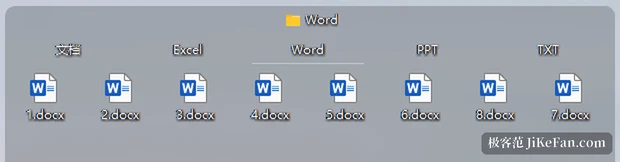
Folder mapping: a directory that lives on the desktop
This is where the tool separates itself from a plain icon organiser. Any folder on the machine can be mapped to a box, and the box then shows what is inside that folder rather than copies or shortcuts. Double-click a subfolder to step down a level, use the arrow above to step back out, and a project directory on drive D or a library of assets you open every day no longer needs the file manager in between.
Mapped boxes follow the same rules, so incoming files are sorted instead of spread across the surface. Several directories can also sit in one tabbed box and be reached through its tabs.
Appearance, and what it costs the machine
Colour, transparency and font size are all adjustable, a frosted glass effect can be switched on, and the title can sit at the top, at the bottom, or be hidden. Anyone who wants less visual noise can choose icons only, which keeps file names out of sight until the pointer rests on them, and drop the little shortcut arrow in the corner at the same time.
Rendering is hardware accelerated, and the vendor states that the drain on processor and memory is very small, with stable behaviour on Windows 7, Windows 10 and Windows 11. For a tool that stays in the background all day this counts for more than any decorative feature: an organiser that slows the machine has defeated its own purpose.
A few small conveniences
A sprite box opens from a double tap of the Alt key and holds the handful of programs and documents you reach for most, one click away. Any box can be pinned above every other window, so a file can be pulled out in the middle of writing without minimising what you are working in. A double-click on an empty part of the desktop hides all icons and boxes at once, and a second double-click brings them back. The layout is saved automatically as well, so it can be restored after something goes wrong, or exported as a manual backup you can carry to another machine.
Where the free version stops
Coodesker ships on two version lines, and according to the published notes the line is drawn at folder mapping and theme customisation. The free 1.0 series covers automatic sorting, box dragging and icon appearance, which is enough to get a desktop back under control. The paid 2.0 series is bought once and kept; the installer the vendor offers today is v2.2.2.4, packaged separately for 64-bit, 32-bit and ARM64 systems.
Both lines sort automatically, and boxes are handled the same way in both. Folder mapping and custom themes are the paid-only parts, and the licensing differs to match: free on one side, a single payment on the other. So the question is not whether the tool works, but whether a working directory should hang on the desktop every day. If it should, mapping is the feature that actually saves time.
Who makes it
The software comes from Beijing Kuaidai Technology, and the official site offers both a Chinese and an English interface. The project keeps an update repository on a code hosting platform, the line has moved from 1.x to 2.x without a break, and the current stable build sits in the 2.x series.
Tidiness by willpower loses to tidiness by rule. Coodesker collects icons into boxes and pulls folders onto the desktop, and once it is configured there is little left to maintain. What it fixes is not how the desktop looks, but the pause before you manage to find anything.