
Wise Program Uninstaller 3.2.9: scan after the uninstaller finishes
Summary
Removal is treated as two steps here: run the program's own uninstaller, then sweep for the registry keys, orphan files and empty folders it left. The leftovers can also be exported as a record.
Recommend- Name
- Wise Program Uninstaller
- Version
- 3.2.9
- Pricing
- Free
- Open source
- Proprietary
- Operating system
- Windows
- Updated
- 2026-10-05 17:45
After a few years in this trade, uninstallers split into two shapes: one piles on features, the other stays light. This one belongs to the second, and its page positions it as a lightweight utility that needs no installation, built to take stubborn software, built-in Windows applications and store programs off a computer completely, without leaving registry traces behind. The page names version 3.2.9 and a size of 10.8 MB, and the vendor is the same house behind the Wise line of system tools.
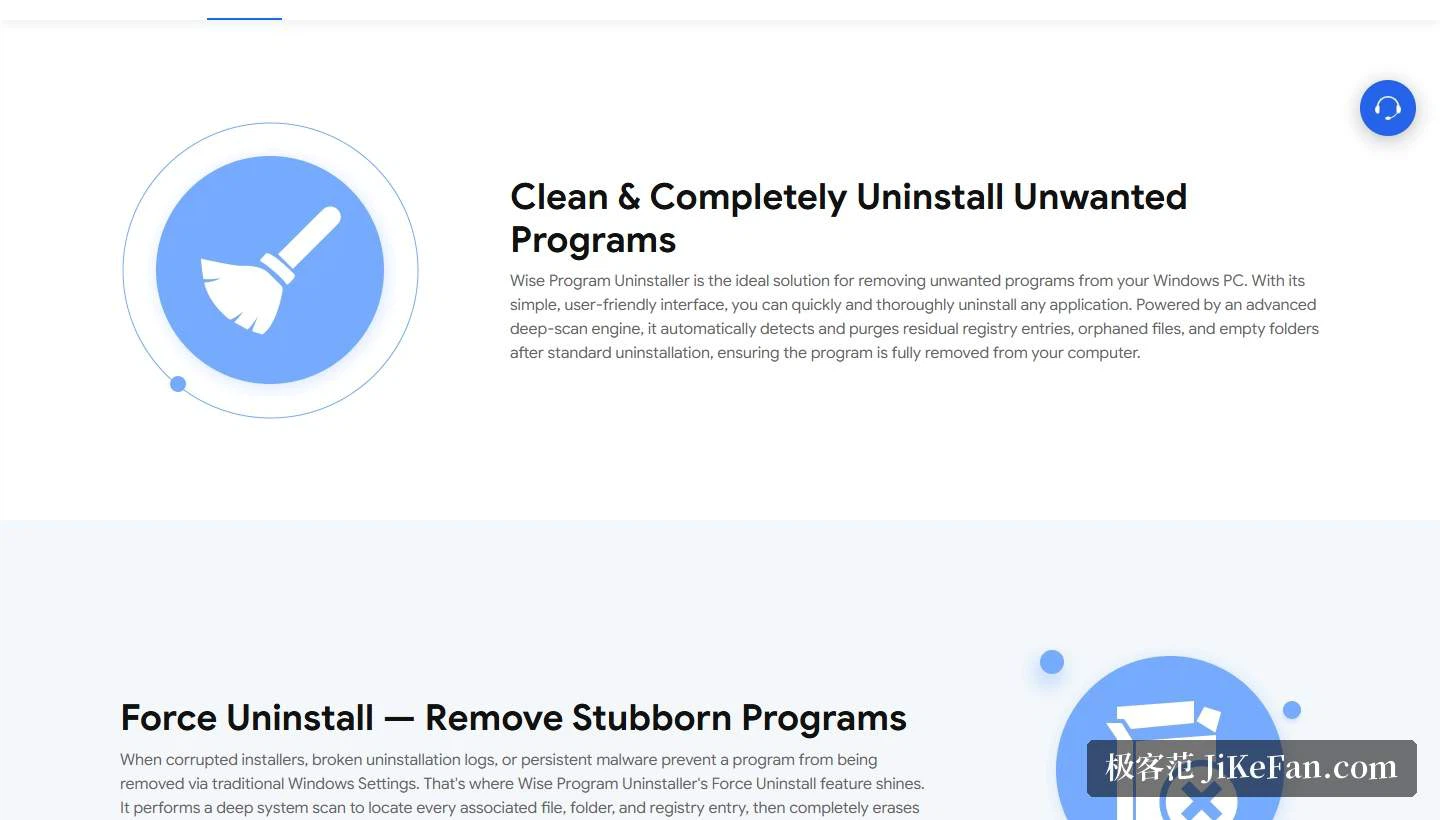
After the uninstall comes a scan
Most removal flows stop when the program says it is done, and the leftover registry keys, orphan files and empty folders stay in the system and pile up. What the page describes here is a deep scan engine that runs after the standard removal, detecting and clearing residual registry entries, orphan files and empty folders so that a program is genuinely gone. Put another way, removal has been split into two steps: the program's own uninstaller first, a sweep afterwards.
The value of that step only becomes obvious once a system has some age on it. On a machine that has installed and removed dozens of programs, the registry tends to hold a great many keys pointing at paths that stopped existing long ago, and the drive scatters empty directories. Clearing them by hand is not realistic, and a single scan is the more practical answer.
Three removal paths for three kinds of trouble
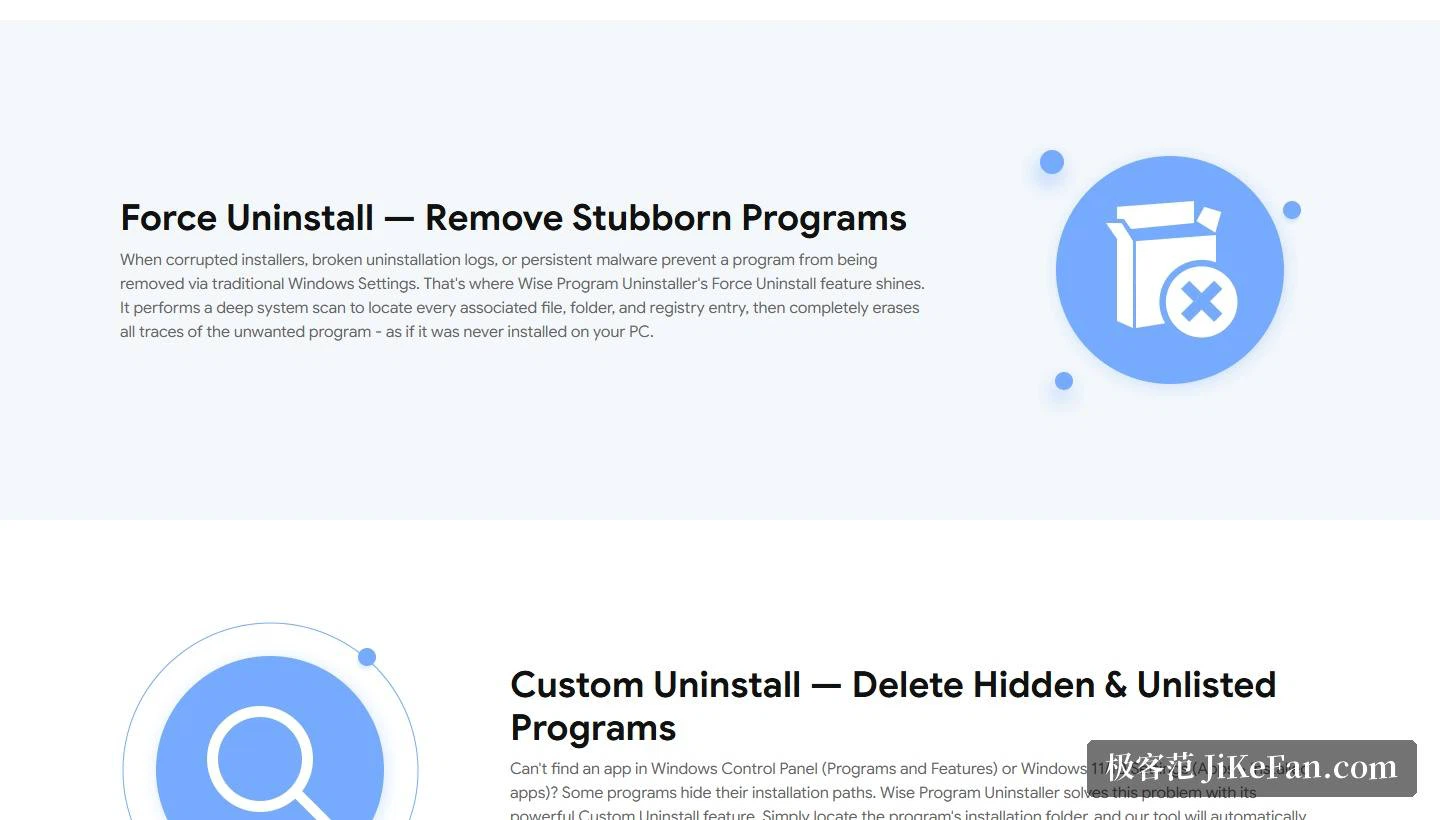
The page divides removal into three. The first is the ordinary removal plus the deep scan described above. The second is forced removal, triggered according to the page when an installer is damaged, an uninstall log is broken, or persistent malicious software blocks removal from the system settings; in that case it runs a deep system scan, locates every related file, folder and registry entry and clears them, in the vendor's own phrasing leaving things as if the program had never been installed on the machine.
The third is a custom removal, for the problem of not being found. Some programs hide their own install path, so they appear neither in the control panel list nor in the settings app list, yet they are running from the drive. The page's approach is to point at the install directory and let the tool do the rest, finding and removing the associated files, folders and registry entries. Between the three, most of what removal throws up is covered: not clean, not removable, not findable.
Software health: the other half
The software health module is called an all-in-one optimisation component, and one click handles four kinds of thing: automatically detecting and permanently deleting the residual registry keys and orphan files left by earlier removals; clearing the cache files, log data and sensitive privacy traces that build up while applications run; trimming the system by controlling background processes, startup items, scheduled tasks and context-menu entries; and identifying and managing the applications or sites that push advertisements and background notifications. The first two continue the cleaning thread, while the last two lean towards daily upkeep, since a slow start, a context menu that keeps growing and a rise in pop-ups all have an entrance here.
One easily overlooked feature is batch removal of browser extensions. The page states that several toolbars, plug-ins and add-ons can be cleared at once across the main browsers, and adds a warning worth repeating: switch off browser sync before removing extensions, or they may be installed again automatically. That note is very practical, because plenty of people clear a batch of extensions and find them back the next day, for exactly this reason.
Version and compatibility
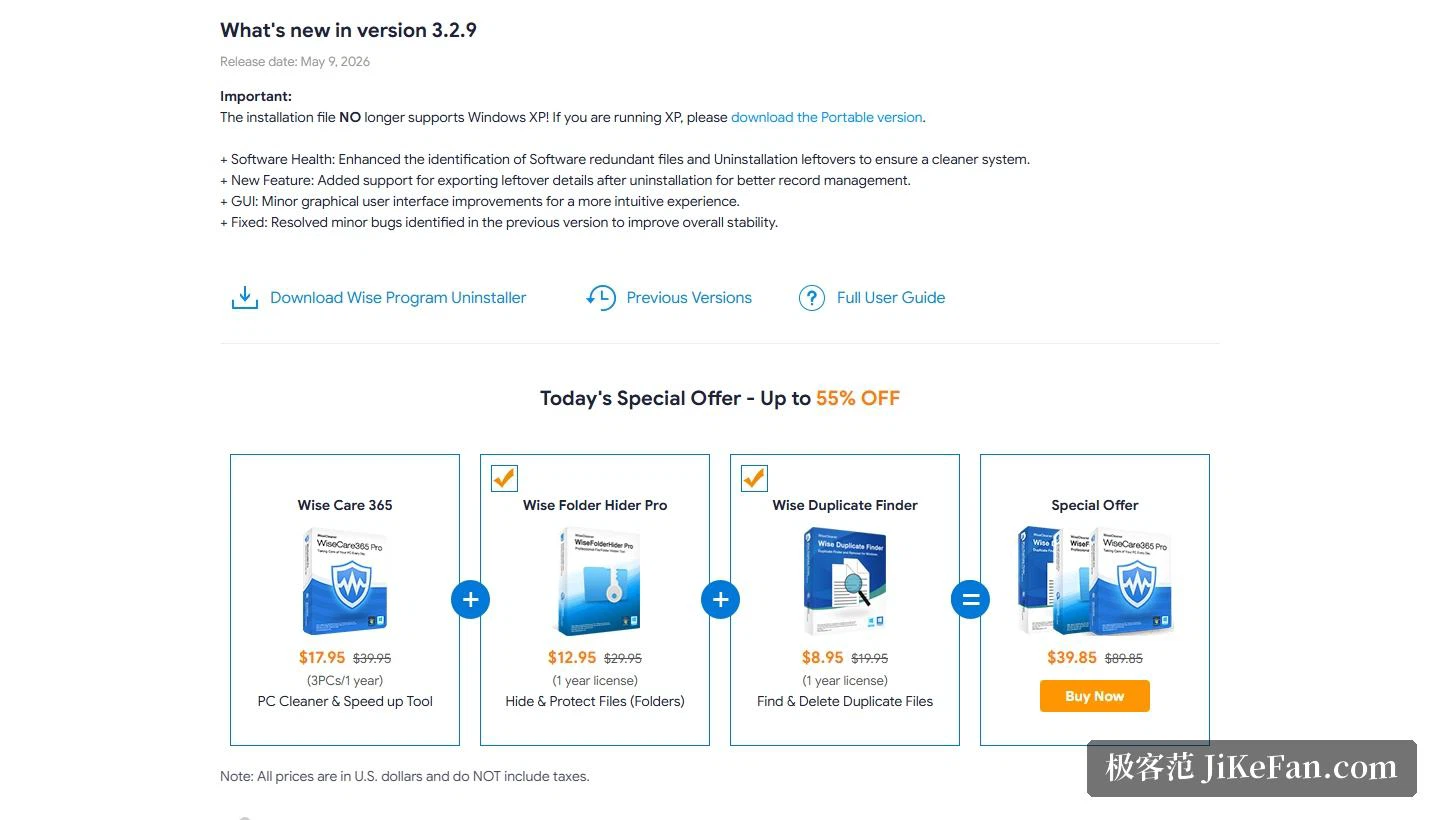
The update page dates 3.2.9 to 2026-05-09 with four changes: better recognition of redundant files and removal leftovers in the software health module, a new export of the leftover details after removal for record keeping, refinements to interface details, and fixes for problems found in the previous release. The export is an interesting addition, since what was removed and what stayed behind can be turned into a record, which helps wherever an inventory is required.
The same notes carry an important notice: the installer no longer supports Windows XP, and anyone still on XP needs the portable edition. As for the main support range, the product page lists Windows 11 and 10 as well as earlier versions including Vista, with both 64-bit and 32-bit programs supported. On pricing, the page lists a yearly PRO tier, cancellable at any time, covering one year on three devices, with a 60-day refund guarantee.
One small detail worth having
A small feature deserves a mention: an uninstall entry can be added to the context menu, so right-clicking an application's shortcut completes the removal without going back through settings or the control panel. Details like this never sit at the top of a feature list, yet they change how often a tool is used, because removal so often gets postponed not because it is hard but because the path to it is long.
Overall the positioning is clear. It does not accelerate the system and does not defend it, it works on one question only, how to get what went in back out cleanly, and it pushes the threshold down with no installation and 10.8 MB. Anyone who needs deep cleaning will value the scan and the export, while someone who removes a program now and then will like the context-menu entry more.
The most underrated part of uninstalling is the second half. The dialog that says a program has been removed is a claim, and the files and keys still on the drive are the evidence. Splitting the job in two, uninstaller then scan, is a way of not taking the claim on trust.