
Total Uninstall 7.6.2: snapshot before installing, clear the diff list on removal
Summary
Total Uninstall 7.6.2 takes a system snapshot before an install and another after it, so the difference between the two becomes the list of things to remove. Forced removal is there for stubborn entries, and the Professional licence runs about 50 euros for one machine.
Recommend- Name
- Total Uninstall
- Version
- 7.6.2
- Pricing
- Paid
- Open source
- Proprietary
- Operating system
- Windows
- Website
- https://www.martau.com/
- Updated
- 2026-10-21 15:52
A removal tool has two jobs: knowing what should go, and daring to delete it. Total Uninstall splits the first job in two, taking a system snapshot before an installation and another one afterwards, so the difference between the pair becomes the list of things to clear away.
The version sits at 7.6.2
On the official download page, the newest entry in the release record is version 7.6.2, dated 24 December 2025, and the note is one line: a compatibility update for Windows 11 and Windows Server 2025. Before that came 7.5 in July 2023, which added support for several monitors and several scaling settings and dropped leftover 32-bit code as well as anything older than Windows 7, then 7.4 in June 2023 with configurable theme colours, 7.3 in April 2022 with a snappier interface, and 7.2 in January 2022 with defect fixes.
The rhythm tells you this is not a project in fast motion. A point release every year or two is normal, and most changes are compatibility catch-up rather than rebuilt features. Supported platforms are 64-bit builds of Windows 11, 10, 8.1, 8 and 7, with the server side running all the way to Windows Server 2025, 2022, 2019 and 2016.
The snapshot is where everything starts
When monitoring a new installation, the first thing the tool does is not install but record a snapshot of the system as it stands. The official dialogue says it plainly: the title reads monitoring a new installation, the body reads creating a system snapshot before installation, and two options follow: build a fresh snapshot, the recommended path, or reuse the previous one. Only once the snapshot exists does the installation start being accounted for.
Afterwards the two snapshots get compared. The difference is not a guess about which file looks like some product; it compares what changed between the two moments, entry by entry. So the list needs no inference from filenames, install paths or vendor signatures, because it reports the change itself.
Two routes: watch before, or analyse after
The product splits the work into two modules. Monitored programs takes the first route: monitoring starts before installation, every change the installer makes gets written down, and a later removal can work straight from that record without relying on the uninstaller the software ships with.
Installed programs takes the other route and is meant for software already on the machine. It analyses what the current installation consists of and produces an install log, again so a complete removal can happen without the bundled uninstaller. The official wording gives the reason: a bundled uninstaller may leave files or changes behind. For an old tool installed two or three years ago, this is the only road available, since nothing was recorded at the time and the analysis has to happen now.
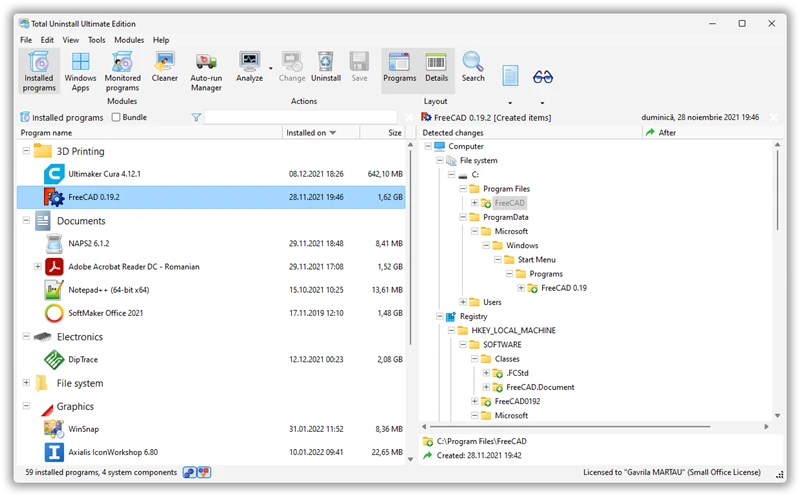
How fine the difference list goes
Detected changes fall into three classes: new folders, new files and modified files, each with a count. The official screenshot shows the layering clearly. On the left sits a computer node with a file system tree and a registry tree side by side, the file side reaching down into the install folder under Program Files, the registry side down to the machine, software and classes keys. A column on the right carries the metadata of that analysis: install timestamps for start and finish, publisher, support information, product update address.
File tree and registry tree share one screen because leftovers tend to split in half, one part on the disk and one part in the registry, and running two separate passes makes it easy to miss the second half.
Removal is a flow you can configure
A settings page for removing analysed programs turns the job into a sequence of checkboxes: create a system restore point before removal, back up the program being removed, prefer the built-in uninstaller, ignore the detected change log, skip missing items, remove the entry from the program list afterwards. Each one maps to a real situation. A restore point is the way back from a bad judgement, a backup covers the case of wanting the thing reinstalled later, and preferring the built-in uninstaller looks after software that does its own tidying up.
The same page shows analysis levels on the left, split into safe, normal and advanced. The level changes how deep and how wide the scan goes: the safe setting reads less and finishes quickly, the advanced setting covers everything and takes longer.
Batch and forced removal
The documentation lists three abilities under the installed programs module: forced removal, removing several programs at once, and precise removal. Forced removal targets software with no removal entry point or one that has broken; several at once means selecting a group and handling them together; precise removal takes the difference list route.
One point needs saying. The product supports batch removal, while monitoring accounts for each installation separately, so a hundred programs installed does not mean a hundred can be watched in one go. Every new installation walks the flow alone, because the record covers what that one did.
Two side pieces: cleanup and startup
Beyond the main line, two auxiliary modules ride along. Cleaner clears out surplus files and registry entries and sits in the aftermath role. Autorun manager governs the Windows startup path, with startup programs, services and scheduled tasks all inside its remit and each one switchable, and the official note says disabling entries you do not need lets the system run faster.
Neither is remarkable alone; sharing one tool saves the switching.
Moving programs to a new machine
The site gives this its own feature entry, described as mattering as much as a standalone program, and backs it with a dedicated guide. The method moves an installed program together with the changes it made to the system onto another machine. For tools already configured whose installer is long gone, this road costs less than a fresh install.
Two editions, six licence tiers
Personal use splits into Professional and Essential. The official note on Essential says it uses the same analysis engine as Professional, with a narrower set of features: enough, but not spread out. Prices are quoted in euros. Professional runs about 50 for one machine and about 60 for three; Essential about 25 for one and about 35 for three.
Commercial licensing is separate and quoted in two bands, Professional and the top tier. A small office starts at about 100 for four machines, a technician edition with two USB sticks in portable form starts at about 130, and a site licence for ten machines or more starts at about 200, all before tax. There is a 30 day full-feature period before purchase, and after it runs out the program has to be bought and registered to keep working.
Licensing is a one-time purchase plus a year of maintenance. Updates and upgrades come free during that year; once it ends the program keeps running without restriction, it simply stops receiving new versions, and staying current means renewing maintenance.
Who needs it
Three cases pay off best: someone who wants a record kept before installing anything, someone who removed a program and found a pile of things still sitting in the folders, and someone holding a batch of stubborn programs with no removal entry point.
Turn it around: if you install the odd free tool and the system drive has room, a dedicated removal tool is one more program to maintain.
The heart of Total Uninstall is not removing hard but removing with evidence: every entry marked for deletion traces back to a change made at the moment of installation, and the remaining judgement stays with the person.