
Wise Care 365 review: a maintenance suite where the free edition does most of the work
Summary
One interface for cleaning, optimisation, privacy and monitoring, with a changelog that reads like an inventory of applications. The free edition covers routine upkeep; the paid step adds standing guard against unauthorised changes.
Recommend- Name
- Wise Care 365
- Version
- 8.0.6
- Open source
- Proprietary
- Operating system
- Windows
- Updated
- 2026-10-06 00:40
Maintenance tools on Windows split into two camps. One is single-purpose utilities, where uninstalling, cleaning and start-up entries each get their own small program. The other collects every action into one interface. Wise Care 365 belongs to the second, described on its site as an all-in-one cleaner and optimiser, with more than 200 million downloads worldwide, version 8.0.6 and a 32 MB installer. The problem is not one specific fault but the chore of keeping a machine tidy, so someone who does not want to tinker can click once and be done.
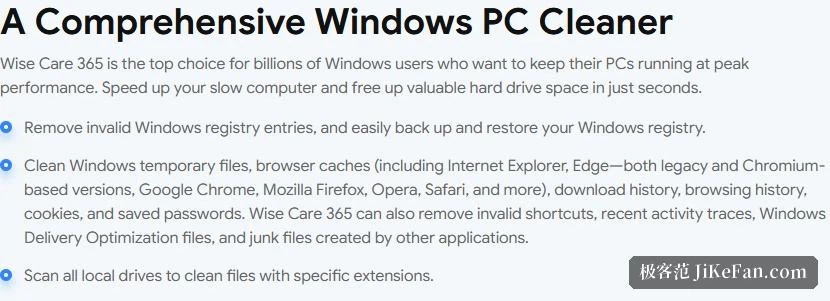
Cleaning: from the registry to browser caches
Cleaning is the trunk of the suite, and the site lists the scope in unusual detail: invalid registry entries, with easy backup and restore of the registry; system temporary files, browser caches, download history, browsing history, cookies and saved passwords; dead shortcuts, recent activity traces, the delivery-optimisation files left by system updates, and leftovers from other applications. Browser coverage is spelled out just as concretely: the older browser shipped with the system, newer builds on the Chromium engine, and several other common browsers, old and new in one list. Beyond that it can scan every local disk and clean files by specified extension.
The registry backup deserves its own sentence. Registry cleaning has always been the most disputed feature here: delete the wrong key and an application misbehaves, and having a restore path or not are two very different risk levels. Putting easy backup and restore in the same sentence as removing invalid entries is an admission that the operation needs an undo.
Optimisation: defragmentation and start-up
The optimisation column promises to tune performance with current techniques, defragment disks and the Windows registry, and manage start-up processes and services. The explanation is plain: both disks and registry grow disordered, and tidying makes the system faster and steadier. On start-up the wording is that many programs run quietly in the background when you boot, and the tool can disable the unnecessary ones that waste resources, which shortens the wait. Together the two address the most common and least attributable complaint of all, that a machine has grown slow.
Real-time protection takes a different route: it acts the moment an application tries to change something without permission, detecting and blocking silent edits to the registry, hijacked browser home pages, additions to the start-up list, entries pushed into the right-click menu, and a changed default browser. In the feature comparison this layer sits with the paid edition: free users get cleaning and optimisation, standing guard is a purchase.
Privacy: erasing, anti-recovery and shredding
The privacy module holds three tools, each defined on the site. The eraser clears every trace of activity, browsing history and opened files included, so that what you did stays private. The disk eraser stops deleted files from being brought back by data-recovery utilities. The shredder destroys files permanently so they cannot be recovered. The difference is what each handles: the first wipes traces of use, the other two work on the files themselves, one preventing recovery and one removing any possibility of it.
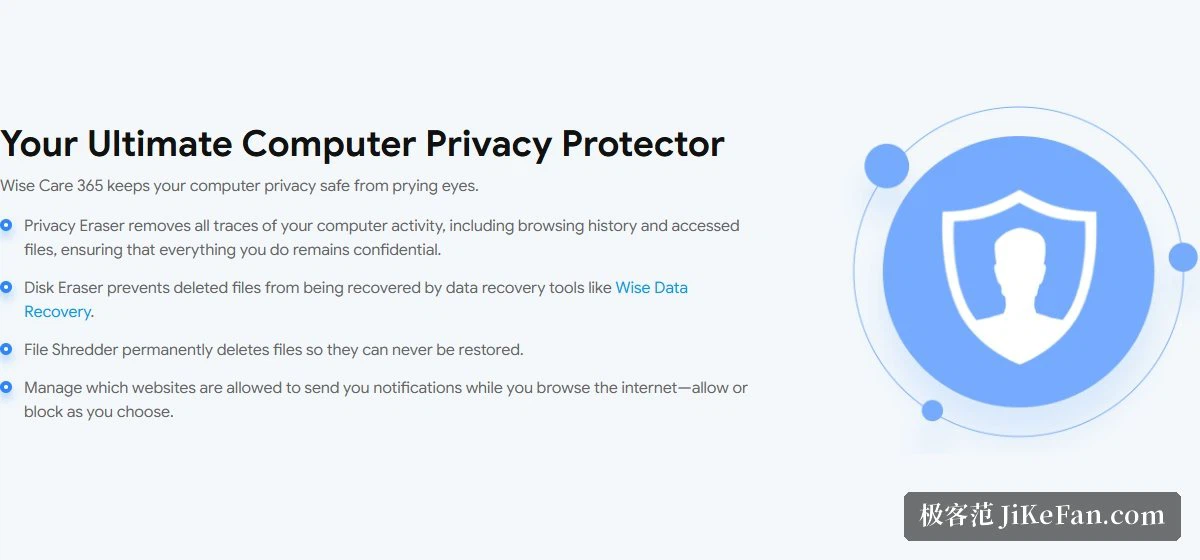
One item is easy to overlook: it also governs which sites are allowed to send notifications while you browse, and the allow or block decision is yours. Notification permissions are abused about as badly as cookies, so pulling them into the privacy scope shows the definition of a trace has moved from files to permissions.
Monitoring: system, processes and hardware
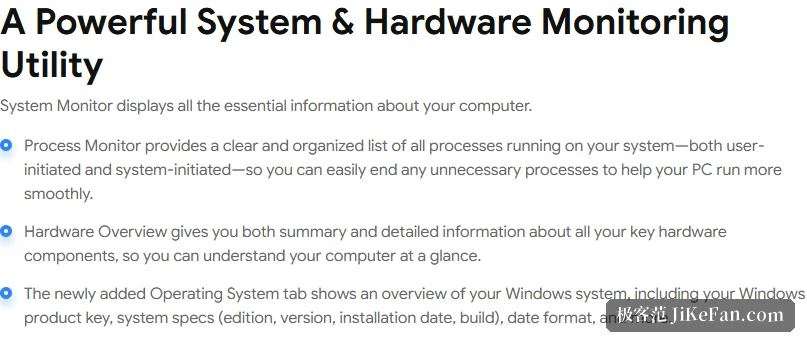
Monitoring splits into three views. A system monitor shows the key figures for the machine; a process monitor presents every running process in a clear ordered list, user-started and system-started alike, and any unwanted one can be ended to keep things moving; a hardware overview gives summaries and detail for the important components. A newer tab shows an overview of Windows itself, including the product key, system specifications such as version, install date and build, and the date format.
The interface gets its own section, and on a high-resolution screen it is the most practical item here: thanks to a rebuilt interface layer, the problems earlier versions had when system scaling changed are gone, and 100%, 125%, 150%, 175% and 200% scaling are fully supported and follow the Windows setting without manual adjustment, with 4K UHD displays handled properly.
Where the free edition ends and Pro begins
The price page lays the two tiers side by side. The free edition includes a check-up in a single step, cleaning and acceleration, a hardware inventory, privacy protection, live system monitoring, silent automatic cleaning, faster start-up, disk space recovery, automatic updates and technical support, which covers what routine upkeep actually needs. Pro adds real-time system protection and extra disk space recovery, listed at 39.95 dollars crossed out to 29.96, licensed for 1 year on 3 computers, with a 60-day refund promise and three commitments repeated on the page: 60-day refunds, secure online payment, and mail support 24 hours a day, 7 days a week.
Put another way, the free edition deals with dirt and Pro deals with being changed. Anyone who cleans up periodically and glances at the start-up list will be served by the free edition; only the wish to block unauthorised registry and browser changes continuously calls for the step up.
The update rhythm: cleaning rules keep arriving
The changelog reads almost like an inventory of applications. Version 8.0.6, dated 2026-09-18, added cleaning for ten more programs, among them several alternative browsers, a video editor, a code editor and a group of game launchers, strengthened the rules for an audio editor, a remote-support tool and two chat clients, and fixed a layout problem in the Arabic interface. Version 8.0.5, dated 2026-08-10, brought another batch of alternative browsers, an accessibility reader, a database client and installer leftovers, and improved cleaning efficiency for a well-known browser and a well-known code editor.
Further back, 8.0.4 dated 2026-07-09 added residue cleaning for two office communication tools, a screenshot utility, a container platform, an AI answer service, a writing assistant, an AI code editor and a translation tool, and introduced an optimisation under system security and privacy that disables remote assistance to prevent unauthorised remote access. Three versions in three months, each widening the coverage, which is the point: the value of a tool like this rests largely on how long that list is and how fast it grows.
Who it suits, and what to watch
Three groups. The first does not want a shelf of small utilities, and gets check-up, cleaning, optimisation, privacy and monitoring in one interface with the learning cost paid once. The second needs to deal with privacy traces regularly, and finds erasing, anti-recovery and shredding offered as separate actions so the force can match the sensitivity. The third has little sense of what the machine is doing, and the process and hardware views turn why it slowed down into something to investigate.
Two cautions. Registry cleaning should start with a full backup even though a restore exists, because the built-in restore is a last line of defence rather than a routine step to lean on. And shredding and disk erasing cannot be undone, so confirm the target first: disk erasing overwrites free space and costs time and writes, on a mechanical drive especially.
Gathering cleaning, optimisation, privacy and monitoring into one interface is really about lowering the barrier to upkeep. Nothing here is flashy: the method is a release every three months, each adding cleaning rules, and for a tool of this kind staying current is the solid edge that counts.