
Total Commander Has Kept Two Panes and a Keyboard for More Than Thirty Years
Summary
A file manager built around two panes side by side and a set of function keys, first released in 1993 and still maintained by its original author. FTP, archive browsing, batch renaming, file comparison and directory sync are all inside the same window.
Recommend- Name
- Total Commander
- Version
- 11.58
- Open source
- Proprietary
- Operating system
- Windows
- Website
- https://www.ghisler.com/
- Updated
- 2026-10-19 22:00
What the built-in file manager cannot do
Dragging a file from one drive to another in the file manager that ships with the operating system goes like this: open a window, open a second window, align them carefully, drag, and hope the hand does not slip, because a slip drops the file into whichever folder happened to be under the pointer. Everything past that is worse. Batch renaming, transfers over FTP, looking inside an archive before extracting it: the built-in tool either refuses or hands the job to a second program.
Total Commander exists to remove those detours, and its answer is almost aggressively simple. Two panes, side by side, each showing one folder. Copy? Select on the left, press the copy key, and the files land on the right. Move and delete have their own keys. Every common operation is on the keyboard, which means a complete file management round trip can be done without touching the mouse at all.
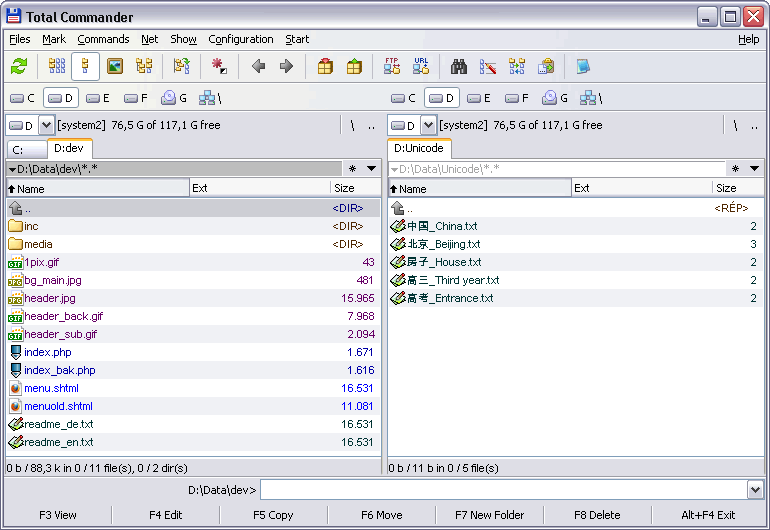
The keyboard is the interface
It is tempting to describe the function keys as a matter of taste, and it is not. Once the row of keys is in the fingers, the cost of a file operation stops being proportional to the size of the window and becomes proportional to the number of decisions. Ten files or a thousand, the gesture is identical: select, key, confirm. That is where the time actually goes in file work, and it is why people who use this program for a year tend to describe going back as a physical discomfort rather than a preference.
A toolbox behind the two panes
The panes are the starting point, not the whole product. An FTP client is built in, with SFTP support, and it connects from inside the panel, so a remote server behaves like a local drive: select on one side, transfer, and the other side fills up. Archives are entered rather than extracted; the common compression formats open as folders, and files can be pulled out of them or pushed in without a round trip through a temporary directory.
Batch renaming is the feature that quietly replaces three other tools. The built-in multiple rename handles search and replace with regular expressions, numeric counters, case conversion and metadata based naming, applied to a selection and previewed before anything is written. Anyone who has numbered a few hundred photographs by hand understands what that is worth.
File comparison and directory sync are also inside rather than bolted on. Two folders can be compared to show what differs, and synchronisation then runs in one direction or both, with the plan confirmed before execution. For anyone who keeps the same material on two machines, this replaces a dedicated sync utility, and it replaces it with something that shows you exactly what it intends to do first.
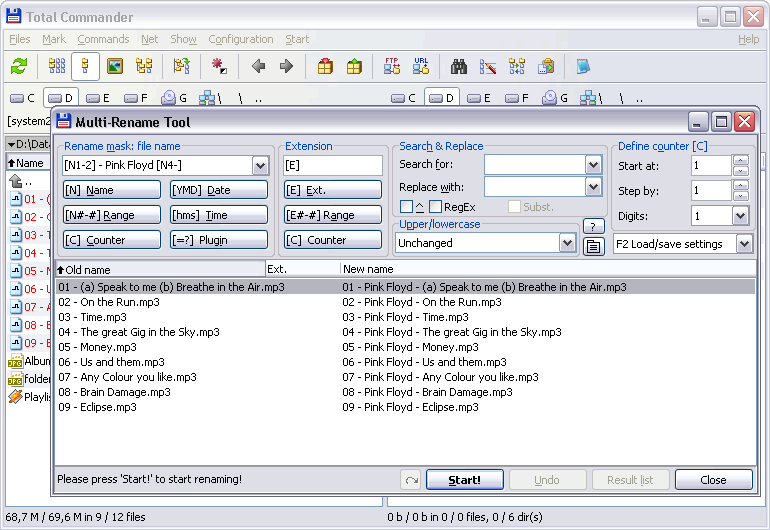
Four kinds of plugin
The plugin system is old, documented and split into four categories, which is the part most people underestimate. Compression plugins add formats the program does not read on its own. Viewer plugins put previews inside the panel, so images, audio and documents open without launching anything. Content plugins add columns of metadata that can then be sorted and filtered like any other column. File system plugins mount paths that are not ordinary folders, from the registry to the storage of a connected phone.
Install a handful of those and the shape of the program changes. Images preview in the second pane, a PDF opens where a PDF should not normally open, a phone appears as a drive, and the collection of separate utilities that used to surround the file manager quietly disappears.
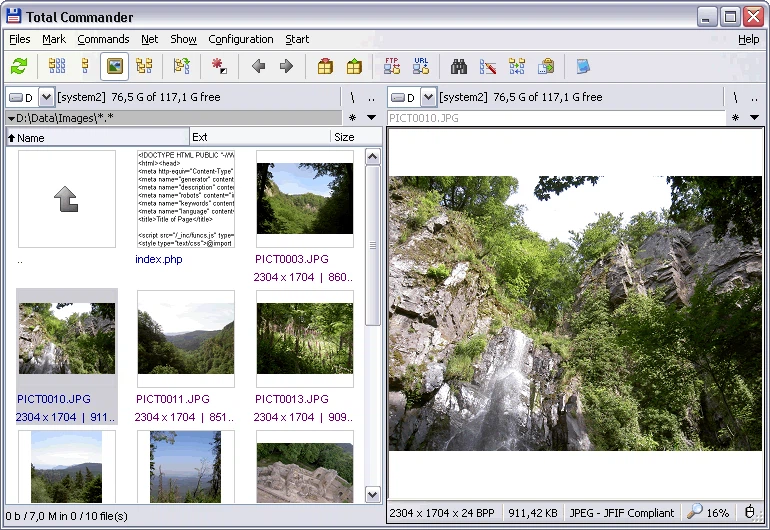
Thirty years of not changing
The first release was in 1993, and the author has maintained it ever since. In that time the interface has barely moved: a menu bar, a button bar, two panels. Someone upgrading from a version a decade old does not have to relearn anything, and that stability is not nostalgia, it is the product. Shortcut sets stay put, the logic of an operation stays put, and muscle memory keeps paying out instead of being invalidated every second year.
Licensing is a single line: personal use is free, with a confirmation dialog at startup, and commercial use requires a licence. The platform is Windows only, so anyone who works across several systems has to decide whether the habit is worth having on one of them rather than all of them.
This is not a program people try and abandon; it is a working habit. Two panes and a keyboard, and after a few weeks the built-in file manager starts to feel wrong in ways that are hard to name. For anyone who moves files more than occasionally, an hour spent learning the keys returns more than almost any other hour in the working week.