
TaskExplorer: Reading a Windows Machine as a Tree of Processes Instead of a List
Summary
TaskExplorer is an open-source process manager for Windows: a process tree with live CPU, memory, disk and network figures, thread stacks, handles, memory inspection and an optional multi-engine virus scan.
Recommend- Name
- Task Explorer
- Version
- 1.6.4
- Pricing
- Free
- Open source
- Open source
- Updated
- 2026-10-06 20:24
A list of processes answers the wrong question
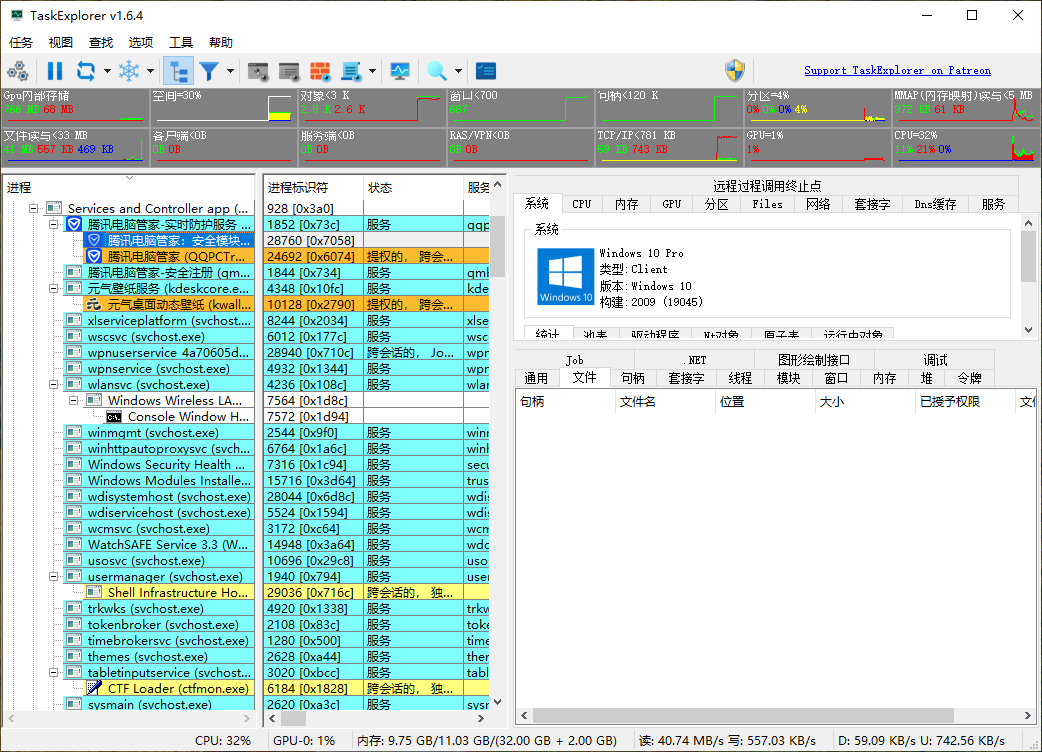
TaskExplorer is an open-source process manager for Windows, written by DavidXanatos, and its central design decision is a small one with large consequences: processes are shown as a tree rather than a flat list. A flat list is a census. It tells you that there are two hundred and forty things running and which of them is using the most processor time, and it answers none of the questions people actually ask when a machine misbehaves.
The tree answers a different one: who started whom. That relationship is where almost every diagnosis begins. An application that is slow because a helper process keeps restarting, a service host that has quietly accumulated a dozen instances — none of these look unusual in a sorted list, and all of them are obvious the moment the hierarchy is visible.
Four numbers, and what each of them actually measures
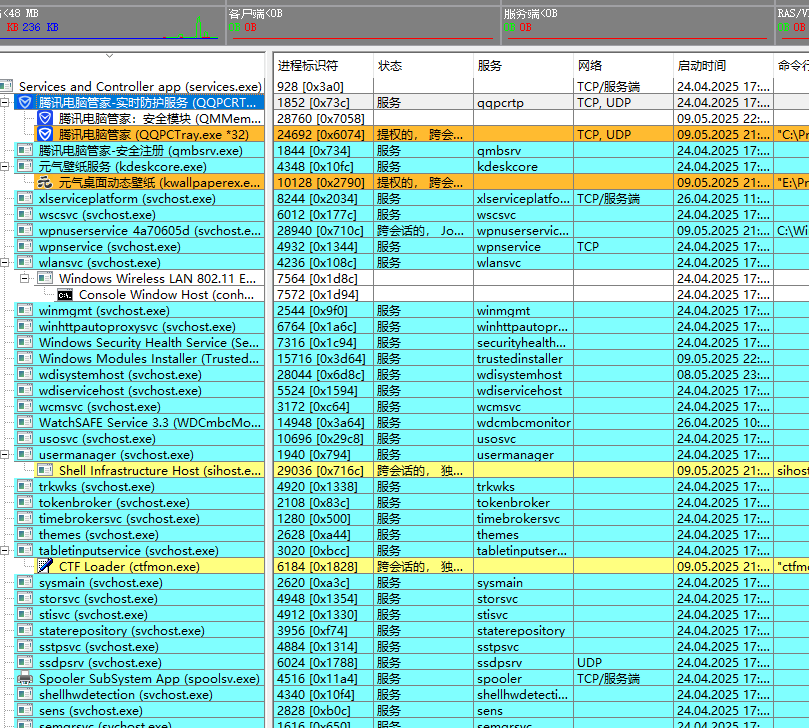
Live figures for processor, memory, disk and network activity are displayed per process, and the useful skill is knowing which of them lies in which direction. Processor usage is a rate, not a total: a process at ninety per cent for one second and one at nine per cent for ten seconds have done the same amount of work, and only the accumulated processor time distinguishes them. A process that seems idle but has enormous total time is not idle; it is finished.
Memory is the vaguer word of the set. What a program has asked the system for, what the system has actually committed, and what is currently resident in physical memory are three different numbers. The practical consequence is that the biggest number in a memory column is often not the problem; a process whose committed memory climbs steadily while its resident size stays flat is the more interesting shape, because that is what a leak looks like from outside.
Disk and network figures complete the picture, and they matter because the newest and fastest storage still has a limited number of operations per second. A machine that feels sluggish while the processor sits at ten per cent is usually waiting for a disk, and per-process I/O is what turns that suspicion into a name.
Threads and stacks: the difference between busy and stuck
Thread stack inspection is the feature that separates a monitoring tool from a diagnostic one. A single process can contain dozens of threads, and a process at zero per cent processor usage may still be doing something — or waiting forever. A stack tells you which: it is the list of what that thread is currently in the middle of, and reading it is how a hang is distinguished from idleness.
Two patterns are worth recognising. A deadlock looks like two or more threads each waiting on something the other holds, and it is invisible in any aggregate figure because nothing is consuming anything. A bottleneck looks like many threads piled up at the same point, which is usually a lock or a single-threaded section that everyone needs. Neither is a performance problem in the sense that a graph shows it; both are structural, and both are only visible when you can see where the threads are standing.
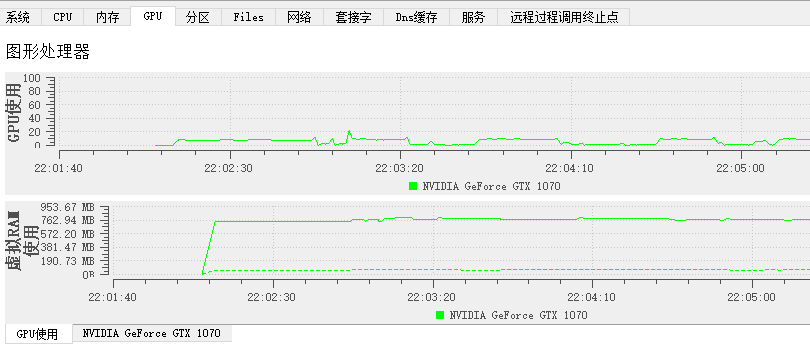
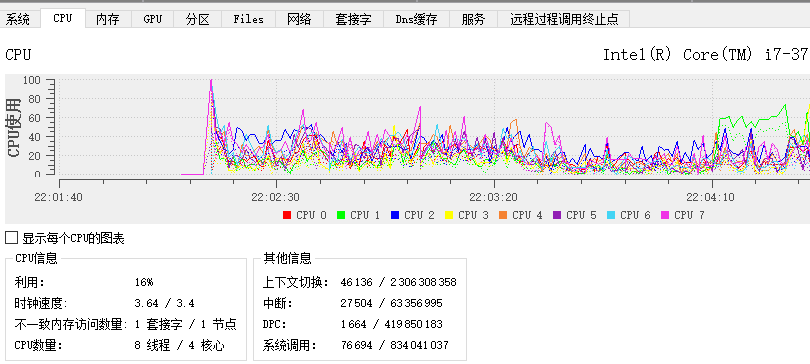
Historical charts belong to the same idea in the time dimension. A number at this instant explains very little; the shape of the last few minutes explains a great deal, because most problems on a desktop are not steady states but events — a spike when a file is indexed, a plateau that begins exactly when the fan started.
Handles are where leaks actually live
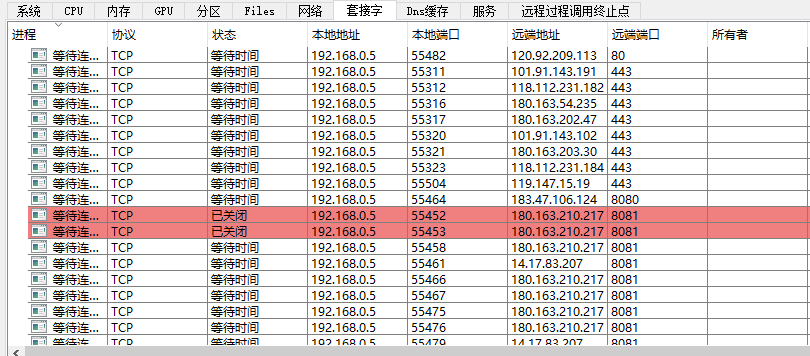
Being able to see the files, registry keys and network connections a process has open is the most underrated part of the tool. Memory leaks are the famous kind, but on a modern system the more common failure is a handle leak: a program opens a file, a key or a socket and never closes it, and after a few days it can no longer open anything at all.
The list makes the leak visible and, more importantly, nameable. If a process holds four hundred connections to a server it should be talking to once, the question has been narrowed from why is this computer slow to why is this program opening connections it never closes. That is the whole value of the feature: it converts a vague complaint into a specific defect with an owner.
Memory inspection, and the honest caveats
The ability to view and edit another process's memory is a debugging and reverse-engineering capability, and it is worth being precise about what it is for. It is for understanding what a program is holding at a given moment — a data structure, a decoded buffer, a string that should not be there. Editing live memory to change behaviour is a technique with a very short half-life: the next build moves everything.
The caveat that matters more is procedural. A tool that can read any process's memory can read anything, including credentials that happen to be resident, and a tool that can terminate or suspend any process can suspend one that the operating system depends on. Suspending a process is not a pause button for a program — it is a freeze of everything that process was holding, and something else may be waiting on it.
The multi-engine scan, and what it does not promise
Submitting a suspicious process to an online service that runs it past many virus engines at once is genuinely useful, and the word to notice is suspicious. The scan is a second opinion on a file, not a verdict on a machine. A clean result means that forty-odd engines, with their signatures as they stood at that moment, found nothing; it does not mean the file is safe, and it certainly does not mean the process is behaving well. A malicious result is stronger evidence, but a single engine flagging a small utility is a common false positive.
The other half of the sentence is privacy. Submitting a file means a copy of it leaves the machine and arrives at a third party. Knowing whether a hash or the whole file is being sent, and thinking before doing it with a document rather than a program, is the difference between using the feature and being used by it.
Portable, customisable, multiple windows
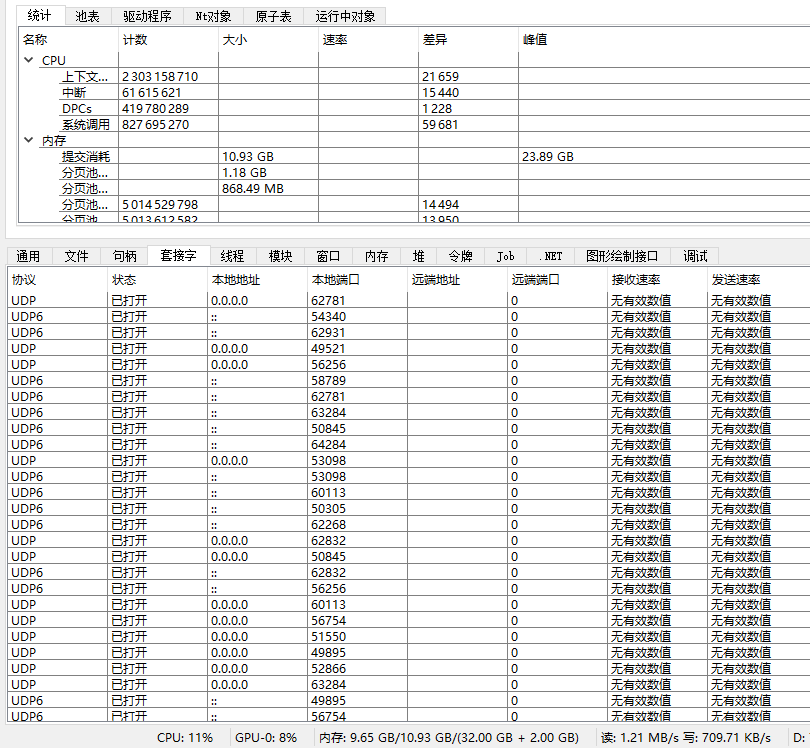
Three small decisions finish the picture. The program is portable, which matters most precisely where it is most useful: on a machine that is not yours, where installing software is either forbidden or exactly the thing you are trying to avoid. Columns can be rearranged and sorting changed. And multiple windows mean two processes can be watched side by side, which is what comparing them requires.
Where it fits
This is a diagnostic tool, not a cleaner and not a speed-up. It will not make a computer faster. What it does is answer the question of what is actually happening, in enough detail to act on. For a developer chasing a hang, an administrator identifying what is holding a file open, or anyone trying to understand why a machine with plenty of free memory is not responsive, that is the whole job.