
Revo Uninstaller Pro 5.5.2: watch the install, then sweep the leftovers
Summary
It runs the program's own uninstaller and then goes looking for what stayed behind, with a tracking log recorded at install time to make the second half precise. Forced and batch removal cover the stubborn cases.
Recommend- Name
- Revo Uninstaller
- Version
- 5.5.2
- Open source
- Proprietary
- Operating system
- Windows
- Updated
- 2026-10-05 13:12
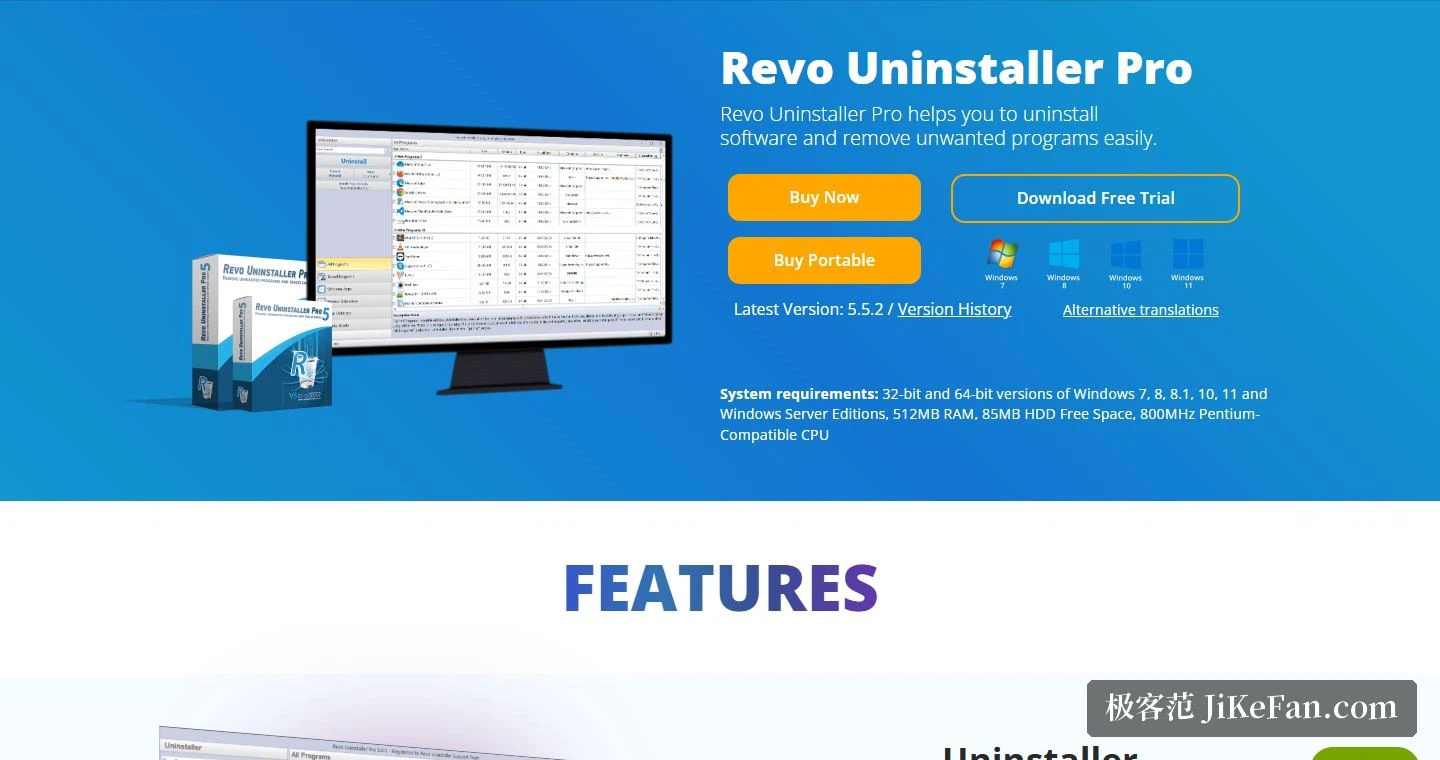
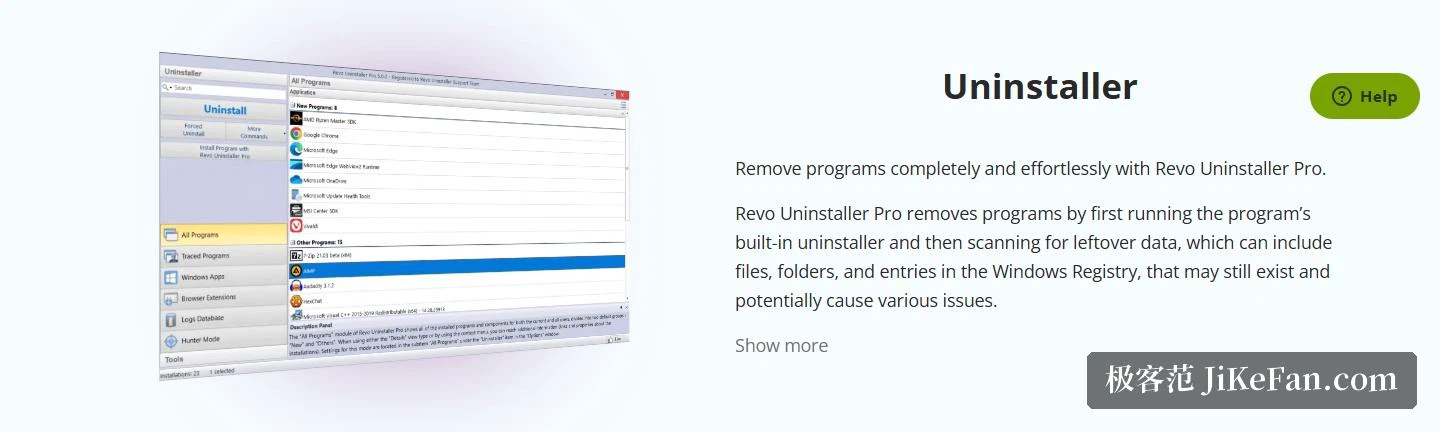
Uninstalling software is a job the system's own entry point only half does: it calls the program's own uninstaller, and what remains afterwards is not its concern. This tool starts exactly there, and its description of the flow is blunt, run the uninstaller the program brings, then scan for leftover data, which may include files, folders and entries in the registry, things that can stay behind and cause assorted trouble. The current version is 5.5.2, and the requirements are written generously: 32-bit and 64-bit Windows 7 through 11 plus server editions, with 512 MB of memory, 85 MB of disk space and an 800 MHz processor.
Watch while it installs, and the removal is clean
The most convincing design here is real-time installation monitoring. The page states that it follows the changes a program makes to the system while it installs, records them as a tracking log, and can call that log at uninstall time for a more precise and more thorough removal, clearing hidden leftovers an ordinary residual scan would miss. The idea is plain enough: if you know where a program wrote what while it was being installed, removal can follow the map instead of guessing.
Two pieces of advice come with it. While tracking an installation, close every unnecessary program and start no other program or installation during the process; and it is better to launch the installed program once, close it, and only then save the log. Both raise the accuracy of the log. Beyond that, the vendor keeps a log database, a large collection produced by its own team with the same monitoring and held on its servers, used in exactly the same way as a log you made yourself, for removal or for topping up a clean-up when leftovers are suspected.
For the stubborn ones and for bulk jobs
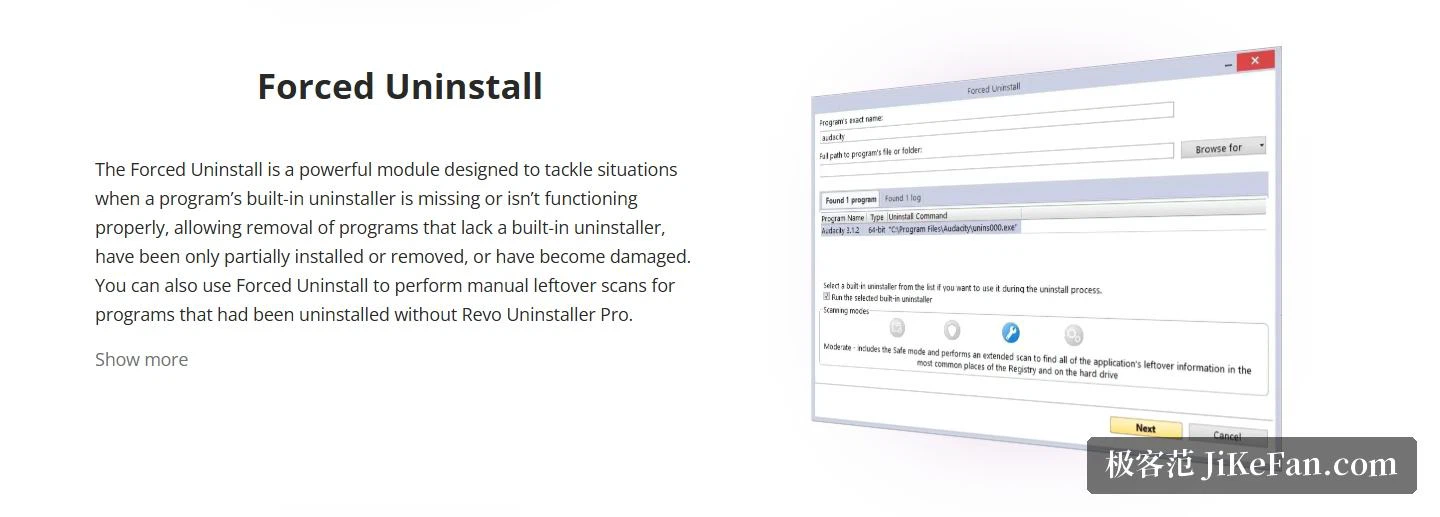
Forced removal addresses the worst category: a program whose own uninstaller is missing or broken, one that was only partly installed, one that was only partly removed, or one that is already damaged. The page notes in the same breath that it can perform a manual residual scan on programs removed by something else, in other words a clean-up afterwards for software another tool took off earlier.
Batch removal is for taking several programs off at once. The page says it creates one registry backup and one system restore point for the whole queue, then removes them one by one. That detail is worth noticing: the usual failure of a bulk operation is that some step goes wrong and there is no single point to fall back to, and here the backup is taken before the queue starts.
Hunter mode: turning removal into a crosshair
Hunter mode is the interaction people remember. As described, switching it on makes the window disappear and puts a crosshair icon at the top right of the screen; drag that icon onto another program's window, a desktop shortcut or a tray icon and a set of actions appears, for removing the program or for managing what starts with the system. For software whose name cannot be found in the list of installed applications, or where there is no obvious place to remove it from, this is much faster than hunting through a list.
Coverage deserves a line as well. The apps that ship as part of current Windows versions can be removed too, with the preinstalled ones and the user's own listed separately, and browser extensions are grouped per browser with five browsers supported. In other words the two categories most easily overlooked, store apps and browser add-ons, are inside its scope.
Multi-level backup: making the undo a system
What an uninstaller fears most is removing the wrong thing, and the answer here is written concretely. The multi-level backup section says that with the option enabled it creates a restore point through the system's own restore feature and takes a full registry backup at the start of every removal; the deletion of leftovers leaves room as well, with files and folders sent to the recycle bin and registry entries backed up automatically by the built-in backup manager.
Taken together, the way back covers three levels: a restore point at system level, a full backup at registry level, and the recycle bin at file level. For a tool that encourages deep cleaning, that design is necessary, because the more thorough the cleaning the higher the price of a mistake, and the less the ability to go back can be skipped.
Free edition, Pro, and the extra tools
The comparison table lays the differences out plainly. Scanning for leftovers after a standard removal, removing Windows apps, hunter mode and free technical support are in the free edition. Pro adds forced removal, batch removal, extended leftover scanning, real-time monitoring of system changes with the log database, multi-level backup, no limit on the number of computers, and a portable version that runs from a USB stick. Put another way, the free edition covers everyday removal and leftover cleaning, while the paid part mostly buys three things: the stubborn cases, the bulk jobs and the tracking at install time.
Alongside removal, six extra cleaning tools are included: startup manager, junk file cleaner, a collection of Windows tools, history cleaning covering browsers, office software and the system, trace removal, and unrecoverable deletion. On trials, 30 days are offered without a credit card, together with free technical support and a 60-day money-back guarantee, meaning a purchase can be cancelled for any reason within 60 days and refunded.
Who it suits, and what to watch
Three groups. First, people who install and remove constantly, where monitoring the installation raises the accuracy of every removal and leftovers stop piling up. Second, anyone who has met software that would not come off cleanly, since forced removal and the manual residual scan are aimed exactly at that. Third, people who want a safety net, where the three levels of restore point, registry backup and recycle bin keep the risk of deep cleaning under control.
Three cautions. Tracking an installation needs a quiet machine, because the vendor advises closing unnecessary programs and starting no other installation while tracking, or the log loses accuracy. Batch removal does create one backup point for the queue, but check the list for anything selected by mistake first, since a mistake in a bulk operation is also bulk. And this is a Windows tool, with a separate product for mobile, so cross-platform needs have to be considered on their own.
The value of uninstalling is not in deleting but in deleting completely while keeping a way back. This one does both ends: tracking logs at install time and a residual scan afterwards on one side, restore points, registry backups and the recycle bin on the other. The cleaner the removal, the more it needs someone to have left the retreat open.