
PicPick 7.6.2: scroll capture and markup in one tool
Version 7.6.2
Summary
PicPick 7.6.2 for Windows captures a screen, a window or a scrolling page and marks it up in the same window, with a colour picker and a pixel ruler.
Recommend- Name
- PicPick
- Version
- 7.6.2
- Pricing
- Free
- Open source
- Proprietary
- Operating system
- Windows
- Website
- https://picpick.app/zh/
- Updated
- 2026-11-15 12:09
PicPick is a screen capture and markup tool for Windows, and 7.6.2 shipped on October 26. It puts capture, annotation, colour picking, measuring and screen recording into one program, and the small helpers that sit in the tray belong to it too.
The annoying part of a screenshot is rarely the hotkey. It is what comes after: opening another program to draw an arrow, hide a phone number or add a watermark, then saving the result back. PicPick sets out to remove that round trip.
Decide which piece you want first
The home screen lays the capture modes out in the open: full screen, active window, a single control, a scrolling window, a fixed region and freehand, plus repeat the last one and a delayed grab. Monitors can be picked one by one, every mode takes a global hotkey that still works while the program sits in the tray, and the delay is there for menus that have to open first or an interface that needs a moment to settle. A capture can be saved straight away under a naming rule or dropped into the clipboard for the next step.
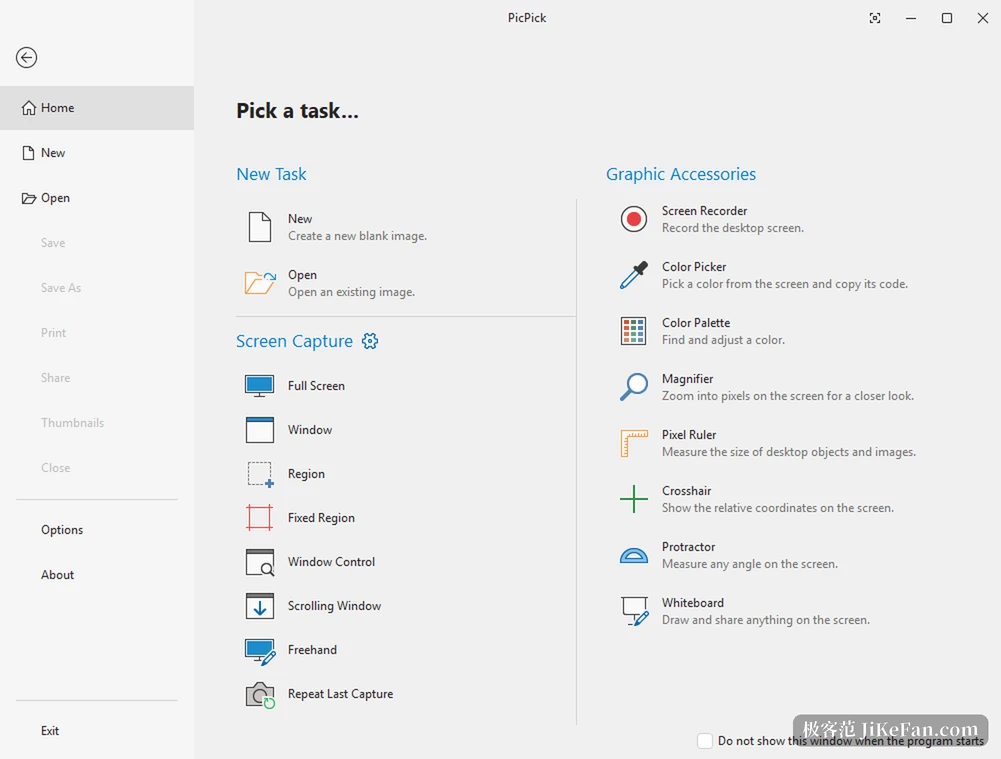
The control mode deserves a word of its own. It frames one element inside a program, a button or a block of a table, instead of the whole window, so nobody has to crop afterwards.
Scrolling capture earns its keep here
Version 7.6.2 touched scrolling capture in three places: the region to scroll can be framed before the run starts, progress is visible while it happens, and the result comes out more dependable. Long web pages, long chat logs, logs with hundreds of lines used to mean stitching by hand or grabbing again and again, and now the thing scrolls itself to the end. A few new border styles came along as well, one of them a torn paper edge.
The official notes for this release say: improved scrolling window capture, with the scroll region adjustable before starting and live progress during the run for a more reliable result; more border styles, including a torn edge effect.
No second program after the shutter
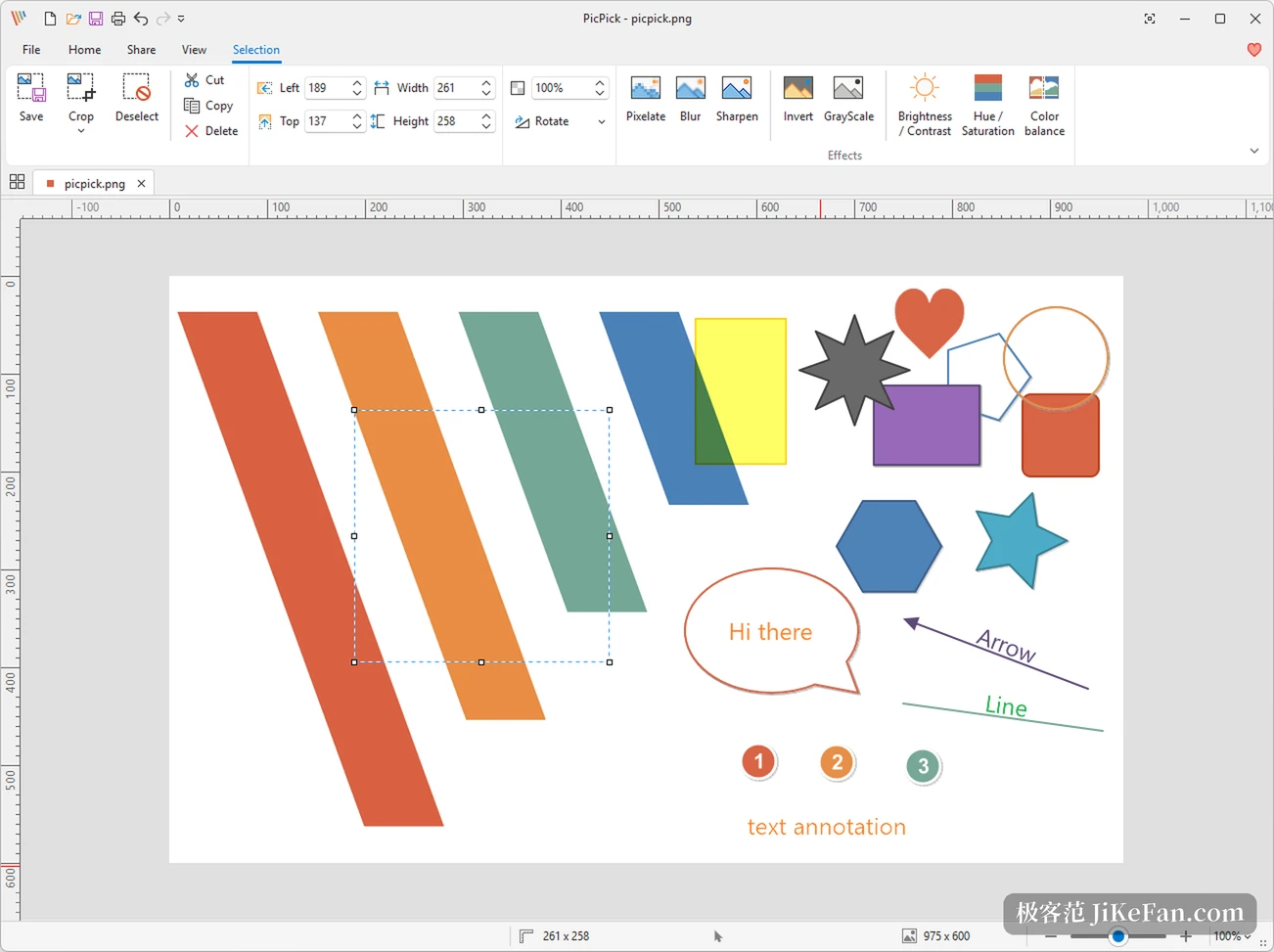
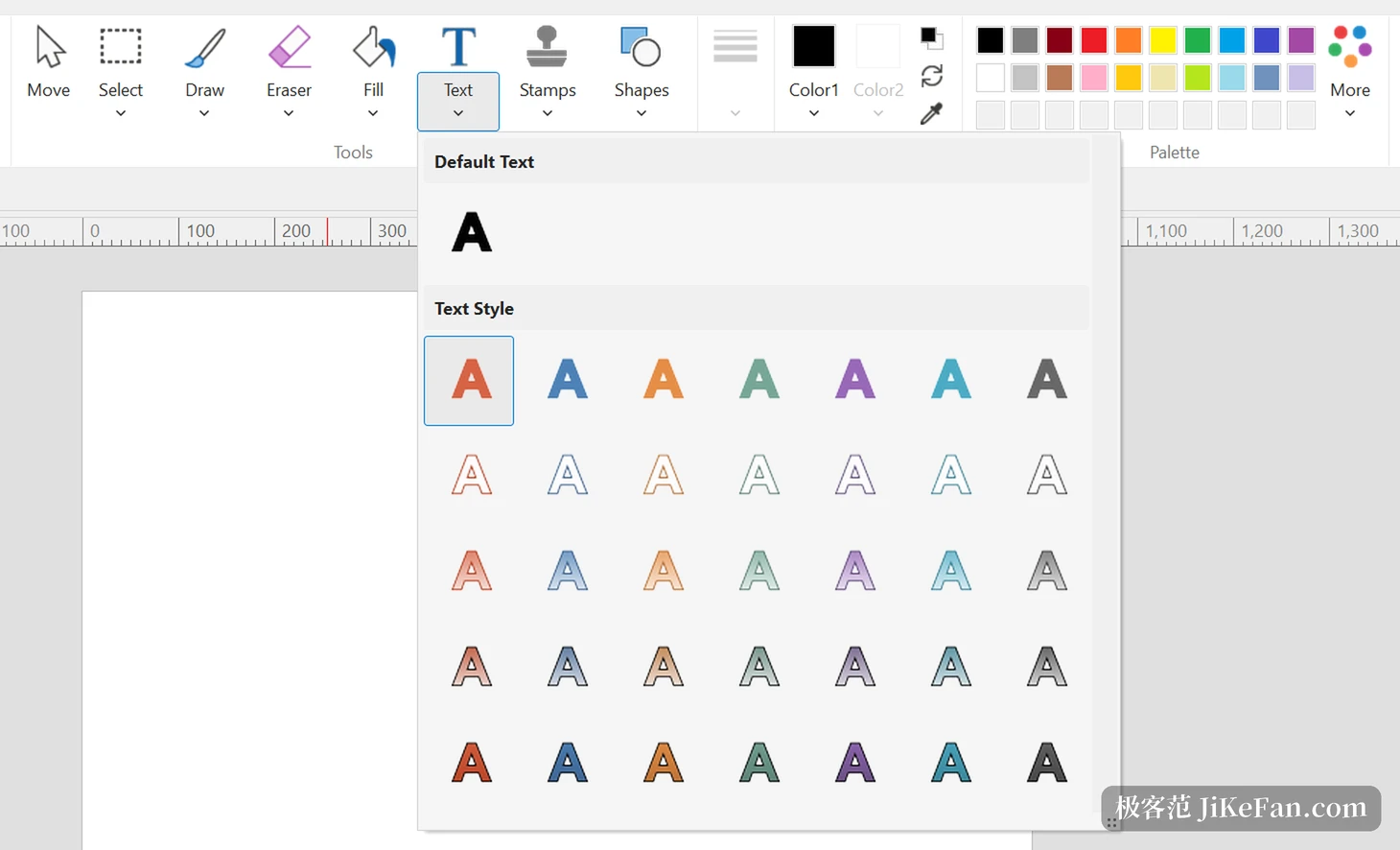
A capture lands in the editor directly, and the toolbar follows a ribbon layout grouped by purpose: pencil, marker, airbrush, text, arrows and lines, shapes and callouts, number stamps, with crop, fill and eraser beside them. The effect group holds pixelate, blur, sharpen, greyscale, invert, brightness and contrast, hue and saturation, and colour balance, so hiding a number or shifting a tone happens in place. A watermark takes text or an image with its own position and opacity, and crop, resize and rotate sit in the same row, with an undo that returns the untouched original.
A ruler that lives in the tray
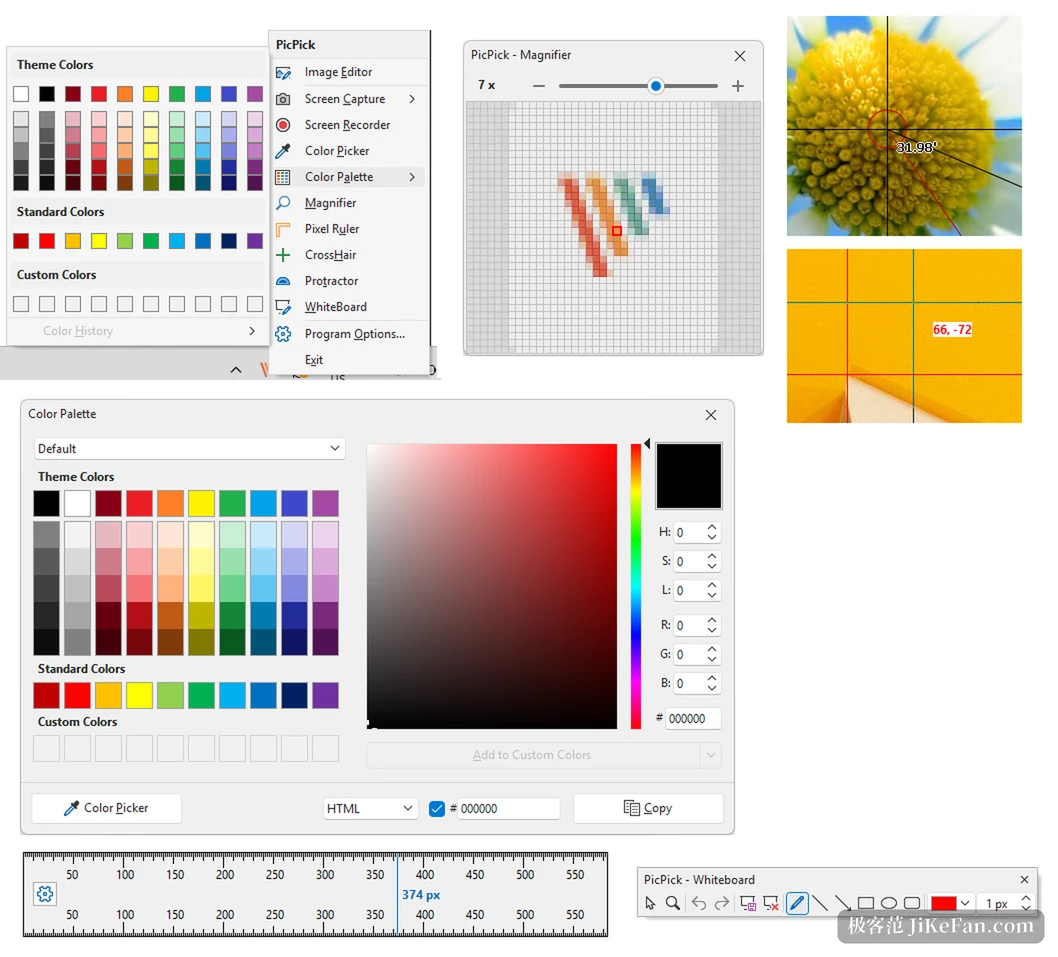
The helpers in the tray often see more use than the capture itself. Its colour picker carries a magnifier, reads any pixel on screen and reports it as RGB or as a hex value. The palette works as a picker in its own right and swatches can be stored for reuse, while a pixel ruler measures in pixels, inches, centimetres and several DPI settings. Magnifier, crosshair lines, protractor and whiteboard each handle one job, which helps when rebuilding an interface or pointing a colleague at a spot on screen.
Recording lives in the same program
Recording covers the full screen, a window or a region, takes system sound and a microphone together, allows frame rate and quality to be set and writes a video file. Version 7.6.2 added a switch that turns off the countdown before recording starts. When an audio device will not open it keeps recording, only without sound, and when memory runs short or the output folder cannot be created it says so plainly instead of failing in silence. Finished files land on the machine and travel the same sharing routes as screenshots: mail, FTP, a cloud drive, or straight into a document for a colleague.
How free it is
PicPick costs nothing for personal and non commercial use, with capture, editor, colour picker and ruler fully open; commercial use needs a licence, and the official line is that both builds carry identical features, differing only in what the licence covers. On the system side it stays with Windows, from Vista through 11, asking for 512 MB of memory and about 250 MB of disk space, with a portable build for an external drive.
Releases are not frequent. Past 7.6.2 the numbering mostly carries small repairs, and the next major version stays in a beta channel for anyone who wants to run it alongside. The weak spots are clear too: no cloud sync, no phone version, and moving a picture between devices is still your own job. For a tool of this kind, installing it and then forgetting it until a hotkey is needed says more than any feature list.