KillerShell 1.6: files, shell and registry in one window
Summary
KillerShell 1.6 is a portable executable that puts file browsing, content search, a shell, an editor and a registry tool behind one tab bar on Windows.
Recommend- Name
- KillerShell
- Version
- 1.6
- Pricing
- Free
- Open source
- Open source
- Operating system
- Windows
- Website
- https://killershell.net
- Updated
- 2026-11-15 12:09
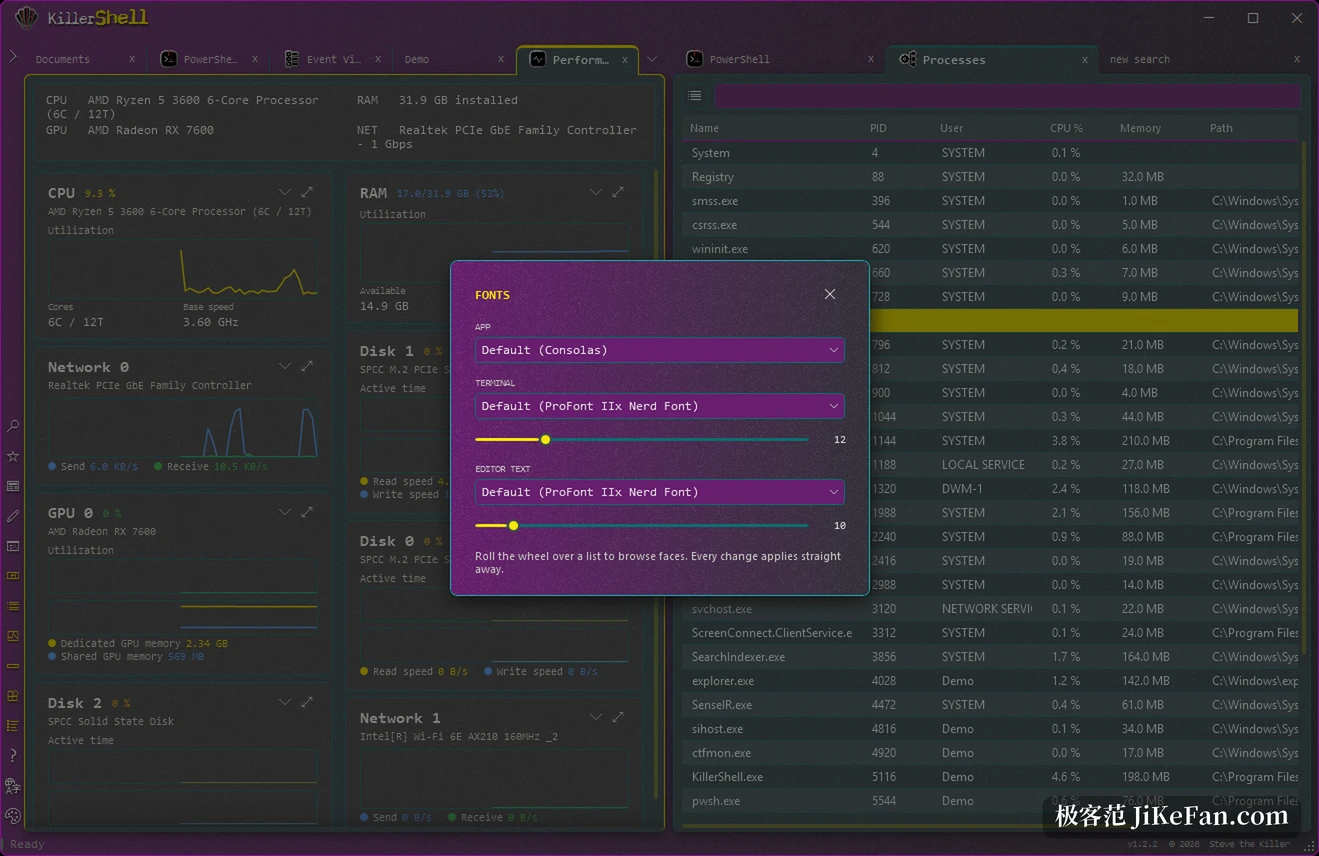
KillerShell 1.6 arrived on November 14. The whole thing is a portable executable of 6.49 MB, and it gathers file browsing, filename and content search, a terminal, a text editor, a storage analyzer, process and service views, a registry editor and an event viewer into one window behind one tab bar, all of it on Windows. The author begins from a plain complaint: finding a file, walking into the folder that holds it and changing a line inside should not require jumping between three programs.
That complaint comes out of real operations work. The author does system administration at a large hosting company, and the same loop repeats every day: locate the file, open a shell in its directory, change something. Three programs and three tab bars mean alt-tab in between, all day long. KillerShell closes that stretch.
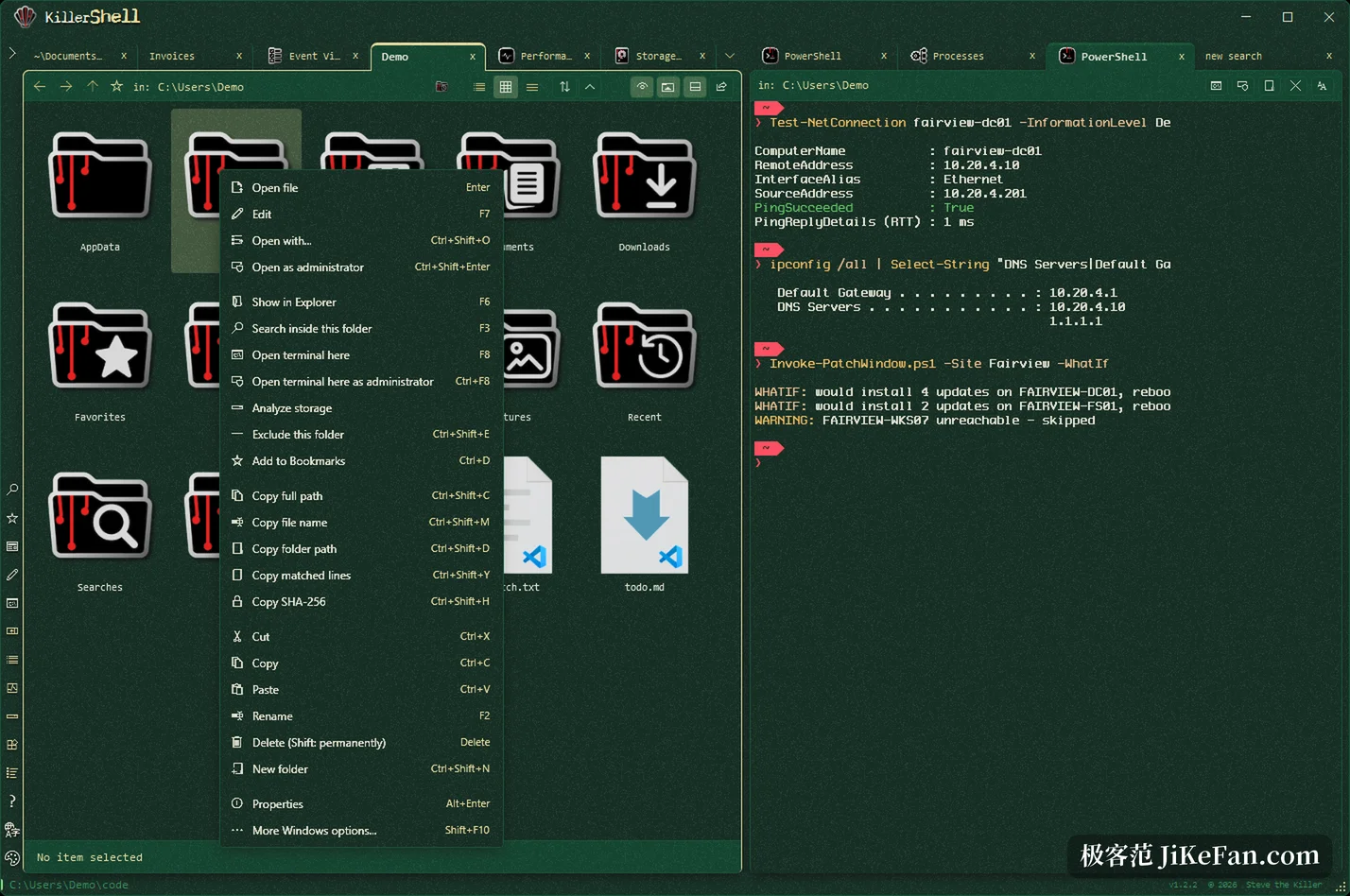
Press F8 on a search hit and the shell opens in that folder; press F7 to edit the file in place, close the tab and move on.
Three windows a day, pressed into one
The window splits on F10 into two panes, side by side or stacked, and each half keeps its own tabs. Files can be dragged from one side to the other, so a list of search results can sit on the left with a PowerShell session on the right. Tabs here are not sorted by function. Every tab is a search, a folder, a terminal or an open file, with its own history and its own results, and whatever is open comes back on the next launch.
Read the design as one long chain and the details add up. A search produces hits, a hit opens a folder, a folder opens a shell, and the shell runs a command that touches a file, which opens in the editor. None of those steps leaves the window, and none of them costs a program switch.
Search builds no index, the editor keeps the encoding
Filename search takes wildcards such as *.log or report_*.xlsx and compares them across the whole tree, with hits streaming in while the walk is still running. No index has to be built first, which matters more than it sounds: there is no long wait on the very first run and no background service sitting on the disk. Content search reads line by line instead of loading whole files into memory, lists every hit with its line number and skips binaries on its own.
A finished search can be searched again. The earlier results move into a new tab and the next round only touches those files, and the nesting can go as deep as the job needs. Narrowing a pile of logs becomes routine: filter by extension, search a keyword inside what survived, then search again inside the remainder.
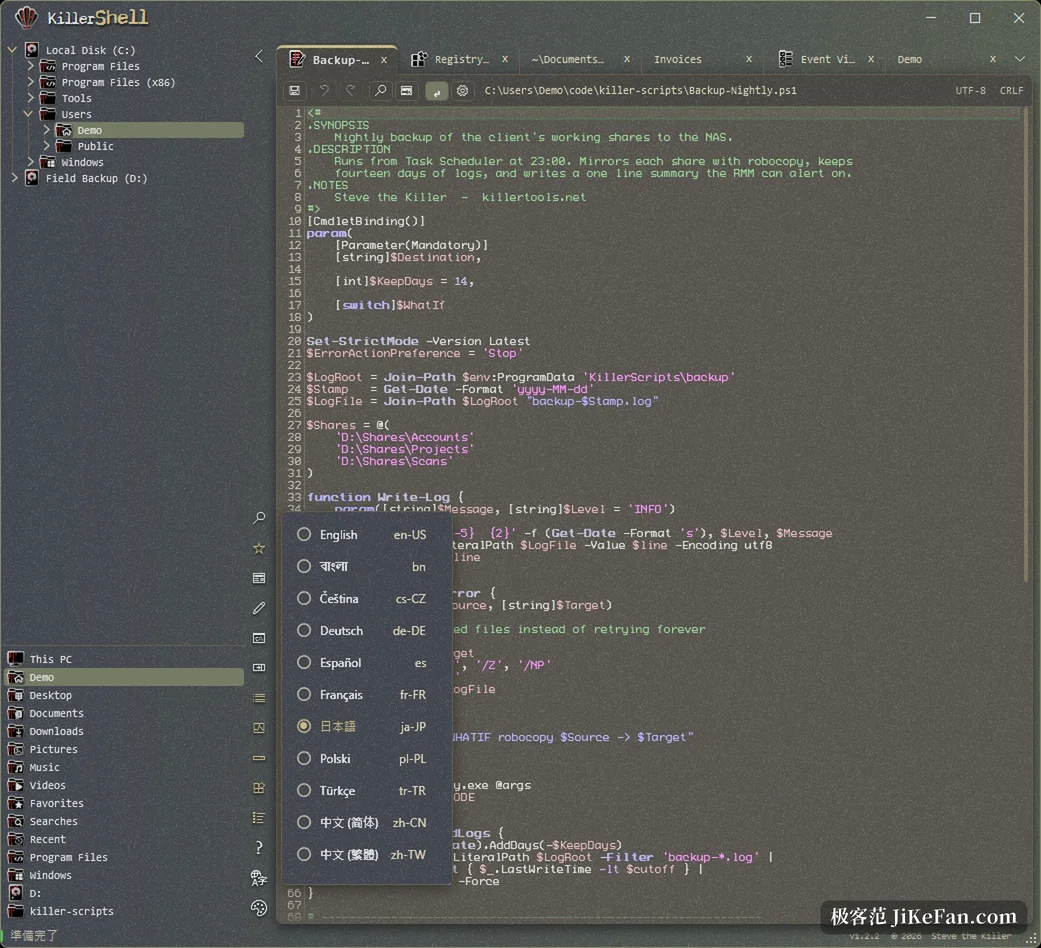
F7 opens any text file in the editor, with syntax highlighting, line numbers, find and go-to-line, and word wrap on by default. Encoding and line endings stay exactly as the file had them, and the editor shows which ones it found instead of quietly rewriting them. For a script that an older PowerShell has to read, those two details decide whether it runs at all, and plenty of editors change one of them without saying so.
1.6 repairs the places where work could be lost
This release is not about new features. Three details could bite, and the worst sat in the update path: a per-machine install compared the full name of the signing certificate against a fragment of it, so every published build failed the test and people on that install never received an update at all. A signature must now carry the exact publisher name and pass a revocation check, the offline check only runs when the revocation server cannot be reached, and the metadata download is capped at 1 MB.
Favourites were the second one. When a share went offline or a removable drive was pulled, saved favourites vanished from the drawer after start-up, and the next save erased them for good; anyone upgrading from an older build triggered that save on the first launch. A favourite now stays where it is, dimmed and marked as temporarily out of reach, and brightens again once the path returns. Start-up also stops waiting on shares of that kind.
The rest is a batch of stability work. Dialogues for the registry, renaming, file operations, processes, services, events and terminal settings crashed when the title bar was dragged with the mouse button already released. Unpacking a large archive used to re-read the entire package once per file inside, which looked like a freeze, and now the package is read twice in total. The context menu turned into a card with shortcut buttons, the panel layout moved to the footer, and exported results, saved size filters and dates read the same under every Windows regional setting.
Where its limits sit
KillerShell runs on 64-bit Windows 10 and 11 only and leans on the .NET Framework 4.8, with everything else packed into that single executable. It can be installed per user or per machine, it carries the GPLv3 licence and its source sits on GitHub. The author has spent years in system operations, the repository dates from July and commits keep arriving. The interface speaks twenty languages including Simplified and Traditional Chinese, thirteen themes combine into forty-one looks and a change needs no restart. Data stays on the machine, with no telemetry and no account.
The idea fits in one line: keep finding, entering and editing inside a single window, and let every other feature grow along that path.
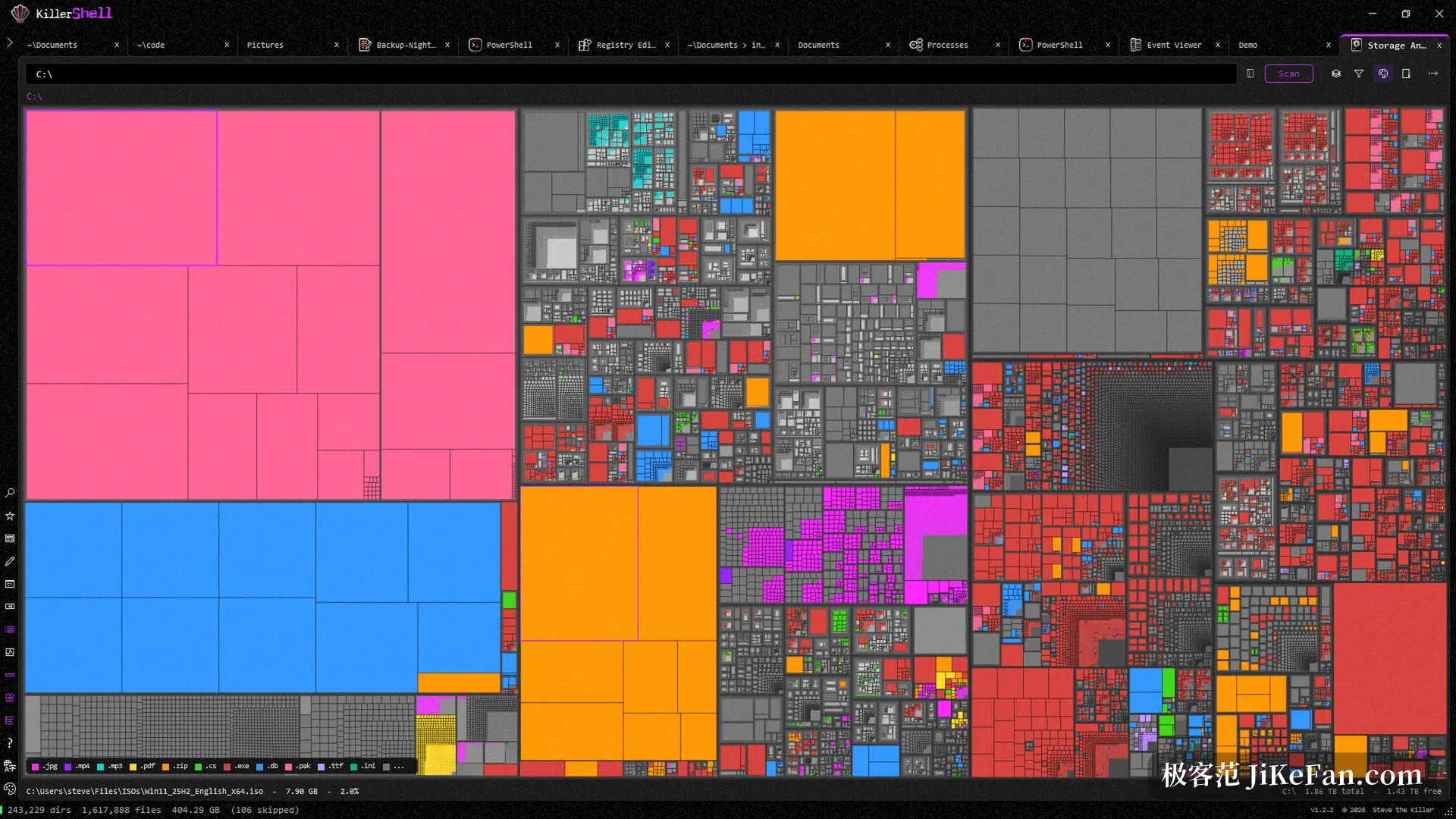
What it does not do deserves a line as well. It will not manage a fleet of machines, it syncs nothing to a cloud and it has no team features; the storage analyzer, the performance monitor and the event viewer all take the local view.
People who write operations scripts tend to like the restraint around encoding and line endings, and the fact that a registry editor or an event viewer now waits in the tab bar rather than in three separate windows. Someone who only looks for a file now and then will not use half of it. Someone who spends the day turning over files, opening shells and repairing scripts gets back exactly the time that alt-tab used to eat.