
Alt+Z starts the capture: NVIDIA App keeps ShadowPlay recording at 240 frames
Summary
NVIDIA App is the unified client for GeForce users: it handles Game Ready and Studio driver updates, per-game graphics settings and display controls, keeps the ShadowPlay recording stack with instant replay and screenshots, and adds a performance overlay, DLSS overrides and automatic GPU tuning.
Recommend- Name
- NVIDIA App
- Version
- 11.0.8
- Pricing
- Free
- Open source
- Proprietary
- Operating system
- Windows
- Updated
- 2026-10-06 20:42
One client that covers the whole graphics card
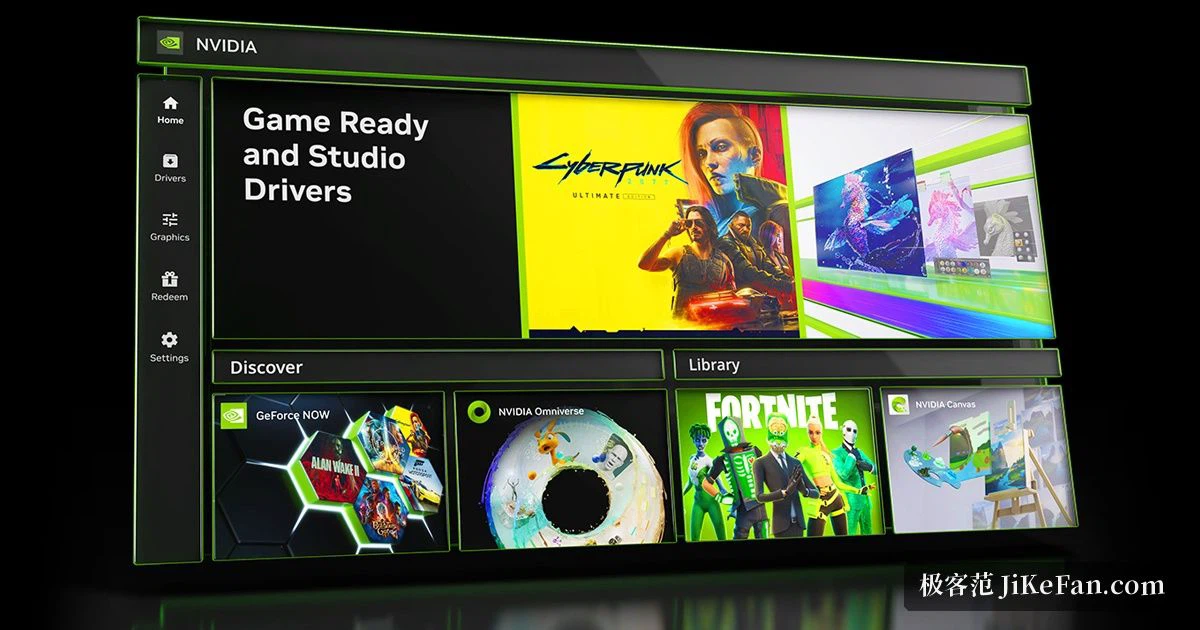
NVIDIA App is the unified client NVIDIA built for GeForce owners. It left beta in November 2024 and took over from two older tools at once: capabilities that used to be scattered between GeForce Experience and the classic control panel now sit in one window. Driver updates, graphics settings for individual games, display controls, screen recording and screenshots all happen in the same place, which is the reason this handover matters more than a typical version bump.
Drivers and per-game settings
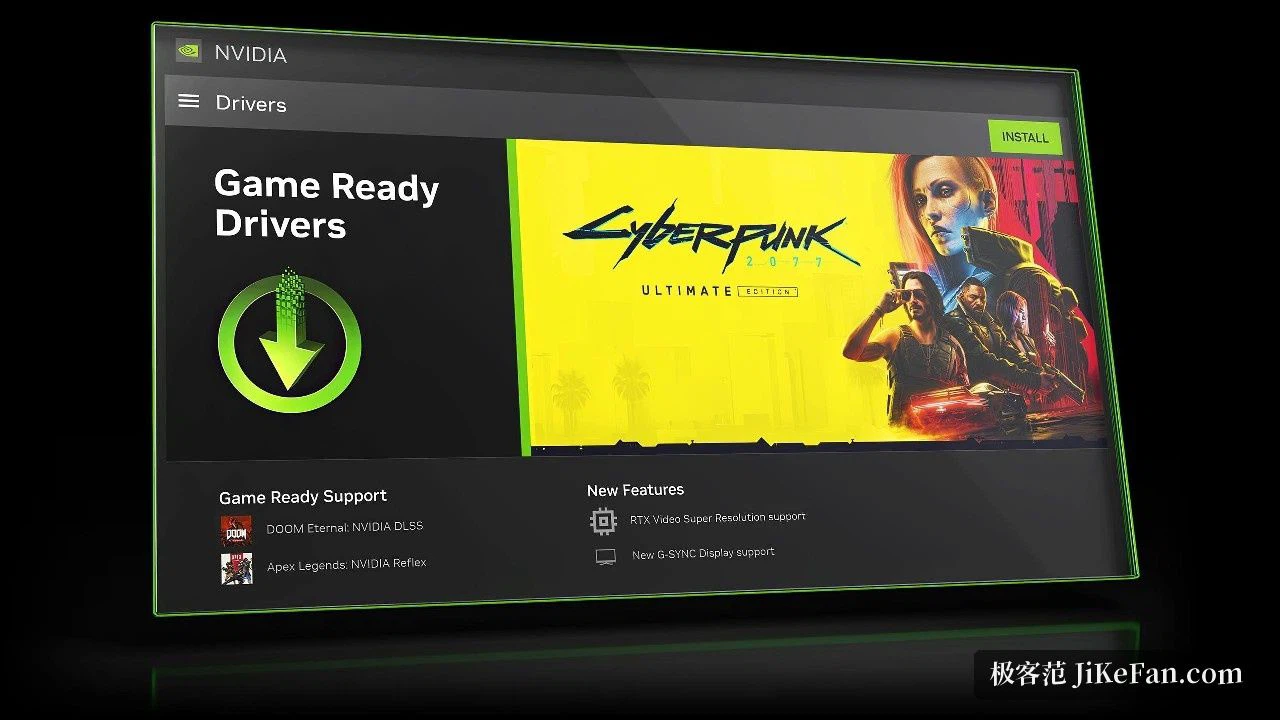
The client downloads and installs both driver branches: Game Ready, which ships ahead of major releases, and Studio, which is tuned for creative work. For a game it recognises, it can show a recommended set of graphics options and apply them in a single action, or you can walk through the list and change each item yourself. DLSS Overrides goes a step further and lets a supported title use a newer DLSS model than the one it shipped with, which is often the cheapest way to sharpen an older game without touching anything else.
May 2026 brought a structural change rather than a feature. NVIDIA retired the classic control panel from both the Game Ready and Studio driver packages, so the settings that lived there had to move. Graphics options now map to Graphics followed by Program Settings inside the app, while anything related to the display itself is collected under the System tab. Anyone who still reaches for the old panel out of habit will find nothing behind it.
Recording and the overlay
The recording stack inherited from ShadowPlay is intact: manual recording, instant replay that keeps the last stretch of gameplay in memory, screenshots, game highlights where the title supports the feature, a photo mode and an in-game gallery. Capture is configurable down to the details, from which microphone and which audio sources are recorded to the codec, the bitrate, the resolution, the frame rate and where the output lands on disk. Alt+Z brings up the overlay, and Alt+R toggles the performance statistics while you play.
The update that arrived in July 2026 pushed capture quality upward. Cards from the RTX 50 and 40 series that carry two NVENC encoders can now record at 4K and 240 FPS, while single-encoder cards reach 1440p at the same 240 FPS. For anyone who records fast movement, that frame rate matters more than the resolution: the difference shows up in how readable a quick turn or a flick shot stays after the file has been written.
Monitoring and tuning
Beyond capture there is a performance statistics overlay you can rearrange to show only the numbers you care about, and an automatic GPU performance tuning routine that searches for a stable performance curve instead of a single peak clock. Display control is handled here too: resolution and refresh rate, G-SYNC behaviour, scaling, custom resolutions and multi-monitor surround arrangements. As of September 2026 the release highlights page lists version 11.0.8 as the current build, so the features described above are the ones shipping today rather than a roadmap.
There is also a practical side to the consolidation that a feature list hides. Because the driver branch, the per-game profile and the capture settings are read from the same place, a change made for one game no longer disagrees in silence with what the display is doing. Anyone who has spent an evening chasing a stutter that came from two panels holding different refresh rate values will recognise that as the part that matters.
Installing the app only to keep drivers current leaves most of it unused. Capturing a good moment, watching frame rate and temperature in real time, and applying DLSS overrides to a game all happen inside NVIDIA App. It costs nothing, and it has already taken the place the old control panel used to hold in a GeForce owner's routine.