
Mountain Duck mounts servers and cloud storage as a drive letter
Summary
A tool that mounts servers and cloud storage as a disk, so remote material opens in the system file manager the way a local file does, with FTP, SFTP, WebDAV and a long list of object storage services supported, currently at 5.3.2 with a trial available.
Recommend- Name
- Mountain Duck
- Version
- 5.3.2
- Pricing
- Paid
- Open source
- Proprietary
- Operating system
- WindowsmacOS
- Website
- https://mountainduck.io/
- Updated
- 2026-10-13 11:55
What makes remote material awkward is rarely speed; it is the loop of downloading, editing, and sending it back.
Three ways of opening a remote file
Working with material that sits on a server or in cloud storage usually takes one of three shapes. The first is the web interface, simple but limited, and it stalls the moment a local program is needed to handle the file. The second is downloading, editing, and uploading again, clear enough except that every change walks the whole path. The third is each provider's own sync client, which mirrors chosen folders locally at the cost of filling the disk, and one more client for every platform added.
Mountain Duck takes the mounting road. The official description is direct: it mounts servers and cloud storage as a disk in the macOS Finder or the Windows File Explorer. Once mounted, remote material appears in the system as a disk, and from the outside it behaves like a plugged-in external drive, with no new interface to learn.
The most immediate gain is at the moment of opening. The official notes say any program can open a remote file, working the same way as a local volume: no download first, no upload afterwards, and the usual editor or viewer opens it directly. What that removes is exactly the carrying back and forth that makes working at a distance tedious.
How to save space and network
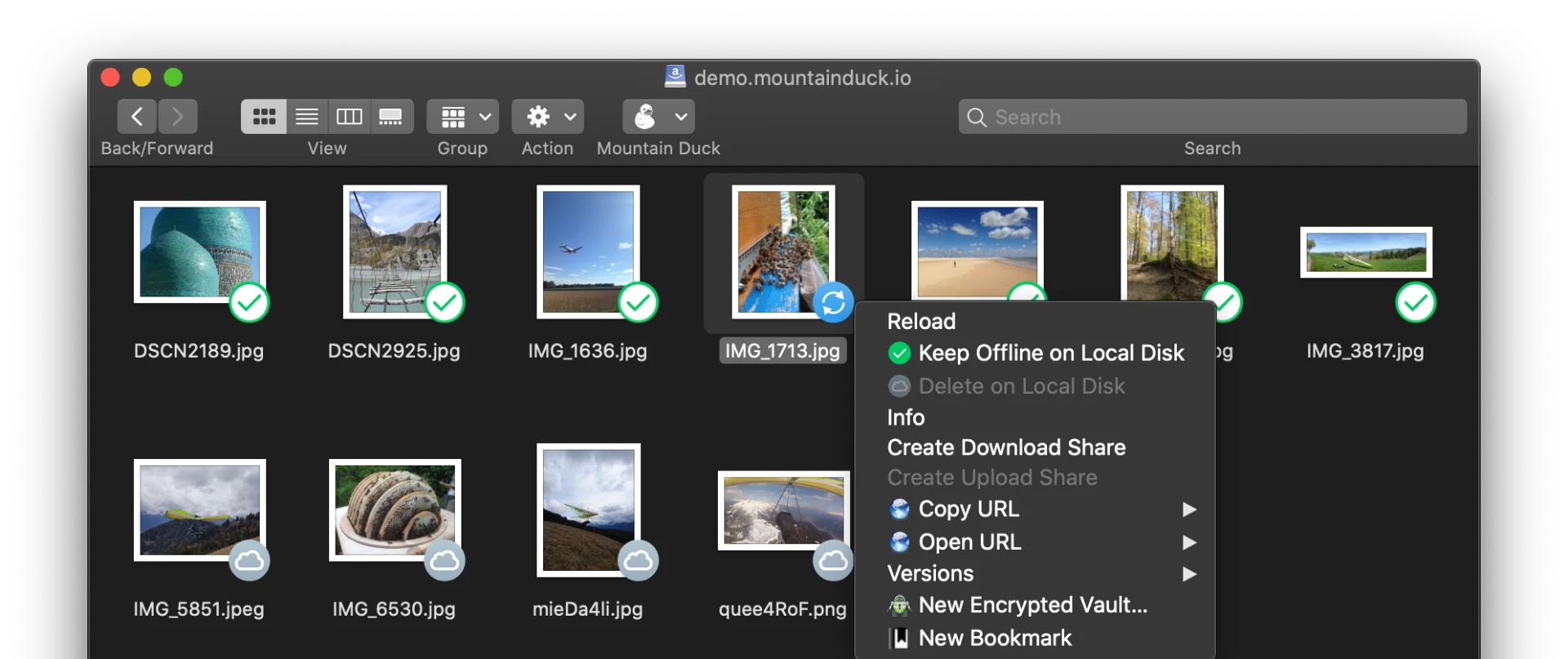
The trouble with full synchronisation is local space. The official approach is on demand: remote files take no local space by default, are downloaded and cached when used, and are kept or cleared afterwards according to policy. At the same time a few frequently used folders can be marked to stay local, so they open even offline. The pair works well together: the directories used all year stay on the machine, while material consulted now and then comes and goes.
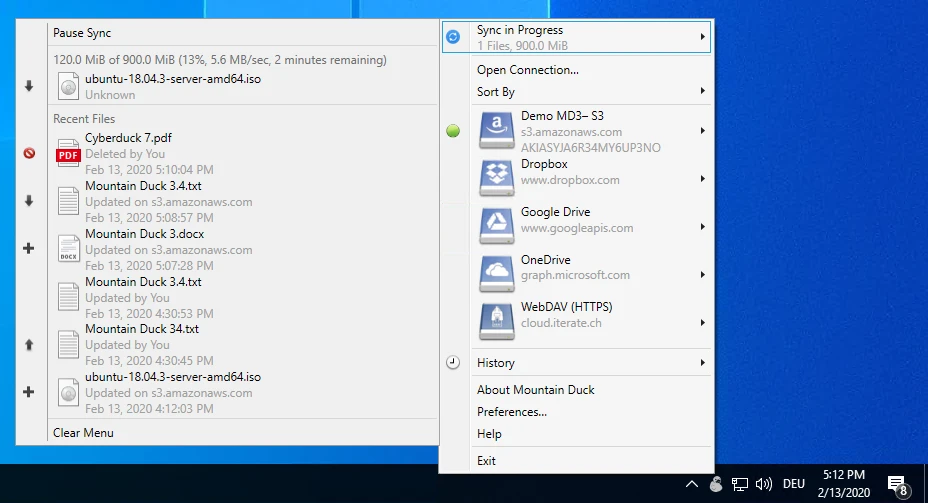
Uploading is the other step that gets overlooked. The official notes say changes upload asynchronously in the background, with a status icon showing progress and a notification when files are added or changed. On a mobile connection, uploading in the background means no one has to watch a progress bar before doing anything else.
There is also an integrated connection mode, built on the cloud file interfaces the system already provides, requiring no device driver and no network mount. The file manager view comes close to how the system's own cloud storage appears, which is quicker for anyone used to the system's habits.
Protocols, version and licensing
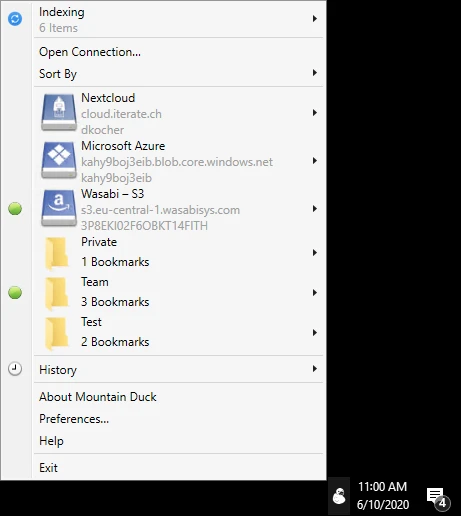
The protocol list is long. File transfer covers FTP, SFTP, WebDAV and SMB, which is most of what turns up on a self-run server; object storage and cloud drives include Amazon S3, Google Storage, OpenStack Swift, Microsoft Azure, OneDrive, SharePoint, Dropbox, Google Drive, Box, Wasabi and Backblaze B2 among others. Anyone using several platforms no longer needs one sync client each.
The current version is 5.3.2, released on 25 August 2026. The official changelog lists changes by number and date, each tagged with the platform it belongs to. Worth noting is that 5.3.0 added support for Windows on ARM64: on a laptop with that architecture the software previously ran under emulation, and native support makes a difference that is easy to feel. On licensing, the download button notes a trial version, with a registration key needed for real use and an app store offered as an alternative route. Installation needs no administrator rights, which matters on a locked-down work machine.
Item | Official note |
|---|---|
Current version | 5.3.2, 25 August 2026 |
Platforms | Windows 10 or newer, macOS 13 or newer |
File transfer | FTP, SFTP, WebDAV, SMB |
Object storage and drives | Amazon S3, Azure, OneDrive, Dropbox, Google Drive, Backblaze B2 and others |
Space policy | downloaded on demand, files can be kept local |
Licensing | commercial software with a trial version |
Mounting remote material as a disk saves the two trips around every edit.
A practical note: mount only the storage used most at first, run it for a week or two to confirm stability and then add more; keep the cache directory on a disk with room to spare and set a ceiling for it, so long use does not fill the system disk; and for storage holding sensitive material, prefer signing in with an app-specific password or separate credentials rather than leaving the main account's credentials in place.