
Microsoft Copilot reads the screen you share and points at the next step
Summary
Share a window and the assistant reads what is on it: it highlights where to click instead of writing a manual, follows your page turns in the browser, opens by voice, and finds local documents from a description.
Recommend- Name
- Microsoft Copilot
- Version
- 1.25121.84
- Open source
- Proprietary
- Operating system
- WindowsmacOSiOSAndroid
- Website
- https://copilot.microsoft.com/
- Updated
- 2026-10-28 22:00
An assistant that looks at your screen and speaks. No screenshot, no forcing an interface into words: it reads, and then it points at where the next click goes.
Handing screen content to an AI used to require an unavoidable step — capture the image, then find a way to transcribe it. The file path inside an error, the trend inside a chart, the one control in a screenshot that has to be pressed: these are exactly what text conveys worst. Each retelling loses a layer, and a wrong answer means starting over.
Vision is meant to remove that step. The official framing calls it a second pair of eyes: with your permission it watches the screen you share in real time, analyses along with what you are looking at, offers hints and answers questions. It does not operate the machine in your place, but it stays with you until the job is done.
Share one window and it understands
Using it is simpler than expected. Start a voice session, click the glasses icon beside the input field, then choose what to share — the whole desktop or one specific application window. While sharing is active an outline appears around the shared area, a reminder of where it is looking. It greets you by voice, and after that you simply ask. To quiet it for a moment, tap the microphone icon and it stops listening.
Two details are worth remembering. At most two apps or windows can be shared at once, which lets it look at both together — your calendar on one side and a schedule of sessions on the other, asked to find the free gap. And every vision session stands alone: it will not go back through what it saw in a previous one, and an interrupted session cannot be resumed.
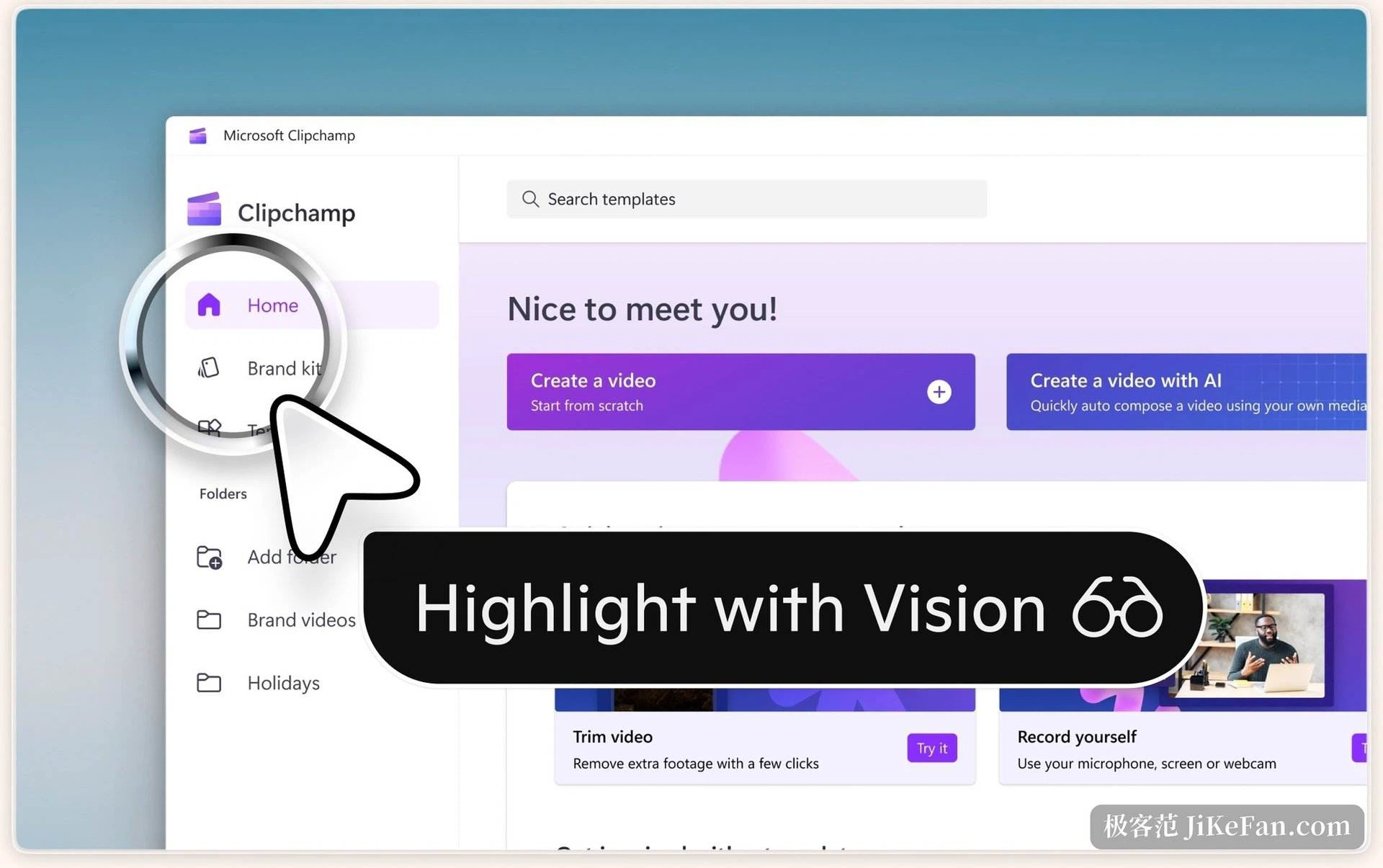
When you are stuck it points, rather than explains
The useful shape of vision is not summarising but walking you across. The official name is highlight guidance: ask how to do something and it highlights the place to press and the steps to take, inside the application itself, instead of handing over a page of instructions. The coverage is broad — a button you cannot find in an editing suite, a formula in a spreadsheet, a level in a game that will not fall.
The boundary is just as plainly stated: it does not click, type or scroll for you, it answers and it guides. Material under DRM protection or unsuitable content cannot be analysed, and on the web an unsupported page turns the eye icon grey, with no answer about that page.
In the browser it follows your page turns
Inside Edge the side panel behaves differently. With vision on it follows you from one page to the next until you end the session yourself. Pages, images, video and PDFs are all fair to look at, so after asking what a long article argues you can follow up on what the author says about battery life without describing the page again. Questions do have to be asked: with three subscription tiers laid out side by side, ask which one includes a particular feature and the answer comes from what is actually visible.
Two ways to call it without hunting for an icon
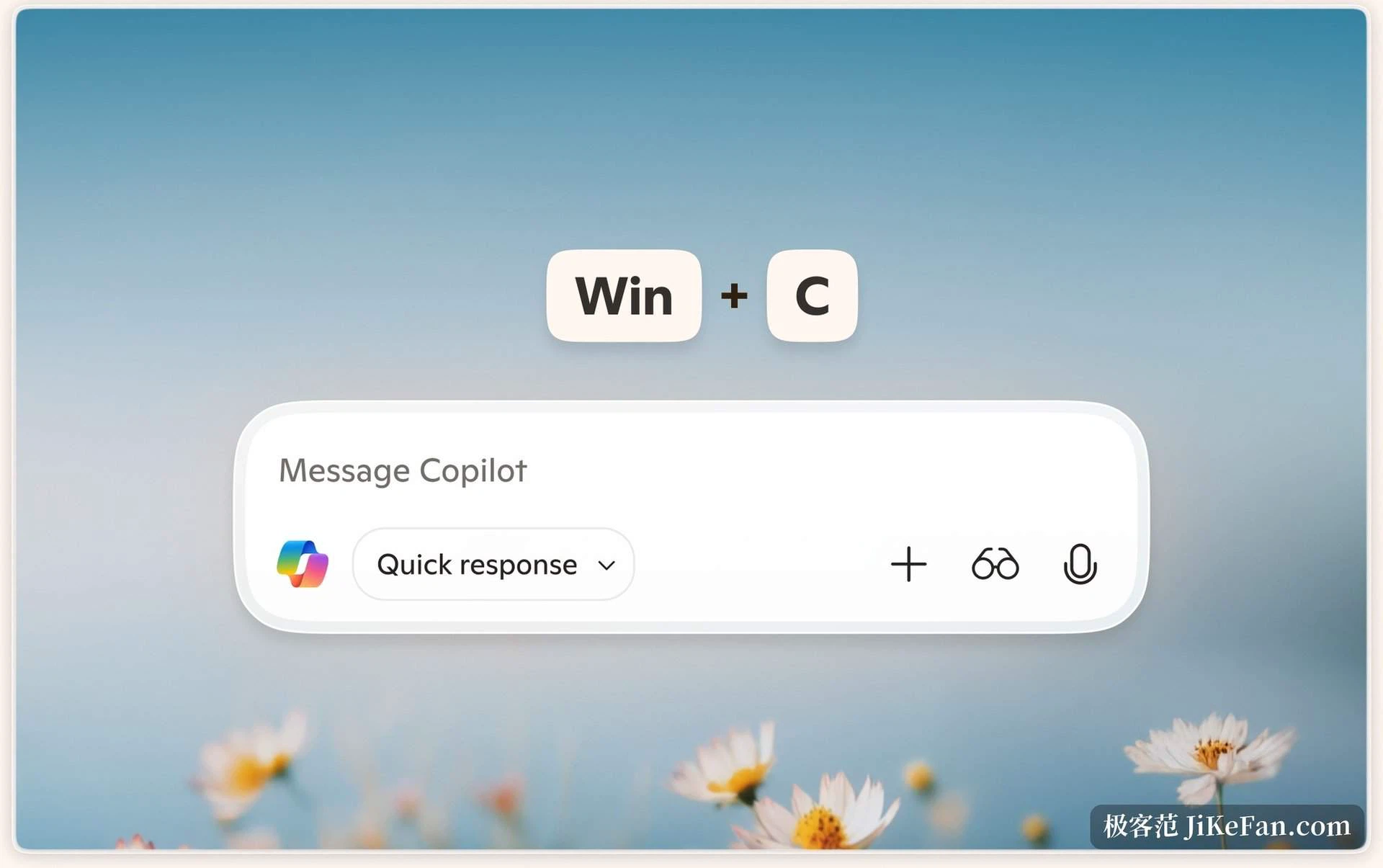
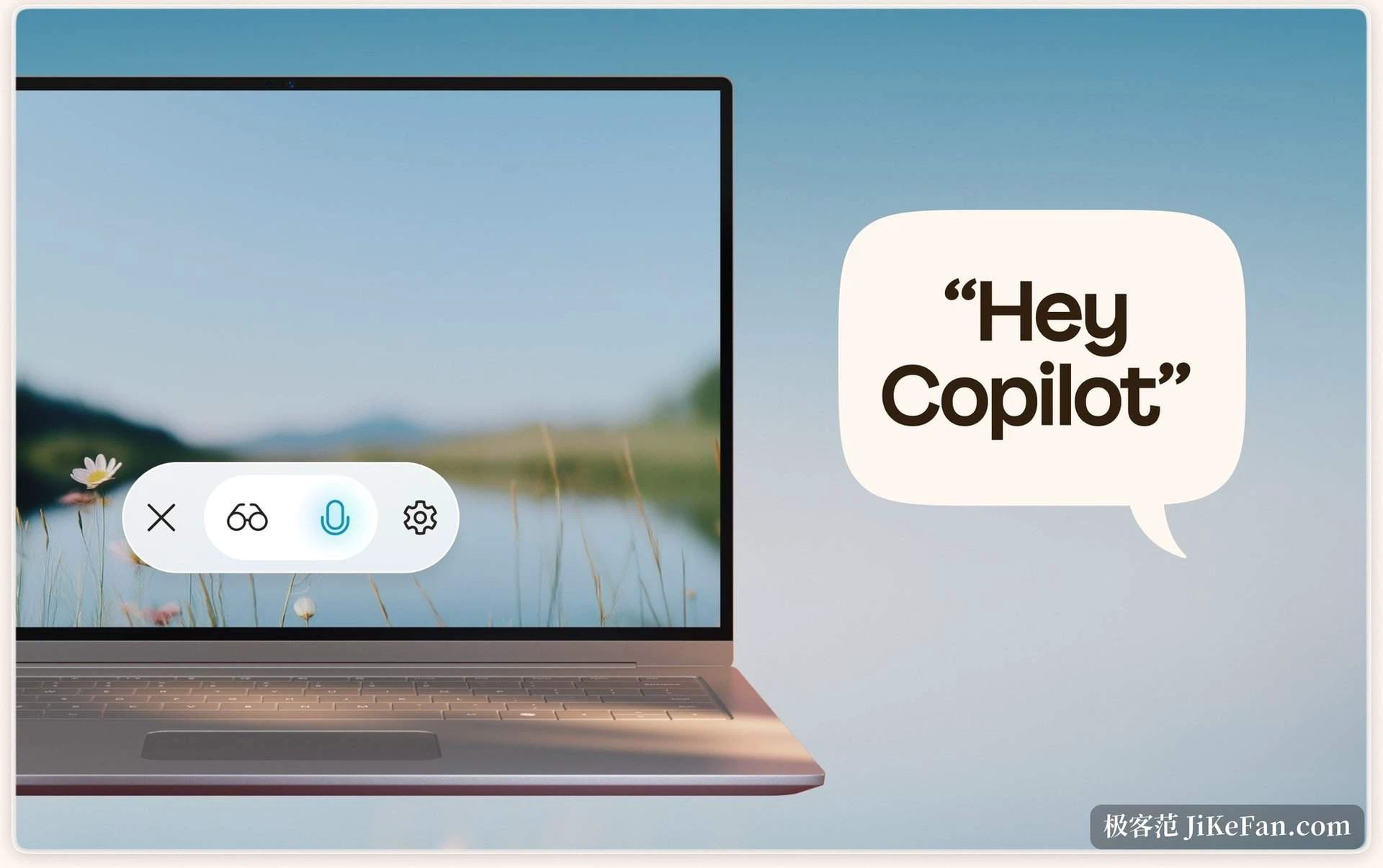
It sits at system level. On Windows the Win+C combination, or the Copilot key on the keyboard, brings the input box straight up. Switch the wake word on in settings and, with the machine unlocked and the app running, a spoken phrase starts the conversation with no mouse involved. Voice turns out to be more common than typing day to day — the official observation is twice as many interactions under voice mode as under typed input — and the wake word currently recognises English only, while the conversation after it can continue in any supported language. Voice covers more than forty languages across web, Windows, Edge, iOS and Android.
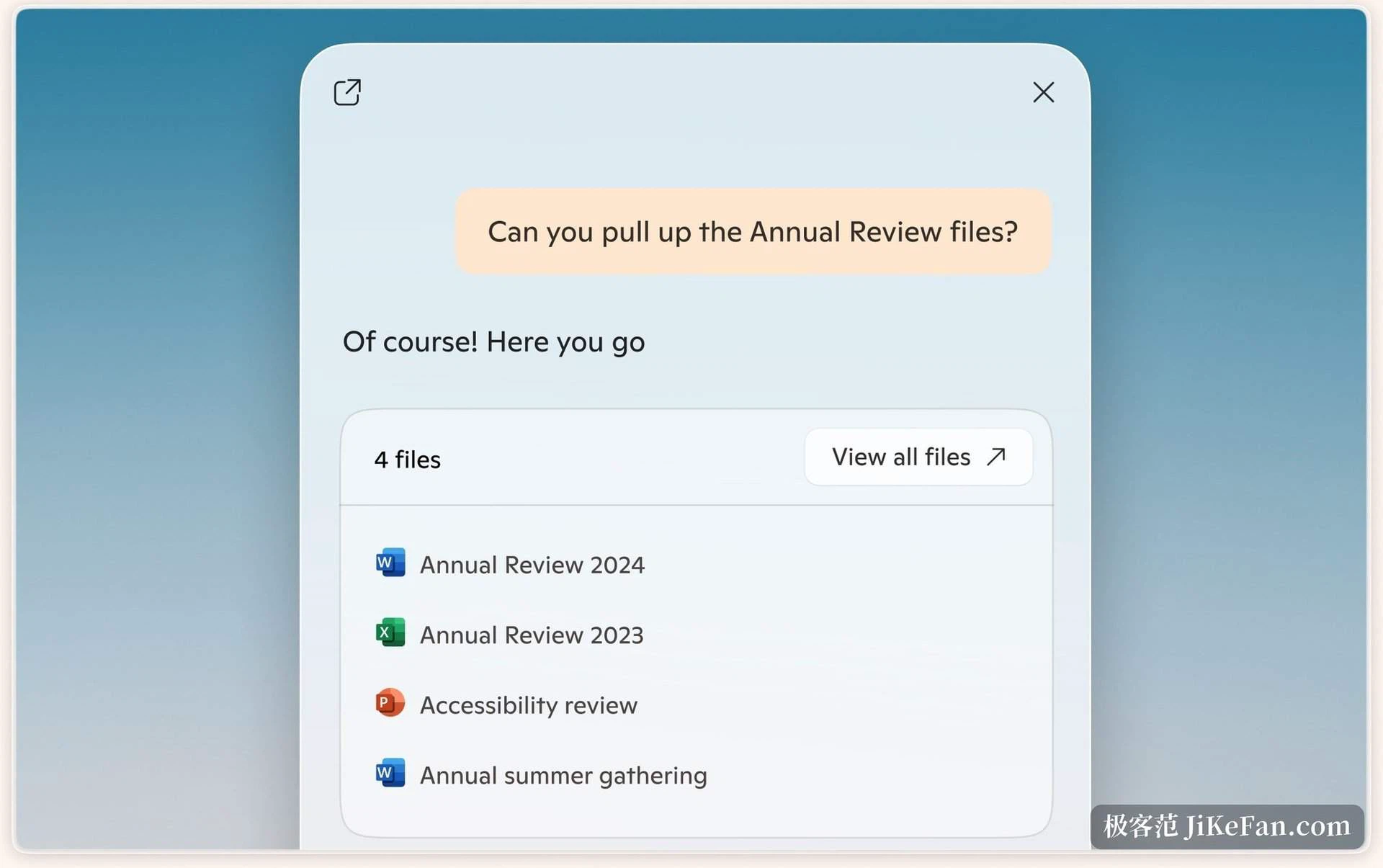
It also took over finding files
On the desktop the other half of the work is local content. File names need not be remembered: describe the document and ask for that kind to be pulled out, and the contents are read before the answer arrives. Word processing documents, spreadsheets, presentations, PDFs, plain text and JSON are all within range. This route has its own switch, in the settings area for account, file search and file reading, so material that should not be touched can wait until the switch is off.
The new desktop app: new engine, new name
The desktop application has been moving too. From the middle of August 2026 the personal assistant and the work-oriented subscription version were merged into a single app under the name Microsoft Copilot, with a new icon and a new web address. The desktop client now runs on Chromium, personal and work accounts switch inside one application, and the two identities are distinguished by background colour and a work tab in the navigation, with data from either side not flowing into the other. Enterprise compliance and security controls are unchanged and the application identifier stays the same, so existing policies keep applying.
On timing: from 18 August organisations could put selected Windows and Mac devices into early testing, the global rollout for Windows and Mac began in mid-September, and mobile and web had already gone out in mid-August. In the same reshuffle three consumer features — group chat, podcast and deep research — were retired on 18 August, so anything worth keeping had to be exported before then.
It watches only the window you hand it
Watching a screen is inherently sensitive, so the design deserves spelling out. Vision is off by default and active only while you start a session; nothing watches in the background, and stop ends it at any moment.
The data terms: vision session data is not used to train models, images and audio are not transcribed or retained, and session data is kept for at most forty-seven hours to process feedback you submit, then deleted if you submit none. What is recorded is the response the model gave, for monitoring unsafe interactions; conversation text enters your chat history for later reference, is not used for training or personalisation, and can be deleted.
Free works, and whether it is enough depends on the job
The free tier is usable straight away: sign in with a Microsoft account on the web, on Windows and in Edge, then ask, research, draft and generate images. The difference lies in allowance and depth — higher limits, priority at peak times and AI inside the office applications are the upgrades. The personal subscription is twenty dollars a month at the published price, and calling the assistant from inside a word processor, spreadsheet, presentation or mail client additionally needs a Microsoft 365 subscription underneath. The documentation also places the full vision allowance under the personal, family and premium plans of that subscription.
One thing to confirm first: the service opens market by market. Windows vision covers more than a hundred and seventy markets, and mainland China is not among them yet.
It will not finish the work for you, but it takes away the threshold of explaining what you ran into. The screen is already there; letting it look costs less than retelling.