
Listary V7 rewrites in Rust and searches four times faster
Version 7.1.0.47
Summary
Listary V7 is a Rust rewrite: results drop to 0.060 seconds, a full index takes 7 seconds instead of 20, and idle memory falls about 30 percent.
Recommend- Name
- Listary
- Version
- 7.1.0.47
- Open source
- Proprietary
- Operating system
- Windows
- Website
- https://www.listary.com/
- Updated
- 2026-11-13 23:00
You open the machine in the morning looking for the proposal edited yesterday, and all you remember is that the name contains one word. File Explorer goes down folder by folder, four or five levels, before the drive comes back to mind. The interruption is small and the cost is not: a line of thought has to be picked up again. That is why a search tool living in the background is standard equipment on Windows.
Find a file by typing a few characters and pressing enter. Nothing more is asked of it, and nothing more should be.
Listary is an old name in that category, and it puts file search and app launching into one input field: type on the desktop, or press Ctrl twice inside another window to summon it, and candidates appear as you type. The current line is V7, version 7.1.0.47 on the site, still labelled Beta, for Windows 10 and 11.
The base moved to Rust
The difference from the previous generation sits underneath. The notes are plain about it: this version was rewritten from scratch in Rust, with indexing and search retuned. The results are printed on the page, measured on a test set of roughly three million files. The launcher went from 0.181 seconds to 0.060, the search window from 0.195 to 0.039, the quick switch window from 0.067 to 0.002, and building a full index from 20 seconds to 7. Idle memory across all processes fell from 362MB to 245MB, about thirty percent.
Those figures come from one laptop on default settings, and another machine or another number of drives will produce different absolutes. The direction is consistent though: opening faster, indexing in less time, sitting quieter in the background. For a tool that runs all day, the last point matters most, because it should never be the program that slows the system down.
Candidates are there before typing starts
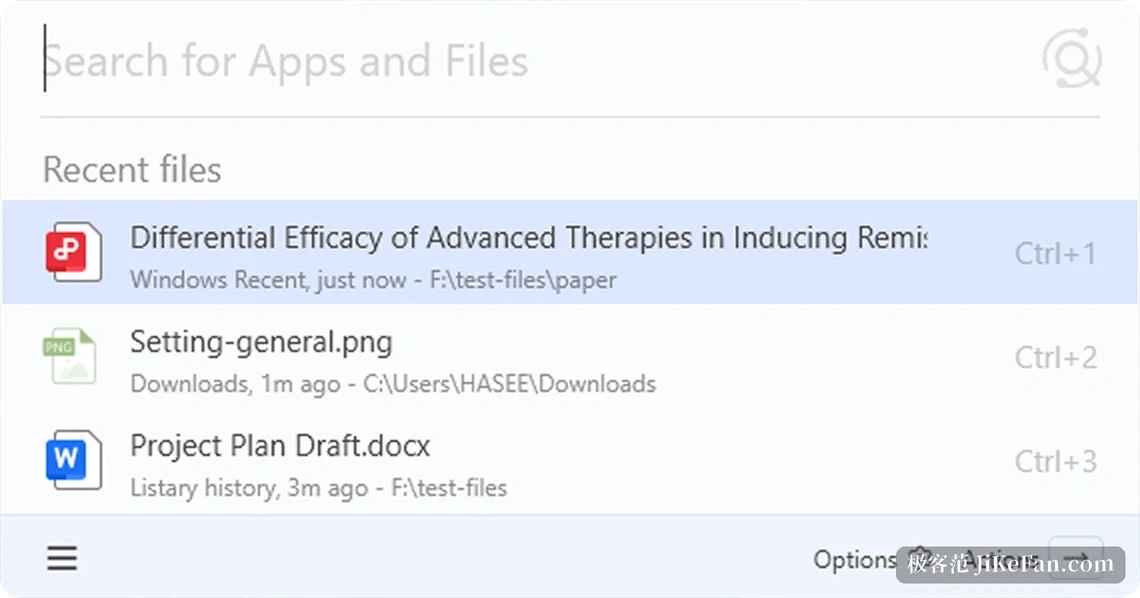
The launcher does something clever in V7. Summon the panel and the input field is still empty, yet recent files are already listed below, each marked with where it came from and when, a downloads folder a few minutes ago, for instance. Most of the time the thing wanted is the thing just handled, and this screen hands over the answer without a keystroke.
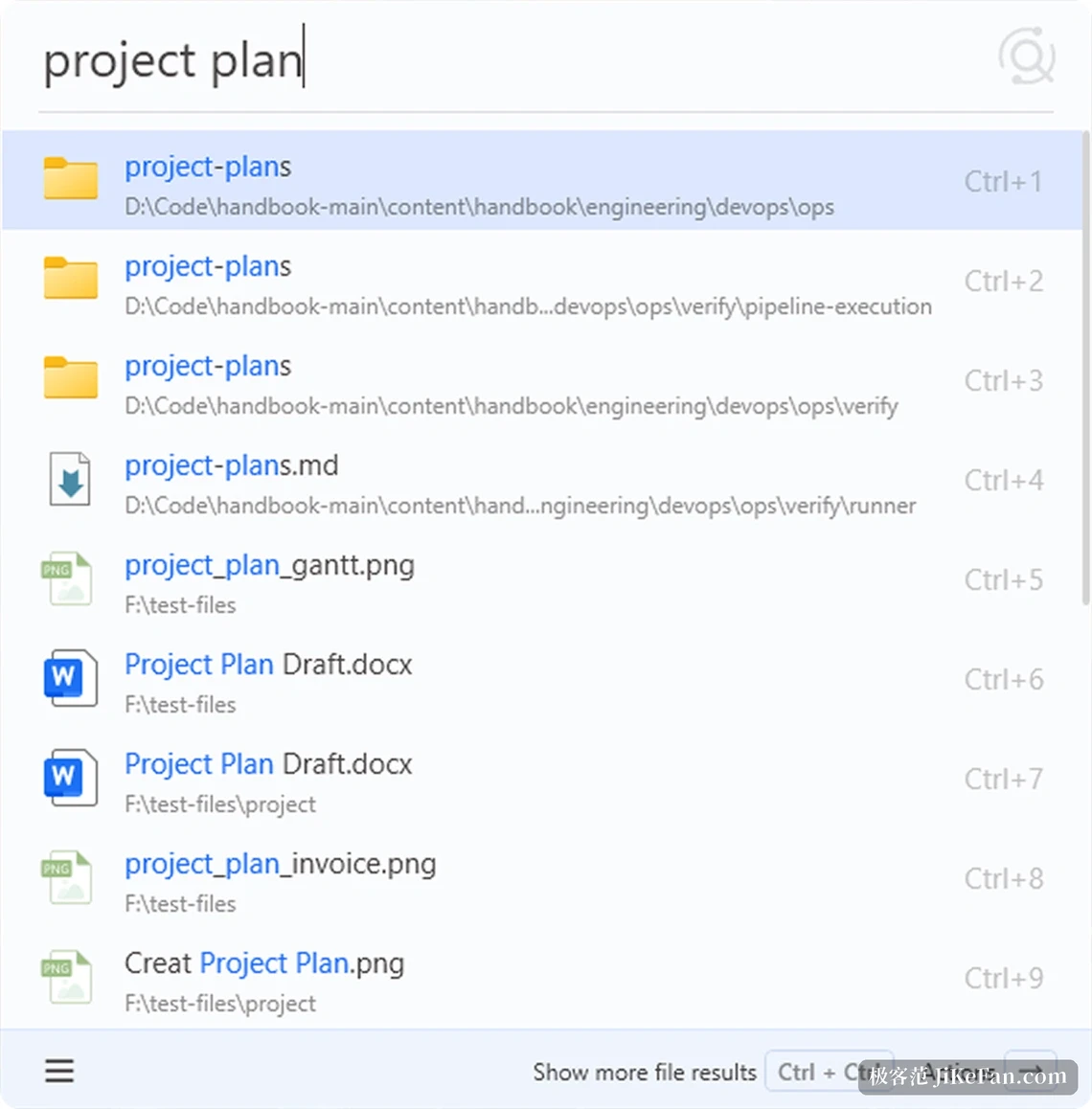
When typing does start, fuzzy matching and pinyin initials both work, so a remembered sound is enough to list candidates. Results sort by habit and the frequent ones float up. The first nine open with Ctrl plus a number, no arrow keys needed. To narrow the search, a backslash after the term declares it part of a parent folder path, which pays off in deep trees full of files sharing a name.
The search window is for looking closely
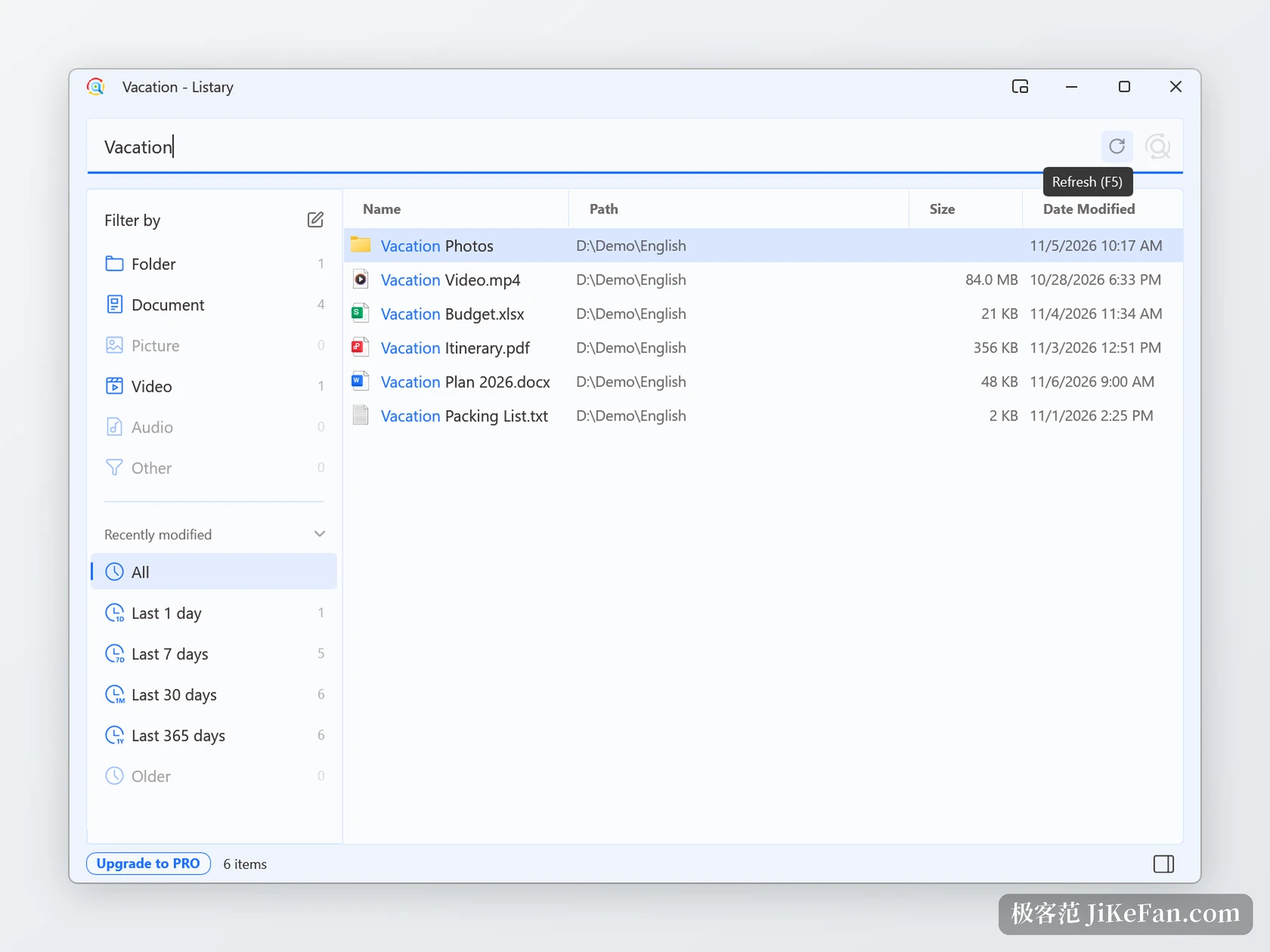
The launcher handles speed; the search window handles detail, and leaving it open costs nothing. The left side groups by type and modification date with counts for files and folders, one click removing most of them. Select a row and press Alt and P, and a preview appears on the right for documents, images and video, without opening and closing the file first. To copy a path or reveal the file in Explorer, Ctrl and O or the right arrow opens the action menu, and the right mouse button reaches the same place. The path at the top is split into segments, and clicking one jumps to that level instead of climbing back up.
Version 7.1 adds a refresh button in the top right of that window. When a file changed elsewhere, a name was edited or a folder gained something, there is no need to close and reopen: press the button or F5 and results reorder against the current state of the disk. A notice arrived with it, and this one saves real guessing: if a shortcut combination is already taken by another program, the interface says so while it is being set, instead of waiting for a key press that does nothing.
The jump inside a save dialog
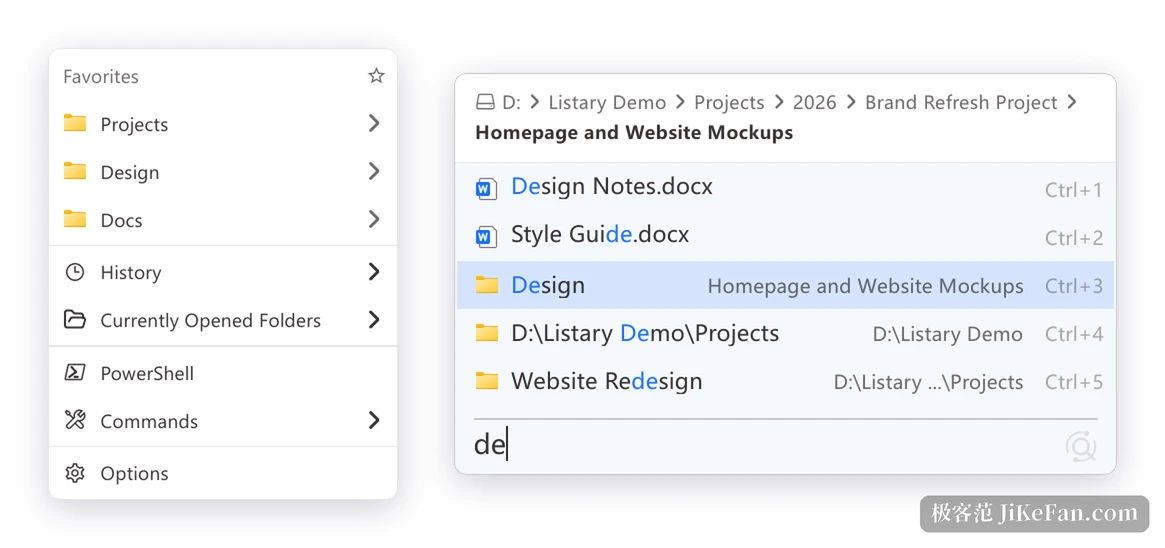
Listary first became known for quick switch, and it is still the most practical part. Writing a document or attaching a file opens a save dialog, and the usual move is clicking all the way back to the folder just used. With the tool installed, Ctrl and G inside that dialog jumps straight to the folder Explorer visited last, and the intermediate levels disappear. The gesture repeats a dozen times a day, and what it adds up to is worth more than any benchmark.
Its search stops at file names and paths. Finding content inside a scanned PDF or an Office document needs Gety from the same team, an application built for full text search. When V7 matches no file it calls Gety and shows an excerpt of the results, with the full list still living there.
Where free ends and Pro begins
The free edition is for personal use, and both central jobs, file search and app launching, work in full. Pro costs 19.95 dollars as a one time purchase with lifetime updates, and adds a commercial licence, a dark theme, custom filters and actions, indexing of network drives and the advanced search syntax. A work machine needs Pro; a home machine is served by the free edition. The software is closed source, which is worth knowing before installing it.
Switch now or wait
V7 still carries the Beta label and the site keeps V6 as the stable line, so both run in parallel. Chasing the new one means taking V7; wanting stability means staying on V6. The way of working is the same in both, and settings and data carry over, so nothing has to be configured twice.
The tool has not spread its features wide either. Search, launch and jump to a folder are done properly, and the interface stays at a few panels. At a time when productivity tools keep stacking modules, that restraint is exactly what makes people leave it running.