
StepGrab 1.6.1 turns one recording into a numbered guide
Summary
StepGrab records a walkthrough once and hands back a numbered guide: every click gets a screenshot, an arrow and a caption, and 1.6.1 also runs on Windows.
Recommend- Name
- StepGrab
- Version
- 1.6.1
- Open source
- Proprietary
- Operating system
- WindowsmacOS
- Website
- https://stepgrab.net/
- Updated
- 2026-11-09 16:57
StepGrab is a step guide generator for macOS and Windows, and it is a tool that collapses two jobs into one: do the task, and the document gets written while you do it. Every click during a recording leaves a screenshot, a numbered arrow and a line saying what that step does. Stop the recording and a tutorial with pictures and callouts already exists. What it saves is not layout polish but the dull replay that writing a manual normally demands.
Which pass it deletes
Anyone who has written an SOP knows the loop. First you walk the whole flow to learn where each click lands. Then you walk it again, pressing the screenshot key at every stop. Then you sort dozens of images, draw arrows on each one, write the sentences and crop away the windows you did not want.
The work was never in the clicking. It was in that second pass, rebuilding what had already happened. StepGrab removes the pass entirely.
During a recording it only watches. You click, open menus and fill forms as usual, and the tool does one thing: at each click it keeps a frame and remembers where the pointer was. When you stop, pictures and positions already line up, so what remains is editing sentences and tuning arrows.
The difference barely shows in a three step task. In a back office configuration flow that runs to thirty or forty steps, it is the whole afternoon.
One click is one step, and the menu stays put
With tools that grab the screen automatically, the fragile part is timing. Open a dropdown, release the button, and the menu folds away. A shot taken half a beat late shows a clean window and nothing else.
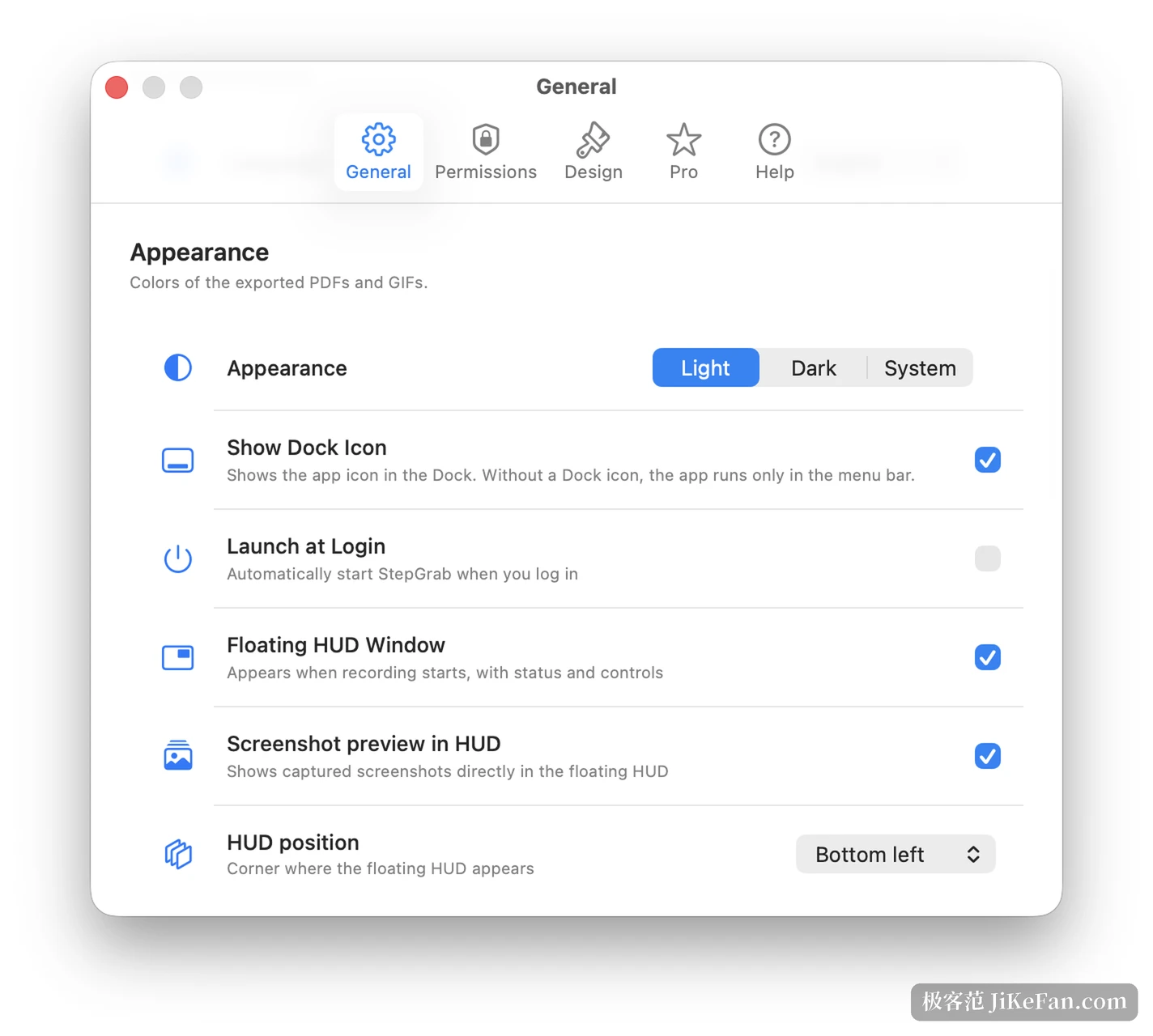
StepGrab takes the frame from the instant before the click. When you record a single window, open menus, popup menus, dialogs and form fields all survive into that step, so the reader sees both where you clicked and what appeared afterwards. The Windows build always works this way. On the Mac, the option to capture the frame before the click has to be switched on in settings.
A few smaller behaviours matter too. A double click counts as one step instead of two, and scrolling that happens before a click is written into the description of the step that follows. Recording one window keeps the rest of the desktop out of the frame, while a full screen recording can hide desktop icons and widgets for the duration.
Arrows bend, sentences get rewritten, names get blacked out
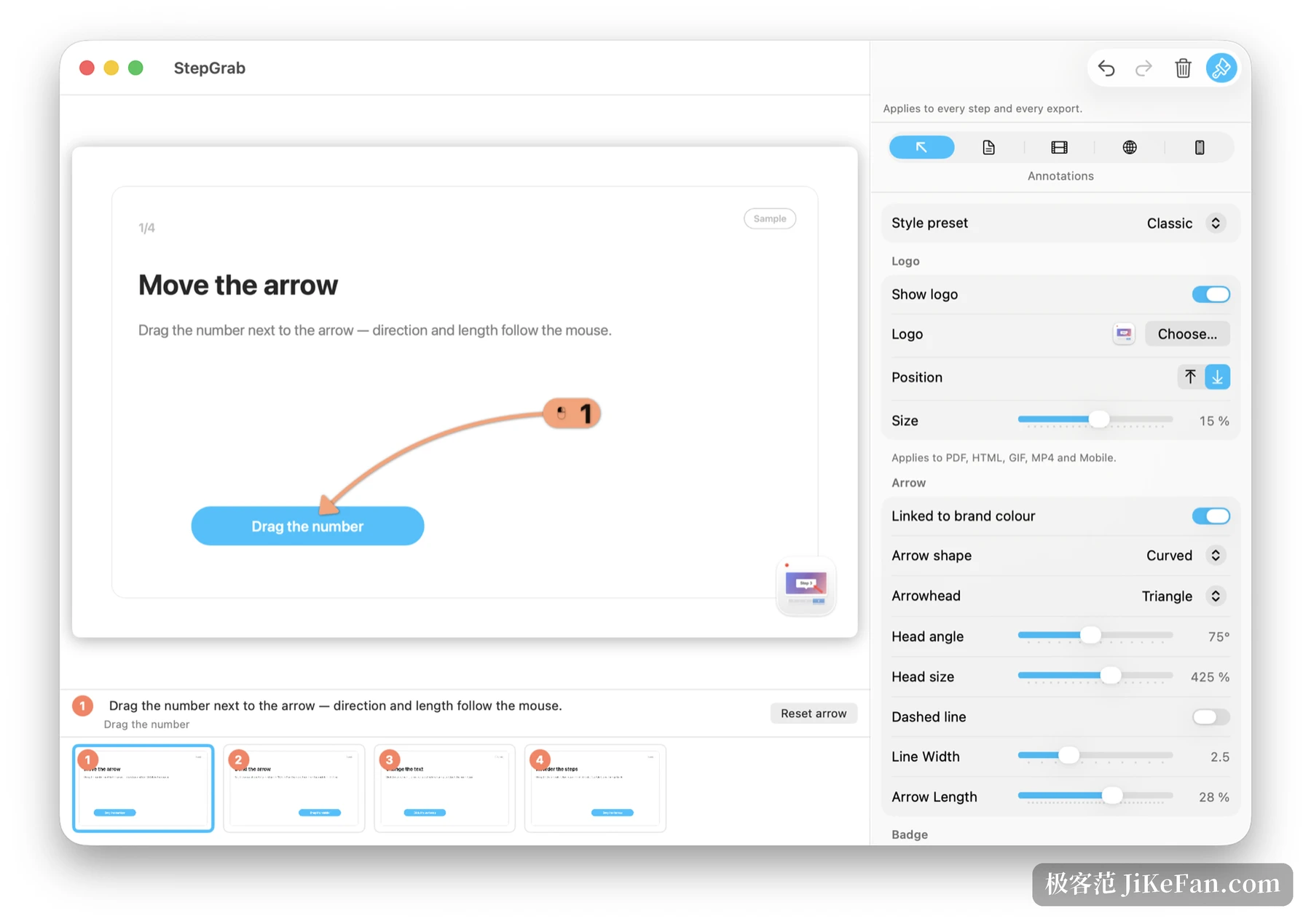
Generated output is never quite right, which is why the editor decides whether a tool like this is usable. In the step editor the arrow follows the number you drag: pull the number to change direction and length, drag the midpoint to bend a straight line into an arc, and flip a corner to the other side. The description opens for editing with bold, italic, underline, colour, highlight and alignment. Clear the field and the sentence the tool suggested comes back.
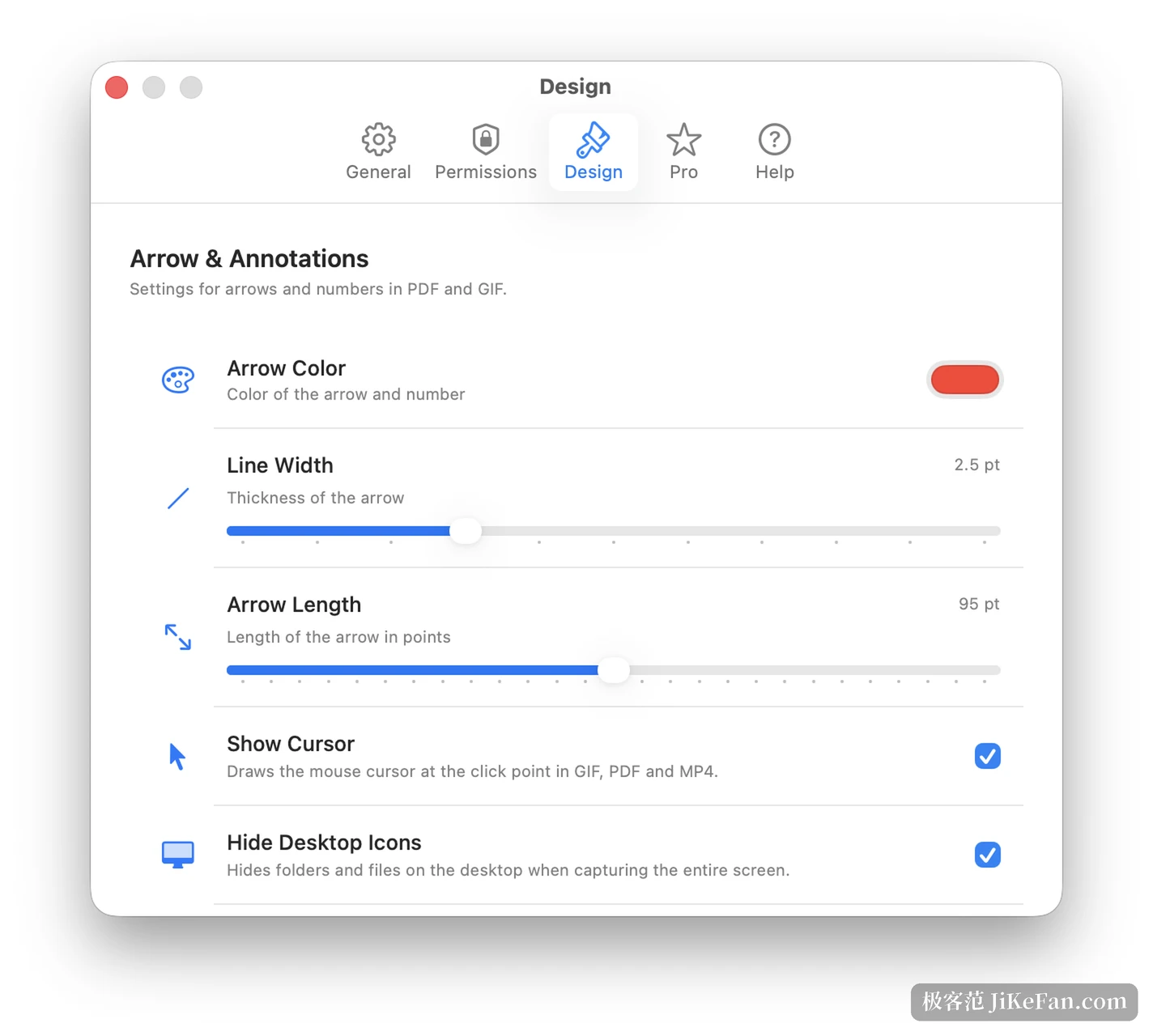
Five style presets cover the range from classic to high contrast. Numbering can be Arabic digits, zero padded, letters, or nothing at all. Arrow colour, line width, length and the spotlight at the click point are all adjustable, and whether the pointer is drawn into the export is a switch of its own.
The feature that fits internal documents is redaction. Drag a box over a name, a phone number or a customer id, and that box is solid black in every export; the caption generated for that step also stops mentioning the name underneath.
A project file and an export are two different things. Inside the project a redaction box can always be undone, and the original screenshot is still there. To send the file out, save a copy with the redaction baked in, so the images carry the black boxes and the originals are gone.
What you get for free, and where the line sits
The free tier exports GIF, looping, which suits a chat window or a merge request; a small StepGrab badge sits in the bottom right corner. The real limit is step count: guides are unlimited, but each one stops at 15 steps. That is a short tutorial, not a configuration manual.
Pro raises the ceiling to 500 steps per guide and adds five more formats. PDF puts one step on a page, which suits printing and tickets. MP4 renders a sixteen by nine video where each step can hold between half a second and five seconds.
HTML produces an offline page a reader can page through and zoom into the click point. Markdown arrives with an image folder, ready for a documentation store. Vertical video comes in nine by sixteen, one by one and four by five for short video platforms.
Pricing runs at 2.99 dollars a month, 12.99 a year, or 44.99 once for a lifetime licence, and one key covers up to two devices.
One detail deserves its own line: text in the export. A GIF from the free tier carries pictures and arrows only, and the step descriptions are written into the file by Pro. Worth knowing before an entire guide is finished, not after.
The Windows build arrives, project files travel
The practical change in 1.6.1 is a Windows build distributed through the Windows store, with an installer around 20.4 MB. It asks for Windows 10 version 22H2 or Windows 11 and runs on both x64 and ARM64 without extra permissions. On the Mac side the requirement is macOS 14 or newer, on Apple Silicon and Intel alike.
Project files are now a single .stepgrab file that Mac and Windows open for each other, and projects saved by earlier versions still load. The Windows build lacks the on-device AI sentence rewriting for now; everything else matches the Mac version, and the interface ships in English, German, French, Italian, Spanish, Chinese and Japanese.
Who it suits, and what to accept
It suits anyone who regularly writes instructions for colleagues, along with the people behind support documents, software manuals and onboarding material. It also suits someone who simply wants a recurring process written down before the next round of guesswork.
Recording, screenshots and export all happen on the machine. No account is needed, and nothing goes online except the update check and licence validation, which matters more than any feature when the system being documented is internal.
The weak spots are equally plain. Buttons that show an icon and no text label produce vague sentences, so a human still has to add the missing word. Complicated layouts, or squeezing several steps into one image, are outside its scope. And the 15 step ceiling of the free tier will stop a long flow halfway, so it is worth counting the steps of your own process before choosing.