Listary: find a file without opening a window first
Version 20260922
Summary
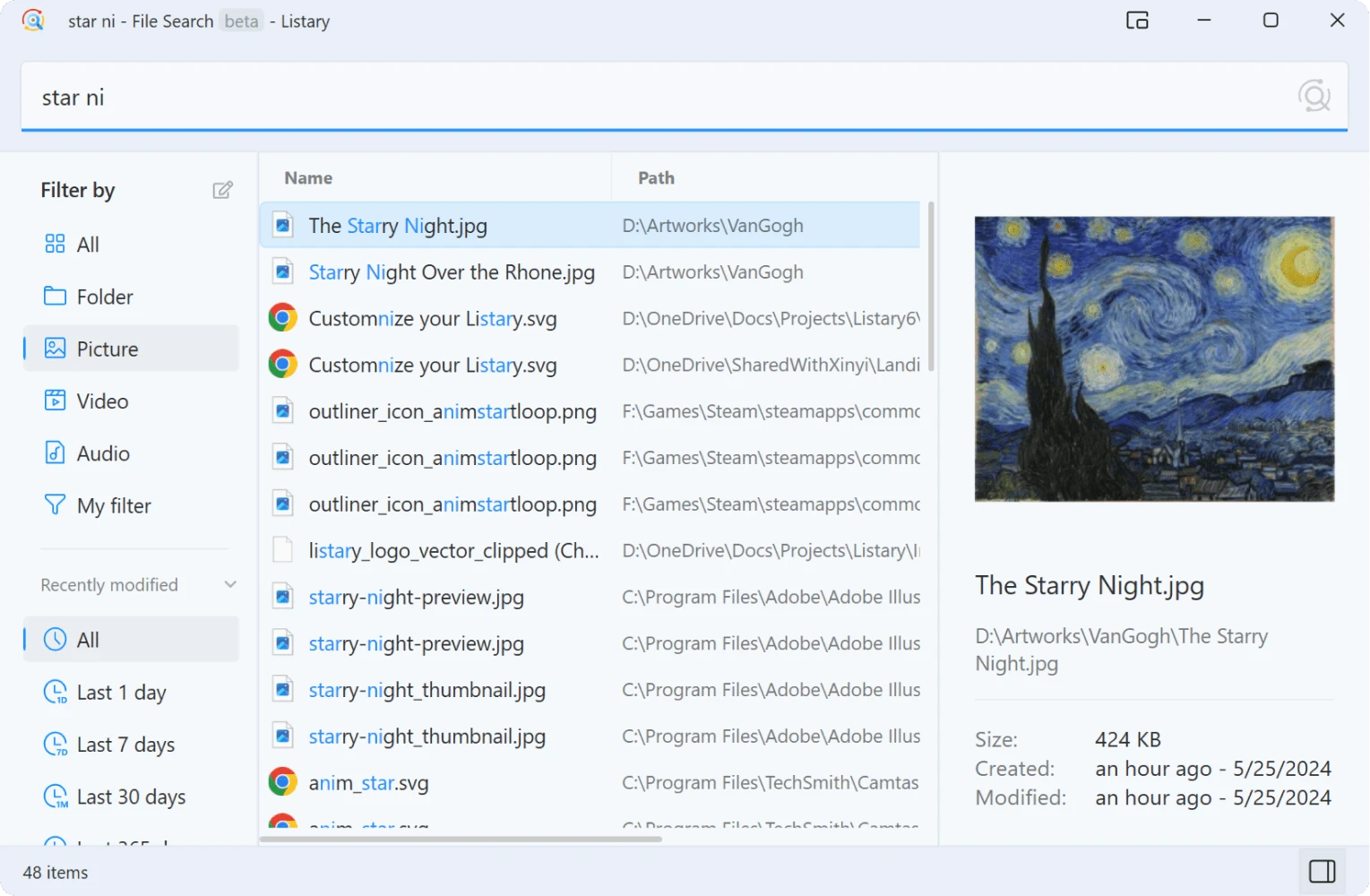
The traditional route means opening the file manager, guessing which folder, clicking down through levels. Listary compresses that into one gesture: press the hotkey, type a few letters, press enter, and you are there.
Recommend- Name
- Listary
- Version
- 20260922
- Pricing
- Free
- Open source
- Proprietary
- Operating system
- Windows
- Website
- https://www.listary.com/
- Updated
- 2026-10-07 18:42
Three steps that should have been one
The traditional way to find a file is a small ritual repeated dozens of times a day. Open the file manager. Guess which of the folders the file might live in. Click down through the levels. Scroll. Realise it is in the other branch. Come back. None of those steps is difficult, and together they cost more attention than the task deserves, because each one interrupts the thought you were holding when you started looking.
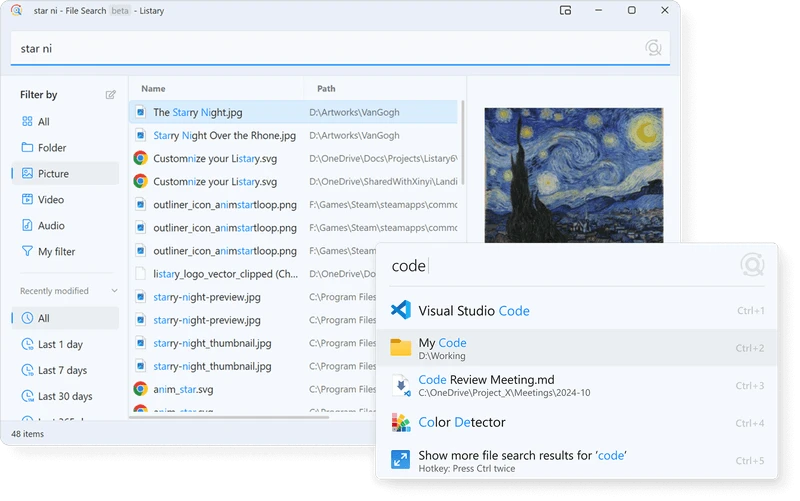
Listary compresses the ritual into a single gesture. Press the hotkey twice and a search field appears over whatever window is in front of you, so the context you were working in stays visible underneath. Type a few letters, the result is there before you finish deciding what to type, press enter and it opens. There is no window to arrange and nothing to close afterwards, which sounds like a small detail until you count how many window operations the old route required.
The part that earns it a permanent place is the integration with file dialogs. Saving a document, uploading an attachment, choosing a file to import: the same search field is present inside the dialog, with favourite folders one keystroke away. The specific embarrassment of knowing a file exists, having created it yesterday, and being unable to find the folder it lives in from inside a save dialog simply stops happening.
From file names to what is inside the files
The evolution did not stop at matching names. Recent versions bring full-text search, so content inside documents can be found, PDFs and scanned material included. When you remember what a contract said but not what it was called, that capability is the difference between a search and an afternoon. Application launching, web searching and command shortcuts are all handled from the same entry point, which means one field absorbs most of the small high-frequency actions of a working day.
It comes from a team in China, and the Chinese documentation and localisation are correspondingly careful rather than an afterthought. It sits resident and barely registers: memory use is modest, there is no window to manage, and nothing appears until you ask for it. The free version covers daily use completely, with a paid tier for people who need more.
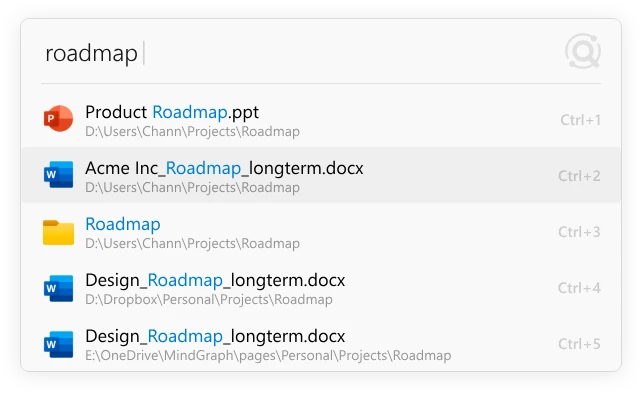
The philosophy is that saving a second is still a liberation: a tool should not interrupt the flow of thought, it should wait at your fingertips. When finding a file becomes faster than remembering its name, efficiency turns into muscle memory.
Making it fast on the first day
Add the folders you actually use, three to five of them, to the favourites list. The gain comes from the combination of favourites and keyword jumps, and it is realised in the first week rather than after months of tuning. Do not attempt to organise the whole drive; pick the places where work actually happens.
In a save dialog, look for the program's icon before you start hunting manually. That habit alone removes the most common frustration, and it takes a few days to become automatic. For heavy full-text use, let the index finish before judging the speed: the first scan across a large drive takes time, and the experience after it is what you are actually buying.
It is free to use on Windows and installs from the official site in the ordinary way. The reasonable expectation is not that it will reorganise your files, because it will not. It removes the friction between thinking of a file and having it open, and that is the part of the work that was never worth doing by hand.