
iBoysoft Data Recovery 4.3: over 1000 formats, BitLocker included
Summary
iBoysoft Data Recovery scans and previews for free on Windows, with unlimited recovery reserved for the paid editions. It covers more than 1000 file formats and reads hard disks, SSDs, USB sticks, memory cards and cameras.
Recommend- Name
- iBoysoft Data Recovery
- Version
- 4.3
- Open source
- Proprietary
- Operating system
- Windows
- Updated
- 2026-10-06 17:40
The easiest trap to walk into with a recovery tool is the word free, and what is actually hidden behind it. The trial edition of iBoysoft Data Recovery can scan a disk and can preview files. Getting the data out for real needs the paid edition. For a disk where it is not yet known whether the files are even there, that arrangement is enough: look first, then decide whether to pay for a recovery.
Where the free trial stops
The product page says so at step three of the instructions, where it notes that after a scan the results can be filtered and the files to be recovered previewed. The sales page puts it more directly: the free trial allows previewing the common file types, documents, photos, video and audio among them. Unlimited data recovery, by contrast, appears only in the Basic and Professional paid editions. Put another way, the trial answers whether the file is still there and whether it can be saved, while the paid edition answers how much can be saved.
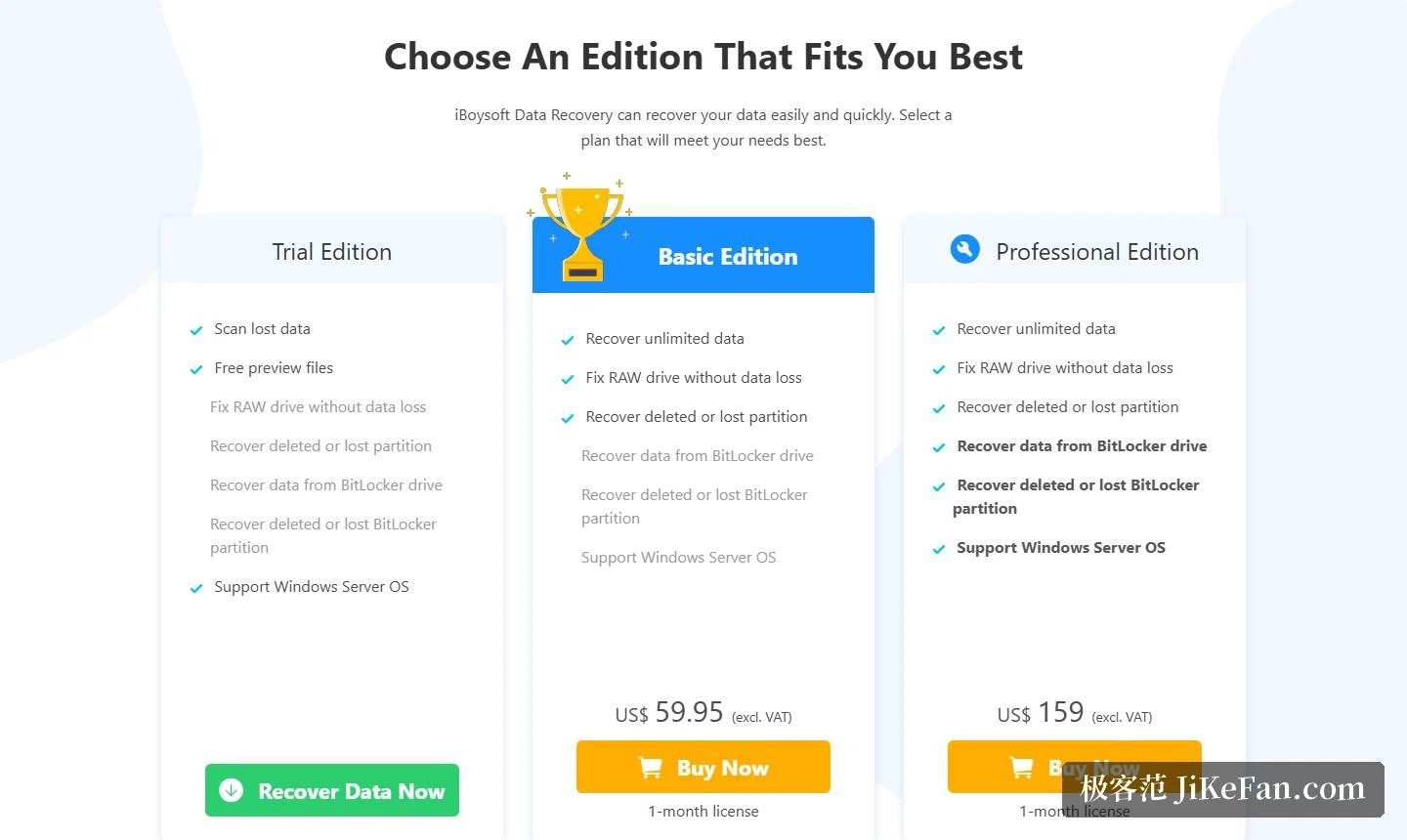
The three paid tiers are aimed at clearly different buyers. Basic costs 59.95 dollars and Professional 159 dollars, both as a 1 month licence covering 1 computer. Technician costs 299 dollars as a 1 year subscription covering 5 computers at once, and it carries a built-in deactivation option. All purchases come under a 14-day refund policy, the licence key arrives by email immediately after purchase, and technical support by email is free for life.
BitLocker encrypted drives are inside the range
A good many recovery tools stop dead at a BitLocker encrypted drive. iBoysoft has made this its own feature. The cases listed as handled include recovering deleted files from a BitLocker encrypted drive, retrieving files from a damaged encrypted drive, recovering a lost or deleted BitLocker partition, and getting data back after an encryption process was interrupted or stalled. The site adds one limiting note as well: recovering an encrypted drive needs the correct BitLocker password, and where the target is the system drive it needs the 48-digit recovery key, since the credential is a precondition that cannot be skipped.
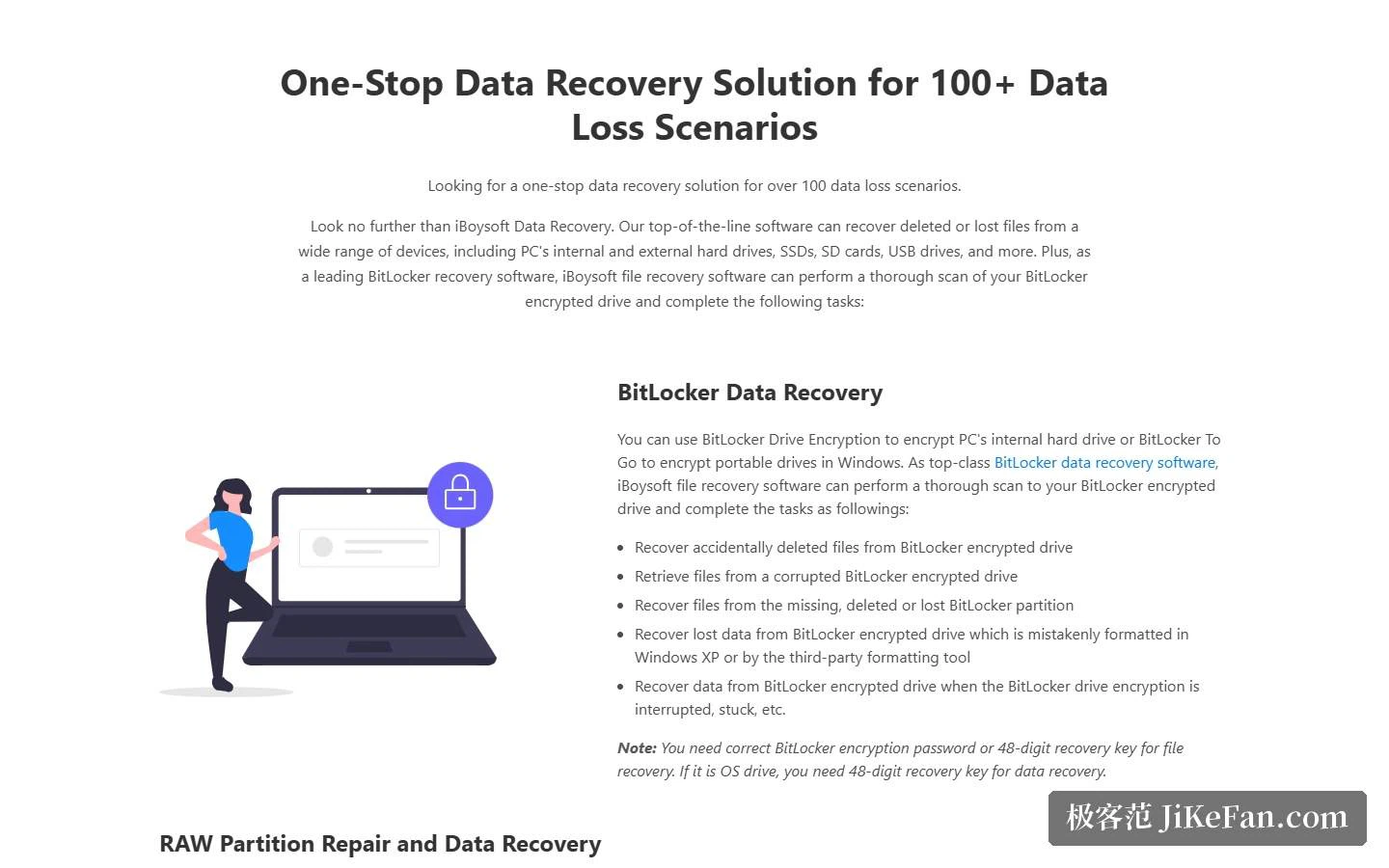
The product is positioned as covering more than 100 data loss situations. Besides BitLocker, the list includes RAW partition repair, recovery of deleted or lost partitions, accidental and permanent deletion including Shift plus Delete, a formatted partition, an emptied recycle bin, disk corruption and infection by a virus or malware. The RAW part deserves a sentence of its own: a capability called Fix Drive can turn a minor RAW logical error directly into a recognisable file system, so that the files do not have to go through a recovery pass at all.
Devices and file systems
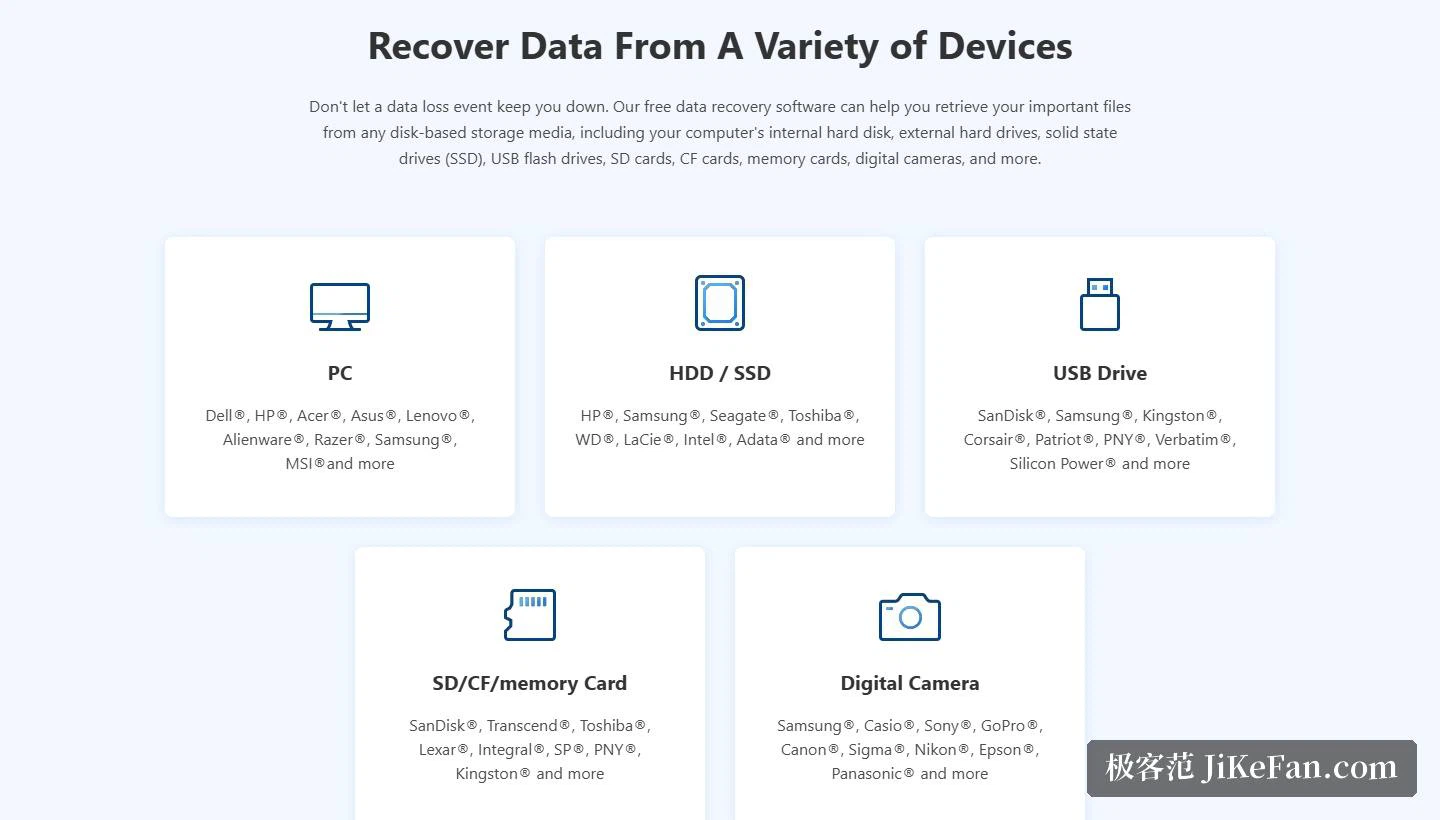
The device range is described concretely: internal computer hard disks, external drives, solid state drives, USB sticks, SD and CF cards, memory cards and digital cameras, in short disk based storage media, and the site also lists the common brands of PCs, drives, USB sticks and memory cards. On file systems NTFS, FAT32 and exFAT are supported, which covers the great majority of Windows situations.
System compatibility and how it works
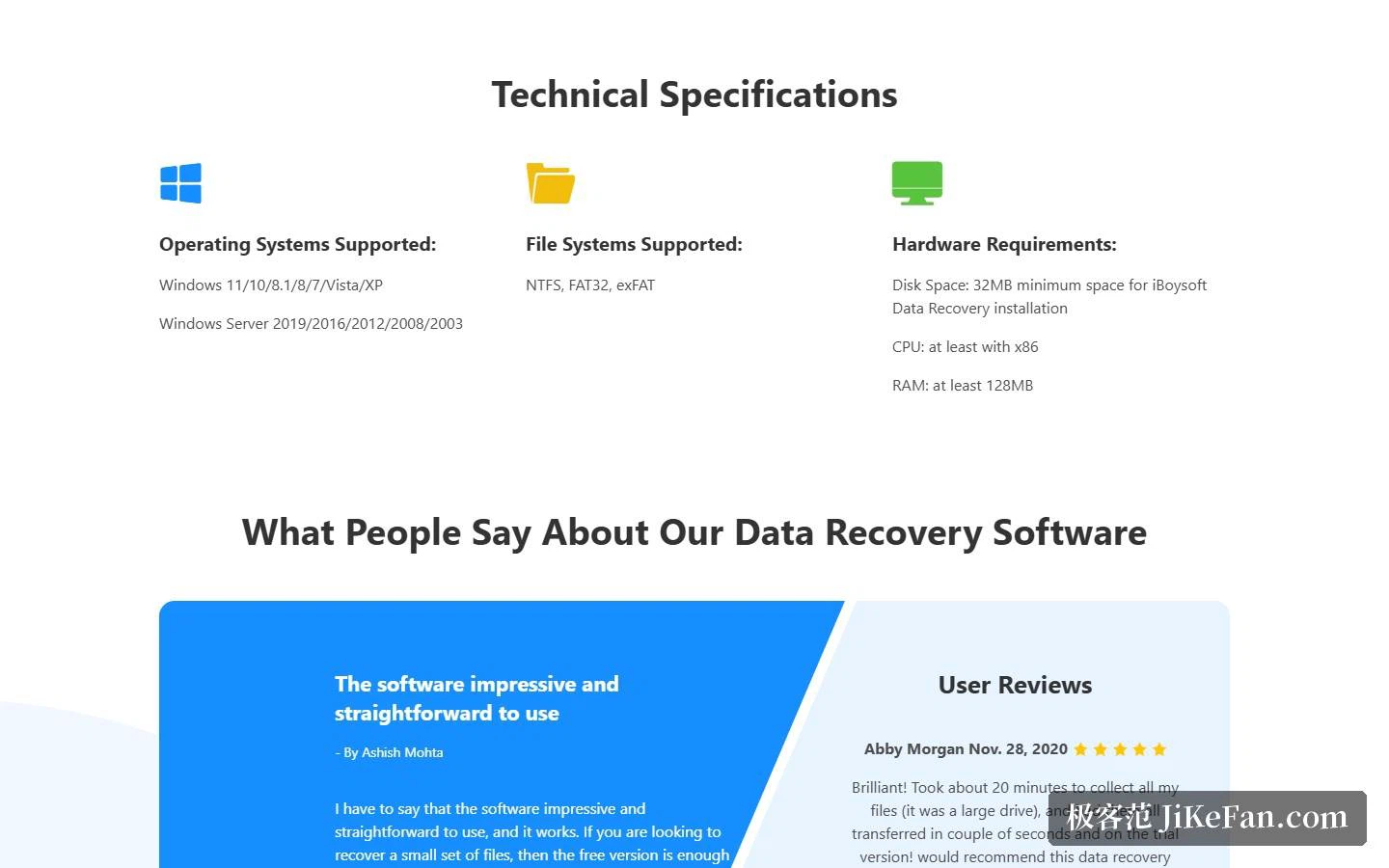
The technical specifications put the system range at Windows 11, 10, 8.1, 8, 7, Vista and XP, plus Windows Server 2019, 2016, 2012, 2008 and 2003, so both the consumer and the server lines are covered. The hardware bar is low: installation needs at least 32 MB of disk space, the processor has to be x86 at minimum, and memory at least 128 MB. The workflow runs in three steps. First choose a recovery module according to the situation, whether data recovery, partition recovery or BitLocker data recovery. Then pick a disk and start a quick scan, or switch to a deep scan, and stop at any point once the target file appears. Finally filter, preview and tick the files to recover. The site recommends saving the recovered files to a different disk, scan sessions can be saved, and the results come with a fairly rich set of filters.
The value of the free trial is exactly this: it separates the question that costs nothing from the question that costs money. Whether the data survived can be answered without paying, and that answer determines whether the rest is worth anything. Buying a licence before scanning is the same as paying for a lock without knowing whether the door exists.
The sensible way to use the free trial is as a check-up: scan, preview, confirm the file is still there, and only then decide about paying. Before any of that, the old line still applies, which is to stop writing anything to the target disk at once, and to make sure recovered files land on a different disk.