
DriverStore Explorer: an open source tool for cleaning old Windows driver packages
Summary
A driver store manager for Windows that lists the third party driver packages kept on the system in a sortable table, shows size and date, deletes old versions in batches, exports a backup and can select unused drivers automatically. The code is published under GPL.
Recommend- Name
- DriverStore Explorer
- Version
- 1.0.36
- Pricing
- Free
- Open source
- Open source
- Operating system
- Windows
- Updated
- 2026-10-12 10:55
The invisible bulk on a system drive usually comes from the older package that each driver update leaves behind.
Opening the driver store up
Windows collects installed driver packages in one place called the driver store, and when a driver is updated the older version is usually not removed at once. Over time several versions of the same source pile up there, and the space they take is system drive space. DriverStore Explorer exists for exactly this: the project describes it as a tool to view, manage and clean the driver store, aimed at advanced users and system administrators.
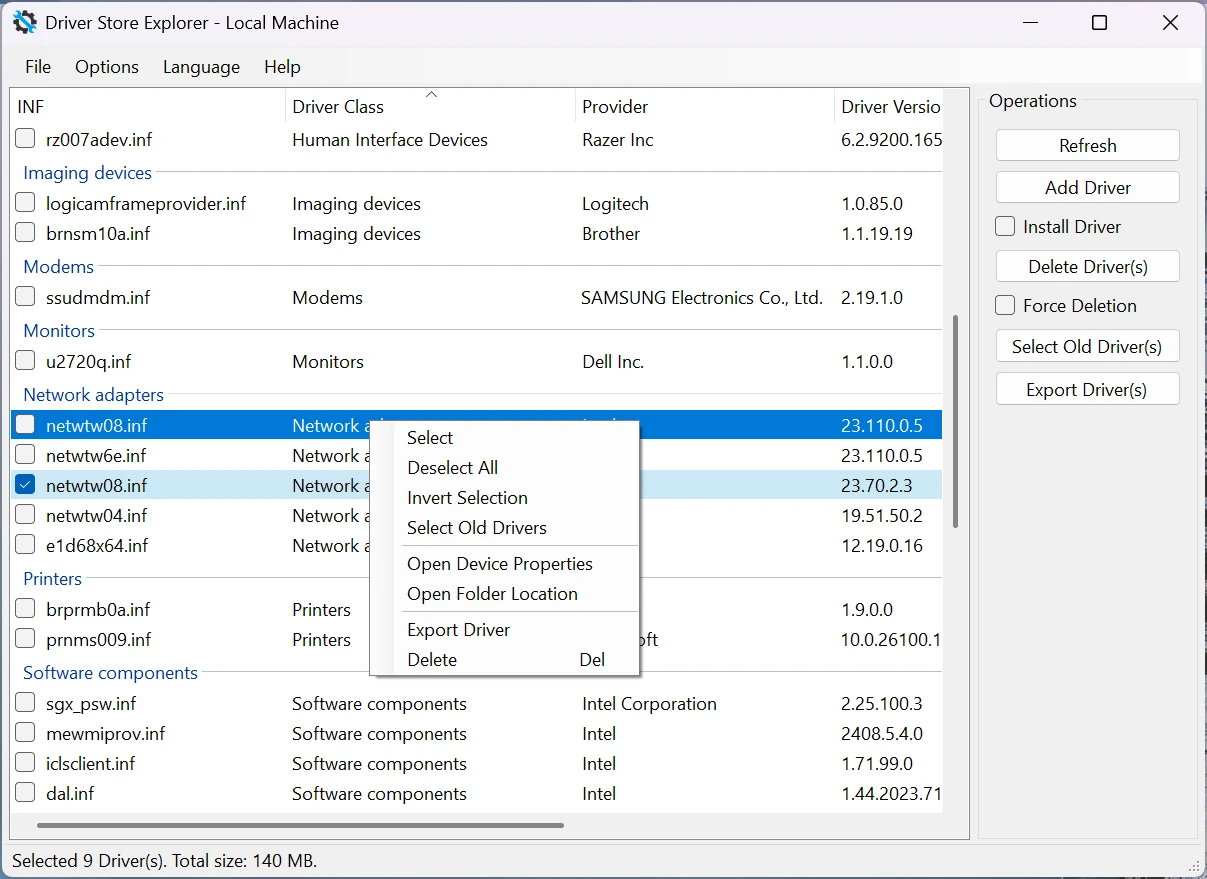
The first step is turning scattered information into a list. The project says it lists every third party driver package and shows detailed information such as size, version and date. With a sortable table, deciding which packages are large and which have been sitting there for years stops being guesswork.
Sorting by size is the useful habit here rather than sorting by name. A machine that has been through several generations of graphics driver often holds two or three hundred megabytes in packages it will never use again, while the small ones are not worth the risk of touching.
Back up before cleaning
Deleting is where this tool gets used most. The project says a single driver or several can be removed, and for a driver currently in use there is a force option. The export ability matters just as much: selected drivers, or all of them, can be backed up into an organised folder structure. The documentation repeats the instruction to back up first, and the order is worth following, because deleting the wrong driver can leave a device unresponsive.
If picking through the list one by one is too slow, a smart cleanup can start the work. The project says the feature identifies and selects old versions and unused drivers, and using that as a starting point and then reviewing each item is far less tedious than scanning a long list by eye.
It is worth being clear about what a forced delete means. The package leaves the store, and the device that was relying on it may need a restart before the system finds a replacement, or may keep working until the next start and then ask for the driver again. Having the export folder within reach is what turns that moment from an emergency into an inconvenience.
Ability | Official notes |
|---|---|
Browsing | list third party driver packages with size, version and date |
Deleting | one or many drivers, including a force option for those in use |
Exporting | back up selected or all drivers as a folder structure |
Smart cleanup | select old versions and unused drivers automatically |
Backend | native Windows API, DISM or PnPUtil, detected automatically |
Requirements, languages and licensing
There are a few preconditions. The stated requirements are Windows 7 or newer, .NET Framework 4.7.2 or newer, and starting the program with administrator rights, because what it changes is the driver store itself. The project also labels it plainly for advanced users and administrators; if the dependency between drivers is not something you are sure about, keeping an extra backup before starting is the sensible move.
On the interface, the project states support for more than twenty languages, including right to left layouts, so there is no obstacle to using it in most regions. The tool is published under GPL-2.0 in a public repository, so the source can be obtained and reviewed, which carries particular weight for a small utility that reaches directly into the operating system.
Releases come at a steady pace. The latest build adds a warning before unused drivers are selected, fixes failures at startup and during driver operations, and completes translations. For a tool of modest size, that rhythm suggests the author is still following the changes each system update brings.
When the job is cleaning a system drive, the safe habit is always to keep the backup within reach and then press delete.
A few suggestions. Start by deleting only the largest and oldest few items from the filtered result, and continue once the devices still behave. Restart after each batch and confirm nothing is wrong before the next round. Put the export somewhere other than the system drive, or the space just freed will be taken back soon enough.