
Autorun Organizer puts every startup entry on one page
Summary
The older a computer gets, the slower it boots, and the usual cause is a queue of autostart programs scattered across the registry, the startup folder and the task scheduler. Autorun Organizer collects them into a single list with publisher, path and load time, then lets you disable, delay or remove each one, with an online multi engine check for anything unfamiliar.
Recommend- Name
- Autorun Organizer
- Version
- 20260922
- Pricing
- Free
- Open source
- Proprietary
- Operating system
- Windows
- Updated
- 2026-10-06 20:36
When the boot drags, look at the startup list first
The longer a computer stays in service, the slower it tends to boot, and the cause is almost always a queue of autostart programs. They do not live in one tidy place. A few sit in the registry, a few more in the startup folder, and a good number hide inside scheduled tasks where nobody thinks to look. Each one was added by an installer that considered itself important, and together they turn a ten second boot into something you start and walk away from.
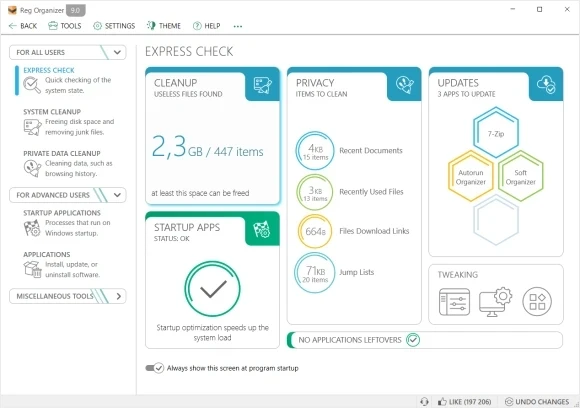
Autoruns from Sysinternals is the master tool in this territory, and nobody serious disputes that. Its information density, however, is not friendly to someone who just wants a faster boot. Rows of entries with technical identifiers and checkboxes scroll past faster than a newcomer can read them. Autorun Organizer fills exactly that gap. It gathers every autostart location into a single list, annotates each item with its publisher, file path and load time, and makes the question of who is holding up the boot a matter of looking rather than guessing. Every action is a button, and there is no need to understand the underlying mechanism to use it safely.
Disable, delay and investigate
The delayed loading option is the one people underuse. It keeps the program in the list and simply shifts when it runs, so the desktop appears quickly and the tray icon shows up a minute later when the disk has settled. For anything that checks for updates, syncs a folder or shows a status badge, that trade is almost always the right one. Nothing has to be given up and the boot stops paying for other people's priorities.
The way it handles an entry is more thoughtful than a simple switch. Something you are not sure about can be set to delayed loading, which lets it start after the busy moment of the boot has passed. Nothing is lost from the feature set and nothing is added to the wait. Something you are certain you do not need can be disabled or deleted outright, and a mistaken decision can be restored afterwards, which is the part that makes the tool safe to experiment with.
Security gets a neat touch as well. For an entry from an unfamiliar source, one click sends the file to a multi engine online check, so a suspicious program shows itself on the spot instead of being quietly kept because the name sounded harmless. Boot duration is tracked over time and drawn as a curve, so when the last few weeks got slower the trend line tells you which addition is responsible rather than leaving you to guess.
What makes the queue hard to clear by hand is that uninstalling rarely removes the autostart hook. A program is deleted, its folder disappears, and the registry value it wrote on the first run stays exactly where it was. Windows then spends part of every boot looking for a file that is no longer there, waiting for a timeout that nobody sees. Multiply that by a dozen entries collected over three years of installing and uninstalling and the delay stops being mysterious. A list that shows path and load time turns those ghosts into visible rows, which is more than half the fix.
A good system tool looks like this: it translates each link of a complicated mechanism into an option a person can understand. The boot speed comes back, and you also end up knowing what is actually installed on your own machine.
Practical advice follows from the design. Start with entries that are obviously unnecessary, the updaters for hardware you no longer own and the trial software that came with a printer. Antivirus and driver components should be left alone even when their names look cryptic, because the cost of disabling them lands elsewhere. For anything unfamiliar, check before acting, and the built in online scan makes that check a single click rather than a research project.
It is completely free, still updated, and runs across the Windows family. Running it once after a fresh system install has become a fixed ritual for a lot of long time users, and running it again on a machine that has been in service for three years is usually the cheapest speed upgrade available.