
AOMEI Partition Assistant 10.12: Grow the C Drive Without Reinstalling, or Move the Disk to an SSD
Version 10.12
Summary
When C runs short, AOMEI Partition Assistant 10.12 moves capacity from another partition to the system drive without reinstalling anything, and it can carry a whole system over to a new solid state disk. The free standard edition already covers merging, splitting and resizing.
Recommend- Name
- AOMEI Partition Assistant
- Version
- 10.12
- Open source
- Proprietary
- Operating system
- Windows
- Website
- https://www.disktool.cn/
- Updated
- 2026-11-06 23:00
AOMEI Partition Assistant 10.12: Grow the C Drive Without Reinstalling, or Move the Whole Disk to an SSD
Two or three years into a laptop, the capacity bar for the C drive turns from blue to red, and then Windows updates fail again and again while temporary files have nowhere to land. Usually only two paths remain: set aside half a day to reinstall the system, or repartition the disk. The first costs every program, every login state and every licence, all of them rebuilt from scratch. The second sounds more like a gamble, and what people fear is not the difficulty but whether the data survives a moved partition. AOMEI Partition Assistant takes the second path, and the site positions it as a free, professional tool for lossless partitioning. The build on offer is 10.12, the installer is 41.3MB, and the type is listed as free software.
Why the C drive runs out
It starts with a rule of the system. The disk management console built into Windows offers an extend volume command that can add capacity to a partition, with one hard precondition: the unallocated space being merged has to sit immediately to the right of the target partition. If D sits right after C, and the free capacity is hiding behind D, extend volume goes grey and refuses to be clicked. That is not a matter of technique, it is the system insisting on contiguity, absorbing space towards the right but never jumping across a partition to reach capacity further away.
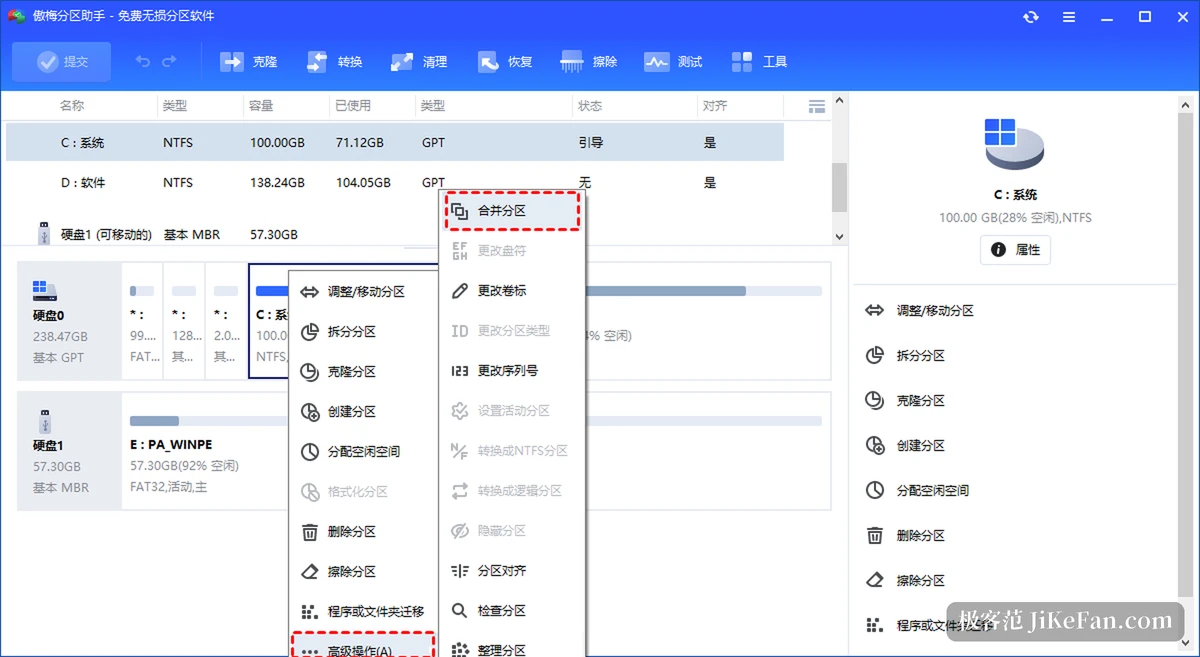
Going around that precondition means moving the partition first, so the unallocated space lands beside C before it is merged. Moving partitions is what the built in tools cannot do, and that is precisely why third party partition software exists. This one collects the operations into a right click menu, and the lower half of the main window draws the whole disk as blocks of colour, so which partition is large, which is small and where the empty space sits all read at a glance.
Handing spare capacity to the system drive
The easiest route is called allocate free space. Right click a partition that still has room, type the amount to give away in the dialog, pick the C drive as the receiver from the drop down, confirm, then return to the main window and press commit in the top left corner to read the pending list before pressing execute. The documentation stresses one point: this route is not limited by adjacency, and usable space from any partition on the same disk can go to the system drive. In other words, with D to the left of C and the free capacity sitting on E, the job still finishes in one pass.
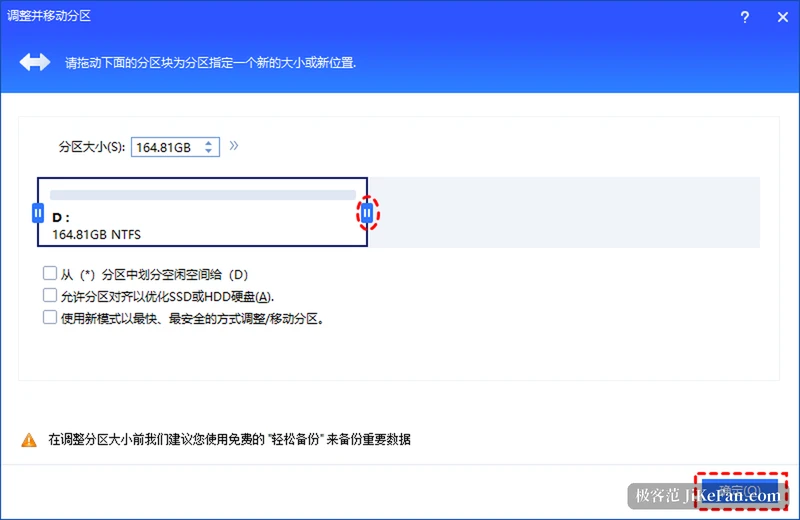
If moving data inside D is unwelcome, there is a more visible route. Right click D and choose resize move partition, drag the left boundary of the bar to the right so a stretch of unallocated space opens between C and D, then extend C once. Two routes, one destination. The first finishes in a single step, while the second adds a step but shows every change as it happens. While dragging, if the target partition lives on a solid state drive, tick the box allowing partition alignment to optimise the drive, so the new boundary lands in a 4K aligned position and read write performance does not suffer.
Why the commit step deserves its own paragraph
What partition work fears most is a slip that cannot be undone. The software is built around virtual operations: every adjustment is first recorded in a pending list, the main window only illustrates it, and pressing commit raises an execution preview that can still be cancelled. Only after execute is confirmed does the disk get touched. So D can be shrunk and the freed capacity merged into C in one commit and one execution, with no repeated reboots in between. As for the prompt asking for a restart, the explanation is that the running system and a mass of locked files sit on C, the desktop environment cannot relocate those sectors directly, and the software needs to restart into a trimmed PreOS or WinPE environment to finish the rearrangement, which counts as part of the normal flow.
Moving the whole disk to a solid state drive
The second half of the headline refers to system migration. Having bought a new SSD without wanting to reinstall, the usual approach is to move the existing system across whole, boot from the new disk, and find programs, registry and desktop exactly as they were. A wizard handles it: choose migrate OS from the clone entry on the left, confirm the notices, pick the target disk, adjust the capacity of the C drive after migration, which the documentation suggests should be at least 100GB, then commit and execute as before.
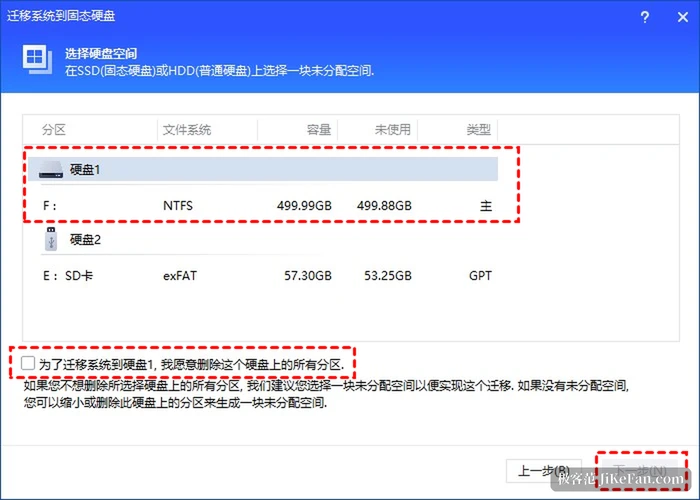
The step called select disk space in the wizard deserves a careful read. If the new disk already carries partitions, the software asks for a tick confirming that all partitions on this disk may be deleted. That is not a scare tactic, since migration really does overwrite the target. When the run finishes, the first boot entry in the firmware settings has to be switched to the new disk, and the wizard reminds you of that at the end. Worth stating plainly: the documentation points both the migration and the disk clone tutorials at the professional edition, and that capability is only complete there. The free standard edition covers the layer of daily operations, resizing, moving, merging, splitting, quick partitioning and lossless conversion between MBR and GPT, and growing the C drive falls inside it.
What changed in 10.12
Reading the official changelog, 10.12 is not a feature stacking release, and the changes concentrate on stability: resetting a Windows password succeeds more often, the disk space analyser window can be resized freely, and overall start up time was optimised. One fix bears directly on partition work, namely a 0x000000e error that could appear at boot after a system migration in some WinPE environments, plus a scan for partition recovery that could stall past ninety percent in certain setups. For anyone about to touch a partition table, fixes like that are worth more than a new button.
Where the free and professional editions divide
The edition breakdown differs slightly between the vendor sites, and the safer reading is this: the free standard edition covers most everyday needs of individual users, with resizing, moving, merging and splitting, quick partitioning, lossless MBR to GPT conversion and 4K alignment all included. It supports Windows 11, 10, 8.1, 8 and 7 plus Windows Server 2012, 2016, 2019 and 2022, and recognises up to 64 disks on one machine. The professional edition adds the hardware leaning abilities on top, migrating a system to an SSD, cloning a whole disk, converting dynamic disks and building bootable media. For a C drive that is full and needs more room, the free edition is enough.
Cutting into a disk, the risk never sits in the software. It sits in having no backup before starting. What makes this tool likeable is that it lays every step out, allows a change of mind and batches the work into one commit, but at the moment of execution the backup is still not optional, because data on a disk has no undo key.