
PixPin review: capture, long shots, pins, OCR and recording in one tool
Summary
PixPin puts capture, scrolling shots, pinning, OCR and screen recording inside one interface. A long page stitches into one image instead of five, a reference can be pinned on top of other windows, and text in a picture no longer has to be retyped. The base features are free.
Recommend- Name
- PixPin
- Version
- 3.6.6
- Open source
- Proprietary
- Operating system
- WindowsmacOS
- Website
- https://pixpin.cn/
- Updated
- 2026-11-06 23:00
The trouble starts after the shot
The capture key built into a system frames the picture, but the steps that follow are where the time goes: arrows need another drawing application, sensitive details need masking by hand, a long page needs several shots and then stitching, and any text inside the image has to be typed out again. Each of those costs a minute or two, and a dozen of them a day adds up to real time.
PixPin gathers those follow-up steps into one interface. Capture, scrolling capture, pinning, text recognition, screen recording and annotation all happen in the same tool, with no hopping between applications. It runs on Windows and macOS, it is free to use and needs no account, which suits anyone who only takes a screenshot now and then.
Long pages and chat logs in a single take
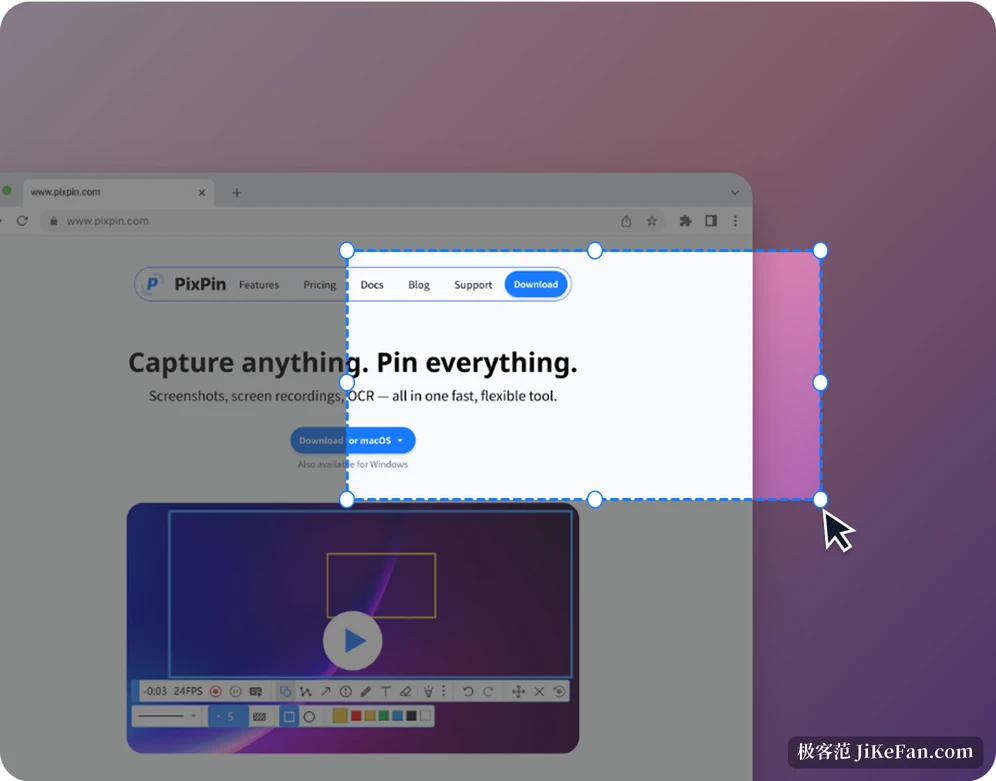
Scrolling capture answers the case where the content is taller than the screen. A web page, a chat log or a document scrolls into one complete image, with no five shots to align afterwards. This version adds cross-screen capture, so with several monitors side by side, content that runs past the boundary still lands in a single image, and the seams are handled cleanly.
Smart capture is the other convenience. It detects window edges and the elements inside an interface, and hovering snaps to the matching window or control instead of hunting for pixels. For interface images destined for a document, the difference in precision is plain to see.
Pinning: nail the reference to the screen
Pinning is the most recognisable part of PixPin. A capture can be fixed to the top layer, floating over other windows like a sticky note. Copying an order number across, checking one table against another, or editing a document while reading a reference no longer means switching windows, since a glance is enough. Text, colour values and files can be pinned as well, and pinning a colour on screen while writing code is a common habit.
The new version pins several window shots at once and adds an option to adjust a pin so other windows cannot cover it. Holding Ctrl and clicking selects several pins for one action, and double clicking text inside a pin toggles between selecting a line and selecting a paragraph. None of this is large, and all of it sits on paths walked many times a day.
Text inside a picture needs no retyping
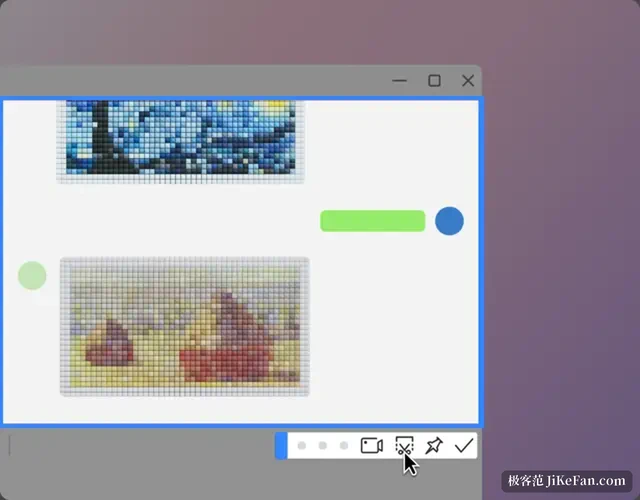
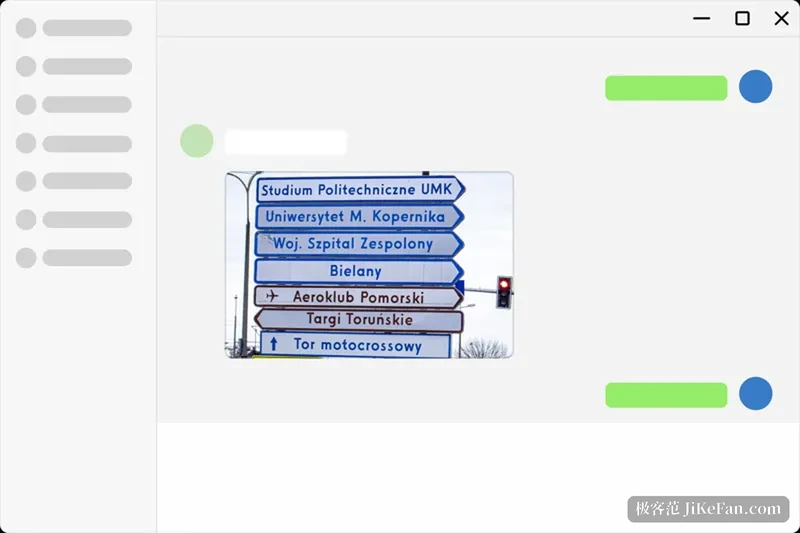
Text recognition comes in two layers. The light one extracts text during capture: drag a selection and the characters are on the clipboard, which is what data entry and error messages need, and the recognition window offers a font size, copying the image, and even turning the result into a speech file to download. The other layer treats a whole image as a document, rebuilding the layout and exporting to PDF, Markdown, Word or LaTeX, on Shift plus E. Table recognition has its own path and now saves to CSV, so a recognised table stays usable afterwards.
For anyone turning paper or scans into editable content, the second layer saves the work of laying it out again. For anyone who only wants a few lines out of a screenshot, the first layer is enough. Having both is what keeps the tool from being more than the job needs.
Annotation and recording
Annotation covers a lot of ground: rectangles, ellipses, arrows, text, numbering, mosaic, highlighter and polylines, with the new version adding a wavy style to polylines, Z and X keys to raise or lower a number quickly, and Tab to switch between a circle and a rectangle. Watermark annotations are fixed to the top layer and cannot be covered by mosaic or the eraser, a detail anyone producing support or teaching screenshots will notice.
Recording covers ordinary video and GIF, and can log key presses and mouse clicks at the same time, so in a software demo or a walkthrough the viewer sees exactly where each step lands. Quick recording has its own output location and starts faster. Version 3.6.6 fixes a memory leak during ordinary recording, making long sessions steadier, and also fixes several problems around shortcuts and the resume prompt.
How far the free tier goes
Basic capture, scrolling capture, annotation, pinning, recording and text recognition are all inside the free range and need no account. Membership mainly unlocks advanced work: global quick pin, where holding the Windows key and dragging captures and pins in one move, action recording, document recognition, table recognition and formula recognition. The test is direct. If the use stops at capture plus annotation, free is enough; if pictures have to become editable documents in bulk, or tutorials with recorded steps are a regular job, membership earns its place.
The edges deserve stating too. PixPin works on screen content and is not a photo retoucher, so complex design edits still belong to a professional tool. Too many pins eat screen space, and a small desktop calls for restraint. As for recording, it handles short clips and demonstrations well, while long high quality capture is not its main ground.
Put those pieces together and what PixPin answers is not whether a screenshot can be taken, but whether the chain of small moves afterwards can lose a few links. The value of a tool like this lies less in the length of its feature table than in whether the dozen moves made every day all flow.